
1. Einleitung
Welcome to the Xtrfy M42 RGB Ultra-Light Gaming Mouse user manual. The Xtrfy M42 is engineered for high performance and comfort, featuring an ultra-light design, state-of-the-art components, and an adjustable symmetrical shape. This manual will guide you through the setup, operation, customization, and maintenance of your new gaming mouse.

Figure 1.1: Xtrfy M42 RGB Ultra-Light Gaming Mouse (Miami Blue edition)
2. Packungsinhalt
Prüfen Sie, ob alle Artikel in Ihrer Produktverpackung enthalten sind:
- Xtrfy M42 RGB Ultra-Light Gaming Mouse
- Two sizes of interchangeable mouse shells
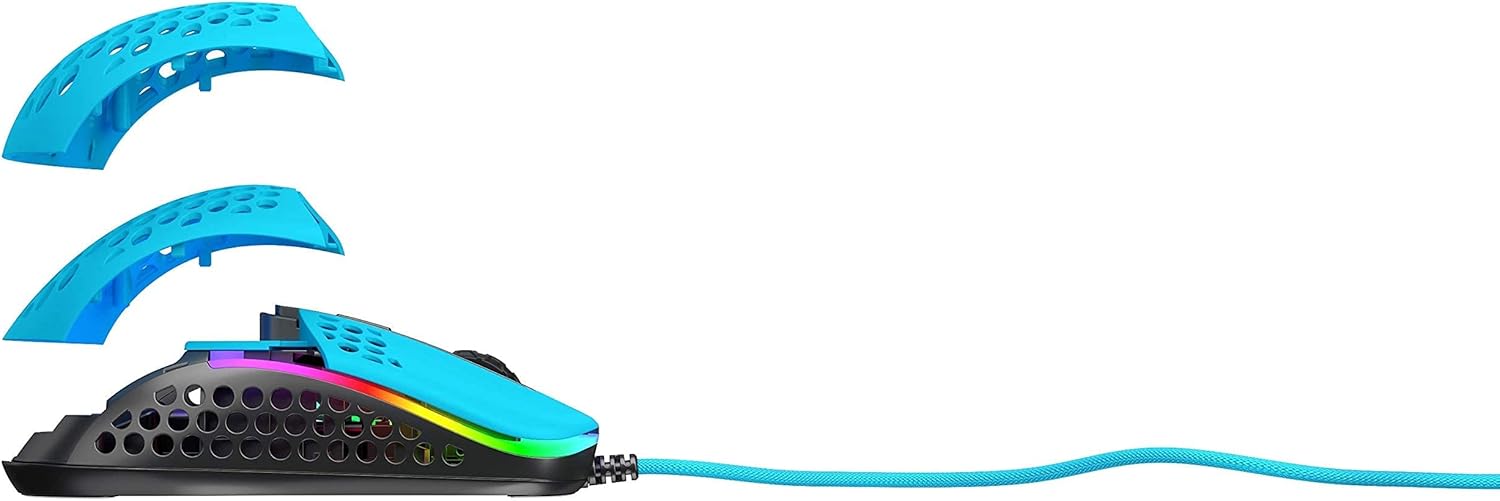
Figure 2.1: Xtrfy M42 with interchangeable top shells
3. Einrichtung
Follow these steps to set up your Xtrfy M42 gaming mouse:
- Schließen Sie die Maus an: Plug the USB connector of the Xtrfy M42 mouse into an available USB port on your computer.
- Treiberinstallation: The mouse is plug-and-play and typically does not require additional driver software. Your operating system will automatically detect and install the necessary drivers.
- Erster Test: Move the mouse and click the buttons to ensure it is functioning correctly.

Figure 3.1: Xtrfy M42 connected via USB cable
4. Bedienungsanleitung
The Xtrfy M42 offers various functions for an optimized gaming experience.
4.1 Grundfunktionen
- Links Klick: Primäre Aktionsschaltfläche.
- Rechtsklick: Sekundäre Aktionsschaltfläche.
- Scrollrad: Scrollt den Inhalt nach oben oder unten. Kann auch per Klick mit der mittleren Maustaste betätigt werden.
- Seitentasten: Typically used for forward/backward navigation or custom in-game commands.
4.2 DPI-Anpassung
The Xtrfy M42 features a Pixart 3389 sensor, allowing for precise DPI (Dots Per Inch) adjustments. The DPI button, usually located behind the scroll wheel, cycles through preset DPI levels. Refer to the Xtrfy website for specific DPI steps and corresponding LED indicators.
4.3 RGB-Beleuchtung
The mouse features customizable RGB lighting. All settings for LED effects, brightness, and color selection are controlled directly on the mouse, without the need for software. Consult the Xtrfy website or product packaging for specific button combinations to adjust RGB settings.
4.4 Umfragequote
The polling rate, which determines how often the mouse reports its position to the computer, can typically be adjusted on gaming mice. Information on adjusting the polling rate for the M42 can be found on the official Xtrfy support page.
5. Anpassung
The Xtrfy M42 is designed with an adjustable symmetrical shape to accommodate various grip styles (palm, claw, fingertip) and hand sizes. This is achieved through interchangeable parts.
5.1 Changing Mouse Shells
The mouse comes with two different sized top shells. To change the shell:
- Gently detach the currently installed top shell from the mouse body.
- Align the desired new top shell with the mouse body and press it firmly until it clicks into place.
This allows you to modify the mouse's hump height and overall feel for optimal comfort and control.
Figure 5.1: Illustration of interchangeable mouse shells
6. Wartung
Proper maintenance ensures the longevity and performance of your Xtrfy M42 gaming mouse.
6.1 Reinigung der Maus
- Trennen Sie die Maus vor der Reinigung von Ihrem Computer.
- Verwenden Sie ein weiches, trockenes, fusselfreies Tuch, um die Oberfläche der Maus abzuwischen.
- Bei hartnäckigen Verschmutzungen leicht dampBefeuchten Sie das Tuch mit Wasser oder einer milden Reinigungslösung. Vermeiden Sie aggressive Chemikalien.
- Use compressed air to clear dust from the holes in the shell and around buttons.
6.2 Caring for PTFE Skates
The M42 features 100% PTFE skates for smooth glide. Keep the mouse pad and the underside of the mouse clean to prevent debris from accumulating on the skates, which can affect glide performance. Avoid scratching or damaging the skates.

Figure 6.1: Underside of the Xtrfy M42 mouse, highlighting the PTFE skates
7. Fehlerbehebung
If you encounter issues with your Xtrfy M42 mouse, try the following solutions:
- Maus reagiert nicht:
- Stellen Sie sicher, dass das USB-Kabel fest mit Ihrem Computer verbunden ist.
- Versuchen Sie, die Maus an einen anderen USB-Anschluss anzuschließen.
- Starten Sie Ihren Computer neu.
- Tracking Issues (Jittery or No Movement):
- Reinigen Sie den optischen Sensor an der Unterseite der Maus mit einem weichen, trockenen Tuch.
- Verwenden Sie die Maus auf einer geeigneten Oberfläche (z. B. einem Mauspad). Vermeiden Sie stark reflektierende oder transparente Oberflächen.
- RGB Illumination Not Working:
- Check if the RGB lighting has been turned off via the on-mouse controls.
- Stellen Sie sicher, dass die Maus ordnungsgemäß angeschlossen ist und mit Strom versorgt wird.
For further assistance, refer to the Xtrfy official support resources.
8. Spezifikationen
| Besonderheit | Detail |
|---|---|
| Modellnummer | M42 |
| Sensor | Pixart 3389 Optical |
| Schalter | Pro player-optimized, rated for 20 million clicks |
| Gewicht | Ungefähr 2.08 Unzen (59 Gramm) |
| Abmessungen (L x B x H) | 4.65 x 2.48 x 1.5 Zoll (11.8 x 6.3 x 3.8 cm) |
| Konnektivität | USB |
| Schlittschuhe | 100% PTFE with rounded edges |
| Beleuchtung | Anpassbare RGB-Beleuchtung |
| Form | Adjustable Symmetrical (with interchangeable parts) |
9. Garantie und Support
The Xtrfy M42 RGB Ultra-Light Gaming Mouse is covered by a manufacturer's warranty. For detailed warranty information, including terms and conditions, please refer to the warranty card included with your product or visit the official Xtrfy webWebsite.
For technical support, frequently asked questions, or to download the latest firmware (if applicable), please visit the Xtrfy support page:


