
1. Einleitung
This manual provides essential information for the installation, operation, maintenance, and troubleshooting of your MAXSUN GeForce RTX 2060 iCraft 6GB graphics card. Please read this manual thoroughly before installing and using the product to ensure proper functionality and safety.
2. Sicherheitshinweise
- Vor dem Einbau oder Ausbau von Komponenten trennen Sie den Computer immer vom Stromnetz.
- Um Schäden an Bauteilen durch elektrostatische Entladung (ESD) zu vermeiden, tragen Sie ein antistatisches Armband oder berühren Sie häufig einen geerdeten Metallgegenstand.
- Fassen Sie die Grafikkarte an den Kanten an, um eine Berührung empfindlicher Bauteile zu vermeiden.
- Sorgen Sie für ausreichende Belüftung im Computergehäuse, um eine Überhitzung zu vermeiden.
- Do not attempt to repair the graphics card yourself. Refer to qualified service personnel.
3. Packungsinhalt
Überprüfen Sie, ob Ihr Paket die folgenden Artikel enthält:
- 1 x MAXSUN GeForce RTX 2060 iCraft 6GB Graphics Card
Falls Artikel fehlen oder beschädigt sind, wenden Sie sich bitte an Ihren Händler.
4. Produktüberschreitungview
The MAXSUN GeForce RTX 2060 iCraft 6GB graphics card is designed for gaming PCs, featuring NVIDIA's Turing GPU architecture, 6GB GDDR6 memory, and a 192-bit memory interface. It includes a triple-fan cooling system and RGB lighting.

Abbildung 4.1: Vorderseite view of the MAXSUN GeForce RTX 2060 iCraft 6GB graphics card, showing the three cooling fans and RGB lighting elements.

Abbildung 4.2: Schräg view of the graphics card, highlighting its robust design and cooling solution.

Abbildung 4.3: Rückseite view der Grafikkarte, zeigenasing the alloy backplate designed for structural integrity and heat dissipation.

Figure 4.4: Display output ports on the graphics card, including DisplayPort (DP), HDMI, and DVI connectors.
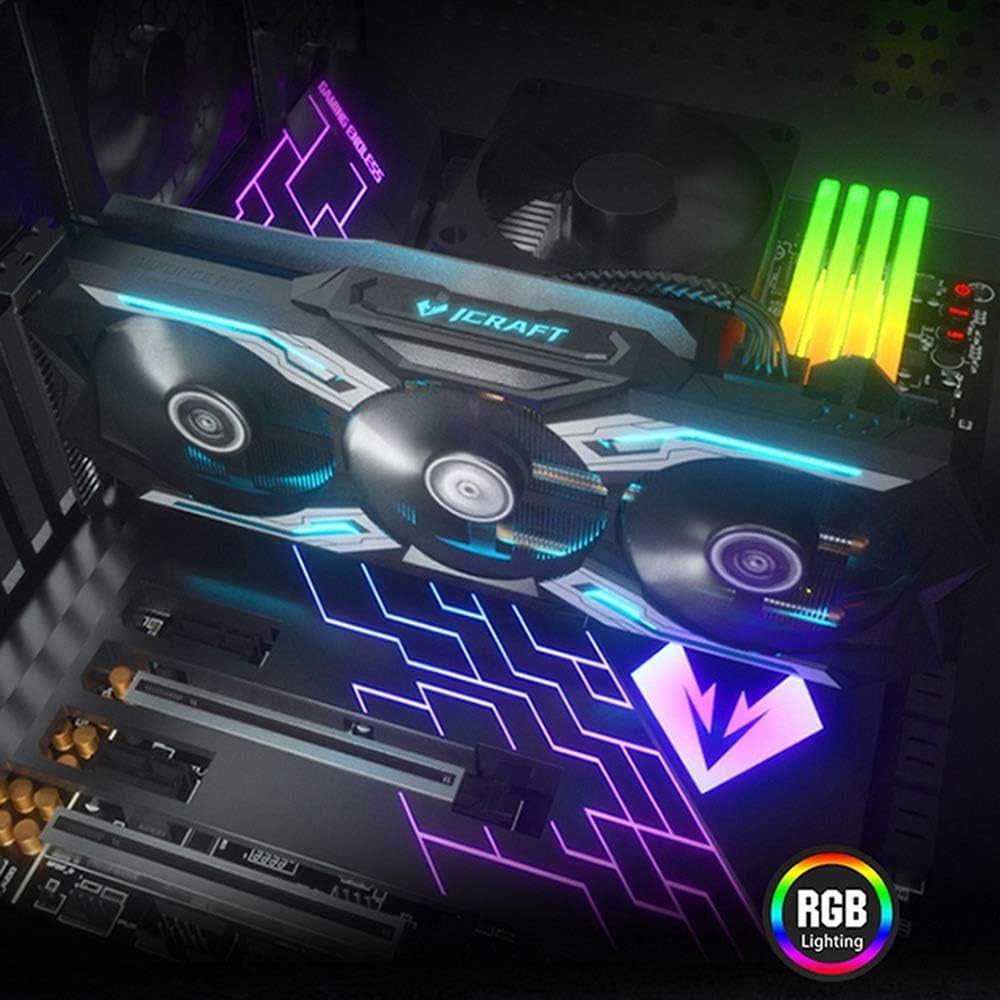
Figure 4.5: The graphics card installed in a PC case, demonstrating its integrated RGB lighting.
Hauptmerkmale:
- Turing GPU Architecture: Provides enhanced performance for real-time ray tracing and AI capabilities.
- iCraft Series RGB Lighting: Features auto RGB lighting for aesthetic customization within your PC build.
- Triple Fan Cooling: Equipped with 3 MAXSUN Blade II hydro-mechanics low noise fans for efficient heat dissipation.
- Alloy Backplate & Radiator: Includes an alloy backplate and a high-end fin technology radiator with 5 heat pipes for improved thermal performance.
- Leistung: Boost Clock up to 1680 MHz, 6GB GDDR6 memory, 192-bit memory interface.
5. Einrichtung und Installation
5.1 Vorinstallation
- Ausschalten: Schalten Sie Ihren Computer aus und trennen Sie das Netzkabel von der Steckdose.
- Fall eröffnen: Öffnen Sie das Computergehäuse, um Zugang zum Motherboard und den PCIe-Steckplätzen zu erhalten.
- Statischer Schutz: Ground yourself by touching a metal part of the computer chassis or wearing an anti-static wrist strap to prevent ESD.
- Alte Karte entfernen (falls zutreffend): If replacing an existing graphics card, carefully remove it by unscrewing its bracket and releasing the PCIe retention clip.
5.2 Physische Installation
- PCIe-Steckplatz finden: Identify an available PCIe x16 slot on your motherboard. This is typically the topmost long slot.
- Grafikkarte einlegen: Align the graphics card with the PCIe slot and press down firmly until it is securely seated. The PCIe retention clip should click into place.
- Sichere Karte: Befestigen Sie die Grafikkarte mit Schrauben am Computergehäuse.
- Strom anschließen: Connect the required PCIe power cables from your power supply to the graphics card. This model typically requires one 8-pin PCIe power connector. Ensure all connections are firm.
- Fall abschließen: Schließen Sie das Computergehäuse und schließen Sie das Netzkabel wieder an.
5.3 Treiberinstallation
- Einschalten: Connect your monitor to one of the graphics card's output ports (HDMI, DisplayPort, or DVI) and power on your computer.
- Treiber herunterladen: Navigate to the official NVIDIA webSeite? ˅ (www.nvidia.com/drivers) to download the latest drivers for the GeForce RTX 2060.
- Treiber installieren: Run the downloaded driver installer and follow the on-screen instructions. A restart may be required after installation.
Video 5.1: An official video demonstrating the MAXSUN Nvidia Geforce RTX 2060 iCraft 6GB graphics card, showcasinDieses Video bietet einen visuellen Überblick über Design und Funktionen.view des Produkts.
6. Bedienungsanleitung
6.1 Anschließen von Displays
Connect your monitor(s) to the available display output ports on the graphics card (HDMI, DisplayPort, DVI). The card supports multiple displays simultaneously. Ensure your display cables are securely connected.
6.2 RGB-Beleuchtung
The MAXSUN iCraft series graphics card features automatic RGB lighting. The lighting effects are pre-programmed and activate upon system power-on. Please note that dedicated software for controlling the RGB lighting is not typically provided for this model, and it may not be compatible with third-party motherboard RGB software.
7. Wartung
7.1 Reinigung
- Frequenz: Clean your graphics card periodically, especially if you notice dust accumulation on the fans or heatsink.
- Verfahren: Disconnect power from your PC. Use compressed air to gently blow dust out of the heatsink fins and fan blades. Hold the fan blades in place while blowing to prevent over-spinning and potential damage.
- Vermeiden: Do not use liquid cleaners or abrasive materials on the graphics card.
7.2 Lüfterwartung
The Blade II hydro-mechanics fans are designed for durability. If you notice unusual fan noise or reduced cooling performance, ensure there are no obstructions to the fan blades. Do not attempt to lubricate or disassemble the fans.
8. Fehlerbehebung
8.1 Keine Displayausgabe
- Stellen Sie sicher, dass das Monitorkabel sowohl mit der Grafikkarte als auch mit dem Monitor fest verbunden ist.
- Verify that the graphics card is fully seated in the PCIe slot and that all power connectors are properly attached.
- Prüfen Sie, ob Ihr Monitor auf die richtige Eingangsquelle eingestellt ist.
- Versuchen Sie gegebenenfalls ein anderes Displaykabel oder einen anderen Monitor.
8.2 Performance Issues or Crashes
- Ensure you have the latest NVIDIA drivers installed.
- Monitor your GPU temperatures using third-party software. High temperatures can lead to throttling or instability. Ensure proper case airflow.
- Verify your power supply unit (PSU) meets the minimum wattage requirements for your system, including the graphics card.
- Check for any conflicting software or background applications that might be consuming system resources.
8.3 Lüftergeräusch
- Stellen Sie sicher, dass keine Kabel oder Hindernisse die Lüfterflügel behindern.
- Clean any dust accumulation from the fans and heatsink.
- Fan speed will increase under load to maintain optimal temperatures. This is normal operation.
9. Spezifikationen
| Besonderheit | Spezifikation |
|---|---|
| Grafik-Coprozessor | NVIDIA GeForce RTX 2060 |
| Marke | maxsun |
| Grafikspeichergröße | 6 GB GDDR6 |
| Videoausgangsschnittstelle | DVI, DisplayPort, HDMI |
| Hersteller von Grafikprozessoren | NVIDIA |
| Technische Daten | 12.05 x 4.92 x 1.61 Zoll |
| Artikelgewicht | 3.19 Pfund |
| Modellnummer | NVIDIA Geforce RTX 2060 iCraft 6G |
10. Garantie und Support
For warranty information and technical support, please refer to the documentation provided with your purchase or visit the official MAXSUN webBewahren Sie Ihren Kaufbeleg für Garantieansprüche auf.