
Einführung
This manual provides instructions for the MARVO GT-80 Wireless Gamepad. It covers setup, operation, maintenance, and troubleshooting for optimal use with compatible devices including PlayStation 4, PC, Android, and iOS.
Packungsinhalt
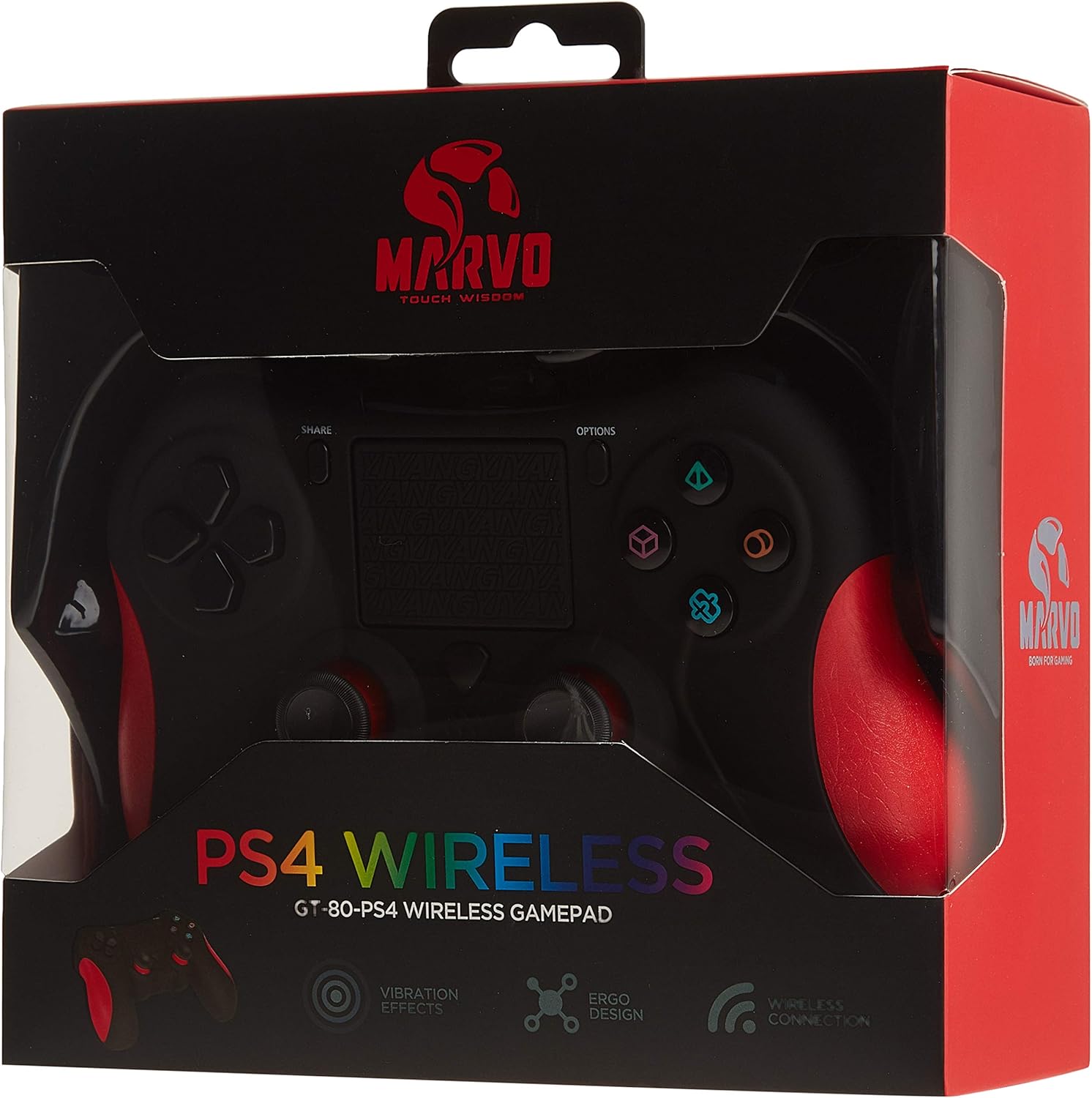
Image: The MARVO GT-80 Wireless Gamepad in its retail packaging.
- MARVO GT-80 Wireless-Gamepad
- USB-Ladekabel (80 cm)
- Benutzerhandbuch (dieses Dokument)
Produkteigenschaften
- Wireless connectivity via Bluetooth V4.2
- Wired connectivity via USB cable
- Built-in rechargeable battery (600 mAh capacity)
- Double vibration feedback for immersive gaming
- Integrated 6-axis sensor (3D-Sensor + G-Sensor)
- Large LED light bar
- Built-in loudspeaker function
- Unterstützung für 3.5-mm-Stereo-Kopfhörerbuchse
- Touchpad-Steuerung
- 19 programmierbare Tasten
Aufstellen
1. Aufladen des Gamepads
Before first use, fully charge the gamepad. Connect the supplied USB cable to the Micro USB port on the gamepad and the other end to a USB power source (e.g., console, PC, USB wall adapter).

Image: The MARVO GT-80 Gamepad connected to its USB charging cable.
The LED light bar will indicate charging status. A full charge typically takes approximately 2-3 hours.
2. Verbindung zu PlayStation 4 (PS4) herstellen
- Schalten Sie Ihre PS4-Konsole ein.
- Connect the gamepad to the PS4 console using the USB cable.
- Press the "PS" button on the gamepad. The gamepad will pair with the console.
- Sobald die Kopplung hergestellt ist, kann das USB-Kabel für drahtloses Spielen getrennt werden.
3. Verbindung zum PC (Windows)
The gamepad supports both D-input and X-input modes for PC.
Kabelverbindung:
Connect the gamepad to your PC using the USB cable. The PC should automatically detect and install the necessary drivers. The gamepad will operate in D-input mode by default. Some games may require X-input mode, which can often be toggled via specific button combinations or software.
Bluetooth Verbindung:
- Stellen Sie sicher, dass Bluetooth auf Ihrem PC aktiviert ist.
- Put the gamepad into pairing mode (specific button combination, usually "SHARE" + "PS" button until LED flashes rapidly).
- Öffnen Sie auf Ihrem PC die Bluetooth-Einstellungen und suchen Sie nach neuen Geräten.
- Select "Wireless Controller" or "GT-80" from the list of available devices to pair.
4. Connecting to Android/iOS Devices
- Stellen Sie sicher, dass Bluetooth auf Ihrem Android- oder iOS-Gerät aktiviert ist.
- Put the gamepad into pairing mode (specific button combination, usually "SHARE" + "PS" button until LED flashes rapidly).
- Öffnen Sie auf Ihrem Mobilgerät die Bluetooth-Einstellungen und suchen Sie nach neuen Geräten.
- Select "Wireless Controller" or "GT-80" from the list of available devices to pair.
Bedienungsanleitung
Tastenlayout und Funktionen

Bild: Vorderseite view of the MARVO GT-80 Wireless Gamepad.

Bild: Rückseite view of the MARVO GT-80 Wireless Gamepad, highlighting the M-buttons.
- Direction Buttons (D-Pad): Used for directional input.
- Analogsticks: Two analog sticks for precise 3D movement and camera control.
- Aktionsschaltflächen (Dreieck, Kreis, Kreuz, Quadrat): Primäre Aktionsschaltflächen.
- Teilen-Schaltfläche: Wird zum Teilen von Gameplay-Inhalten verwendet (PS4).
- OPTIONEN-Schaltfläche: Zugriff auf Spielmenüs oder Systemoptionen.
- PS-Taste: Power on/off the gamepad, access PS4 system menu.
- L1/R1-Tasten: Schulterknöpfe.
- L2/R2-Trigger: Analoge Trigger.
- Touchpad: Multi-touch input surface.
- Tasten M1, M2, M3, M4: Programmable back buttons (refer to device-specific instructions for programming).
Sonderfunktionen
- Double Vibration: Bietet haptisches Feedback während des Spiels.
- 6-Achsen-Sensor: Includes a 3D-Sensor and G-Sensor for motion-controlled gameplay.
- Lautsprecher: Integrated speaker for enhanced audio effects (PS4).
- Kopfhörerfunktion: Connect a 3.5mm stereo headset for audio output and microphone input (PS4).
Wartung
Reinigung
Wipe the gamepad with a soft, dry cloth. Do not use harsh chemicals or abrasive cleaners. Avoid getting moisture into openings.
Lagerung
Store the gamepad in a cool, dry place away from direct sunlight and extreme temperatures. Avoid placing heavy objects on the gamepad.
Fehlerbehebung
Gamepad Does Not Power On
- Ensure the gamepad is fully charged. Connect it to a power source using the USB cable.
- Drücken Sie die PS-Taste, um zu versuchen, das Gerät einzuschalten.
Verbindungsprobleme
- Kabellos: Ensure Bluetooth is enabled on your device and the gamepad is in pairing mode. Try re-pairing the device.
- Verdrahtet: Ensure the USB cable is securely connected to both the gamepad and the device. Try a different USB port or cable.
- PS4: If issues persist, try resetting the gamepad (a small reset button is usually located on the back, requiring a pin to press).
Tasten oder Joysticks reagieren nicht
- Stellen Sie sicher, dass das Gamepad ordnungsgemäß angeschlossen und eingeschaltet ist.
- Test the gamepad with another game or application to rule out software issues.
- If possible, try resetting the gamepad.
Vibration funktioniert nicht
- Überprüfen Sie die Spieleinstellungen, um sicherzustellen, dass die Vibrationsrückmeldung aktiviert ist.
- Stellen Sie sicher, dass das Gamepad vollständig aufgeladen ist.
Technische Daten

Abbildung: Technische Daten, wie sie auf der Produktverpackung aufgedruckt sind.
| Besonderheit | Detail |
|---|---|
| Modell | GT-80 |
| Konnektivität | Wireless (Bluetooth V4.2), Wired (USB cable) |
| Schaltflächen | 19 |
| Batteriekapazität | 600 mA |
| Lautsprecher | 6/8Ω-1W |
| Schnittstelle | EXT-Unterstützung, 3.5-mm-Klinke |
| Kompatibilität | PS4, PC (D-input & X-input), Android, iOS |
| Bewegungssensor | 3D-Sensor + G-Sensor |
| Länge des Micro-USB-Kabels | 80 cm |
| Maße | 40.49 x 9.5 x 9.5 cm |
| Gewicht | 310 g |
Garantie und Support
For warranty information and technical support, please refer to the documentation provided with your purchase or contact MARVO customer service directly. Keep your proof of purchase for warranty claims.