
VENZ R4040-V2
VENZ Indoor-Kamera R4040-V2 Benutzerhandbuch
Model: R4040-V2 | Brand: VENZ
Produkt überview
The VENZ Indoor Camera R4040-V2 is a 1080P HD home security camera designed for indoor use. It features 360° pan-tilt-zoom (PTZ) capabilities, two-way audio, motion detection, and night vision, making it suitable for monitoring babies, pets, or general home security.
Hauptmerkmale
- 1080P HD-Auflösung: Provides clear and smooth video.
- 360°-PTZ-Funktionalität: Offers 360° horizontal rotation and 104° vertical view für eine umfassende Berichterstattung.
- Zweiwege-Audio: Eingebautes Mikrofon und Lautsprecher zur Kommunikation.
- Bewegungserkennung und -verfolgung: Sends instant alerts and tracks detected movement.
- Nachtsicht: IR LEDs provide clear vision up to 28 feet in low light.
- Mehrere Speicheroptionen: Supports cloud storage and up to 128GB Micro SD card (not included).
- Kompatibilität mit Sprachsteuerung: Works with Echo Show/Spot/Fire TV and Google Nest Hub/Chromecast.
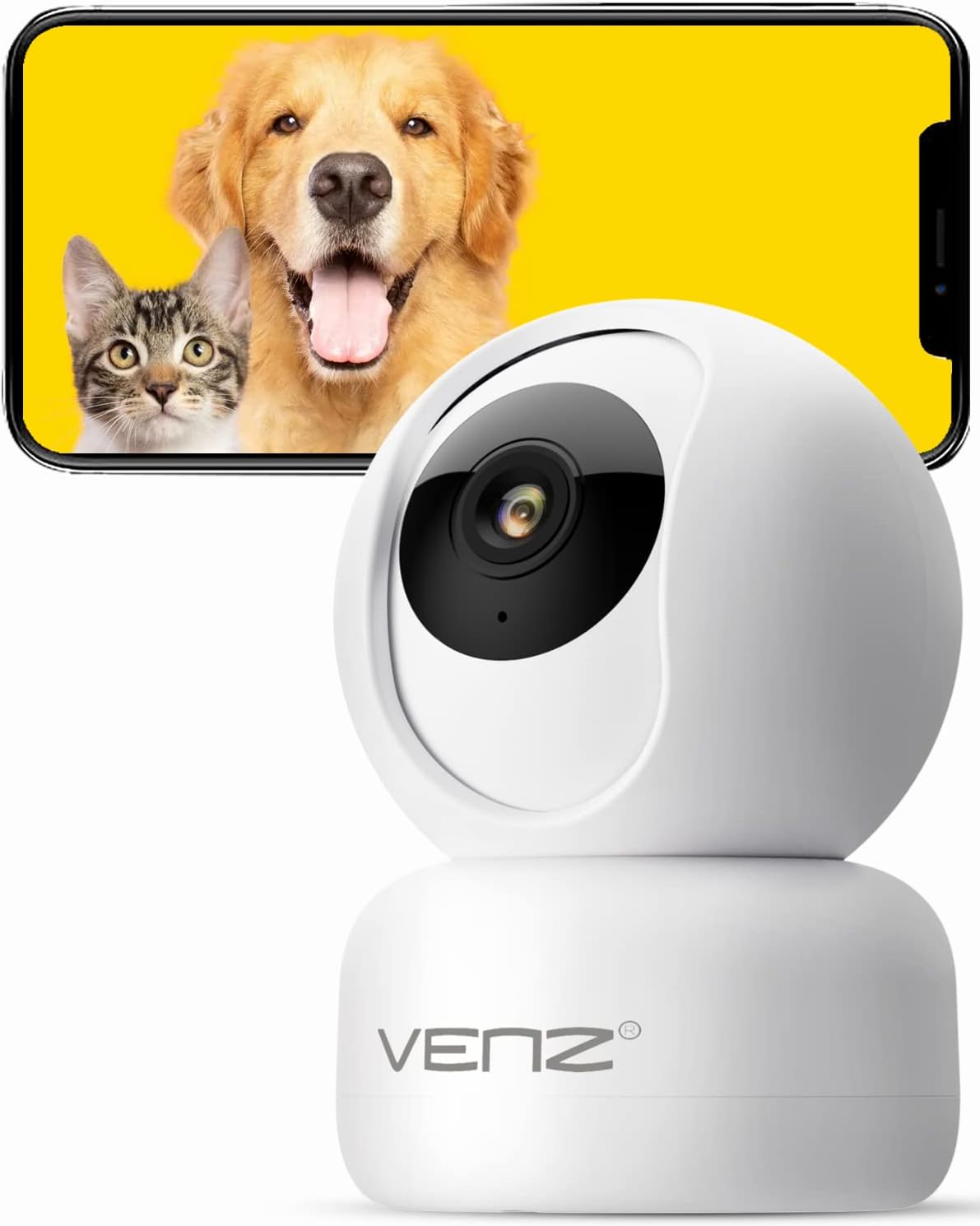
Image: The VENZ Indoor Camera R4040-V2, a white dome-shaped camera, shown next to a smartphone displaying live feed of a dog and a cat, illustrating its use for pet monitoring.
Lieferumfang
Vergewissern Sie sich vor der Installation, dass alle Komponenten vorhanden sind.
- Intelligente PTZ-Kamera x 1
- USB-Kabel x 1
- Benutzerhandbuch x 1
- Montagehalterung x 1
- Adapter x 1
- Schraubbeutel x 1
- Gestanzter Aufkleber x 1
- Reset-Pin x 1
Installationshandbuch
1. Einschalten der Kamera
- Connect the provided USB cable to the camera's power port.
- Plug the USB cable into the adapter.
- Plug the adapter into a standard electrical outlet (DC 5V).
- Warten Sie, bis die Kontrollleuchte der Kamera blinkt. Dies signalisiert, dass die Kamera bereit für die Einrichtung ist.
2. App-Installation und Kontoerstellung
The VENZ Indoor Camera operates via the Woox Home App.
- Download the "Woox Home" app from the Google Play Store or Apple App Store.
- Öffne die App und registriere dich für ein neues Konto, falls du noch keines hast, oder melde dich mit deinen bestehenden Zugangsdaten an.

Image: The Woox Home App logo, indicating compatibility with Amazon Alexa and Google Assistant, and showing the app interface on a smartphone and a smart display.
3. Hinzufügen der Kamera zur App
- In the Woox Home app, tap the "+" icon to add a new device.
- Select "Camera" or "Security Camera" from the device list.
- Follow the on-screen instructions to connect the camera to your 2.4GHz Wi-Fi network. Ensure your Wi-Fi password is correct.
- The app will display a QR code. Position your camera to scan this QR code from your phone screen. Hold the phone approximately 6-8 inches (15-20 cm) from the camera lens.
- Once the camera successfully scans the QR code, it will emit a confirmation sound. Tap "I heard a prompt" in the app.
- The camera will then connect to your Wi-Fi network. Once connected, you can name your camera and begin using it.

Image: A hand holding a smartphone displaying a QR code, with the VENZ Indoor Camera positioned to scan it, illustrating the quick setup process.
4. Montage der Kamera (optional)
The camera can be placed on a flat surface or mounted to a wall or ceiling using the included bracket.
- Wählen Sie einen geeigneten Montageort, der eine klare Sicht bietet. view und befindet sich in WLAN-Reichweite.
- Use the punched sticker to mark the drilling positions on the wall/ceiling.
- Bohren Sie Löcher und setzen Sie die Wandanker ein.
- Befestigen Sie die Montagehalterung mit den mitgelieferten Schrauben an der Wand/Decke.
- Secure the camera onto the mounting bracket by twisting it into place.
Bedienung der Kamera
Live View und PTZ-Steuerung
- Öffnen Sie die Woox Home App und wählen Sie Ihre Kamera aus der Geräteliste aus.
- Der Live-Videostream wird angezeigt.
- Use the on-screen joystick or directional arrows to pan (rotate horizontally 360°) and tilt (rotate vertically 104°) the camera lens.
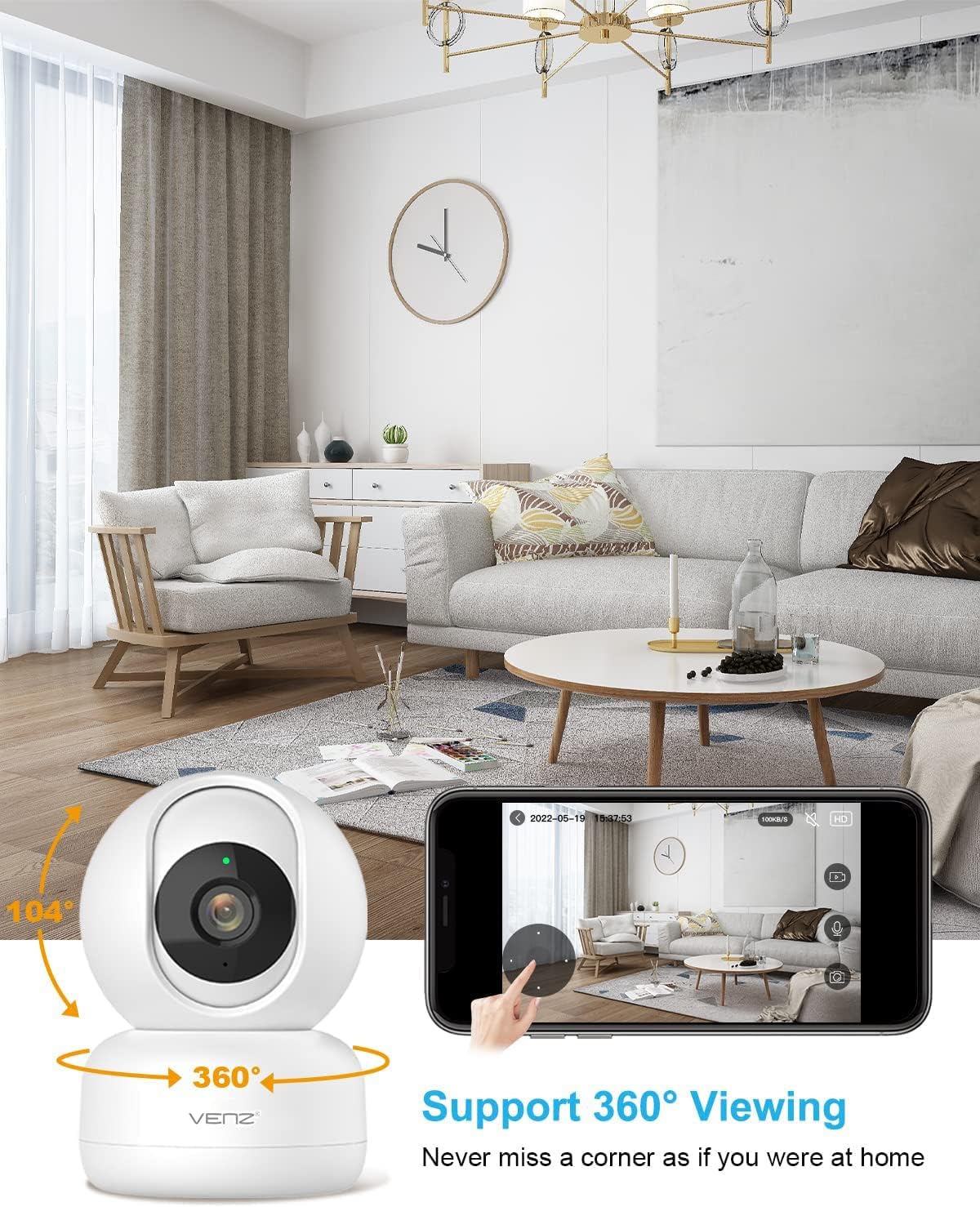
Image: The VENZ Indoor Camera with arrows indicating its 360-degree horizontal rotation and 104-degree vertical tilt capabilities, alongside a smartphone displaying the live view Schnittstelle.
Zwei-Wege-Audio
- Während im Leben viewTippen Sie auf das Mikrofonsymbol in der App, um über die Kamera zu sprechen.
- Tippen Sie auf das Lautsprechersymbol, um Audio aus der Umgebung der Kamera zu hören.

Image: Illustrations showing a woman speaking into her phone and a child interacting with a dog near the camera, demonstrating the two-way audio communication feature.
Bewegungserkennung und -verfolgung
- Navigate to the camera settings within the Woox Home app.
- Enable "Motion Detection" to receive instant alerts on your phone when movement is detected.
- Activate "Motion Tracking" for the camera to automatically follow and keep the detected subject within its field of view.
- Adjust sensitivity levels and set activity areas as needed.

Image: A child and an adult entering a room, with the camera's motion tracking feature highlighted by red boxes, and a smartphone displaying a "Motion Tracking Detection" notification from the Woox Home app.

Image: Two cats in a living room, with one jumping and the other sitting, demonstrating the camera's motion tracking capability by highlighting the subjects with yellow crosses, and a smartphone showing real-time motion detection notifications.
Nachtsicht
- Bei schlechten Lichtverhältnissen wechselt die Kamera automatisch in den Nachtsichtmodus.
- Infrared LEDs provide clear black-and-white video up to 28 feet (8.5 meters).
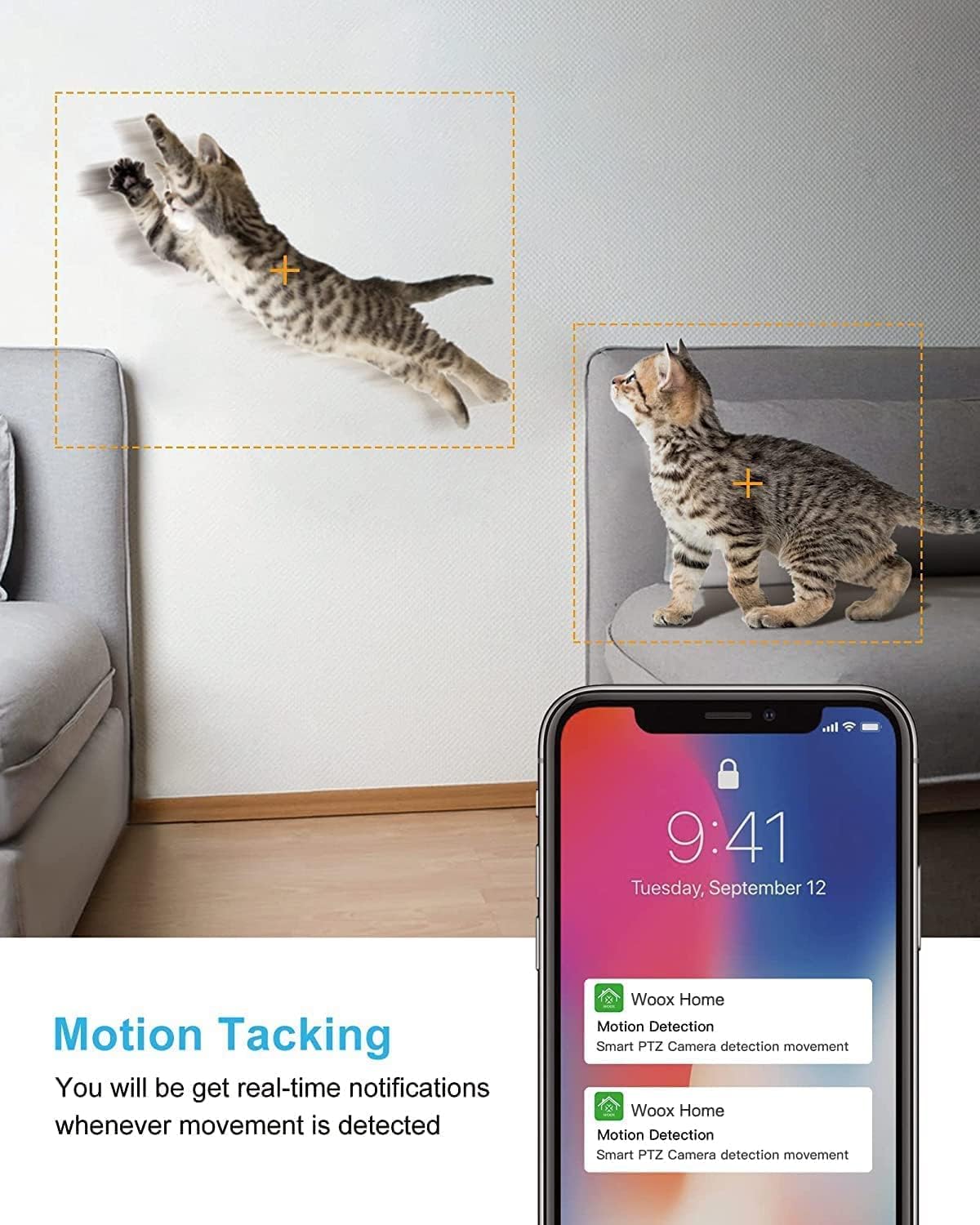
Image: A split image showing a baby sleeping in a crib in a dark room (top, black and white) and a woman viewing a clear image on her phone in bed (bottom), illustrating the camera's clear night vision capability.
Speicherung und Wiedergabe
- Micro SD Karte: Legen Sie eine Micro-SD-Karte (bis zu 128 GB, nicht im Lieferumfang enthalten) in den Steckplatz der Kamera ein, um Aufnahmen lokal zu speichern.
- Cloud-Speicher: Subscribe to the optional cloud storage service via the Woox Home app for secure, encrypted data storage.
- Auf aufgezeichnetes Foo zugreifentagüber den Bereich „Wiedergabe“ oder „Verlauf“ in der App.

Image: The VENZ Indoor Camera with an arrow pointing to its Micro SD card slot and a cloud icon with a shield, illustrating both local (Micro SD) and cloud storage options for recording and playback.
Multi-User and Multi-Device Access
- Share camera access with family members through the Woox Home app.
- Die App unterstützt viewing multiple Wi-Fi cameras simultaneously (up to 4 live videos on one screen).
Wartung
- Reinigung: Reinigen Sie Objektiv und Gehäuse der Kamera mit einem weichen, trockenen Tuch. Vermeiden Sie scheuernde Reinigungsmittel oder Lösungsmittel.
- Firmware-Updates: Regularly check for and install firmware updates through the Woox Home app to ensure optimal performance and security.
- Netzwerkstabilität: Ensure your Wi-Fi network is stable and strong to prevent connection issues and maintain continuous monitoring.
- SD-Kartenverwaltung: If using a Micro SD card, periodically check its storage capacity and format it if necessary to prevent data corruption.
Fehlerbehebung
| Problem | Mögliche Ursache | Lösung |
|---|---|---|
| Kamera offline/Kann keine WLAN-Verbindung herstellen |
|
|
| Poor video quality/Lagging feed |
|
|
| Bewegungserkennung funktioniert nicht |
|
|
| Kein Ton/Schlechte Zwei-Wege-Audioqualität |
|
|
| SD-Karte zeichnet nicht auf |
|
|
Technische Daten
| Besonderheit | Detail |
|---|---|
| Modellnummer | R4040-V2 |
| Verwendung im Innen- und Außenbereich | Innenbereich |
| Auflösung der Videoaufnahme | 1080p |
| Bereich View | 360 Grad (Schwenkung), 104 Grad (Neigung) |
| Nachtsichtbereich | 28 Fuß (8.5 Meter) |
| Konnektivitätsprotokoll | WLAN (nur 2.4 GHz) |
| Stromquelle | Kabelgebundenes Elektrogerät (Gleichstrom 5V) |
| Controllertyp | Google-Assistent, Amazon Alexa |
| Speicheroptionen | Cloud-Speicher, Micro-SD-Karte (bis zu 128 GB) |
| Abmessungen (L x B x H) | 2.91 x 2.91 x 4.21 Zoll |
| Artikelgewicht | 13.1 Unzen |
| Material | aus PVC |
| UPC | 751004742501 |
Garantie und Support
Garantieinformationen
Spezifische Garantiebedingungen finden Sie in der Regel in Ihren Kaufunterlagen oder auf der offiziellen Website des Herstellers. website. Please refer to the warranty card included in your product packaging for the most accurate and up-to-date information regarding coverage and duration.
Kundenservice
For technical assistance, troubleshooting, or any inquiries regarding your VENZ Indoor Camera, please visit the official VENZ website or contact their customer support team. You can often find contact information (email, phone, or support portal) on the product packaging or the brand's online presence.
Visit the official VENZ Store for more information and support: VENZ Store on Amazon
Ask a question about this manual
Ask about setup, troubleshooting, compatibility, parts, safety, or missing instructions. Manuals+ will review the question and use this page’s manual context to help answer it.