1. Produktüberschreitungview
The SSA 10.1-inch WiFi Digital Picture Frame allows you to display photos and videos shared via a dedicated application or email. It features a high-resolution IPS touchscreen and supports various multimedia functions.
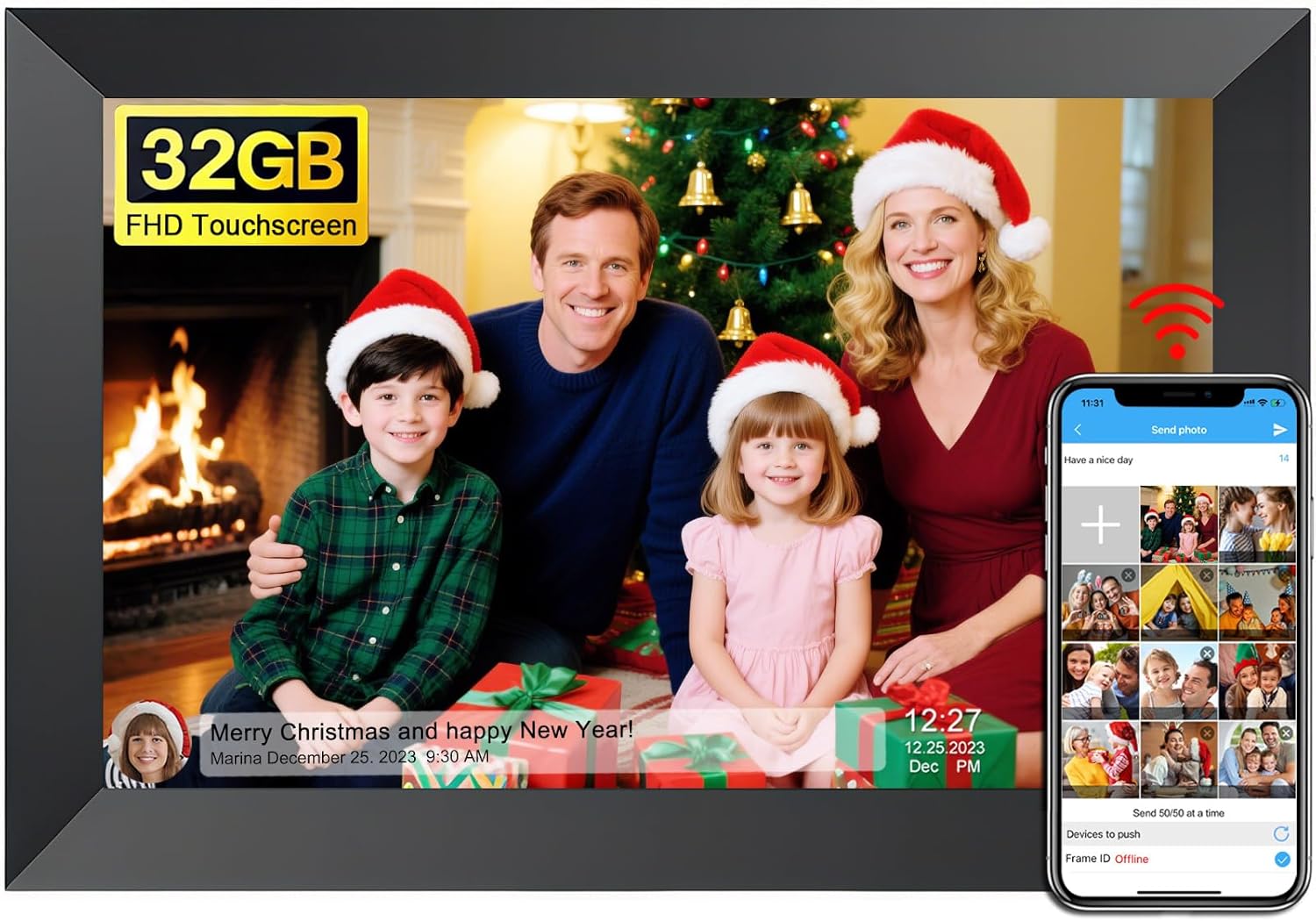
Figure 1: SSA 10.1-inch WiFi Digital Picture Frame.
2. Einrichtungsanweisungen
2.1 Auspacken und erstes Einschalten
- Carefully remove the digital picture frame and all accessories from the packaging.
- Schließen Sie das Netzteil an den Rahmen an und stecken Sie es in eine Steckdose. Der Rahmen schaltet sich automatisch ein.
2.2 Physical Placement and Orientation
The frame includes a detachable stand for tabletop use. It also supports wall mounting for flexible placement.
- Verwendung auf dem Tisch: Attach the detachable stand to the back of the frame. The frame can be positioned in either portrait or landscape mode.
- Wandmontage: Utilize the back mounting holes to hang the frame on a wall. The auto-rotate function will adjust the photo orientation accordingly.

Figure 2: Flexible placement options for the digital picture frame.
2.3 Network Connection (2.4 GHz WiFi)
The frame requires a 2.4 GHz WiFi connection for photo and video sharing. Follow the on-screen prompts to connect to your home network during initial setup.
2.4 App-Download und Kopplung
To share photos and videos, download the companion application on your smartphone.
- Suchen nach the SSA WiFi Frame app on the Google Play Store (for Android) or Apple App Store (for iOS).
- Installieren Sie die Anwendung auf Ihrem Gerät.
- Open the app and follow the instructions to pair it with your digital picture frame using the unique frame code displayed on the frame's screen.
- You can invite up to 20 friends or family members to share photos and videos by providing them with your frame code.


Figure 3: App download and frame connection process.
3. Bedienungsanleitung
3.1-Zoll-Touchscreen-Navigation
The frame features an IPS touchscreen for intuitive operation. Tap and swipe to navigate through menus and settings.

Figure 4: Interacting with the IPS touchscreen.
3.2 Photo and Video Display
- Slideshow Play: The frame automatically plays a slideshow of uploaded photos and videos.
- Automatisch drehen: Photos and videos automatically adjust their orientation (portrait or landscape) based on the frame's position.
- Benutzerdefinierte Einstellungen: Adjust slideshow transition speed, effects, repeat mode, image zooming, and brightness through the settings menu.
- Display Captions: Add captions to your photos via the app for display on the frame.
3.3 Multimedia-Funktionen
The frame supports various functions beyond photo display:
- Musikwiedergabe: Import music from a computer or memory card, or insert a USB drive or SD card to play audio files.
- Kalender: View the current date and a small slideshow window.
- Wetter: Displays daily and three-day weather reports based on your location.
- Alarm: Stelle mehrere Alarme für Erinnerungen ein.
- Uhr: Choose from several clock display styles.

Abbildung 5: Überview of frame features.
3.4 Fotos und Videos teilen
Content can be shared to the frame using the dedicated app or email.
- Per App: Use the SSA WiFi Frame app to select and send photos and videos. The app allows sending up to 50 pictures at once and videos up to 200MB.
- Per E-Mail: Send photos and videos directly to the frame's unique email address.
- Externer Speicher: Photos and videos can also be imported from a TF card or Type-C USB drive.

Figure 6: Methods for uploading content to the frame.
4. Wartung
4.1 Speicherverwaltung
The frame has 32GB of built-in memory. Storage can be expanded using a TF card or Type-C USB drive.
- Interner Speicher: Manage existing photos and videos directly on the device.
- Externer Speicher: Insert a TF card or Type-C USB drive to import or export media files.

Figure 7: Storage options for the digital picture frame.
4.2 Schlafmodus
Activating sleep mode helps conserve energy and extends the lifespan of the device. This can be configured in the settings.

Figure 8: Sleep mode for power conservation.
4.3 Resetting the Frame
Important: Before performing a factory reset, ensure all external devices (TF card, USB drive) are removed from the frame.
5. Fehlerbehebung
- Verbindungsprobleme: Ensure the frame is connected to a 2.4 GHz WiFi network. 5 GHz networks are not supported.
- Frame Code Errors: If you encounter issues with the frame code, try restarting the frame and the companion app. If the problem persists, contact customer support.
- Probleme mit der Stromversorgung: If the frame does not power on or continuously reboots, verify the power adapter is correctly connected and functioning.
- Content Upload Problems: Check your internet connection and ensure the app is updated. For large video files, confirm they are under the 200MB limit.
- Anzeigestörungen: If the screen exhibits unusual behavior, try restarting the device.
Video 1: Demonstration of the SSA WiFi Digital Picture Frame's features, including app connectivity, menu navigation, and various display modes.
Video 2: A short video demonstrating the Frameo boot-up sequence, which may indicate a power or software issue if it loops continuously.
6. Spezifikationen
| Besonderheit | Spezifikation |
|---|---|
| Bildschirmgröße | 10.1 Zoll |
| Auflösung | 1280 x 800 |
| Seitenverhältnis | 16:10 |
| Anzeigetyp | IPS-Touchscreen |
| Interner Speicher | 32 GB |
| Unterstützung für externen Speicher | TF Card, Type-C Drive |
| Konnektivität | 2.4 GHz WiFi |
| Technische Daten | 8 x 6 x 0.99 Zoll |
| Artikelgewicht | 1.48 Pfund |
| Modellnummer | ZN-DP1002 |
| Hersteller | SSA |

Abbildung 9: Breit viewBetrachtungswinkel des IPS-Displays.
7. Garantie und Support
For warranty information or technical assistance, please contact SSA customer support. The manufacturer maintains a team of knowledgeable engineering staff to address product inquiries.
- Kontaktinformationen: Refer to the product packaging or the official SSA webAuf dieser Website finden Sie die aktuellsten Kontaktinformationen für den Support.
- Online-Ressourcen: Check the SSA webWebsite mit häufig gestellten Fragen, aktualisierten Handbüchern und Software-Downloads.