
BL B08TM6132G
BL Mini Wireless Keyboard Fernbedienung – Benutzerhandbuch
Model: B08TM6132G
Einführung
The BL Mini Wireless Keyboard with Touchpad Mouse Combo is a versatile input device designed for seamless control across various platforms. It combines a full QWERTY keyboard, a responsive multi-touch touchpad, and multimedia control keys into a compact, portable unit. This manual provides detailed instructions for setup, operation, maintenance, and troubleshooting to ensure optimal performance.

Image: The BL Mini Wireless Keyboard, showcasing dank seines kompakten Designs und des integrierten Touchpads.
Lieferumfang
Bitte überprüfen Sie, ob alle Artikel im Paket vorhanden sind:
- Mini-Funktastatur
- USB-Kabel (zum Aufladen)
- USB dongle (2.4GHz receiver)
- Li-ion battery (rechargeable)
- Benutzerhandbuch (dieses Dokument)

Image: A visual representation of the items included in the product packaging: the mini keyboard, USB dongle, USB cable, Li-ion battery, and user manual.
Aufstellen
Follow these steps to set up your BL Mini Wireless Keyboard:
- Locate the USB Dongle: The 2.4GHz USB dongle is typically stored in the battery compartment on the back of the keyboard. Open the battery cover and carefully remove the dongle.
- Tastatur aufladen: Before first use, fully charge the keyboard using the provided USB cable. Connect the micro-USB end to the keyboard's charging port and the USB-A end to a power source (e.g., computer USB port, USB wall adapter). The charging indicator light will illuminate.
- Insert the USB Dongle: Plug the USB dongle into an available USB port on your target device (e.g., Smart TV, Android TV Box, PC, PS3).
- Schalten Sie die Tastatur ein: Locate the power switch on the keyboard and slide it to the "ON" position. The keyboard should automatically connect to the dongle.
- Erste Kopplung (falls erforderlich): If the keyboard does not connect automatically, press and hold the "Fn" key and the "F1" key simultaneously until the blue indicator light flashes quickly. Release the buttons. When the blue light stops flashing, the USB dongle and keyboard are successfully paired. Turn off the keyboard and turn it on again to confirm functionality.
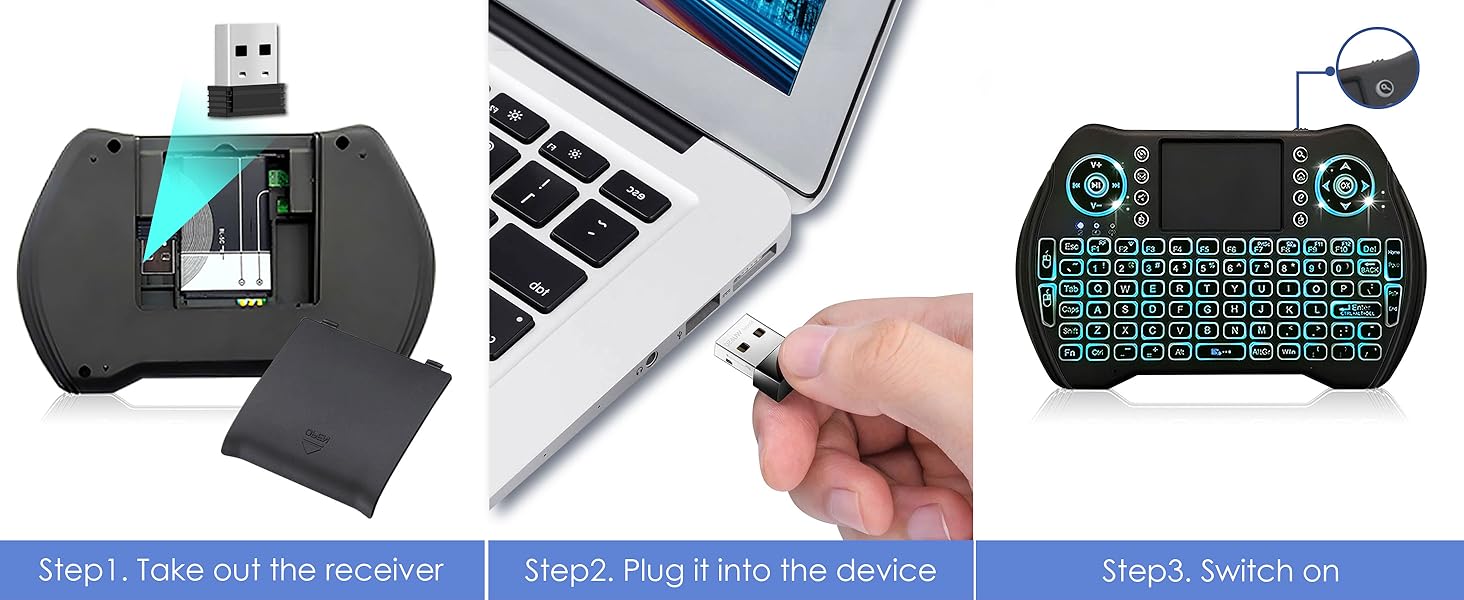
Image: Visual guide showing how to remove the USB dongle from the battery compartment, plug it into a device, and switch on the keyboard.
Bedienungsanleitung
Grundlegende Bedienung
The keyboard functions like a standard QWERTY keyboard. Use the keys for typing text, and the touchpad for mouse control.

Image: Diagram illustrating the various parts of the multifunctional keyboard, including the USB charging port, media controls, LED indicator, touchpad, power switch, direction keys, multimedia shortcuts, mouse left/right buttons, QWERTY keyboard, and page scrolling.
Touchpad-Funktionalität
The integrated touchpad supports multi-finger gestures for enhanced navigation:
- Tippen mit einem Finger: Linker Mausklick.
- Zwei-Finger-Tippen: Rechter Mausklick.
- Zwei-Finger-Ziehen: Scrollen Sie nach oben/unten oder nach links/rechts.
- Ziehen mit einem Finger: Bewegen Sie den Mauszeiger.

Image: The keyboard's responsive touchpad in use, demonstrating multi-finger gestures for precise control, with a large screen displaying content.

Image: A detailed graphic showing the touchpad and its supported gestures for precise control, including single-finger tap, two-finger tap, and two-finger drag for scrolling.
Hotkeys and Multimedia Shortcuts
The keyboard features various hotkeys and multimedia shortcuts for quick access to functions. These are typically activated by holding the Fn key and pressing the corresponding function key.
| Tastenkombination | Funktion |
|---|---|
| Fn + F1 | Adjust mouse sensitivity |
| Fn + Eingabetaste | [Task Manager] shortcut (Ctrl+Alt+Del) |
| Fn + PrtSc | [Print Screen] shortcut |
| Fn + F7 | Turn off / on touchpad |
| Fn + F8 | Maximize current page |
| Fn + F9 | Open development tools |
| Fn + Startseite | Jump to start of a text |
| Fn + Ende | Jump to end of a text |
| Kappen | Lock caps button |
| Gewinnen | [Start / Menu] bar |

Image: A detailed layout of the BL Mini Wireless Keyboard highlighting various hotkey combinations and their corresponding functions, such as adjusting mouse sensitivity, task manager shortcut, print screen, and multimedia controls.

Image: A graphic illustrating the multimedia shortcuts available on the keyboard, designed for quick control of browser, email, and media players.
Hintergrundbeleuchtungsfunktion
The keyboard features a multi-color backlight for improved visibility in low-light conditions.
- Hintergrundbeleuchtung aktivieren: The backlight typically activates automatically when the keyboard is in use.
- Ändern der Hintergrundbeleuchtungsfarben: To cycle through the 7 available backlight colors, hold down the Fn key and scroll left or right on the touchpad.

Image: The BL Mini Wireless Keyboard displaying its multi-color backlight feature, making it easy to use in dark environments.

Image: A graphic demonstrating how to activate and change the 7 backlight colors by holding the 'Fn' key and scrolling on the touchpad.
Wartung
Um die Langlebigkeit und optimale Leistung Ihrer Tastatur zu gewährleisten, beachten Sie bitte folgende Wartungshinweise:
- Reinigung: Use a soft, dry cloth to wipe down the keyboard and touchpad. For stubborn dirt, slightly dampBefeuchten Sie das Tuch mit Wasser oder einem milden, nicht scheuernden Reinigungsmittel. Vermeiden Sie übermäßige Feuchtigkeit.
- Lagerung: Schalten Sie die Tastatur bei längerer Nichtbenutzung aus, um die Batterielebensdauer zu verlängern. Bewahren Sie sie an einem kühlen, trockenen Ort, geschützt vor direkter Sonneneinstrahlung und extremen Temperaturen, auf.
- Batteriepflege: Avoid fully discharging the Li-ion battery frequently. Charge it regularly, even if not completely depleted, to maintain battery health.
- Vermeiden Sie Stürze und Stöße: The keyboard is lightweight and portable, but it is not designed to withstand significant physical impact. Handle with care.
Fehlerbehebung
If you encounter issues with your BL Mini Wireless Keyboard, refer to the following common problems and solutions:
- Keyboard is unresponsive or not connecting:
- Stellen Sie sicher, dass die Tastatur eingeschaltet und vollständig aufgeladen ist.
- Verify the USB dongle is securely plugged into the device's USB port.
- Try plugging the dongle into a different USB port on your device.
- Re-pair the keyboard with the dongle: Press and hold "Fn" + "F1" simultaneously until the blue indicator light flashes quickly. Release the buttons. Once the blue light stops flashing, the pairing is successful. Turn the keyboard off and on again.
- Ensure there are no significant obstructions between the keyboard and the USB dongle, as the effective range is approximately 33 feet (10 meters).

Image: A troubleshooting guide for an unresponsive keyboard, detailing steps to pair with the USB dongle, including visual cues for the indicator lights.
- Touchpad is not working or is erratic:
- Ensure the touchpad is not accidentally turned off (Fn + F7).
- Clean the touchpad surface to remove any dirt or oils that might interfere with tracking.
- Adjust mouse sensitivity using Fn + F1.
- Backlight is not working:
- Stellen Sie sicher, dass die Tastatur über ausreichend Akkuladung verfügt.
- Try cycling through the backlight colors (Fn + scroll on touchpad).
- Kurze Akkulaufzeit:
- Stellen Sie sicher, dass die Tastatur vor der Benutzung vollständig aufgeladen ist.
- The auto-sleep function helps conserve battery. If the backlight is constantly on, it will drain the battery faster.
- Consider replacing the Li-ion battery if it no longer holds a charge effectively.
Technische Daten
| Besonderheit | Detail |
|---|---|
| Technische Daten | 5.78 x 3.84 x 0.75 Zoll |
| Artikelgewicht | 3.88 Unzen |
| Konnektivitätstechnologie | 2.4GHz USB-Dongle |
| Akku-Typ | 1 Lithium-Ionen-Akku (im Lieferumfang enthalten, wiederaufladbar) |
| Besonderheit | Rechargeable, Backlit (7 colors), Touchpad |
| Farbe | Mehrfarbig |
| Hersteller | Amaminibox |
| Ursprungsland | China |
Kompatible Geräte
The BL Mini Wireless Keyboard is widely compatible with devices that support a standard USB input:
- Android TV Box
- Smart-TV
- Personal Computer (PC)
- Windows-Betriebssystem
- MacOS
- X-Box (specific models may vary)
- Sony PS3
- Desktop & Laptop Computers
- Smartphones (with OTG adapter, not included)

Image: The BL Mini Wireless Keyboard shown with various compatible devices, including Smart TV, Projector, Desktop Computer, Notebook, Android TV Box, and the included USB dongle.
Garantie und Support
Informationen zur Garantie und zum technischen Support finden Sie auf der offiziellen Website des Herstellers. webBesuchen Sie die Website oder kontaktieren Sie direkt den Kundenservice. Bewahren Sie Ihren Kaufbeleg als Kaufnachweis für eventuelle Garantieansprüche auf.
Sie können sich auch auf die offizielle Website beziehen. Benutzerhandbuch (PDF) für weitere Einzelheiten.
Ask a question about this manual
Ask about setup, troubleshooting, compatibility, parts, safety, or missing instructions. Manuals+ will review the question and use this page’s manual context to help answer it.