
ASUS TUF516PE-AB73
ASUS TUF Dash 15 (2021) Ultra Slim Gaming Laptop Bedienungsanleitung
Model: TUF516PE-AB73
Einführung
This manual provides essential information for setting up, operating, maintaining, and troubleshooting your ASUS TUF Dash 15 (2021) Ultra Slim Gaming Laptop. Please read this guide thoroughly to ensure optimal performance and longevity of your device.
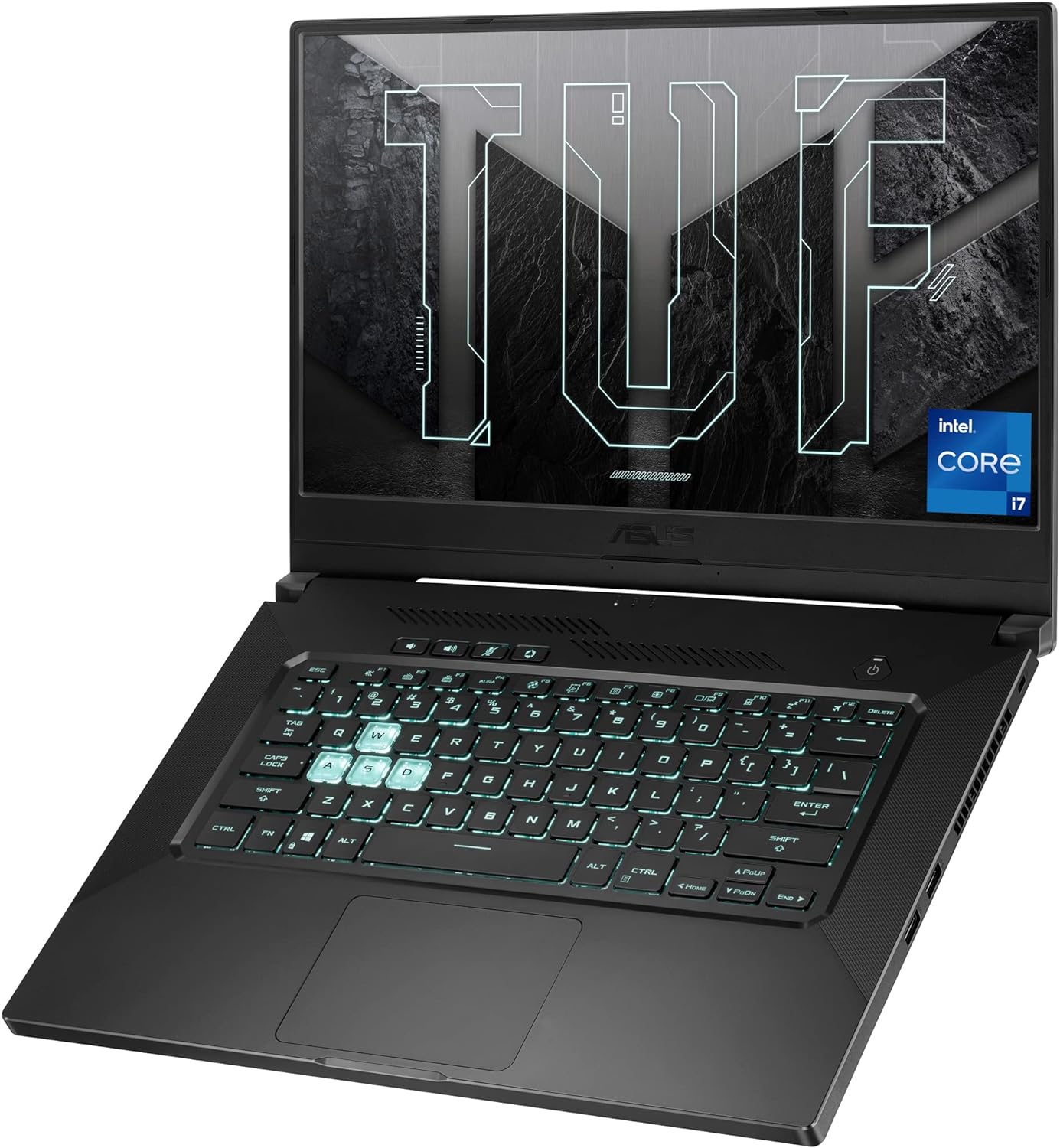
Image: The ASUS TUF Dash 15 (2021) laptop, showcasing its design and backlit keyboard.
Lieferumfang
Prüfen Sie, ob alle Artikel in der Verpackung vorhanden sind:
- ASUS TUF Dash 15 (2021) Laptop (Model: TUF516PE-AB73)
- Netzteil und Kabel
- Benutzerhandbuch (dieses Dokument)
- Garantiekarte
Aufstellen
1. Erstes Einschalten
- Schließen Sie das Netzteil an den Stromeingangsanschluss des Laptops und anschließend an eine Steckdose an.
- Öffnen Sie den Laptopdeckel.
- Drücken Sie den Netzschalter, der sich normalerweise oben rechts auf der Tastatur befindet.
- Folgen Sie den Anweisungen auf dem Bildschirm, um die Windows 10-Einrichtung abzuschließen.
2. Peripheriegeräte anschließen
Ihr Laptop verfügt über verschiedene Anschlüsse zum Verbinden externer Geräte:
- USB 3.0 Ports: Zum Anschließen von USB-Geräten wie Mäusen, Tastaturen und externen Speichermedien.
- HDMI-Anschluss: Zum Anschluss an externe Displays oder Projektoren.
- Thunderbolt 4 (USB-C) Port: Für Hochgeschwindigkeits-Datenübertragung, Displayausgabe und Stromversorgung.
- Audio-Kombibuchse: Zum Anschließen von Kopfhörern oder Headsets.
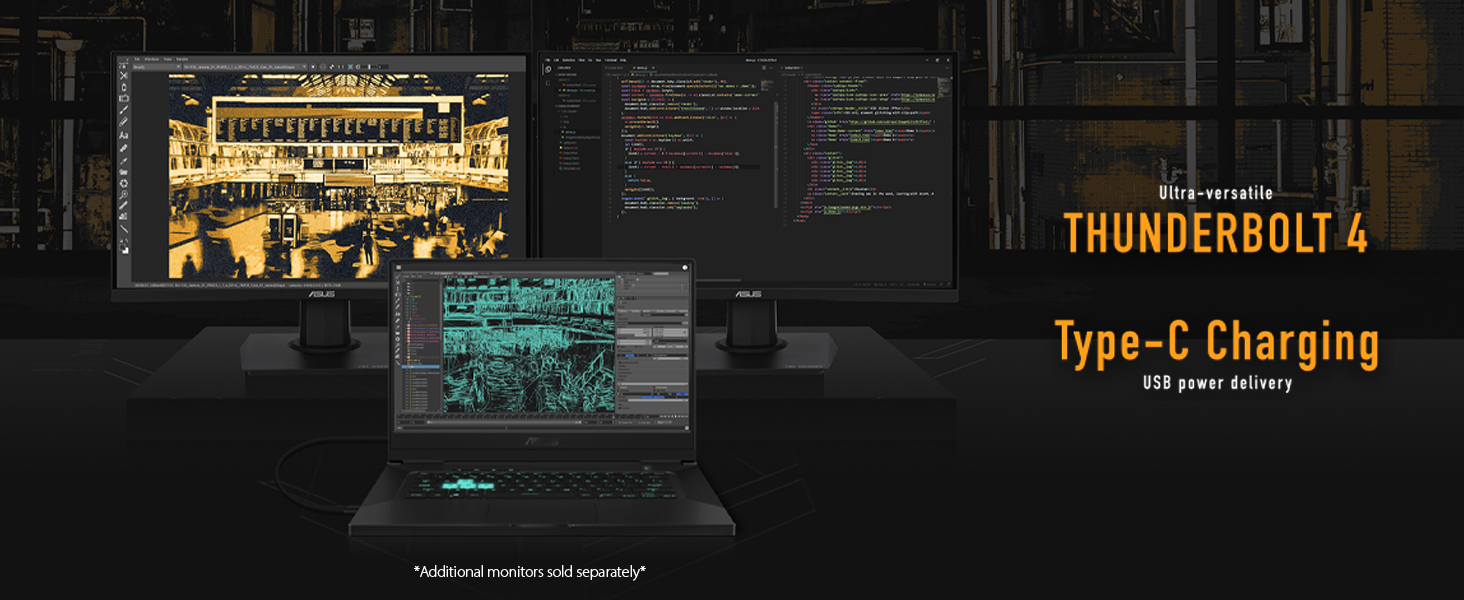
Image: The ASUS TUF Dash 15 connected to multiple external monitors, demonstrating its versatile connectivity options including Thunderbolt 4 and Type-C charging.
Bedienung Ihres Laptops
Anzeigefunktionen
The laptop features a 15.6-inch 144Hz IPS-Type Full HD (1920x1080) display with Adaptive Sync technology for smooth visuals.
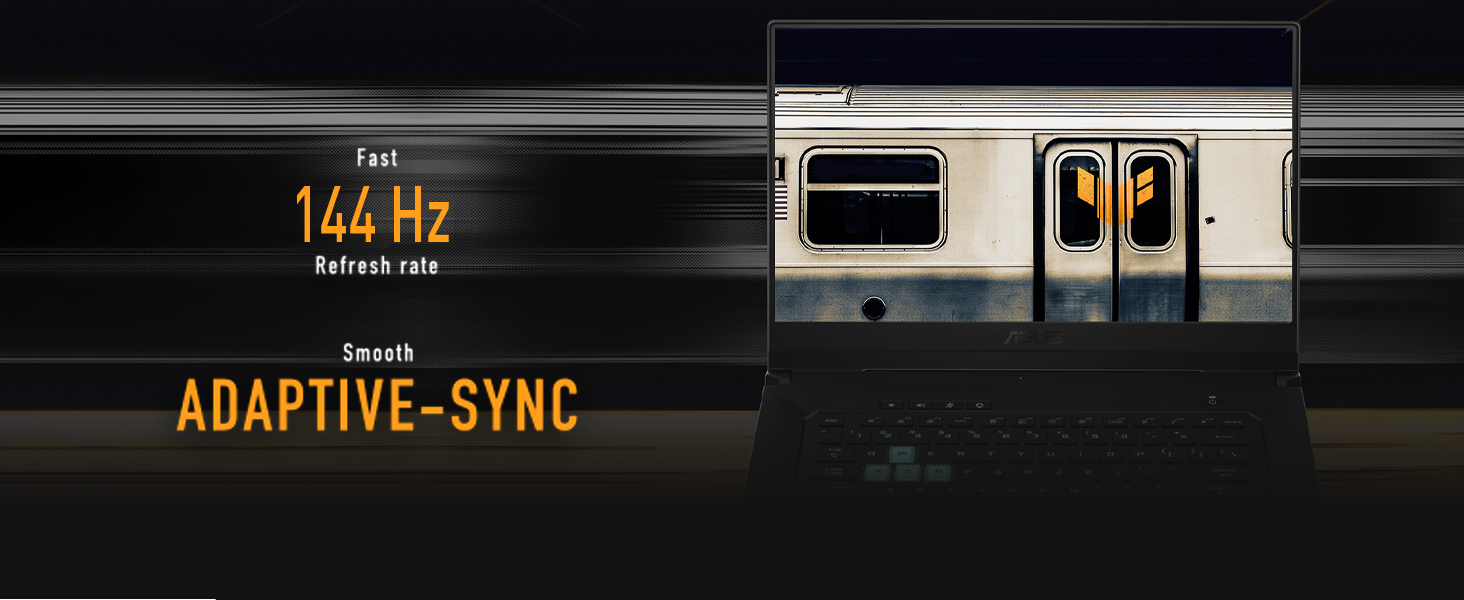
Image: The laptop screen highlighting its 144Hz refresh rate and Adaptive-Sync feature for fluid motion.
Tastatur und Touchpad
The backlit precision gaming keyboard offers a comfortable typing experience. Utilize the touchpad for navigation and gestures.
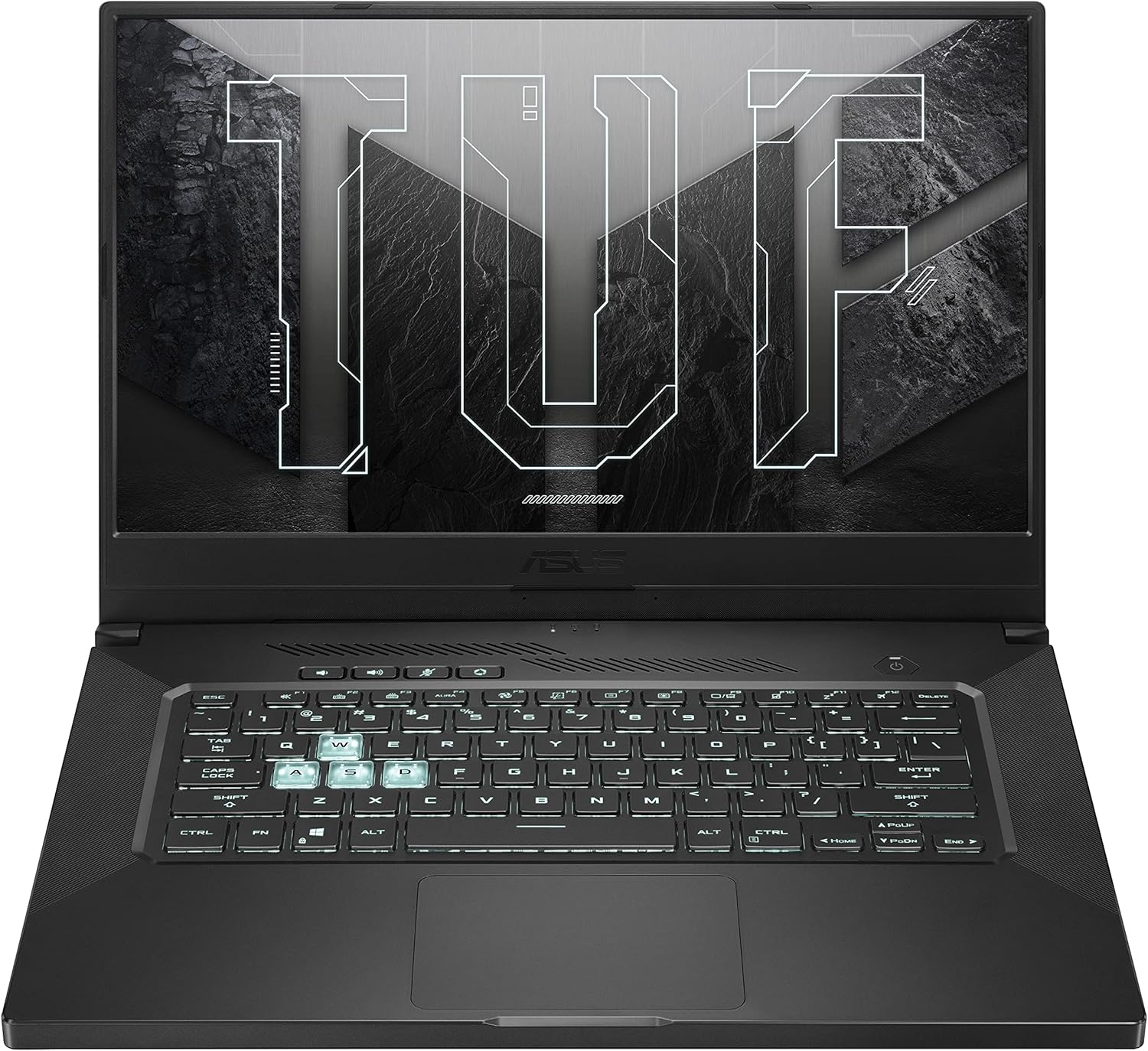
Bild: Eine Draufsicht view of the ASUS TUF Dash 15 keyboard, showing the layout and highlighted WASD keys for gaming.
Audio
The laptop incorporates two-way AI Noise Cancellation technology for clear audio communication.

Image: The laptop screen showing audio settings, emphasizing the AI Noise Cancellation feature.
Wartung
Kühlsystem
The TUF Dash 15 features an advanced cooling system with 4 fan outlets, 83-blade fans, enhanced self-cleaning cooling, and 5 heat pipes to manage CPU, GPU, VRM, and VRAM temperatures.

Image: An illustration of the laptop's underside, highlighting the cooling system with fan outlets and heat dissipation.
Speicher- und Arbeitsspeichererweiterungen
The laptop is designed for easy upgrades, featuring a pop-open screw for access to an additional M.2 SSD slot and SO-DIMM slots for memory expansion.

Image: The bottom panel of the laptop removed, revealing the additional M.2 SSD slot and SO-DIMM slot for memory upgrades.
Fehlerbehebung
Häufige Probleme und Lösungen
- Kein Strom: Vergewissern Sie sich, dass das Netzteil fest mit dem Laptop und einer funktionierenden Steckdose verbunden ist. Überprüfen Sie die Betriebsanzeige.
- Anzeigeprobleme: If the screen is blank, try connecting an external monitor to verify if the issue is with the laptop's display or graphics output. Ensure display drivers are updated.
- Leistungsverlangsamung: Close unnecessary applications. Check for background processes consuming high CPU or RAM. Ensure cooling vents are clear and not obstructed.
- Akku lädt nicht: Verify the power adapter is functioning correctly. Try a different power outlet.
- Probleme mit der Wi-Fi-Konnektivität: Stellen Sie sicher, dass WLAN in den Windows-Einstellungen aktiviert ist. Starten Sie Ihren Router und Ihren Laptop neu. Aktualisieren Sie die WLAN-Treiber.
For more detailed troubleshooting, refer to the official ASUS support webWebsite oder wenden Sie sich an den Kundendienst.
Technische Daten
| Besonderheit | Detail |
|---|---|
| Modellname | TUF516PE-AB73 |
| Prozessor | Intel Core i7-11370H (up to 4.8GHz) |
| Grafik | NVIDIA GeForce RTX 3050 Ti 4 GB GDDR6 |
| Anzeige | 15.6-inch FHD (1920x1080) IPS-Type, 144Hz, Adaptive Sync |
| RAM | 8 GB DDR4 3200 MHz |
| Lagerung | 512 GB PCIe NVMe M.2 SSD |
| Betriebssystem | Windows 10 Home (Kostenloses Upgrade auf Windows 11 möglich) |
| Kabellose Konnektivität | Wi-Fi 6 (802.11ax), Bluetooth |
| Häfen | 4x USB 3.0, HDMI, Thunderbolt 4 (USB-C), Audio Combo Jack |
| Akkulaufzeit | Bis zu 16.6 Stunden (Videowiedergabe) |
| Abmessungen (LxBxH) | 9.9 x 14.2 x 0.78 Zoll |
| Gewicht | 4.41 Pfund |
| Farbe | Eclipse Grey |
Garantie und Support
Standardgarantie
Every ASUS TUF laptop includes a 12-month warranty as standard. This warranty covers expert support, thorough diagnostics, and genuine parts if a repair is needed. A 90-day warranty is also provided on all warranty replacement parts.
Unfallschutz (ADP)
ASUS provides one year of free Accidental Damage Protection (ADP) against liquid spills, drops, and electrical surges on new laptops registered within 60 days of purchase. This protection ensures coverage for common accidents.
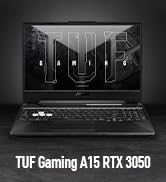
Image: Visual representation of accidental damage protection covering liquid spills, electrical surges, and accidental drops.
For warranty claims or technical assistance, please visit the official ASUS support webWebsite oder wenden Sie sich an den Kundendienst.
Ask a question about this manual
Ask about setup, troubleshooting, compatibility, parts, safety, or missing instructions. Manuals+ will review the question and use this page’s manual context to help answer it.