
1. Produktüberschreitungview
The XPG Defender is a mid-tower ATX PC case designed for efficient airflow and ease of assembly. It features a mesh front panel, tempered glass side panel, and supports various motherboard sizes.
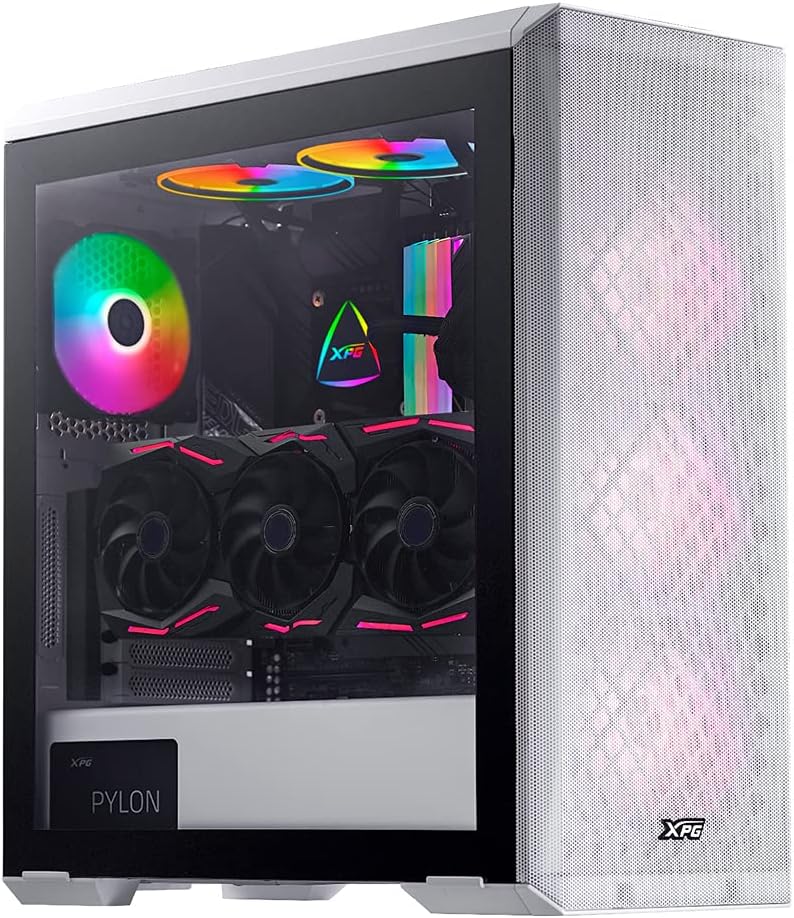
Image: XPG Defender PC Case, white, with tempered glass side panel and mesh front panel, showcasing interne Komponenten und RGB-Lüfter.
2. Einrichtung und Installation
2.1 Auspacken und Vorbereitung
- Nehmen Sie das PC-Gehäuse vorsichtig aus der Verpackung.
- Prüfen Sie den Koffer auf Anzeichen von Transportschäden.
- Stellen Sie das Gehäuse auf eine stabile, ebene Fläche.
2.2 Entfernen der Verkleidungen
The tempered glass side panel is secured with thumbscrews. Carefully remove these screws and gently pull the panel away from the chassis. The mesh front panel is magnetic and can be pulled off directly to access front fan mounts.

Image: XPG Defender PC Case, white, with the mesh front panel detached, revealing the fan mounting points behind it.
2.3 Motherboard-Installation
The XPG Defender supports Mini-ITX, Micro-ATX, ATX, and E-ATX motherboards. Install the necessary standoffs for your motherboard size, then secure the motherboard with screws.

Bild: Intern view of the XPG Defender PC Case, white, showing the spacious interior, motherboard tray, and cable management cutouts.
2.4 Laufwerksinstallation
The case provides space for two 2.5-inch drives and two convertible 2.5-inch/3.5-inch drive trays. Locate the drive bays and secure your storage devices using the provided screws or tool-less mechanisms.

Bild: Intern view of the XPG Defender PC Case, white, focusing on the drive bays with trays for 2.5-inch and 3.5-inch drives.
2.5 Installation der Stromversorgung
Install your power supply unit (PSU) into the rear mount area at the bottom of the case. Secure it with screws from the rear of the chassis.

Image: Rear internal view of the XPG Defender PC Case, white, highlighting the power supply shroud and drive bay area.
2.6 Grafikkarten und Erweiterungskarten
Install your graphics card and other expansion cards into the appropriate PCIe slots on your motherboard. The case offers ample space for long graphics cards.

Bild: Intern view of the XPG Defender PC Case, white, showing a graphics card installed, emphasizing the ample space for long GPUs.
2.7 Kabelmanagement
Utilize the cable routing cutouts and tie-down points behind the motherboard tray to manage cables for a clean build and improved airflow.
3. Bedienungsanleitung
3.1 Einschalten
After connecting all internal components and external peripherals, connect the power cable to your PSU and press the power button located on the top I/O panel of the case.
3.2 Luftstrom und Kühlung
The XPG Defender is designed with an efficient airflow layout, featuring a mesh front panel for optimal air intake. It comes with three pre-installed XPG VENTO 120 fans to facilitate cooling.

Bild: Vorderseite view of the XPG Defender PC Case, white, with its mesh front panel and three illuminated fans visible behind it.
4. Wartung
4.1 Reinigung des Staubfilters
To maintain optimal airflow and prevent dust buildup, regularly clean the dust filters. The magnetic mesh front panel can be easily removed for cleaning. The bottom dust filter is also detachable for convenient maintenance.

Image: Close-up of the removable bottom dust filter of the XPG Defender PC Case, white, illustrating its easy access for cleaning.
4.2 Allgemeine Reinigung
Use a soft, dry cloth to wipe down the exterior of the case. For the tempered glass panel, use a glass cleaner and a microfiber cloth. Avoid abrasive cleaners or solvents.
5. Fehlerbehebung
- Kein Strom: Stellen Sie sicher, dass alle Stromkabel (Netzteil zu Steckdose, Netzteil zu Mainboard, CPU, GPU) fest angeschlossen sind. Überprüfen Sie den Netzschalter am Netzteil.
- Lüfter drehen sich nicht: Verify that the fan cables are correctly connected to the motherboard or fan controller.
- Überhitzung: Ensure proper fan orientation for airflow (intake/exhaust). Clean dust filters and internal components regularly. Confirm CPU cooler and GPU fans are functioning correctly.
- Handhabung von gehärtetem Glas: The tempered glass panel is durable but can shatter if subjected to sharp impacts or uneven pressure. Handle with care during installation and removal.
- Probleme mit den Anschlüssen an der Vorderseite: Check that the front panel connectors (USB, audio, power/reset switches) are correctly plugged into the motherboard headers.
6. Spezifikationen
| Technische Daten | 19.37 x 8.66 x 17.36 Zoll |
| Artikelgewicht | 17.9 Pfund |
| Artikelmodellnummer | DEFENDER-WHCWW |
| Motherboard-Kompatibilität | Mini-ITX, Micro-ATX, ATX, E-ATX |
| Gehäusetyp | Mittlerer Turm |
| Farbe | Weiß |
| Material | Gehärtetes Glas |
| Montageart des Netzteils | Hintere Halterung |
| Kühlmethode | Lüfter |
| Lüftergröße | 120 Millimeters (3 pre-installed) |
7. Garantie und Support
For warranty information and technical support, please refer to the official XPG website or contact XPG customer service directly. Keep your proof of purchase for warranty claims.
You can visit the XPG Store for more information: XPG Store