
1. Einleitung
This manual provides detailed instructions for the EVICIV Portable Touchscreen Monitor, Model MDS-156B03. Please read this manual thoroughly before using the product to ensure proper operation and to maximize its performance and lifespan. This monitor is designed to extend your visual workspace and enhance productivity with its portable design and touchscreen capabilities.

Image 1.1: The EVICIV Portable Touchscreen Monitor.
2. Packungsinhalt
Bitte überprüfen Sie den Packungsinhalt nach dem Auspacken. Sollten Artikel fehlen oder beschädigt sein, kontaktieren Sie bitte unseren Kundenservice.
- EVICIV Portable Touchscreen Monitor (MDS-156B03)
- HDMI-Kabel
- USB-A to USB-C Cable (for touch functionality)
- USB-C to USB-C Cables (x2, for power, display, and touch)
- USB-C-Netzteil
- Benutzerhandbuch (dieses Dokument)
3. Produktmerkmale
The EVICIV Portable Touchscreen Monitor offers a range of features designed for versatility and high performance:
- 15.6-inch Full HD (1080p) Display: Enjoy crisp and clear visuals.
- 5-Punkt-Touch-Funktionalität: Interact directly with your content for intuitive control.
- 100% sRGB Color Accuracy: Experience vibrant and true-to-life colors.
- Built-in Kick-Stand: Bietet einstellbare viewing angles and supports both portrait and landscape orientations.
- Kabelmanagement: Integrated design helps keep cables organized behind the monitor.
- LED-Hintergrundbeleuchtung: Features RGB light effects for an enhanced aesthetic.
- Vielseitige Konnektivität: Equipped with USB-C and HDMI ports for broad compatibility.
3.1. Adjustable Stand and Orientation
The integrated kick-stand allows for flexible positioning, enabling you to pivot the monitor 90 degrees for portrait mode, which can significantly increase viewability for certain tasks like coding or document review.

Image 3.1: Monitor pivoted 90 degrees for increased viewability in portrait mode.

Image 3.2: The monitor's rounded bezel and built-in kick-stand supporting both portrait and landscape orientations.
3.2. Kabelmanagement
The monitor features a design that helps manage cables, keeping your workspace tidy and organized.

Image 3.3: The monitor's cable management system keeps connections neat.
3.3. Color Accuracy
With 100% sRGB coverage, the monitor delivers outstanding color accuracy and resolution, making it suitable for tasks requiring precise color representation.

Image 3.4: Visual representation of 100% sRGB color accuracy.
3.4. LED-Hintergrundbeleuchtung
The monitor includes an LED backlight with customizable RGB light effects, allowing you to personalize your setup.
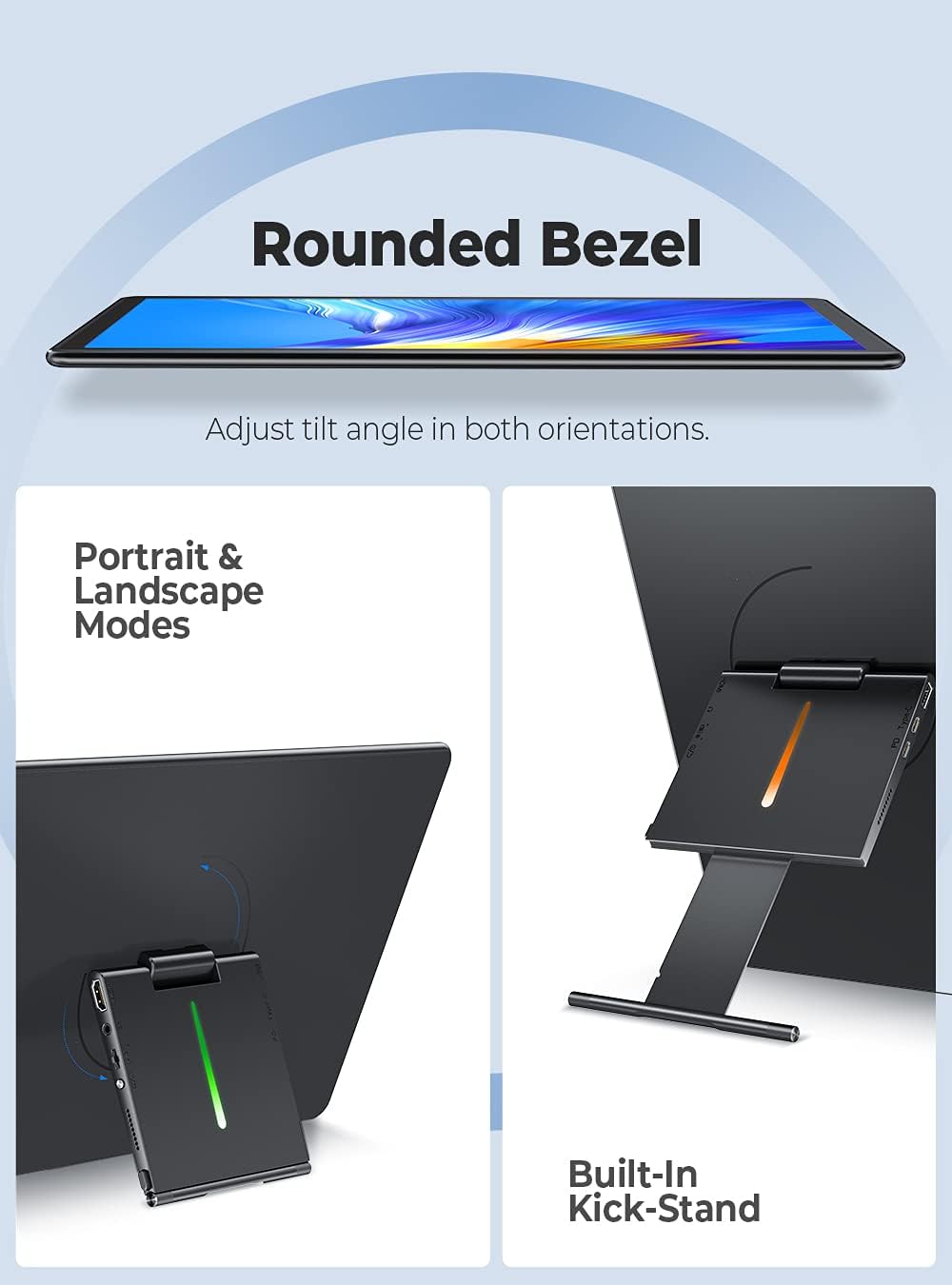
Image 3.5: The monitor's LED backlight feature.
4. Einrichtungsanweisungen
Follow these steps to set up your EVICIV Portable Touchscreen Monitor:
- Stromanschluss: Connect the USB-C power adapter to the monitor's USB-C PD port. Ensure the monitor receives adequate power.
- Mit einem Gerät verbinden:
- Using USB-C (Full Function): If your device (laptop, smartphone) has a full-featured USB-C port that supports DisplayPort Alternate Mode and power delivery, connect one of the provided USB-C to USB-C cables directly from your device to the monitor's USB-C port. This single cable can provide power, video, and touch functionality.
- Using HDMI and USB-A: If your device does not have a full-featured USB-C port, connect the HDMI cable from your device to the monitor's HDMI port for video output. For touch functionality, connect the USB-A end of the USB-A to USB-C cable to your device and the USB-C end to the monitor's USB-C data port. Ensure the monitor is also powered via its USB-C PD port.
- Erste Anzeige: Once connected, your device should automatically detect the monitor. If not, you may need to adjust display settings on your device (e.g., extend display, duplicate display).
- Touch Driver Installation: For Windows 10/11, the touch driver should install automatically when connected via USB. For other operating systems, specific drivers may be required.

Image 4.1: Connecting the monitor using USB and HDMI cables.
4.1. Videoanleitung zur Einrichtung
For a visual guide on setting up your EVICIV Portable Touchscreen Monitor, please refer to the official product video below:
Video 4.1: Official EVICIV video demonstrating the 15.6-inch USB Type-C Portable Monitor's features and connectivity.
5. Bedienungsanleitung
5.1. Ein-/Ausschalten
Locate the power button on the side or back of the monitor. Press and hold for a few seconds to power on or off. A short press may activate or deactivate the display.
5.2. Bildschirmmenü (OSD)
The OSD menu allows you to adjust various display settings. Typically, buttons on the side or back of the monitor are used to navigate and select options within the OSD. Common settings include:
- Helligkeit Kontrast: Passen Sie die Helligkeits- und Kontrastwerte des Displays an.
- Farbeinstellungen: Farbtemperatur, Farbton und Sättigung anpassen.
- Eingabequelle: Manuelle Auswahl zwischen USB-C- und HDMI-Eingang.
- Volumen: Die Lautstärke der eingebauten Lautsprecher regeln.
5.3. Touch-Funktionalität
The monitor supports 5-point multi-touch. Basic touch gestures include tapping to select, swiping to scroll, and pinch-to-zoom. Ensure the USB connection for touch is properly established for this feature to work.
5.4. Bildschirmausrichtung
The monitor can be used in both landscape and portrait modes. To switch orientation, physically rotate the monitor. Your operating system may automatically adjust the display orientation. If not, you can manually change it in your device's display settings.
6. Wartung
Durch sachgemäße Wartung wird die Langlebigkeit und optimale Leistung Ihres Monitors sichergestellt.
- Reinigen des Bildschirms: Verwenden Sie ein weiches, fusselfreies Tuch, das speziell für Elektronikgeräte entwickelt wurde. Leicht abwischen.ampen the cloth with water or a screen-cleaning solution. Avoid harsh chemicals, alcohol, or abrasive materials.
- Reinigung des Körpers: Wischen Sie das Gehäuse des Monitors mit einem weichen, trockenen Tuch ab.
- Lagerung: When not in use, store the monitor in a clean, dry place away from direct sunlight and extreme temperatures. Consider using a protective sleeve or case for transport to prevent scratches and damage.
- Vermeiden Sie Flüssigkeiten: Sprühen Sie keine Flüssigkeiten direkt auf den Monitor.
7. Fehlerbehebung
Sollten Sie Probleme mit Ihrem Monitor haben, beachten Sie bitte die folgenden gängigen Lösungsansätze:
- Kein Bild/Schwarzer Bildschirm:
- Ensure the monitor is properly powered and the power adapter is connected.
- Check all video cables (USB-C, HDMI) are securely connected to both the monitor and your device.
- Überprüfen Sie, ob im OSD-Menü des Monitors die richtige Eingangsquelle ausgewählt ist.
- Test with a different cable or device if possible.
- Touch-Funktionalität funktioniert nicht:
- Ensure the USB connection for touch (USB-C to USB-C or USB-A to USB-C) is firmly connected.
- For Windows, check Device Manager to see if the touch screen driver is installed correctly. Reconnect the USB cable to trigger driver reinstallation.
- Some operating systems may require specific drivers or may not fully support multi-touch.
- Poor Image Quality/Incorrect Colors:
- Access the OSD menu and adjust brightness, contrast, and color settings.
- For optimal color, navigate to the OSD's color options, select 'User Settings', and adjust the RGB sliders. A common adjustment for better balance is setting Green to 70-80% while Red and Blue remain at 100%.
- Ensure your device's graphics settings are configured for the monitor's native resolution (1920x1080).
- Kein Ton oder geringe Lautstärke:
- Check the volume settings in the monitor's OSD menu.
- Überprüfen Sie die Audioausgabeeinstellungen Ihres angeschlossenen Geräts.
- The built-in speakers are designed for basic audio; for higher quality sound, external speakers are recommended.
8. Spezifikationen
| Besonderheit | Detail |
|---|---|
| Marke | EVICIV |
| Modellnummer | MDS-156B03 |
| Bildschirmgröße | 15.6 Zoll |
| Auflösung | FHD 1080p (1920 x 1080) |
| Seitenverhältnis | 16:10 |
| Beschreibung der Bildschirmoberfläche | Glänzend |
| Kontrastverhältnis | 2000:1 |
| Bildwiederholrate | 60 Hz |
| Viewing-Winkel | 178 Grad |
| Ansprechzeit | 1 Millisekunden |
| Konnektivitätstechnologie | USB, HDMI, USB Type C |
| Spezifische Verwendungen für das Produkt | Gaming, Productivity |
| Montagetyp | Desk Mount (Built-in Kick-Stand) |
| Total Number of HDMI Ports | 1 |
9. Garantie und Support
EVICIV products are manufactured to high-quality standards. For specific warranty information, please refer to the warranty card included in your product packaging or visit the official EVICIV webFür technischen Support, Hilfe bei der Fehlerbehebung oder Anfragen zu Ersatzteilen wenden Sie sich bitte an den EVICIV-Kundendienst über die auf der offiziellen Website angegebenen Kontaktdaten. webWebsite oder Ihre Einkaufsplattform.