
Einführung
This manual provides essential information for setting up, operating, maintaining, and troubleshooting your CyberpowerPC Gamer Xtreme Gaming PC. This system is designed for high-performance gaming and multitasking, featuring an AMD Ryzen 7 3700X processor, NVIDIA GeForce RTX 3060 graphics, 16GB DDR4 RAM, and a combination of SSD and HDD storage, running on Windows 10 Home 64-Bit.
1. Einrichtung
1.1 Auspacken
Carefully remove the PC from its packaging. Ensure all accessories, including the power cable, keyboard, and mouse, are present. Retain the original packaging for future transport or service needs.

Abbildung 1: Vorderseite view of the CyberpowerPC Gamer Xtreme, highlighting its design and RGB lighting.
1.2 Anschließen von Peripheriegeräten
Connect your monitor, keyboard, mouse, and other peripherals to the appropriate ports on the rear and top of the PC. Ensure all connections are secure.
- Monitor: Connect your monitor to the graphics card's HDMI or DisplayPort output.
- Tastatur und Maus: Connect to any available USB ports (USB 2.0 or USB 3.0).
- Leistung: Connect the power cable to the PC's power supply unit (PSU) and then to a grounded electrical outlet.
- Netzwerk: Für eine kabelgebundene Internetverbindung schließen Sie ein Ethernet-Kabel an den LAN-Anschluss an. Bei einer drahtlosen Verbindung stellen Sie sicher, dass die WLAN-Antenne (falls vorhanden) angeschlossen ist.

Abbildung 2: Schräg view of the CyberpowerPC Gamer Xtreme, highlighting the front panel design and side ventilation.

Abbildung 3: Oben view of the PC, illustrating the accessible front I/O ports and top ventilation.
1.3 Erstes Einschalten und Windows-Einrichtung
Press the power button located on the top panel of the PC. The system will boot up. Follow the on-screen instructions to complete the Windows 10 Home setup, including language selection, network connection, and user account creation.
2. Bedienungsanleitung
2.1 Ein-/Ausschalten
- So schalten Sie das Gerät ein: Press the power button on the top panel.
- So fahren Sie herunter: Klicken Sie in Windows auf die Schaltfläche „Start“ und wählen Sie dann „Ein/Aus“ > „Herunterfahren“.
- Neustarten: Klicken Sie auf die Schaltfläche „Start“ und wählen Sie dann „Ein/Aus“ > „Neustart“.
- Zum Schlafen: Klicken Sie auf die Schaltfläche „Start“ und wählen Sie dann „Ein/Aus“ > „Ruhezustand“.
2.2 Verbindung zu einem Netzwerk herstellen
Your PC supports both wired (Ethernet) and wireless (Wi-Fi) network connections.
- Verdrahtet: Connect an Ethernet cable from your router/modem to the LAN port on the rear of the PC.
- Kabellos: In Windows, click the network icon in the taskbar, select your Wi-Fi network, enter the password, and click Connect.
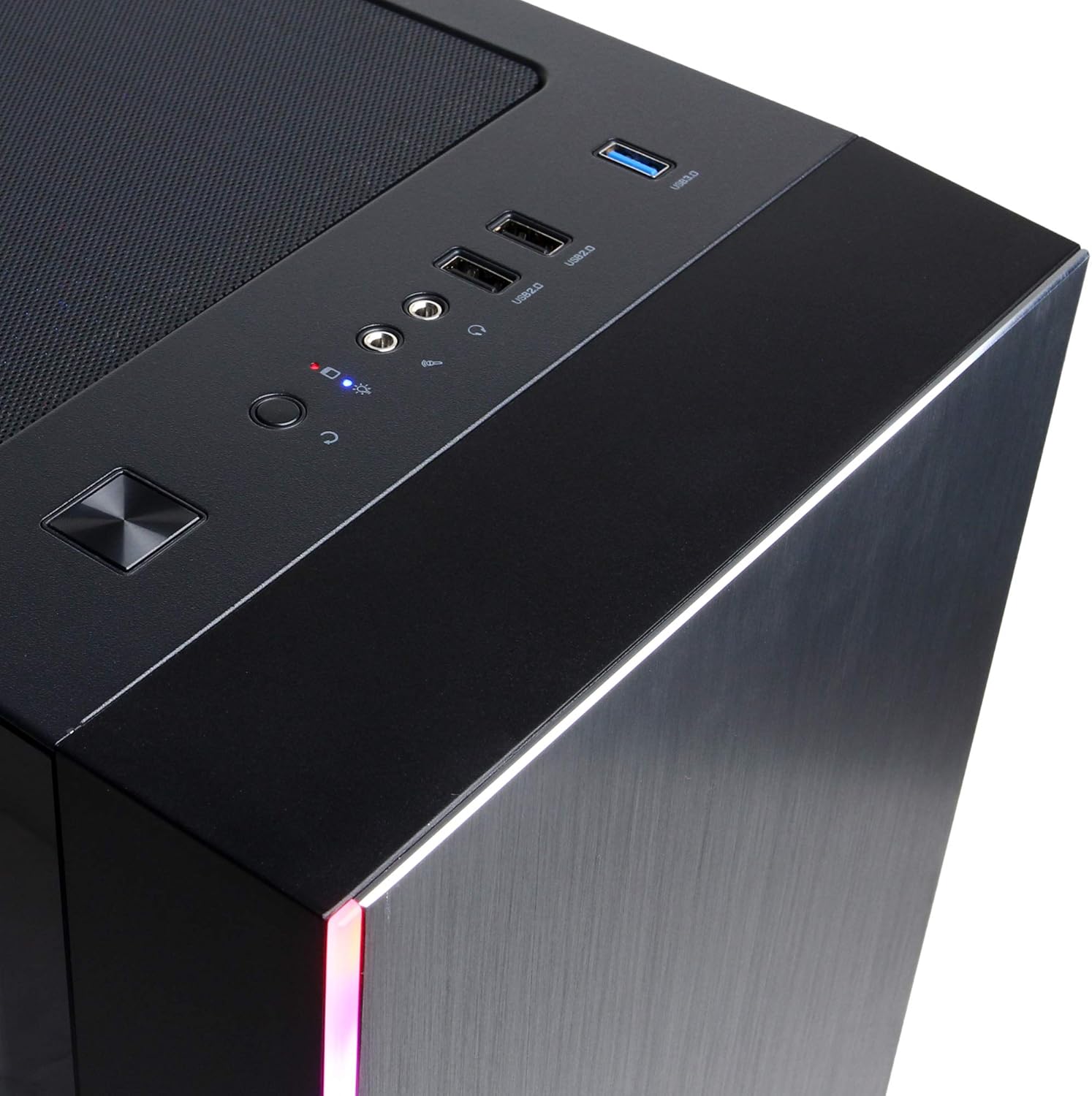
Figure 4: Detail of the top I/O panel, providing easy access to USB and audio connections.
3. Wartung
3.1 Reinigung
Regular cleaning helps maintain optimal performance and extends the lifespan of your PC.
- Exterieur: Verwenden Sie ein weiches,amp cloth to wipe down the exterior. Avoid harsh chemicals.
- Staub: Periodically use compressed air to clear dust from ventilation grilles and internal components. Ensure the PC is powered off and unplugged before cleaning.
3.2 Softwareaktualisierungen
Keep your operating system, drivers, and applications updated to ensure security, stability, and performance.
- Windows-Updates: Gehen Sie zu Einstellungen > Update und Sicherheit > Windows Update.
- Grafiktreiber: Download the latest drivers directly from NVIDIA's official webWebsite.
4. Fehlerbehebung
4.1 Kein Strom
- Stellen Sie sicher, dass das Netzkabel sowohl am PC als auch an der Wandsteckdose fest angeschlossen ist.
- Überprüfen Sie die Funktionsfähigkeit der Wandsteckdose, indem Sie ein anderes Gerät anschließen.
- Check the power switch on the PSU (if present) is in the 'On' position.
4.2 Keine Anzeige
- Confirm the monitor is powered on and connected to the graphics card's output, not the motherboard's integrated graphics ports (if applicable).
- Versuchen Sie es gegebenenfalls mit einem anderen Displaykabel oder Monitor.
- Ensure the monitor's input source is correctly selected.
4.3 Systemverlangsamung oder Einfrieren
- Überprüfen Sie im Task-Manager (Strg+Umschalt+Esc), ob bestimmte Anwendungen eine hohe CPU-, RAM- oder Festplattenauslastung verursachen.
- Stellen Sie sicher, dass Windows und die Treiber auf dem neuesten Stand sind.
- Führen Sie einen Viren- und Malware-Scan durch.
- Ensure adequate ventilation and check for excessive dust buildup.
5. Spezifikationen
| Besonderheit | Detail |
|---|---|
| Marke | CyberpowerPC |
| Modellname | Gamer Xtreme |
| Betriebssystem | Windows 10 Home |
| CPU Modell | AMD Ryzen 7 3700X |
| CPU-Geschwindigkeit | 3.6 GHz (Basis) |
| Grafik-Coprozessor | NVIDIA GeForce RTX 3060 |
| Grafikkartenspeicher | 12 GB GDDR6 |
| RAM-Speicher installiert | 16 GB DDR4 |
| Lagerung | 240 GB SSD, 1 TB HDD |
| Konnektivität | HDMI, Wi-Fi (802.11ab), USB 2.0, USB 3.0 |
| Artikelabmessungen (LxBxH) | 18.6 x 17.4 x 8.9 Zoll |
| Kühlmethode | Luft |
| UPC | 811842073769 |
6. Garantieinformationen
Your CyberpowerPC Gamer Xtreme Gaming PC is covered by a manufacturer's limited warranty. Specific terms and conditions, including warranty duration and coverage details, are typically provided with your purchase documentation or can be found on the official CyberpowerPC webBitte bewahren Sie Ihren Kaufbeleg für Garantieansprüche auf.
7. Unterstützung
For technical assistance, troubleshooting, or further inquiries, please visit the official CyberpowerPC support website or contact their customer service. You may need your product model number (GMA3088W) and serial number for support.
- Offiziell WebWebsite: www.cyberpowerpc.com
- Support Section: Look for a "Support" or "Contact Us" link on their webWebsite.