
Einführung
This manual provides detailed instructions for the SSK Aluminum Dual Bay USB 3.0 to SATA Hard Drive Docking Station. This device allows for easy connection of 2.5-inch and 3.5-inch SATA HDDs and SSDs to your computer via USB 3.0, and features an offline cloning function for disk duplication without a computer connection.
Packungsinhalt
- SSK Dual Bay Festplatten-Dockingstation
- USB 3.0 Typ-B auf Typ-A Kabel
- 12V/3A Netzteil
- Bedienungsanleitung
Produkteigenschaften
- Doppelschacht-Design: Unterstützt gleichzeitig zwei 2.5-Zoll- oder 3.5-Zoll-SATA-I/II/III-HDDs/SSDs.
- Unterstützung hoher Kapazität: Each bay supports up to 20TB drives, for a total of 40TB.
- USB 3.0 with UASP: Provides fast data transfer speeds up to 5Gbps, enhanced by UASP for improved performance.
- Offline-Klonfunktion: Duplicate hard drives without connecting to a computer.
- Werkzeuglose Installation: Easy plug-and-play setup for hard drives.
- Breite Kompatibilität: Kompatibel mit den Betriebssystemen Windows, macOS und Linux.
- Langlebige Konstruktion: Features an aluminum alloy shell for heat dissipation and durability.
- Operating Status Indicators: LED lights indicate power, activity, and cloning progress.

Bild: Überview of the SSK Dual Bay Docking Station, highlighting its compatibility with various drive sizes and operating systems. A laptop screen shows a file transfer in progress, demonstrating its use as an external drive reader.

Bild: Detailliert views of the SSK docking station's physical features, including its aluminum alloy casing, LED indicator, rear interface with USB 3.0 and power input, and the anti-skid footpad for stability.
Aufstellen
- Strom anschließen: Connect the provided 12V/3A power adapter to the DC-12V port on the back of the docking station and then plug it into a power outlet. The power LED will illuminate.
- Festplatten einlegen: Gently insert your 2.5-inch or 3.5-inch SATA HDD/SSD into the drive slots (Slot A and Slot B) until they are securely seated. Ensure the SATA connectors align correctly.
- Connect to Computer (for Data Transfer): If you intend to use the docking station for data transfer, connect the USB 3.0 cable from the Micro USB 3.0 port on the docking station to an available USB 3.0 port on your computer.
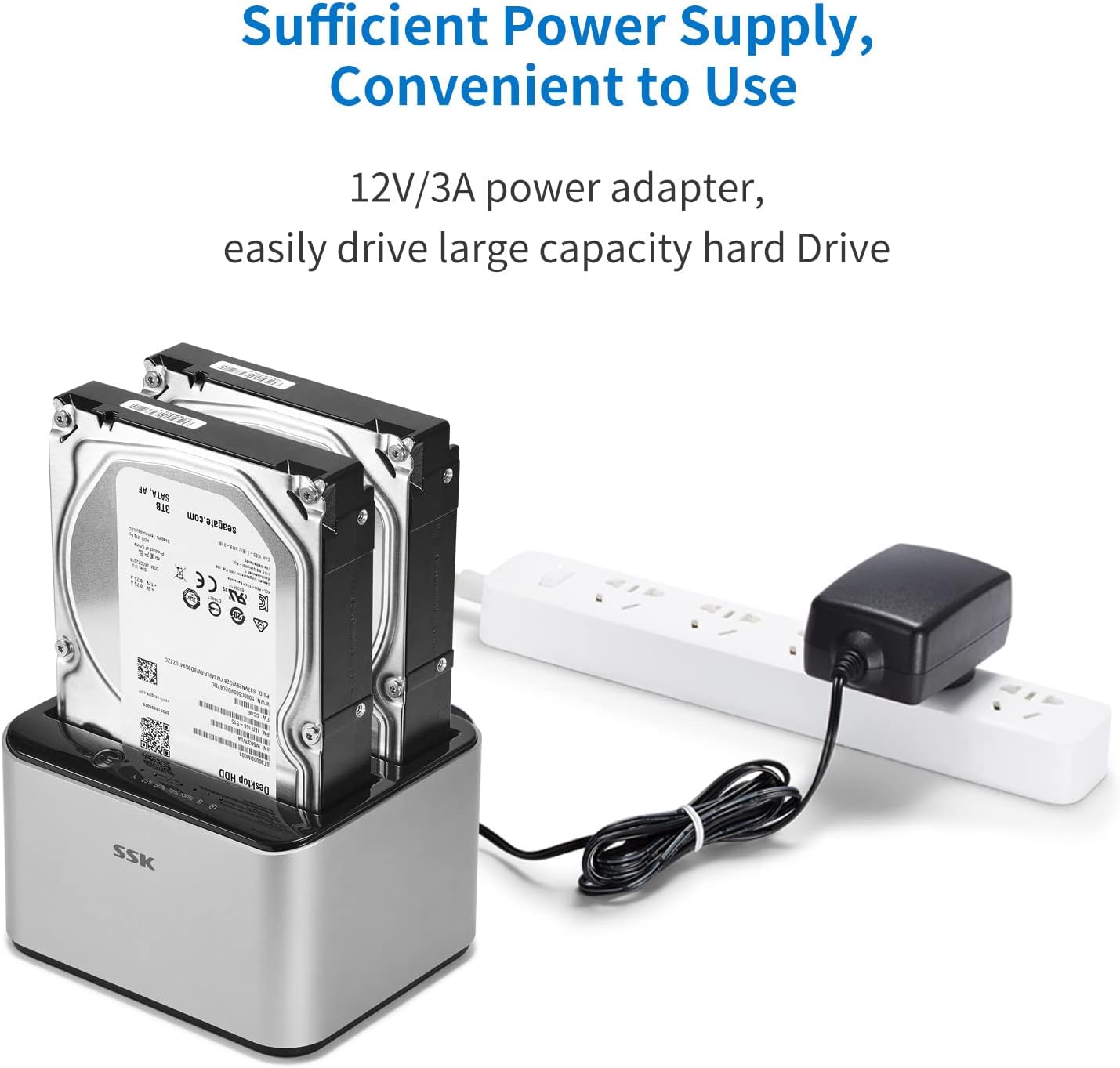
Image: The SSK docking station with two hard drives installed, demonstrating the connection of the 12V/3A power adapter to a power strip, ensuring sufficient power for large capacity drives.
Bedienungsanleitung
A. Data Transfer Mode
- Stellen Sie sicher, dass die Dockingstation eingeschaltet und über das USB 3.0-Kabel mit Ihrem Computer verbunden ist.
- Insert the SATA HDD/SSD into the desired slot(s).
- Your computer's operating system should automatically detect the drives. You may need to initialize and format new drives via Disk Management (Windows) or Disk Utility (macOS) before use.
- Access the drives as external storage devices to transfer files.

Image: A visual representation of the speed advantage of USB 3.0 with UASP compared to traditional USB 3.0, illustrating faster data transfer rates for both reading and writing, with a hard drive docked in the station.
B. Offline Cloning Mode
The offline cloning function allows you to duplicate a source hard drive to a target hard drive without a computer connection. Warning: All data on the target disk will be erased during the cloning process. Ensure you have backed up any important data from the target disk before proceeding.
- Verbindung zum Computer trennen: Ensure the USB cable is disconnected from the docking station and your computer. The docking station should only be connected to its power adapter.
- Insert Source Disk: Insert the Source Disk (the disk you want to copy FROM) into Slot A (Source).
- Insert Target Disk: Insert the Target Disk (the disk you want to copy TO) into Slot B (Target). The Target Disk must have a capacity equal to or greater than the Source Disk.
- Klonvorgang starten: Press and hold the 'Clone' button (usually located on the back or top panel) for approximately 3-5 seconds until the cloning progress LEDs begin to flash.
- Fortschritt überwachen: The LED indicators (e.g., 25%, 50%, 75%, 100%) will illuminate sequentially to show the cloning progress. When all LEDs are solid, the cloning process is complete.
- Fertigstellung: Once cloning is complete, power off the docking station and safely remove the drives.

Image: The SSK docking station in offline cloning mode, illustrating the placement of the Source Disk in Slot A and the Target Disk in Slot B. The progress LEDs on the right indicate the cloning status, from 25% to 100% completion.
Wartung
- Reinigung: Reinigen Sie die Außenseite der Dockingstation mit einem weichen, trockenen Tuch. Verwenden Sie keine flüssigen Reiniger oder Lösungsmittel.
- Lagerung: Bewahren Sie die Dockingstation an einem kühlen, trockenen Ort fern von direkter Sonneneinstrahlung und extremen Temperaturen auf.
- Fahrverhalten: Always handle hard drives with care. Avoid dropping or subjecting them to physical shock.
- Sichere Entfernung: When connected to a computer, always use the 'Safely Remove Hardware' option (Windows) or 'Eject' function (macOS) before disconnecting the USB cable or powering off the docking station to prevent data corruption.
Fehlerbehebung
- Laufwerk nicht erkannt:
- Stellen Sie sicher, dass das Netzteil fest angeschlossen und die Dockingstation eingeschaltet ist.
- Verify the USB 3.0 cable is firmly connected to both the docking station and your computer.
- Check if the hard drive is properly seated in the slot.
- For new drives, ensure they are initialized and formatted in your operating system's disk management utility.
- Try connecting the docking station to a different USB port on your computer or a different computer.
- Klonvorgang schlägt fehl oder startet nicht:
- Stellen Sie sicher, dass das USB-Kabel während des Offline-Klonvorgangs vom Computer getrennt ist.
- Verify the Source Disk is in Slot A and the Target Disk is in Slot B.
- Confirm the Target Disk's capacity is equal to or greater than the Source Disk's capacity.
- Stellen Sie sicher, dass beide Laufwerke fest eingesteckt sind.
- Try powering off and on the docking station before initiating cloning.
- Langsame Datenübertragungsgeschwindigkeit:
- Stellen Sie sicher, dass Ihr Computer mit einem USB-3.0-Anschluss verbunden ist. USB-2.0-Anschlüsse arbeiten mit geringerer Geschwindigkeit.
- Prüfen Sie, ob Ihr Betriebssystem und Ihre Treiber UASP unterstützen.
- Die Geschwindigkeit der Festplatte selbst kann ein begrenzender Faktor sein.
Technische Daten
| Marke | SSK |
| Modell | B098CWGYSR |
| Hardware-Schnittstelle | USB, USB 3.0 |
| Kompatible Laufwerkstypen | 2.5-Zoll- und 3.5-Zoll-SATA-I/II/III-HDDs/SSDs |
| Supported Drive Quantity | 2 |
| Max Capacity Per Bay | 20 TB |
| Datenübertragungsrate | Bis zu 5 Gbit/s (USB 3.0) |
| Hardware-Plattform | Windows, macOS, Linux |
| Material | Aluminium |
| Artikelgewicht | 0.47 Kilogramm |
| Stromversorgung | 12V/3A Netzteil |
Sicherheitshinweise
- Das Gerät darf weder Wasser, Feuchtigkeit noch extremen Temperaturen ausgesetzt werden.
- Vermeiden Sie es, das Gerät fallen zu lassen oder starken Stößen auszusetzen.
- Versuchen Sie nicht, das Gerät zu zerlegen oder zu verändern. Dadurch erlischt die Garantie.
- Verwenden Sie ausschließlich das mitgelieferte Netzteil. Die Verwendung eines falschen Netzteils kann das Gerät beschädigen.
- Sorgen Sie während des Betriebs für eine ausreichende Belüftung rund um die Dockingstation.
Garantie und Support
SSK products are designed for reliability and performance. For warranty information or technical support, please refer to the warranty card included with your product or visit the official SSK website. If you encounter any issues not covered in this manual, please contact SSK customer service for assistance.