
Einführung
This manual provides essential instructions for setting up, operating, maintaining, and troubleshooting your Nyko 86158 Core Wireless Controller for Xbox One. Please read this manual thoroughly before use to ensure optimal performance and longevity of your device.
Packungsinhalt
Bitte überprüfen Sie, ob alle unten aufgeführten Artikel in Ihrem Paket enthalten sind:
- Nyko 86158 Core Wireless Controller
- USB-Funkempfänger-Dongle
- USB-Ladekabel
- Benutzerhandbuch (dieses Dokument)
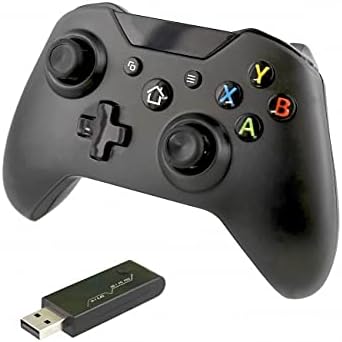
Image: Nyko 86158 Core Wireless Controller shown alongside its USB wireless receiver dongle. This illustrates the main components included in the package.

Bild: Nahaufnahme view of the USB wireless receiver dongle. This dongle is essential for establishing a wireless connection between the controller and the Xbox One console or PC.

Image: The USB charging cable provided with the controller. This cable is used to recharge the controller's internal battery.
Controller-Layout
Familiarize yourself with the buttons and features of your Nyko Core Wireless Controller.
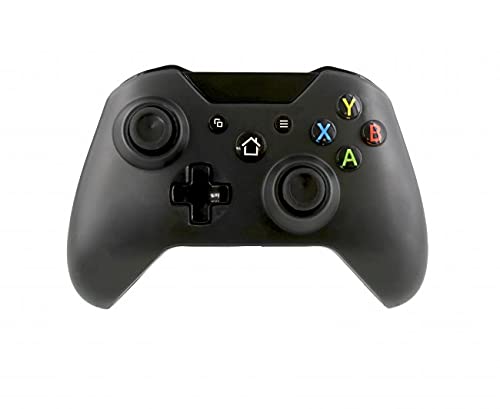
Bild: Vorderseite view of the Nyko 86158 Core Wireless Controller, showing the two analog sticks, D-pad, A/B/X/Y buttons, View button, Menu button, Xbox button, and Share button.
- Linker Analogstick: Zur Bewegungs- und Kamerasteuerung.
- Rechter Analogstick: Zur Kamerasteuerung und Zielerfassung.
- Steuerkreuz: Richtungseingaben zur Menünavigation und für bestimmte Spielaktionen.
- A/B/X/Y-Tasten: Primäre Aktionsschaltflächen.
- View Taste: Accesses additional in-game information or menus.
- Menü-Schaltfläche: Opens game menus or system options.
- Xbox-Taste: Powers on the controller, accesses the Xbox Guide, or returns to the home screen.
- Teilen Knopf: Captures screenshots or video clips (functionality may vary by console/game).

Bild: Oben view of the Nyko 86158 Core Wireless Controller, highlighting the Left and Right Bumpers (LB, RB), Left and Right Triggers (LT, RT), and the micro-USB charging port located at the front.
- Left Bumper (LB) / Right Bumper (RB): Schultertasten für verschiedene Aktionen im Spiel.
- Left Trigger (LT) / Right Trigger (RT): Analog triggers for precise input, often used for acceleration or aiming.
- Micro-USB-Anschluss: Used for charging the controller.

Abbildung: Rückseite view of the Nyko 86158 Core Wireless Controller, showing the battery compartment cover. This is where the batteries are inserted or the rechargeable battery pack is housed.
Installationsanweisungen
1. Schalten Sie den Controller ein
The Nyko 86158 Core Wireless Controller requires batteries to operate wirelessly. It is compatible with standard AA batteries or a rechargeable battery pack (sold separately).
- Suchen Sie das Batteriefach auf der Rückseite des Controllers.
- Drücken Sie auf die Lasche und schieben Sie die Batterieabdeckung ab.
- Insert two (2) AA batteries, ensuring correct polarity (+/-). If using a rechargeable pack, insert it as directed by the pack's instructions.
- Setzen Sie die Batterieabdeckung wieder auf.
2. Verbindung zu Xbox One herstellen
To connect your wireless controller to an Xbox One console:
- Insert the USB Wireless Receiver Dongle into an available USB port on your Xbox One console.
- Turn on your Xbox One console.
- Halten Sie die Xbox-Taste on the controller until it powers on. The Xbox button will flash.
- The controller will automatically attempt to pair with the USB receiver. Once connected, the Xbox button on the controller will glow solid.
- If the controller does not connect automatically, press the small pairing button on the USB receiver dongle, then press and hold the Xbox-Taste on the controller until it pairs.
3. Connecting to PC (Optional)
The controller can also be used with a PC. Ensure your PC has an available USB port for the wireless receiver.
- Insert the USB Wireless Receiver Dongle into an available USB port on your PC.
- The PC should automatically install the necessary drivers. This may take a few moments.
- Halten Sie die Xbox-Taste on the controller until it powers on.
- The controller will connect to the receiver. The Xbox button will glow solid once connected.
Bedienungsanleitung
Ein-/Ausschalten
- Zum Einschalten: Halten Sie die Xbox-Taste until the controller vibrates and the light turns on.
- Ausschalten: Halten Sie die Xbox-Taste for 5-10 seconds until the controller powers down. The controller will also automatically turn off after a period of inactivity to conserve battery life.
Aufladen des Controllers
If using a rechargeable battery pack (not included) or if the controller has a built-in rechargeable battery:
- Connect the small end of the USB Charging Cable to the micro-USB port on the front of the controller.
- Connect the larger end of the USB Charging Cable to an available USB port on your Xbox One console or a USB wall adapter (5V, 1A recommended).
- The indicator light on the controller (usually the Xbox button) will show charging status (e.g., flashing while charging, solid when fully charged).
- Trennen Sie das Kabel, sobald der Ladevorgang abgeschlossen ist.
Wartung
- Reinigung: Reinigen Sie den Controller mit einem weichen, trockenen Tuch. Verwenden Sie keine scharfen Chemikalien oder Scheuermittel.
- Lagerung: Bewahren Sie den Controller an einem kühlen, trockenen Ort fern von direkter Sonneneinstrahlung und extremen Temperaturen auf.
- Batteriepflege: If not using the controller for an extended period, remove the AA batteries to prevent leakage.
- Vermeiden Sie Tropfen: Schützen Sie den Controller vor Stürzen und Stößen, da diese die internen Komponenten beschädigen können.
Fehlerbehebung
Controller Not Turning On
- Achten Sie darauf, dass die Batterien korrekt und mit der richtigen Polarität eingelegt sind.
- Replace old batteries with new ones, or fully charge the rechargeable battery pack.
Controller Not Connecting to Xbox One/PC
- Ensure the USB Wireless Receiver Dongle is securely plugged into an active USB port.
- Versuchen Sie es mit einem anderen USB-Port.
- Stellen Sie sicher, dass der Controller eingeschaltet ist.
- Re-attempt the pairing process: press the pairing button on the dongle, then press and hold the Xbox button on the controller.
- Restart your Xbox One console or PC.
Eingangsverzögerung oder Verbindungsabbrüche
- Ensure the controller is within range of the USB receiver (typically up to 30 feet/9 meters).
- Minimieren Sie Störungen durch andere drahtlose Geräte (z. B. Wi-Fi-Router, schnurlose Telefone).
- Stellen Sie sicher, dass der Controller über ausreichend Akkuladung verfügt.
Technische Daten
| Marke | Nyko |
| Modellnummer | 86158 |
| Kompatible Geräte | Xbox One, PC |
| Controllertyp | Kabelloser Gamecontroller |
| Konnektivitätstechnologie | Wireless (2.4GHz via USB dongle) |
| Stromquelle | Batteries (AA or rechargeable pack) |
| Abmessungen (L x B x H) | 8.3 x 18.4 x 15.2 cm (ungefähr 3.27 x 7.24 x 5.98 Zoll) |
| UPC | 743840861584 |
| ASIN | B09BD8813T |
Garantie und Support
For warranty information or technical support, please refer to the documentation included with your purchase or visit the official Nyko webBewahren Sie Ihren Kaufbeleg für Garantieansprüche auf.