
1. Einleitung
This manual provides detailed instructions for setting up, operating, and maintaining your VEIKK VK1200 11.6-inch Full-Laminated Pen Display. The VK1200 is designed to enhance your digital creative workflow with its vibrant display and responsive pen technology.
Key features include a full-laminated screen for reduced parallax, an 11.6-inch active area with anti-glare film, 1920x1080 IPS display with 72% NTSC color gamut, a battery-free pen with 8192 pressure levels and 60-degree tilt function, and 6 customizable shortcut keys.
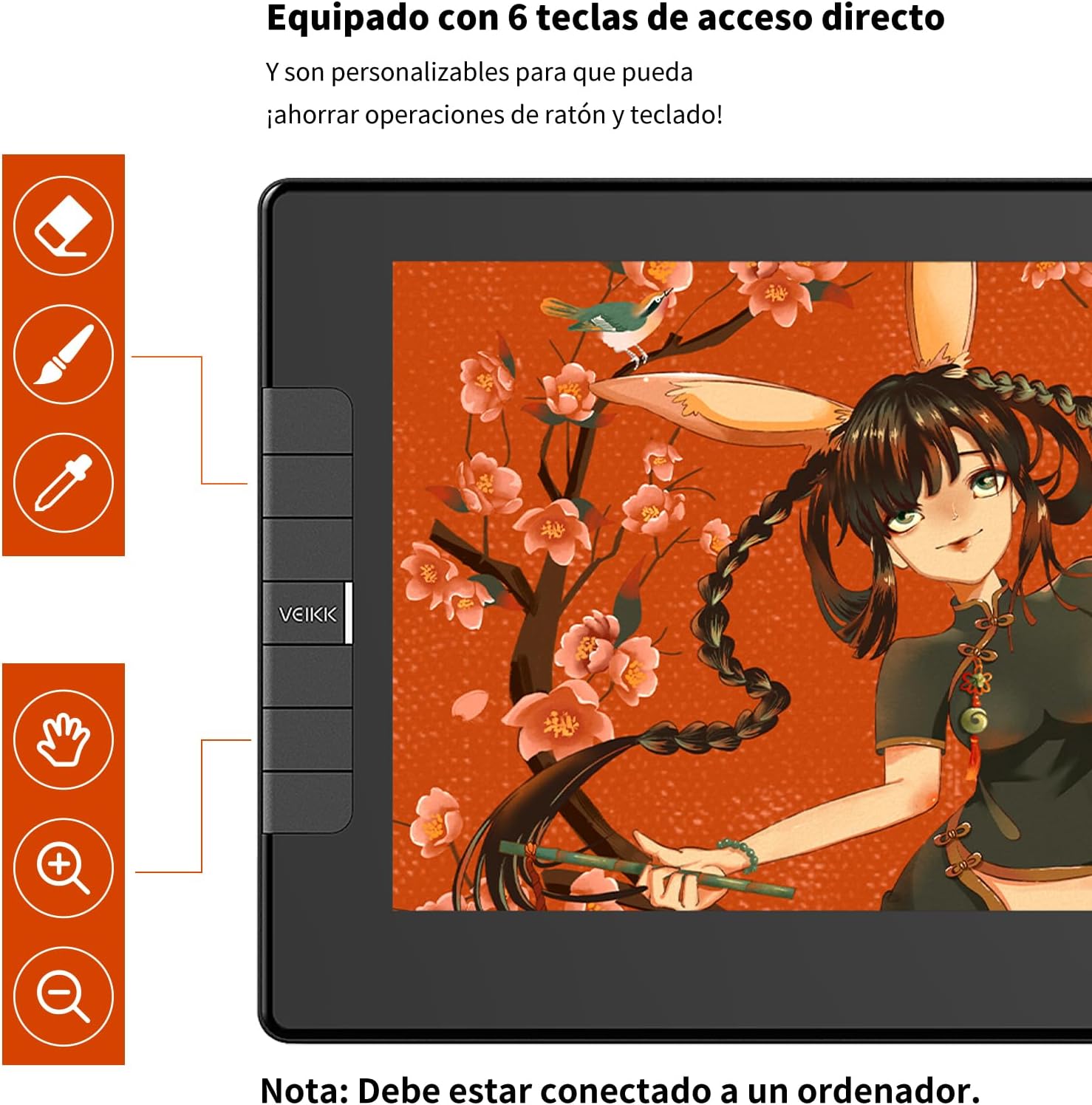
Figure 1: VEIKK VK1200 Drawing Monitor
2. Einrichtung
2.1 Packungsinhalt
Bevor Sie beginnen, vergewissern Sie sich bitte, dass alle Artikel im Paket vorhanden sind:
- VEIKK VK1200 Stift-Display
- 2 x Battery-Free Pens
- 28 x Ersatz-Stiftspitzen
- 1 x Nib Remover
- 1 x Pen Holder
- 1 x Artist Glove
- 1 x Reinigungstuch
- 1 x HDMI-Kabel
- 1 x USB-Kabel
- 1 x USB-C-auf-USB-C-Kabel
- 1 x Kurzanleitung

Abbildung 2: Mitgeliefertes Zubehör
2.2 Anschließen des Geräts
The VK1200 supports multiple connection methods. Choose the one compatible with your computer:
- Standardanschluss: Connect the HDMI cable from the VK1200 to your computer's HDMI port. Connect the USB cable from the VK1200 to your computer's USB port.
- USB-C-Anschluss: If your computer has a full-featured USB-C port (supporting display and data), you can use the provided USB-C to USB-C cable for a single-cable connection.

Figure 3: Connecting the VK1200 to your computer
2.3 Treiberinstallation
For optimal performance, install the latest drivers from the official VEIKK website. Follow the on-screen instructions during installation. Ensure any previous tablet drivers are uninstalled before installing new ones.
Video 1: VEIKK Drawing Tablet with Screen - This video provides a general overview of the VEIKK drawing tablet, including unboxing and initial setup steps.
3. Operating the VK1200
3.1 Pen Features
The VK1200 comes with a battery-free pen, eliminating the need for charging. It features 8192 levels of pressure sensitivity, allowing for precise control over line thickness and opacity. The pen also supports up to 60 degrees of tilt function, enabling natural shading and brush effects.
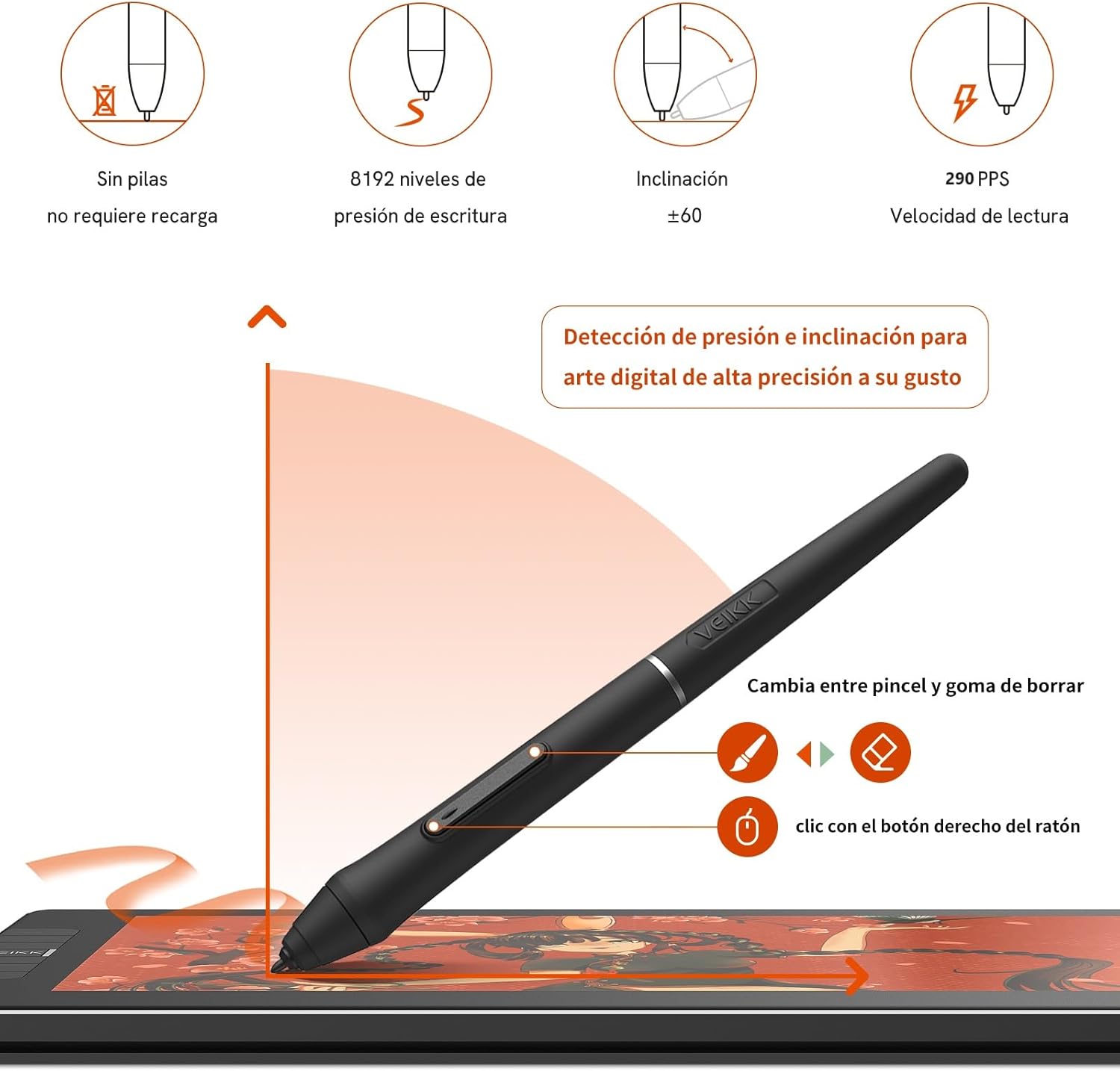
Figure 4: Pen with 8192 pressure levels and tilt function
3.2 Anpassbare Tastenkombinationen
The VK1200 is equipped with 6 customizable shortcut keys. These keys can be programmed to perform various functions in different software applications, improving efficiency and creating a personalized workflow. Refer to the driver software for customization options.

Figure 5: Customizable shortcut keys on the VK1200
3.3 Full-Laminated Display
The full-laminated screen technology seamlessly combines the glass and the display, minimizing parallax and ensuring accurate cursor positioning. The anti-glare film protects the screen from scratches and provides a paper-like drawing experience.

Figure 6: Explanation of full lamination minimizing parallax
Video 2: VK1200 Drawing Graphics Tablet - This video demonstrates the features and usage of the VK1200 drawing tablet.
4. Kalibrierung
To ensure precise alignment between your pen tip and the on-screen cursor, calibration is recommended. This process helps to optimize your drawing accuracy.
4.1 Pen and Cursor Calibration
Follow these steps to calibrate your pen and cursor:
- Open the VEIKK driver software on your computer.
- Navigate to the 'Mapping' section.
- Select the 'Calibrate' option.
- Follow the on-screen prompts to tap the indicated cross points with your pen.
- Adjust your pen grip as needed during the calibration process.
Video 3: How to Calibrate the Pen and Cursor of VEIKK Pen Display - This video guides you through the pen and cursor calibration process.
5. Wartung
5.1 Reinigung des Bildschirms
To maintain optimal display clarity, regularly clean the screen using the provided cleaning cloth. Gently wipe the screen to remove dust, smudges, and fingerprints. Avoid using harsh chemicals or abrasive materials.
5.2 Ersetzen von Federn
Over time, pen nibs may wear down. Replace them when they become too short or feel rough to ensure smooth drawing. Use the nib remover tool to carefully pull out the old nib and insert a new one.
Figure 7: Cleaning cloth and replacement nibs are included for maintenance
6. Fehlerbehebung
If you encounter any issues with your VEIKK VK1200, please refer to the following common solutions:
- Kein Display/Signal: Ensure all cables (HDMI, USB, or USB-C) are securely connected to both the monitor and your computer. Check your computer's display settings to ensure the VK1200 is detected and configured as an extended or mirrored display.
- Stift reagiert nicht: Verify that the pen is within the active drawing area. Reinstall the VEIKK driver. Perform a pen and cursor calibration as described in Section 4.
- Cursor Misalignment: This can often be resolved by performing a pen and cursor calibration (Section 4).
- Treiberprobleme: If the driver is not functioning correctly, try uninstalling it completely, restarting your computer, and then reinstalling the latest driver from the VEIKK webWebsite.
For further assistance, please contact VEIKK customer support.
7. Spezifikationen
| Besonderheit | Detail |
|---|---|
| Technische Daten | 12.52 x 7.4 x 0.51 Zoll |
| Artikelgewicht | 1.71 Pfund |
| Druckempfindlichkeit | 8192 Ebenen |
| Betriebssystem | MAC 12 or above; WIN11/10/8/7 |
| Konnektivitätstechnologie | HDMI, USB |
| Besonderheit | 60° Tilt Support, Full Lamination |
| Bildschirmauflösung | 1920x1080 IPS |
| Farbumfang | 72 % NTSC |
8. Garantie und Support
The VEIKK VK1200 comes with a 1 Jahr Hardwaregarantie. Additionally, VEIKK provides lifetime driver upgrade service to ensure your device remains compatible and performs optimally with future software updates.
For warranty claims, technical support, or any other inquiries, please visit the official VEIKK webBesuchen Sie die Website oder kontaktieren Sie direkt den Kundenservice. Bewahren Sie Ihren Kaufbeleg als Kaufnachweis für Garantieansprüche auf.