Einführung
Vielen Dank für Ihren Einkauf.asing the Range Tour D30H Dual Car Camera. This advanced dash cam is designed to provide comprehensive recording of your driving experience, both inside and outside your vehicle. With features like 4K 2160P resolution, built-in WiFi and GPS, 170° wide-angle lenses, WDR technology, night vision, loop recording, and parking monitoring, the D30H ensures reliable and high-quality video evidence. Please read this manual thoroughly before operation to ensure proper use and optimal performance.
Packungsinhalt
Bitte überprüfen Sie nach dem Öffnen den Packungsinhalt, um sicherzustellen, dass alle Artikel vorhanden sind:
- 1 x Range Tour D30H Car DVR Recorder
- 1 x Autoladegerät
- 1 x Hidden Holder Adhesive Sticker
- 1 x Saugnapfhalterung
- 1 x Benutzerhandbuch
- (Note: Memory Card is not included and must be purchased separately.)

Produkteigenschaften
- 4K HD Car Camera: Records at 2160p (4K) for the front camera only at 24fps, or dual 1080P@30fps for both front and inside cameras. Features a 170° wide-angle lens for comprehensive coverage. The front and rear cameras can be flipped 180 degrees, and left/right adjusted by 30 degrees to reduce blind spots.
- Dual Dash Cam with Wi-Fi & GPS: Built-in GPS module accurately logs vehicle location, speed, latitude, longitude, and route. View driving routes on Google Maps via the "Roadcam" app or with the Car Camera Recorder software. Integrated WiFi allows real-time footage viewing, video downloads to your phone, and easy sharing.
- Loop-Aufnahme: Records video in 1 or 3-minute segments. When the SD card is full, the oldest footage is automatically overwritten with new recordings, preventing memory shortage. Supports up to 256GB TF (microSD) cards (not included).
- G-Sensor: Automatically locks the current video footage upon detecting a sudden collision or impact, ensuring critical event recordings are not overwritten by loop recording.
- 24-Stunden-Parkraumüberwachung: When connected to a step-down hardwire kit (not included), the dash cam automatically turns on and records when motion is detected or an impact occurs while parked, providing evidence for financial loss or vehicle scratches.
- Super-Nachtsicht: Equipped with an image sensor, 4 IR lights, f/1.8 aperture, and a 6-glass lens to capture clear videos and photos even in low-light conditions.


Setup und Installation
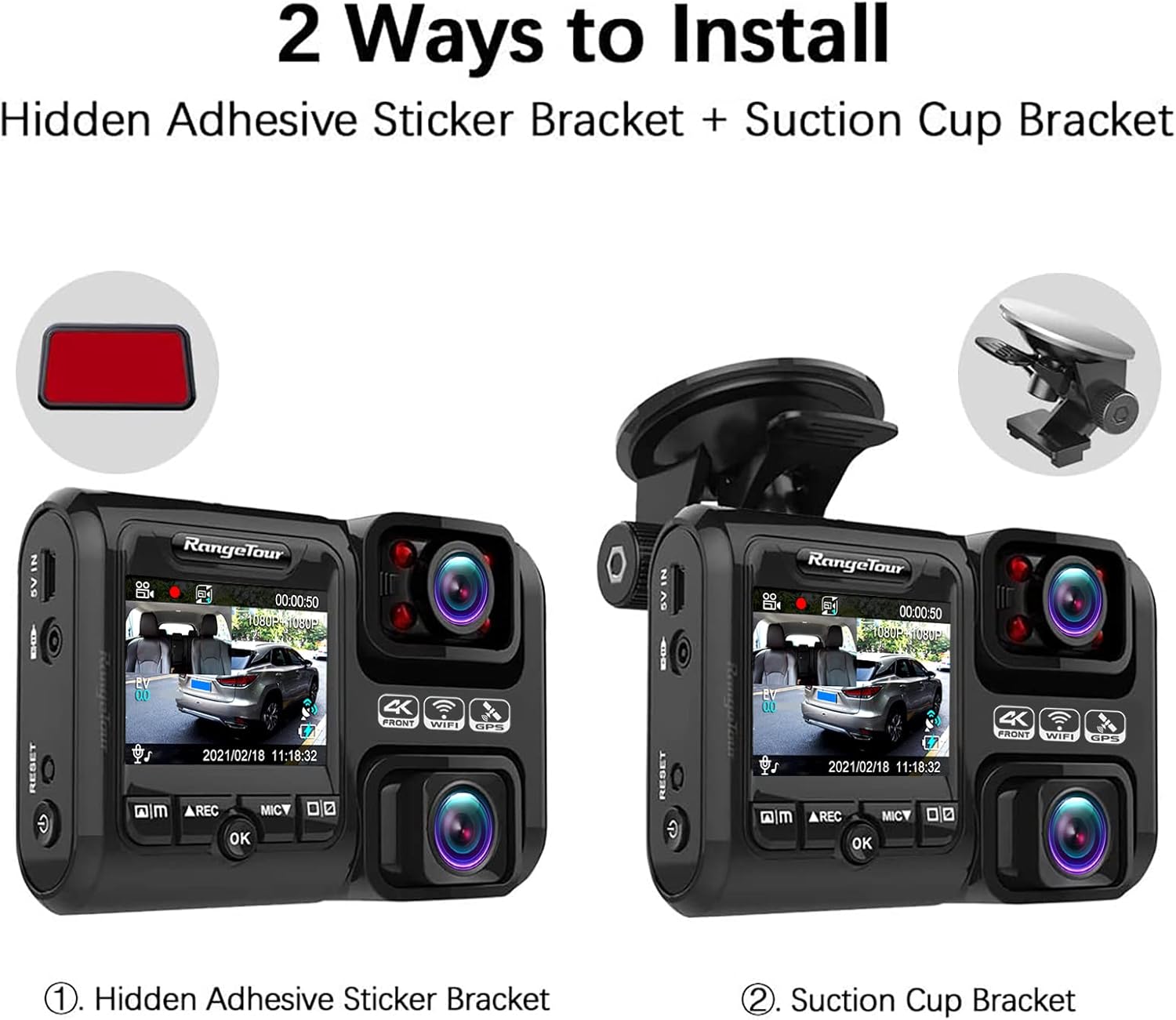
The Range Tour D30H offers two primary installation methods: using the hidden adhesive sticker bracket or the suction cup bracket.
- Bereiten Sie die Dashcam vor: Before installation, ensure the dash cam is fully charged by connecting it to a power source for at least 2 hours. Insert a Class 10 or higher microSD card (up to 256GB, not included) into the card slot. Format the SD card using the camera's settings or a computer (FAT32 format recommended).
- Montageort wählen: Select a location on your car's windshield that does not obstruct your view of the road. The area should be clean and dry.
- Montagehalterung installieren:
- Hidden Adhesive Sticker Bracket: Peel off the protective film from the adhesive pad and firmly press the bracket onto the chosen windshield location for at least 30 seconds. Allow 24 hours for the adhesive to fully cure before attaching the dash cam.
- Saugnapfhalterung: Drücken Sie den Saugnapf fest gegen die Windschutzscheibe und betätigen Sie den Hebel, um ihn zu sichern.
- Dashcam anbringen: Slide the D30H dash cam onto the installed mounting bracket until it clicks securely into place.
- Strom anschließen: Connect the provided car charger to the dash cam's 5V IN port and plug the other end into your vehicle's cigarette lighter socket. Route the power cable neatly along the windshield and dashboard edges to avoid obstruction.
- Kamerawinkel anpassen: Adjust the camera's angle to ensure both the front and interior lenses capture the desired view. The front lens can be rotated 180 degrees and the interior lens can be adjusted 30 degrees left/right.

Betrieb
Grundlegende Bedienung
- Ein-/Ausschalten: The dash cam will automatically power on and begin recording when your vehicle's engine starts and power is supplied. It will power off automatically when the engine is turned off. You can also manually power on/off by pressing and holding the power button.
- Aufnahme: Once powered on, the dash cam automatically starts loop recording. A red indicator light or on-screen icon will confirm recording is active.
- Notverriegelung: In case of a sudden impact or collision, the built-in G-sensor will automatically lock the current video segment to prevent it from being overwritten. You can also manually lock a video by pressing the "OK" button during recording.
- Mikrofon: The dash cam records audio by default. Press the MIC button to toggle the microphone on or off.
Menüeinstellungen
To access the menu settings, stop recording (if active) and press the Menu button. Use the navigation buttons to scroll through options and the OK button to select. Common settings include:
- Auflösung: Adjust video resolution (e.g., 4K, 1080P).
- Loop-Aufnahme: Set loop recording duration (1/3 minutes).
- G-Sensor-Empfindlichkeit: Adjust the sensitivity of the G-sensor (Low, Medium, High).
- Parkmonitor: Enable or disable parking monitoring (requires hardwire kit).
- Datum/Uhrzeit: Stellen Sie das korrekte Datum und die korrekte Uhrzeit ein.
- SD-Karte formatieren: Format the inserted microSD card.
Using the Roadcam App (WiFi Function)
- Download the "Roadcam" app from your smartphone's app store.
- On the dash cam, enable WiFi mode through the menu settings. The dash cam will broadcast a WiFi network.
- Stellen Sie mit Ihrem Smartphone eine Verbindung zum WLAN-Netzwerk der Dashcam her (SSID und Passwort werden auf dem Bildschirm der Dashcam angezeigt).
- Open the "Roadcam" app. You can now view lebe footage, browse recorded videos, download videos to your phone, and adjust dash cam settings directly from the app.
Wartung
- SD-Kartenwartung: Regularly format the microSD card (at least once a month) to prevent data corruption and ensure optimal recording performance. Replace the microSD card if it shows signs of degradation or error.
- Reinigung: Use a soft, dry cloth to clean the camera lenses and the device body. Do not use abrasive cleaners or solvents.
- Temperatur: Avoid exposing the dash cam to extreme temperatures. While designed for automotive use, prolonged exposure to direct sunlight in a parked car can affect performance and lifespan.
- Firmware-Updates: Check the official Range Tour webBesuchen Sie die Website regelmäßig, um Firmware-Updates zu erhalten. Durch die Aktualisierung der Firmware können die Leistung verbessert, neue Funktionen hinzugefügt und Fehler behoben werden.
Fehlerbehebung
| Problem | Mögliche Ursache/Lösung |
|---|---|
| Die Dashcam lässt sich nicht einschalten. |
|
| Die Aufnahme stoppt oder friert ein. |
|
| Die Videoqualität ist schlecht. |
|
| GPS signal is not found. |
|
| WLAN-Verbindungsprobleme. |
|
Technische Daten
- Modell: D30H
- Produktabmessungen: 3.94 x 1.97 x 3.54 Zoll
- Artikelgewicht: 4.8 Unzen
- Auflösung der Videoaufnahme: Front 4K (2160P@24fps), Dual 1080P@30fps
- Fachgebiet View: 170 Grad (Weitwinkel)
- Besondere Merkmale: Loop Recording, G-Sensor, Night Vision, Parking Monitor, Built-in WiFi, Built-in GPS
- Konnektivitätstechnologie: USB, Drahtlos (WLAN)
- Energiequelle: Car Charger (12V-24V)
- Batterie: 1 Lithium Polymer battery required (internal capacitor for power-off protection)
- Lagerung: Supports up to 256GB TF (microSD) card (not included)
Garantie und Support
Range Tour provides a standard warranty for this product. For detailed warranty terms, conditions, and duration, please refer to the warranty card included in your package or visit the official Range Tour website. For technical support, troubleshooting assistance, or any product-related inquiries, please contact Range Tour customer service through the contact information provided on the official webWebsite oder Ihre Einkaufsplattform.
Always ensure you are using official accessories and following the instructions in this manual to maintain your warranty validity.