
1. Produktüberschreitungview
The NETVUE Sentry 2 is a 1080P outdoor security camera designed to provide comprehensive surveillance for your home. It features advanced functionalities such as 360° pan and 110° tilt for wide area coverage, real-time motion and human detection, two-way audio communication, and enhanced night vision capabilities. Its IP66 weatherproof rating ensures reliable performance in various outdoor conditions.
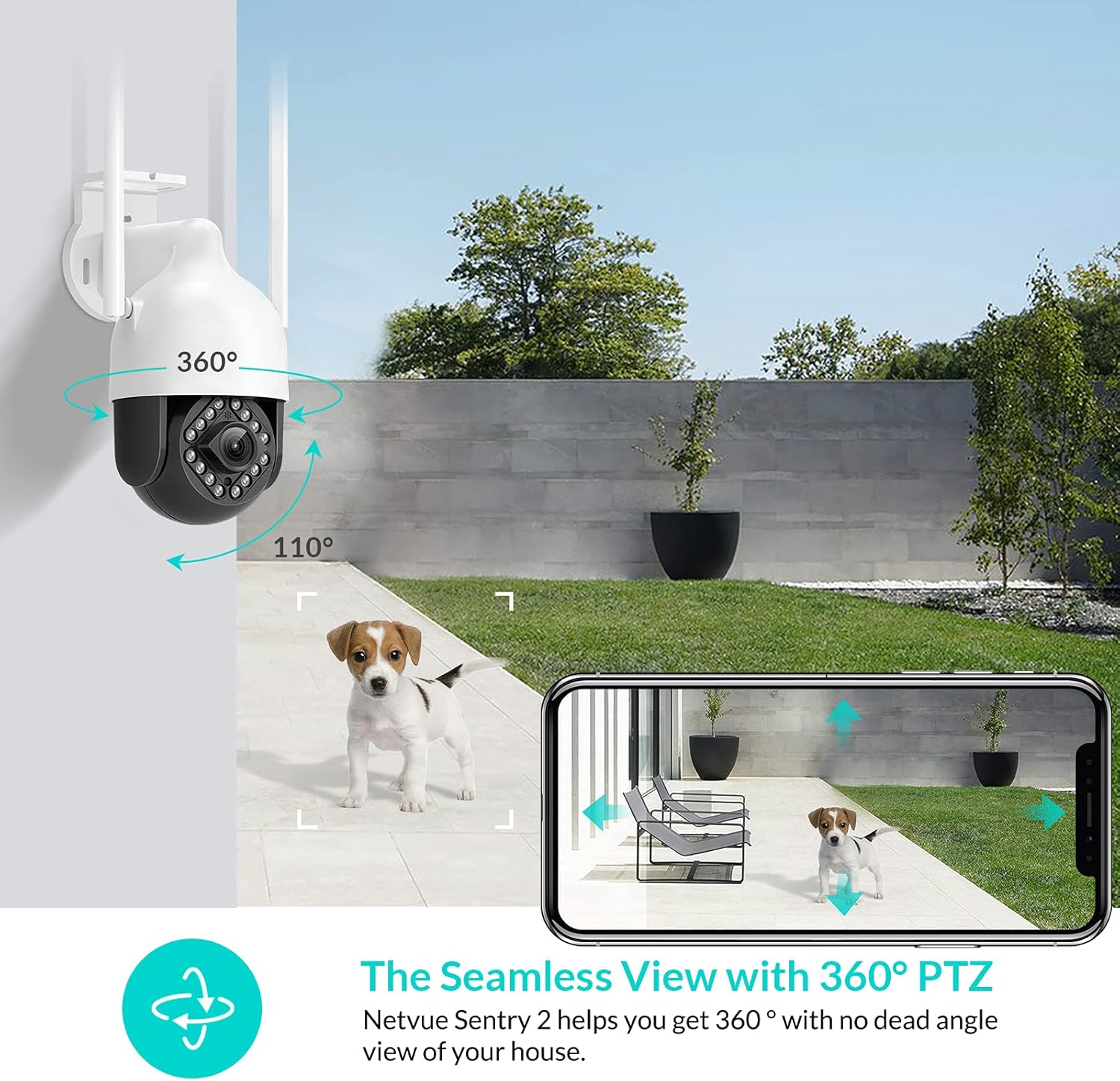
Image: NETVUE Sentry 2 Outdoor Security Camera showcasing its 360° pan and 110° tilt view.
2. Lieferumfang
Upon unboxing your NETVUE Sentry 2 camera, please verify that all components are present:
- NETVUE Sentry 2 Outdoor Security Camera
- Netzteil
- Montagehalterung
- Befestigungsschrauben und Wandanker
- Wasserdichtes Set für Kabelverbindungen
- Benutzerhandbuch (dieses Dokument)
Eine visuelle Anleitung zum Produkt und seinen Komponenten finden Sie im offiziellen Produktvideo unten:
Video: Official Netvue Outdoor Security Camera Sentry 2 overview, including unboxing and installation steps.
3. Einrichtung und Installation
3.1 Einschalten
- Schließen Sie das Netzteil an den Stromeingang der Kamera an.
- Stecken Sie das Netzteil in eine normale Steckdose.
- Wait for the camera to power on and initiate its self-test.
3.2 App-Download und Kontoerstellung
- Download the official NETVUE app from your device's app store (iOS or Android).
- Öffne die App und erstelle ein neues Konto oder melde dich an, falls du bereits eines hast.
3.3 Wi-Fi-Verbindung
The NETVUE Sentry 2 camera supports 2.4GHz Wi-Fi networks. Ensure your mobile device is connected to a 2.4GHz Wi-Fi network during the setup process.
- In the NETVUE app, tap 'Add Device' and select your camera model.
- Follow the on-screen instructions to connect the camera to your Wi-Fi network. This typically involves scanning a QR code generated by the app with the camera lens.

Image: NETVUE Sentry 2 camera demonstrating stable Wi-Fi connection in distance.
3.4 Physische Installation
Wählen Sie einen geeigneten Standort im Freien für die Montage der Kamera, der eine klare Sicht bietet. view and is within Wi-Fi range. The camera is IP66 weatherproof, suitable for various outdoor conditions.
- Use the mounting bracket as a template to mark drill holes on the desired surface.
- Bohren Sie die Löcher und setzen Sie die Dübel ein.
- Befestigen Sie die Montagehalterung mit den mitgelieferten Schrauben an der Oberfläche.
- Befestigen Sie die Kamera an der Montagehalterung.
- Stellen Sie sicher, dass alle Kabelverbindungen mit dem wasserdichten Set ordnungsgemäß abgedichtet sind, um das Eindringen von Wasser zu verhindern.
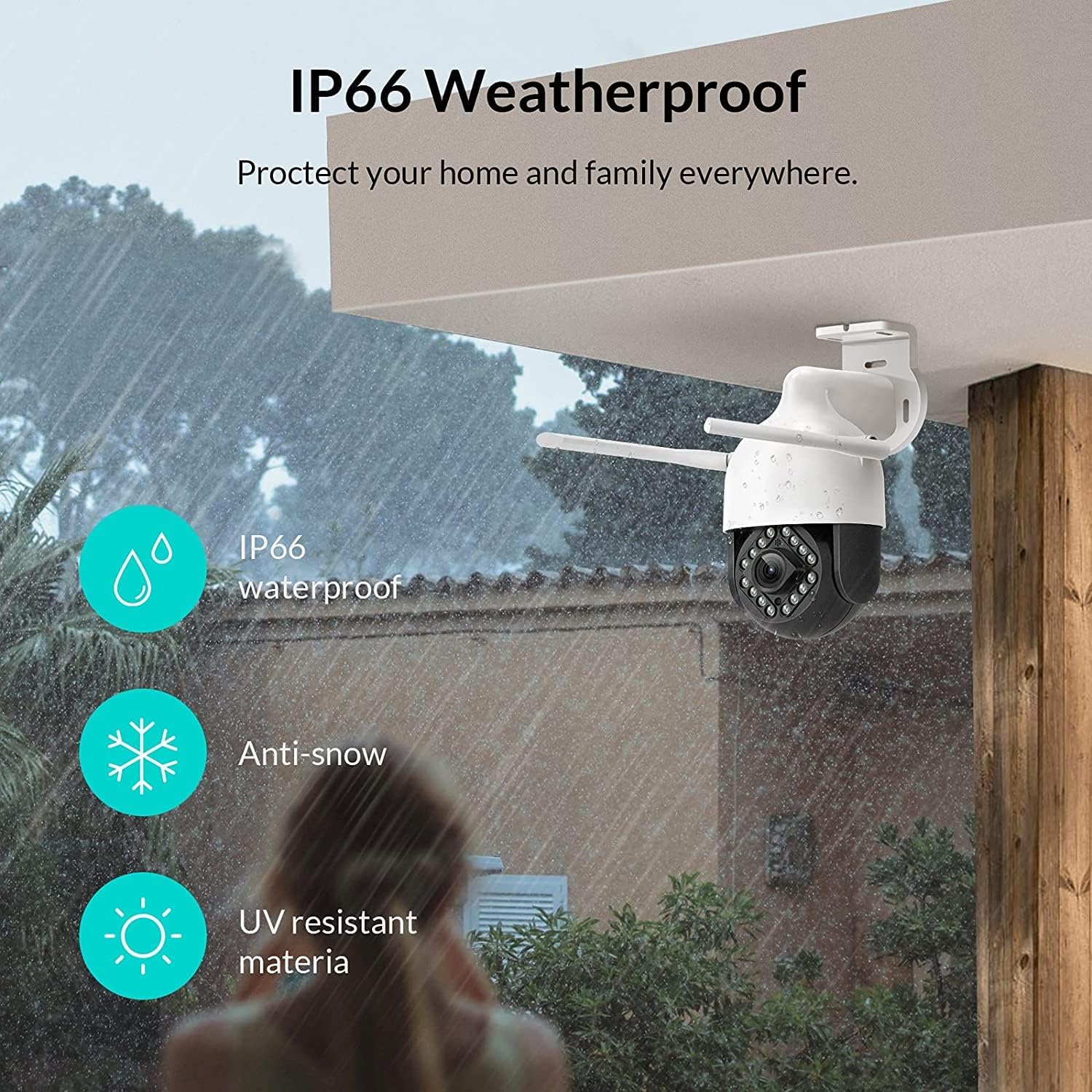
Image: NETVUE Sentry 2 camera highlighting its IP66 weatherproof features against rain and snow.
4. Bedienung der Kamera
4.1 Live View und Schwenk-/Neigesteuerung
Access the live video feed from your camera through the NETVUE app. You can remotely control the camera's pan (horizontal) and tilt (vertical) movements to adjust the viewWinkel nach Bedarf.
4.2 Bewegungs- und Personenerkennung
The camera is equipped with motion and human detection capabilities. When motion or a human figure is detected, you will receive immediate notifications on your mobile device.

Image: Real-time motion detection alert displayed on a smartphone from the NETVUE Sentry 2 camera.

Image: Motion and human detection alert from the NETVUE Sentry 2 camera, showing a person at the front door.
4.3 Zwei-Wege-Audio
Utilize the two-way audio feature to communicate with individuals near the camera. This is useful for interacting with visitors or deterring unwanted guests.

Image: Two-way audio feature of the NETVUE Sentry 2 camera, allowing communication with a delivery person.
4.4 Nachtsicht
The NETVUE Sentry 2 camera is equipped with 16 infrared lights for super night vision, providing clear video footagselbst bei schwachem Licht oder völliger Dunkelheit.

Image: Close-up of the NETVUE Sentry 2 camera's 16 infrared lights for super night vision.
5. Wartung
5.1 Reinigung der Kamera
Periodically clean the camera lens and housing to ensure optimal performance. Use a soft, damp Mit einem Tuch Staub und Schmutz abwischen. Vermeiden Sie die Verwendung von scharfen Chemikalien oder scheuernden Materialien, die die Linse oder die Oberfläche beschädigen könnten.
5.2 Firmware-Updates
Regularly check the NETVUE app for available firmware updates. Keeping your camera's firmware up-to-date ensures you have the latest features, security enhancements, and bug fixes.
5.3 Speicherverwaltung
The camera supports local storage via a microSD card (not included) and cloud storage options. If using a microSD card, ensure it is properly formatted and regularly check its status within the app to prevent recording issues.
6. Fehlerbehebung
6.1 Probleme mit der WLAN-Verbindung
- Stellen Sie sicher, dass 2.4-GHz-WLAN vorhanden ist: The camera only supports 2.4GHz Wi-Fi. Confirm your router is broadcasting a 2.4GHz signal and your phone is connected to it during setup.
- Signalstärke: Verify the camera is installed within a strong Wi-Fi signal range. Relocate the camera or use a Wi-Fi extender if necessary.
- Router-Einstellungen: Check your router settings for any restrictions that might prevent new devices from connecting.
6.2 SD Card Not Detected or Recording
- SD-Karte wieder einsetzen: Power off the camera, remove the microSD card, and reinsert it firmly. Power the camera back on.
- SD-Karte formatieren: Format the SD card through the NETVUE app. If issues persist, try a different, high-quality microSD card.
- Überprüfen Sie die App-Einstellungen: Ensure recording settings are correctly configured in the NETVUE app.
6.3 No Motion Alerts
- Warnungen aktivieren: Confirm motion detection and notification alerts are enabled in the NETVUE app settings.
- Empfindlichkeit anpassen: Adjust the motion detection sensitivity to an appropriate level.
- Check Schedule: Ensure motion detection is not disabled during specific times via a schedule.
6.4 Allgemeine Fragen
- Kamera neu starten: Disconnect the power adapter, wait 10 seconds, and reconnect it to restart the camera.
- App aktualisieren: Ensure your NETVUE app is updated to the latest version.
7. Spezifikationen
| Kompatible Geräte | Videoüberwachung |
| Stromquelle | Wechselstrom/Gleichstrom |
| Konnektivitätsprotokoll | W-lan |
| Controllertyp | Iris |
| Montagetyp | Wandhalterung |
| Auflösung der Videoaufnahme | 1080p |
| Anzahl der Artikel | 1 |
| Anzahl der Kanäle | 1 |
| Drahtlose Kommunikationstechnologie | W-lan |
| Batterien erforderlich? | NEIN |
| Low-Light-Technologie | Nachtfarbe |
| Alarmtyp | Nur Bewegung |
| Lichtquellentyp | Infrarot |
| Videoaufnahmeformat | MPEG-4 |
| Einheitenanzahl | 1.0 Anzahl |
| Internationale Schutzbewertung | IP66 |
| Verpackungsabmessungen | 11.3 x 6.1 x 5.91 Zoll |
| Artikelgewicht | 2.12 Pfund |
| Empfohlene Verwendung für das Produkt | Sicherheit im Außenbereich |
| Verwendung im Innen- und Außenbereich | Im Freien |
8. Garantie und Support
For warranty information and technical support, please refer to the official NETVUE website or contact NETVUE customer service directly. Keep your purchase receipt for warranty claims.