
1. Einleitung
This manual provides essential information for the proper use and maintenance of your Gateway 15.6-inch FHD Ultra Slim Laptop, Model GTW15G. This device is equipped with an AMD Ryzen 5 3450U Mobile Processor, 8GB of DDR4 RAM, and a 256GB Solid State Drive (SSD). It features a 15.6-inch Full HD (1920x1080) IPS display, a built-in fingerprint scanner, and runs on Windows 10, with an available free upgrade to Windows 11.
Please read this manual thoroughly before operating your laptop to ensure optimal performance and longevity.
2. Einrichtung
2.1 Auspacken und erste Inspektion
Carefully remove the laptop and all accessories from the packaging. Verify that all components are present and undamaged. The package should include the laptop, power adapter, and this user manual.
2.2 Anschließen des Netzteils
Before first use, connect the power adapter to the laptop's charging port and then to a power outlet. Allow the battery to charge for at least 30 minutes before powering on for the first time.

Figure 2.1: Gateway 15.6-inch Ultra Slim Laptop overview.
2.3 Erstes Einschalten und Windows-Einrichtung
Press the power button located on the keyboard. The laptop will boot up and guide you through the Windows 10 initial setup process. Follow the on-screen instructions to configure your region, language, network connection, and user account.
2.4 Fingerprint Scanner Setup (Windows Hello)
During or after the initial Windows setup, you can configure the built-in fingerprint scanner for secure login using Windows Hello. Navigate to Einstellungen > Konten > Anmeldeoptionen and follow the prompts to set up your fingerprint.
3. Bedienungsanleitung
3.1 Ein-/Ausschalten und Schlafmodus
- Einschalten: Drücken Sie die Einschalttaste.
- Abschalten: Klicken Sie auf das Start Taste, dann Power > Shut down.
- Schlafmodus: Close the lid or click the Start Taste, dann Ein/Aus > Ruhezustand.
3.2 Using the Precision Touchpad
The laptop features a precision touchpad for navigation. It supports multi-touch gestures for scrolling, zooming, and other functions. Refer to Windows settings for customizing touchpad gestures.
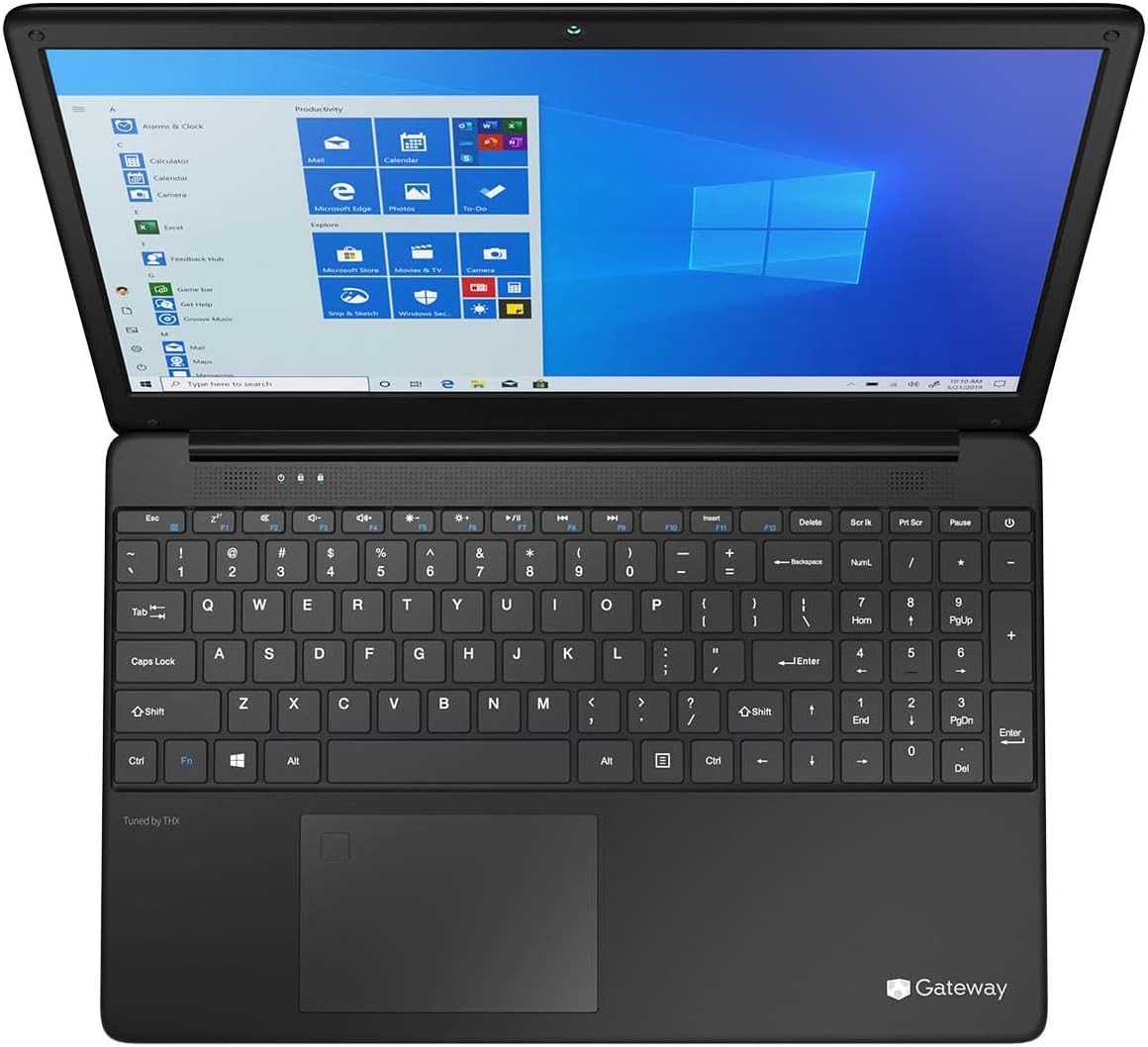
Figure 3.1: Keyboard and Precision Touchpad layout.
3.3 Externe Geräte anschließen
Der Laptop verfügt über verschiedene Anschlüsse zum Verbinden von Peripheriegeräten:
- USB 3.0-Anschlüsse (x2): For connecting USB devices such as external hard drives, mice, or keyboards.
- USB Type-C Port (x1): Supports both charging and data transfer.
- HDMI-Ausgang (x1): Schließen Sie einen externen Monitor oder Fernseher an.
- Micro-SD-Steckplatz (x1): Supports Micro SD cards up to 512 GB for expanded storage.
- Kensington Schloss: Zur physischen Sicherheit.
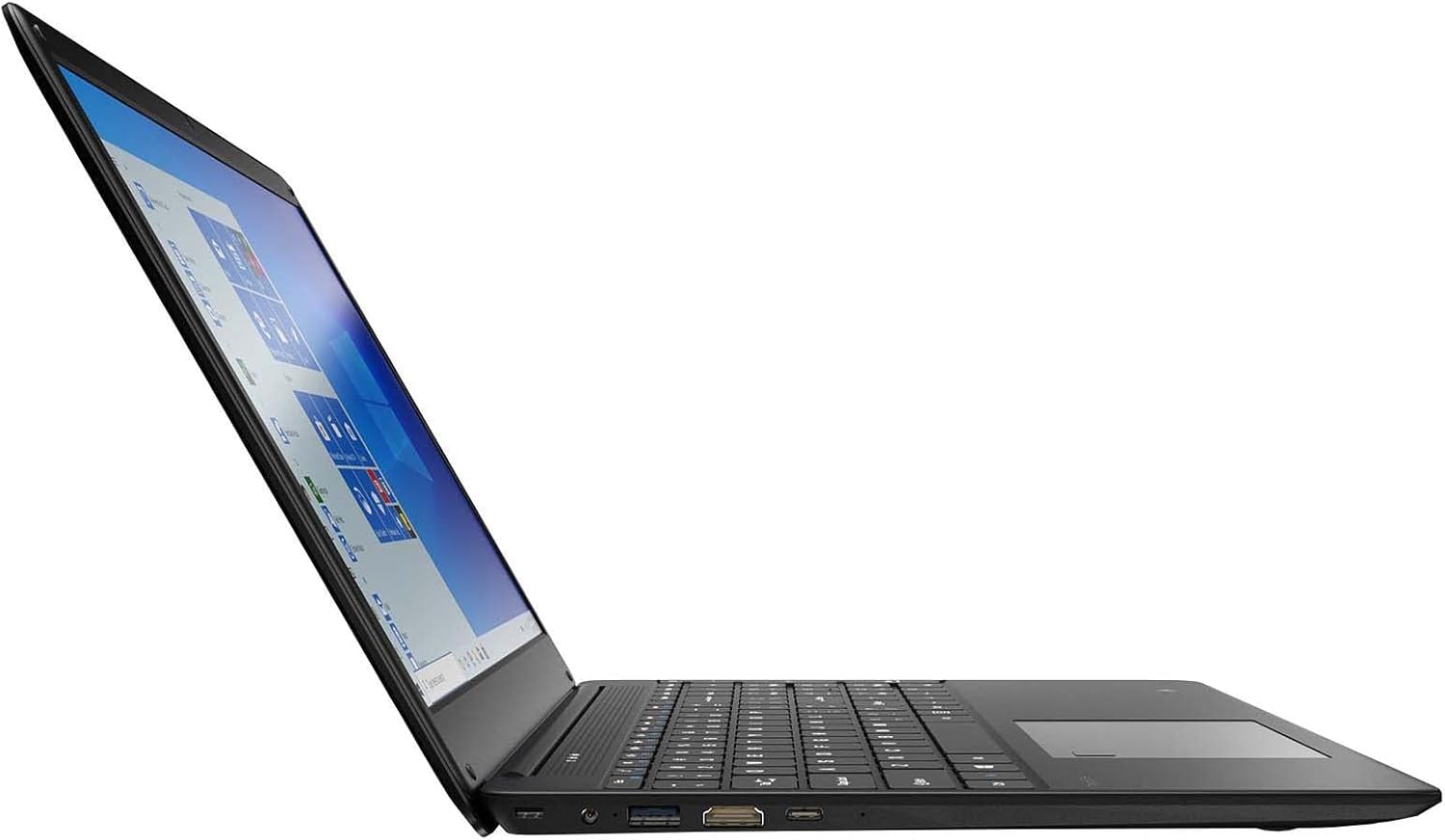
Figure 3.2: Left side ports (USB, HDMI, USB Type-C).
3.4 Drahtlose Konnektivität
The laptop supports Wi-Fi and Bluetooth 5.1 for wireless connections. Access network settings via the Windows taskbar or Einstellungen > Netzwerk & Internet to connect to Wi-Fi networks or pair Bluetooth devices.
3.5 Audiofunktionen
The built-in stereo speakers are tuned by THX Audio, providing enhanced sound quality. Adjust volume using the function keys on the keyboard or through Windows sound settings.
4. Wartung
4.1 Reinigung des Laptops
- Bildschirm: Mit einem weichen, fusselfreien Tuch leichtampMit Wasser oder einem Bildschirmreiniger abspülen. Flüssigkeit nicht direkt auf den Bildschirm sprühen.
- Gehäuse und Tastatur: Verwenden Sie ein weiches, trockenes Tuch. Bei hartnäckigem Schmutz ein leicht dämpfendes Tuch verwenden.amp Stoff kann verwendet werden. Vermeiden Sie aggressive Chemikalien.
- Vents: Reinigen Sie die Lüftungsöffnungen regelmäßig mit Druckluft, um Staubablagerungen zu vermeiden, die die Kühlleistung beeinträchtigen können.
4.2 Batteriepflege
Um die Akkulaufzeit und Lebensdauer zu maximieren:
- Vermeiden Sie es, den Akku häufig vollständig zu entladen.
- Setzen Sie den Laptop keinen extremen Temperaturen aus.
- Wenn Sie den Laptop über einen längeren Zeitraum lagern, stellen Sie sicher, dass der Akku zu etwa 50-70 % geladen ist.
- Optimize power settings in Windows to conserve battery power.
4.3 Softwareaktualisierungen
Regularly check for and install Windows updates to ensure your system has the latest security patches and performance improvements. Navigate to Einstellungen > Update und Sicherheit > Windows Update.
4.4 Datensicherung
Sichern Sie Ihre wichtigen Daten regelmäßig auf einer externen Festplatte oder in der Cloud, um Datenverlust zu vermeiden.
5. Fehlerbehebung
In diesem Abschnitt werden häufig auftretende Probleme behandelt, die bei Ihrem Laptop auftreten können.
5.1 Laptop lässt sich nicht einschalten
- Stellen Sie sicher, dass das Netzteil sowohl mit dem Laptop als auch mit einer funktionierenden Steckdose fest verbunden ist.
- Überprüfen Sie die Funktionsfähigkeit der Steckdose, indem Sie ein anderes Gerät anschließen.
- Lassen Sie den Laptop einige Zeit aufladen, bevor Sie versuchen, ihn wieder einzuschalten.
5.2 Probleme mit der WLAN-Verbindung
- Prüfen Sie, ob WLAN in den Windows-Einstellungen aktiviert ist.
- Starten Sie Ihren Router und Ihr Modem neu.
- Stellen Sie sicher, dass Sie sich in Reichweite des WLAN-Netzwerks befinden und das richtige Passwort eingegeben haben.
- Run the Windows Network Troubleshooter (Settings > Network & Internet > Status > Network troubleshooter).
5.3 Langsame Leistung
- Schließen Sie unnötige Anwendungen, die im Hintergrund laufen.
- Prüfen Sie, ob Windows-Updates ausstehen, und installieren Sie diese gegebenenfalls.
- Stellen Sie sicher, dass auf Ihrer SSD ausreichend freier Speicherplatz vorhanden ist.
- Auf Schadsoftware oder Viren scannen.
5.4 Überhitzung
If the laptop feels excessively warm, ensure that the ventilation vents are not blocked. Operate the laptop on a hard, flat surface to allow for proper airflow. Avoid using it on soft surfaces like beds or couches that can obstruct vents.
5.5 Andere Probleme
For issues not covered here, refer to the Windows help documentation or contact Gateway customer support.
6. Spezifikationen
| Besonderheit | Spezifikation |
|---|---|
| Modellname | Gateway GWTN156 (GTW15G) |
| Anzeigegröße | 15.6 Zoll |
| Bildschirmauflösung | 1920 x 1080 Pixel (FHD) |
| Prozessor | AMD Ryzen 5 3450U (2.1 GHz, Up to 3.50 GHz) |
| RAM | 8 GB DDR4 |
| Lagerung | SSD mit 256 GB |
| Grafik-Coprozessor | AMD Radeon Vega 8-Grafik |
| Betriebssystem | Windows 10 (Free Upgrade to Windows 11) |
| Kabelloser Typ | WLAN, Bluetooth 5.1 |
| Häfen | 1x HDMI, 1x USB Type-C (Charge + Data), 2x USB 3.0, 1x Micro SD Slot (Up to 512 GB) |
| Besondere Merkmale | Built-in Fingerprint Scanner (Windows Hello), Stereo Speakers Tuned by THX Audio, HD WebNocken |
| Artikelgewicht | 5.5 Pfund |
| Verpackungsabmessungen | 16.65 x 11.73 x 2.8 Zoll |
7. Garantie und Support
For warranty information and technical support, please refer to the official Gateway website or contact Gateway customer service directly. Keep your proof of purchase for warranty claims.
This product may be eligible for separate protection plans. Details regarding these plans are available from your retailer at the time of purchase.