
Einführung
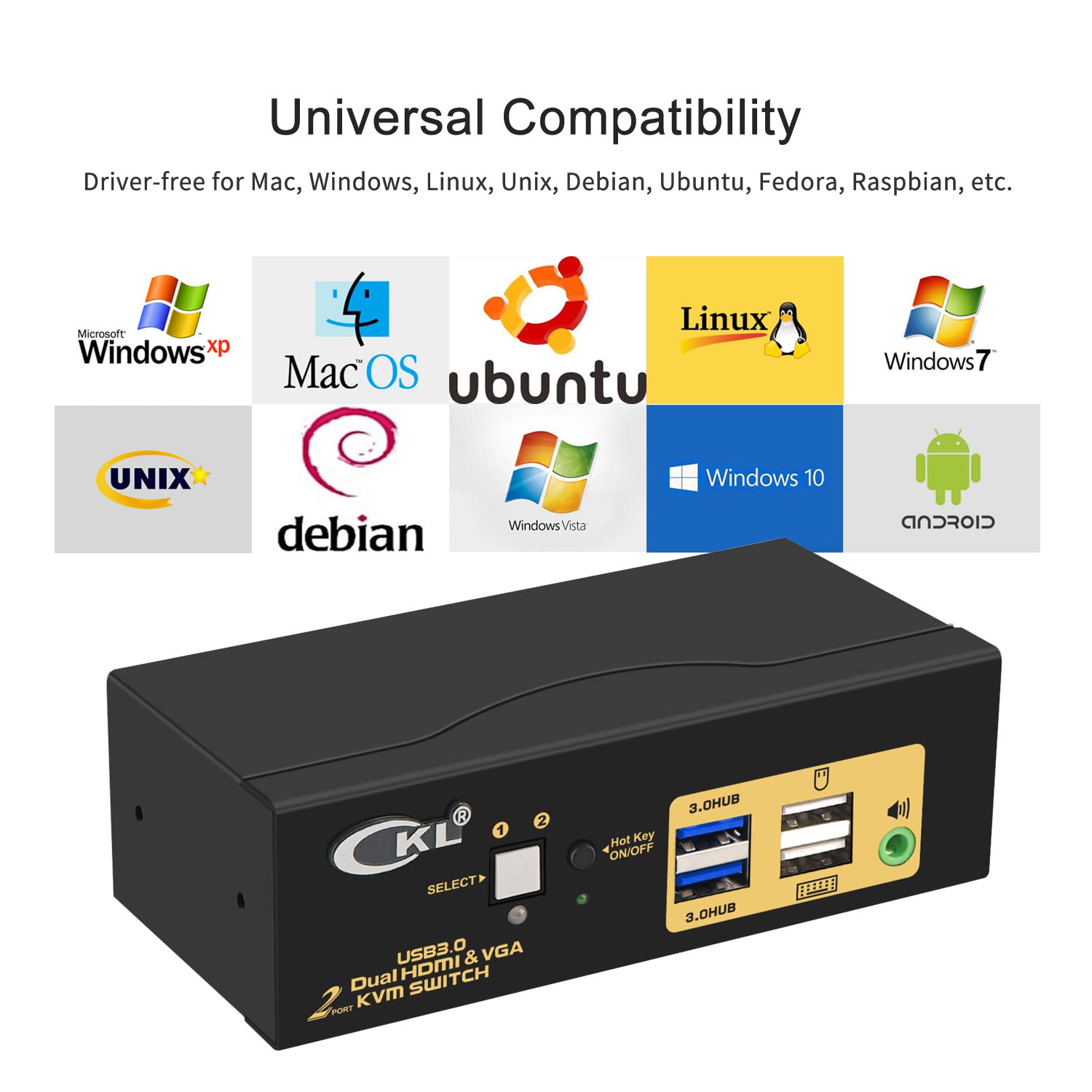
The CKL USB3.0 HDMI KVM Switch is designed to allow control of two computers or laptops using a single set of wired or wireless keyboard, mouse, and two extended or mirrored monitors. This device supports high resolutions up to 4K@60Hz for HDMI output and includes integrated USB 3.0 HUB ports for sharing additional USB peripherals. It is compatible with various operating systems including Windows, Linux, and Mac.
Packungsinhalt
Bitte überprüfen Sie, ob alle unten aufgeführten Artikel in Ihrem Paket enthalten sind:
- 1 x CKL USB3.0 HDMI KVM Switch (Model: CKL-922HV)
- 2 x HDMI-Kabel
- 2 x USB 3.0-Kabel
- 1 x Kabelfernbedienung
- 1 x DC 5V Netzteil
- 1 x Benutzerhandbuch

Produkt überview
Vorderseite
- Auswahlknopf: Dient zum manuellen Umschalten zwischen angeschlossenen Computern.
- Anzeige-LEDs: Show which PC is currently active (PC1 or PC2).
- Hot Key ON/OFF Switch: Enables or disables keyboard hotkey switching.
- USB-Tastaturanschluss: Dedicated port for connecting your keyboard.
- USB-Mausanschluss: Dedicated port for connecting your mouse.
- 2 x USB 3.0 HUB Ports: For connecting additional USB peripherals such as printers, scanners, webcams, or USB drives.
- Audioausgang: 3.5mm jack for connecting speakers or headphones.

Rückseite
- PC1 IN (HDMI A, HDMI B, USB 3.0): Input ports for connecting the first computer.
- PC2 IN (HDMI A, HDMI B, USB 3.0): Input ports for connecting the second computer.
- OUT A (HDMI): Output port for connecting the first monitor.
- OUT B (HDMI): Output port for connecting the second monitor.
- Gleichstrom 5V: Stromeingangsanschluss.
- Kabelgebundene Fernbedienung: Anschluss für die kabelgebundene Fernbedienung.
- Ein / Aus Schalter: Main power switch for the KVM device.

Installationsanweisungen
Follow these steps to set up your CKL KVM Switch:
- Geräte ausschalten: Stellen Sie sicher, dass alle Computer und Monitore ausgeschaltet sind, bevor Sie mit dem Verbindungsvorgang beginnen.
- PC1 anschließen: Connect the HDMI A, HDMI B, and USB 3.0 cables from your first computer (e.g., Desktop PC) to the corresponding 'PC1 IN' ports on the rear of the KVM switch. If your computer uses DisplayPort or USB-C for video output, you may need appropriate adapters (e.g., DisplayPort to HDMI, USB-C to HDMI).
- PC2 anschließen: Connect the HDMI A, HDMI B, and USB 3.0 cables from your second computer (e.g., Mini PC) to the corresponding 'PC2 IN' ports on the rear of the KVM switch.
- Monitore anschließen: Connect your first monitor to the 'OUT A' HDMI port and your second monitor to the 'OUT B' HDMI port on the rear of the KVM switch.
- Tastatur und Maus anschließen: Plug your keyboard into the dedicated USB Keyboard port and your mouse into the dedicated USB Mouse port on the front panel. For wireless keyboard/mouse sets with a single unifying dongle, plug the dongle into either the dedicated mouse port or one of the USB 3.0 HUB ports.
- Audio anschließen (optional): If desired, connect your speakers or headphones to the 3.5mm Audio Output jack on the front panel.
- Anschluss einer kabelgebundenen Fernbedienung (optional): Plug the wired remote control into its dedicated port on the rear panel.
- Strom anschließen: Schließen Sie das 5-V-Gleichstromnetzteil an den KVM-Switch und anschließend an eine Steckdose an.
- Einschalten: First, power on the KVM switch. Then, power on your monitors, and finally, power on your computers. The KVM switch should automatically detect the active computer.

Bedienungsanleitung
Zwischen Computern wechseln
The CKL KVM Switch offers multiple methods for switching between connected computers:
- Druckknopfschaltung: Press the 'SELECT' button on the front panel of the KVM switch to cycle between PC1 and PC2.
- Keyboard Hotkey Switching: Ensure the 'Hot Key ON/OFF' switch on the front panel is in the 'ON' position. To switch, quickly press the Right Control (Ctrl) key twice, then the port number (1 for PC1, 2 for PC2), and finally press Enter.
- Mauswechsel: Double-click the scroll wheel of your mouse to switch between computers.
- Kabelgebundene Fernschaltung: Press the button on the wired remote control to switch between computers.

Anzeigemodi
Der KVM-Switch unterstützt verschiedene Anzeigekonfigurationen für Ihre beiden Monitore:
- Erweiterte Anzeige: Each monitor displays a different part of the desktop, extending your workspace.
- Gespiegeltes Display: Both monitors display the same content.
- Splicing Wall: Allows for advanced display configurations, often used for video walls.

Wartung
Um die Langlebigkeit und optimale Leistung Ihres KVM-Switches zu gewährleisten, beachten Sie bitte folgende allgemeine Wartungsrichtlinien:
- Bewahren Sie das Gerät an einem kühlen, trockenen Ort fern von direkter Sonneneinstrahlung und übermäßiger Hitze auf.
- Vermeiden Sie den Kontakt des Geräts mit Flüssigkeiten oder übermäßiger Feuchtigkeit.
- Reinigen Sie die Außenseite mit einem weichen, trockenen Tuch. Verwenden Sie keine Scheuermittel oder Lösungsmittel.
- Sorgen Sie für eine ausreichende Belüftung rund um das Gerät, um eine Überhitzung zu vermeiden.
- Überprüfen Sie regelmäßig die Kabelverbindungen, um sicherzustellen, dass sie fest sitzen.
Fehlerbehebung
If you encounter issues with your CKL KVM Switch, please refer to the following common problems and solutions:
- Keine Anzeige oder zeitweise Anzeige:
- Verify all HDMI and USB 3.0 cables are securely connected between the computers, KVM, and monitors.
- Ensure the correct PC input is selected on the KVM switch (check indicator LEDs).
- Confirm that your monitor resolution and refresh rate are supported by the KVM switch (up to 4K@60Hz for HDMI).
- Try power cycling the KVM switch and then the connected computers and monitors.
- Tastatur oder Maus funktionieren nicht:
- Ensure the keyboard and mouse are plugged into the dedicated keyboard and mouse ports on the front panel. For wireless sets, try plugging the unifying dongle into one of the USB 3.0 HUB ports if issues persist with the dedicated ports.
- If using special keyboards or mice, try disabling the hotkey function via the 'Hot Key ON/OFF' switch.
- Power cycle the KVM switch.
- Audioprobleme:
- Ensure HDMI audio is set as the default output device in your computer's sound settings.
- Check the connection of your speakers or headphones to the KVM's audio output jack.
- Windows Rearranging/Resizing After Switching:
This behavior can occur with some KVM switches as the monitors are virtually disconnected and reconnected during the switch. This is often a characteristic of the operating system's display management rather than a KVM fault. Some operating systems or third-party utilities may offer solutions to manage window positions.
- KVM Needs Frequent Power Cycling:
If peripherals stop responding or the switch becomes unresponsive, power cycling the KVM (turning it off and on) can often resolve the issue. Ensure stable power supply to the unit.
Technische Daten
| Besonderheit | Beschreibung |
|---|---|
| Modellnummer | CKL-922HV |
| Marke | CKL |
| Steckertyp | HDMI, USB, VGA (input support) |
| Betriebsmodus | Push Button, Keyboard Hotkeys, Mouse Clicks, Wired Remote |
| Maximale HDMI-Auflösung | 3840x2160@60Hz (16:9), 4096x2160@60Hz (4:3) |
| Max VGA Resolution | 2048x1536@450MHz |
| USB-Standard | USB 3.0 (up to 5Gbps data transfer rate) |
| Leistungsaufnahme | Gleichstrom 5 V |
| Abmessungen (L x B x H) | 5.12 x 2.95 x 1.65 Zoll |
| Kompatibilität | Windows, Linux, Mac, and more |
| Material | Metall |
Garantie und Support
CKL products are designed for reliability and performance. For specific warranty details, please refer to the warranty card included with your product or visit the official CKL website. For technical support, troubleshooting assistance, or to explore other CKL products, please visit the CKL Store on Amazon.
A downloadable PDF version of this user manual is also available: Benutzerhandbuch (PDF).