
Avision AD340G

Avision AD340G Kompakter Hochgeschwindigkeits-Duplex-Dokumentenscanner – Benutzerhandbuch
Modell: AD340G
Einführung
This manual provides comprehensive instructions for the setup, operation, maintenance, and troubleshooting of your Avision AD340G Compact High Speed Duplex Document Scanner. Please read this manual thoroughly before using the scanner to ensure proper and safe operation.
Sicherheitshinweise
Beachten Sie die folgenden Sicherheitsvorkehrungen, um Verletzungen und Schäden am Scanner zu vermeiden:
- Verwenden Sie ausschließlich das mit dem Scanner gelieferte Netzteil.
- Setzen Sie den Scanner weder Wasser noch übermäßiger Feuchtigkeit aus.
- Stellen Sie den Scanner auf eine stabile, ebene Fläche.
- Setzen Sie den Scanner keiner direkten Sonneneinstrahlung und Wärmequellen aus.
- Unplug the scanner before cleaning or if it will not be used for an extended period.
Packungsinhalt
Überprüfen Sie, ob alle Artikel im Paket vorhanden sind:
- Avision AD340G Document Scanner
- Netzteil
- USB-Kabel
- Kurzanleitung
- Software-CD (oder Download-Anleitung)
Produkt überview
Familiarize yourself with the main components of the Avision AD340G scanner.
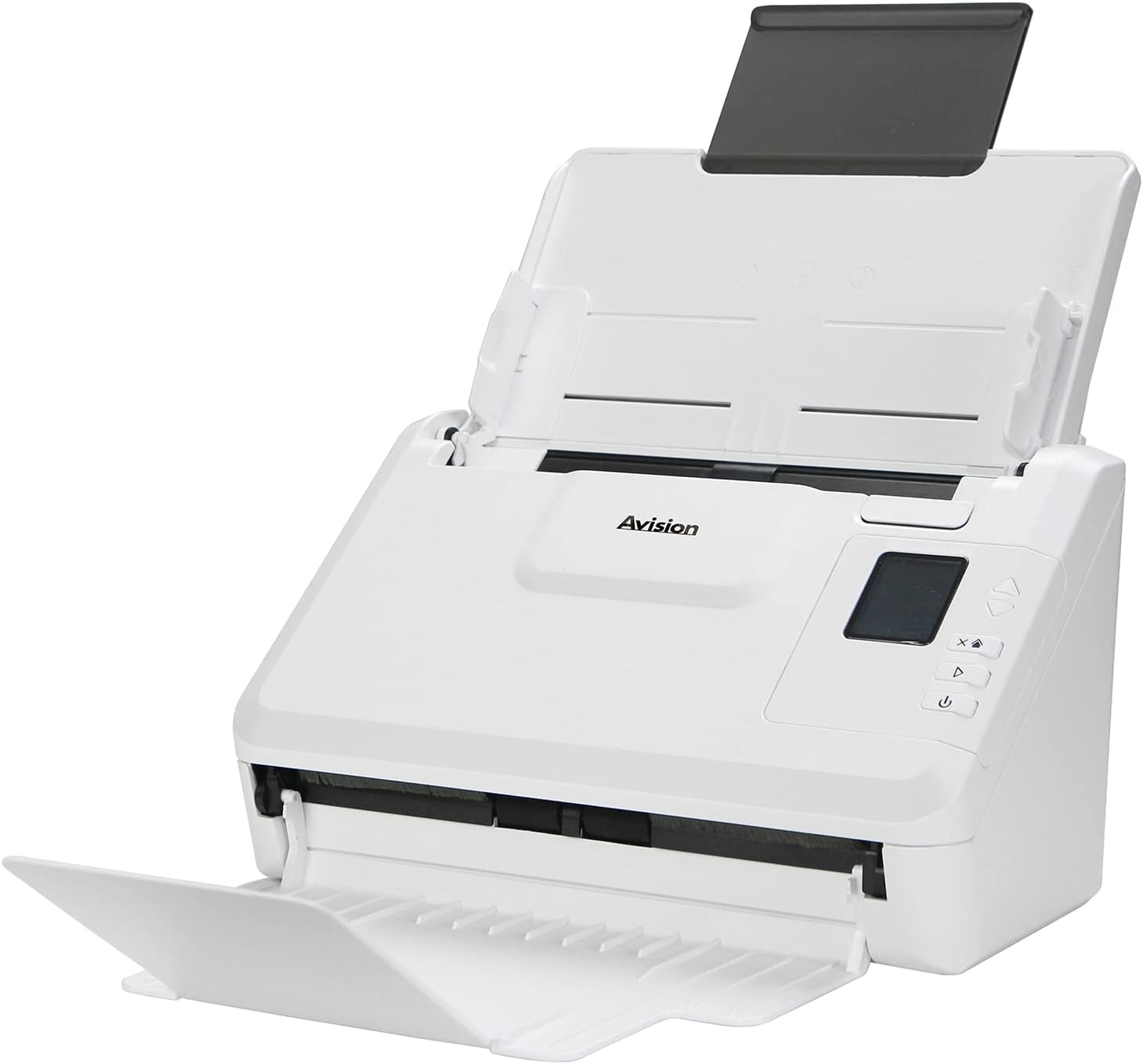
Bild: The Avision AD340G scanner shown with its input and output trays extended, ready for document feeding. This view highlights the compact design and accessible paper path.
- Document Feeder Tray: Where documents are loaded for scanning.
- Ausgabefach: Where scanned documents are ejected.
- Bedienfeld: Buttons and display for scanner operation.
- USB-Anschluss: Zum Anschluss an einen Computer.
- Stromanschluss: Zum Anschluss des Netzteils.
Aufstellen
1. Physischer Aufbau
- Den Scanner auspacken: Nehmen Sie den Scanner und sämtliches Zubehör vorsichtig aus der Verpackung.
- Platzieren Sie den Scanner: Position the scanner on a flat, stable surface with adequate space for the input and output trays.
- Strom anschließen:
- Connect the power adapter to the scanner's power port.
- Stecken Sie das Netzteil in eine Steckdose.
- Mit Computer verbinden:
- Connect one end of the USB cable to the scanner's USB port.
- Verbinden Sie das andere Ende des USB-Kabels mit einem freien USB-Anschluss Ihres Computers.
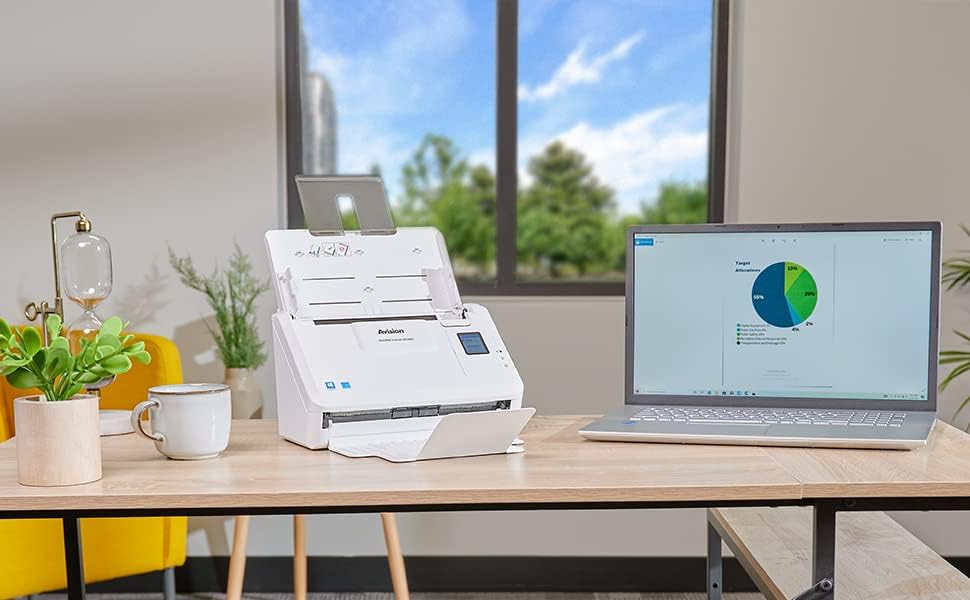
Bild: The Avision AD340G scanner set up on a desk next to a laptop, illustrating a typical connected environment. This shows the scanner's compact footprint when in use.
2. Softwareinstallation
Install the necessary drivers and scanning software from the provided CD or by downloading them from the official Avision webWebsite.
- Insert the software CD into your computer's CD/DVD drive, or navigate to the Avision support website to download the latest drivers and utilities for the AD340G model.
- Follow the on-screen instructions to complete the installation. This typically includes installing the TWAIN/ISIS drivers and the Avision scanning utility software.
- Starten Sie Ihren Computer neu, wenn Sie dazu aufgefordert werden.
Bedienung des Scanners
1. Dokumente laden
- Open the document feeder tray and extend the output tray.
- Passen Sie die Papierführungen an die Breite Ihrer Dokumente an.
- Place the documents face-down in the input tray, ensuring they are neatly stacked and aligned. The scanner supports up to 50 sheets.

Bild: A hand carefully placing a stack of documents into the input tray of the Avision AD340G scanner, demonstrating the correct loading procedure.
2. Scanvorgang
- Schalten Sie den Scanner durch Drücken der Einschalttaste ein.
- Launch the Avision scanning software on your computer.
- Wählen Sie Ihren gewünschten Scanner aus.file (e.g., color, grayscale, black & white, resolution). The AD340G supports duplex scanning (both sides simultaneously).
- Click the "Scan" button in the software or press the scan button on the scanner's control panel.
- The scanner will feed and process the documents. Once scanning is complete, the images will appear in the software.
- Review the scanned images, make any necessary adjustments (e.g., rotate, crop), and save them to your desired location and format (e.g., PDF, JPEG, TIFF).
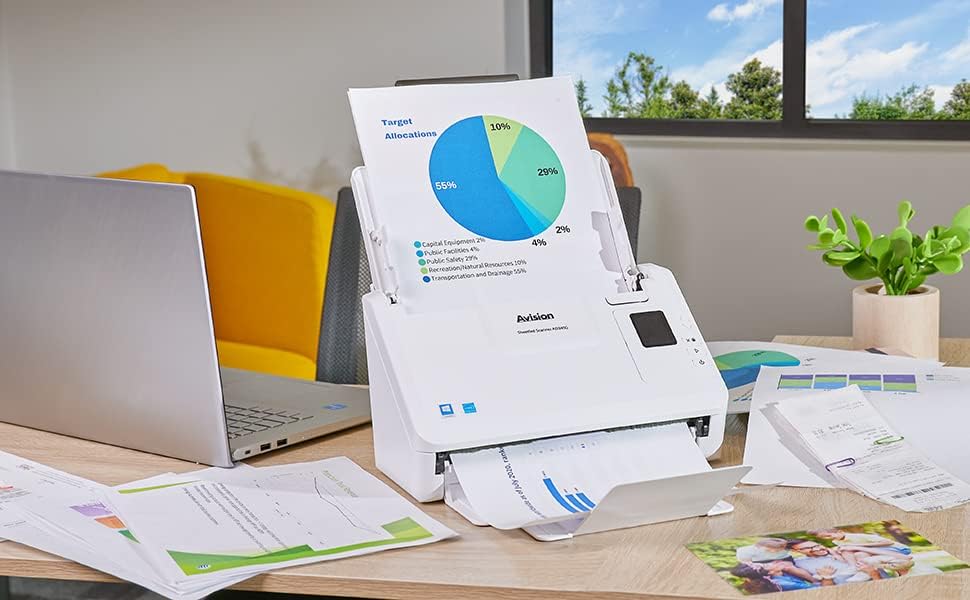
Bild: The Avision AD340G scanner in operation, feeding a document with a pie chart. This illustrates the scanner's ability to handle various document types efficiently.
Wartung
Reinigung des Scanners
Regelmäßige Reinigung gewährleistet optimale Leistung und verlängert die Lebensdauer Ihres Scanners.
- Ausschalten und Netzstecker ziehen: Always turn off the scanner and disconnect the power adapter and USB cable before cleaning.
- Sauberes Äußeres: Wipe the exterior of the scanner with a soft, lint-free cloth lightly dampMit Wasser oder einem milden, nicht scheuernden Reinigungsmittel abspülen.
- Clean Interior (Rollers and Glass):
- Open the scanner cover to access the rollers and glass scanning surfaces.
- Gently wipe the feed rollers with a clean, lint-free cloth. If necessary, use a small amount of isopropyl alcohol on the cloth for stubborn residue.
- Clean the glass scanning strips with a soft cloth and glass cleaner (non-ammonia based).
- Allow all components to dry completely before closing the cover and reconnecting power.
Fehlerbehebung
| Problem | Mögliche Ursache | Lösung |
|---|---|---|
| Der Scanner lässt sich nicht einschalten. | Stromkabel nicht angeschlossen; Problem mit der Steckdose. | Stellen Sie sicher, dass das Netzkabel fest angeschlossen ist. Versuchen Sie es mit einer anderen Steckdose. |
| Documents jam frequently. | Misaligned paper guides; worn rollers; dirty rollers. | Adjust paper guides. Clean the feed rollers. If problem persists, rollers may need replacement. |
| Eingescannte Bilder sind unscharf oder weisen Linien auf. | Dirty scanning glass; incorrect resolution settings. | Clean the scanning glass. Adjust scanning resolution in the software. |
| Der Scanner wurde vom Computer nicht erkannt. | USB cable disconnected; driver not installed or corrupted. | Überprüfen Sie die USB-Kabelverbindung. Installieren Sie die Scannertreiber neu. Versuchen Sie es mit einem anderen USB-Anschluss. |
Technische Daten
Key technical specifications for the Avision AD340G Document Scanner:
- Modell: AD340G
- Scannertyp: ADF Duplex Document Scanner
- Konnektivität: USB
- Auflösung: 600 dpi (optisch)
- Scangeschwindigkeit: 40 ppm (pages per minute) / 80 ipm (images per minute)
- Farbtiefe: 48 bits input / 24 bits output
- Standardblattkapazität: 50 Blatt
- Optische Sensortechnologie: CIS (Kontaktbildsensor)
- Produktabmessungen: 11 x 6.1 x 6.5 Zoll
- Artikelgewicht: 8 Pfund
- Mindestsystemanforderungen: Windows XP/7/8/10
Garantie und Support
For warranty information, technical support, or service inquiries, please refer to the warranty card included with your product or visit the official Avision webDie Kontaktdaten des Kundendienstes finden Sie in der Regel auf der Website des Herstellers. webWebsite.
Avision Official WebWebsite: www.avision.com
Ask a question about this manual
Ask about setup, troubleshooting, compatibility, parts, safety, or missing instructions. Manuals+ will review the question and use this page’s manual context to help answer it.