
Dragonwar GSPS4-BU
Dragonwar Dragon Shock 4 Wireless Controller User Manual
Model: GSPS4-BU
1. Einleitung
Thank you for choosing the Dragonwar Dragon Shock 4 Wireless Controller. This manual provides detailed instructions to help you set up, operate, and maintain your controller for optimal performance across PlayStation 4, PC, and mobile devices. Please read this manual thoroughly before use.
2. Packungsinhalt
Stellen Sie sicher, dass alle Artikel im Paket vorhanden sind:
- Dragonwar Dragon Shock 4 Wireless Controller
- USB-Ladekabel
- Bedienungsanleitung
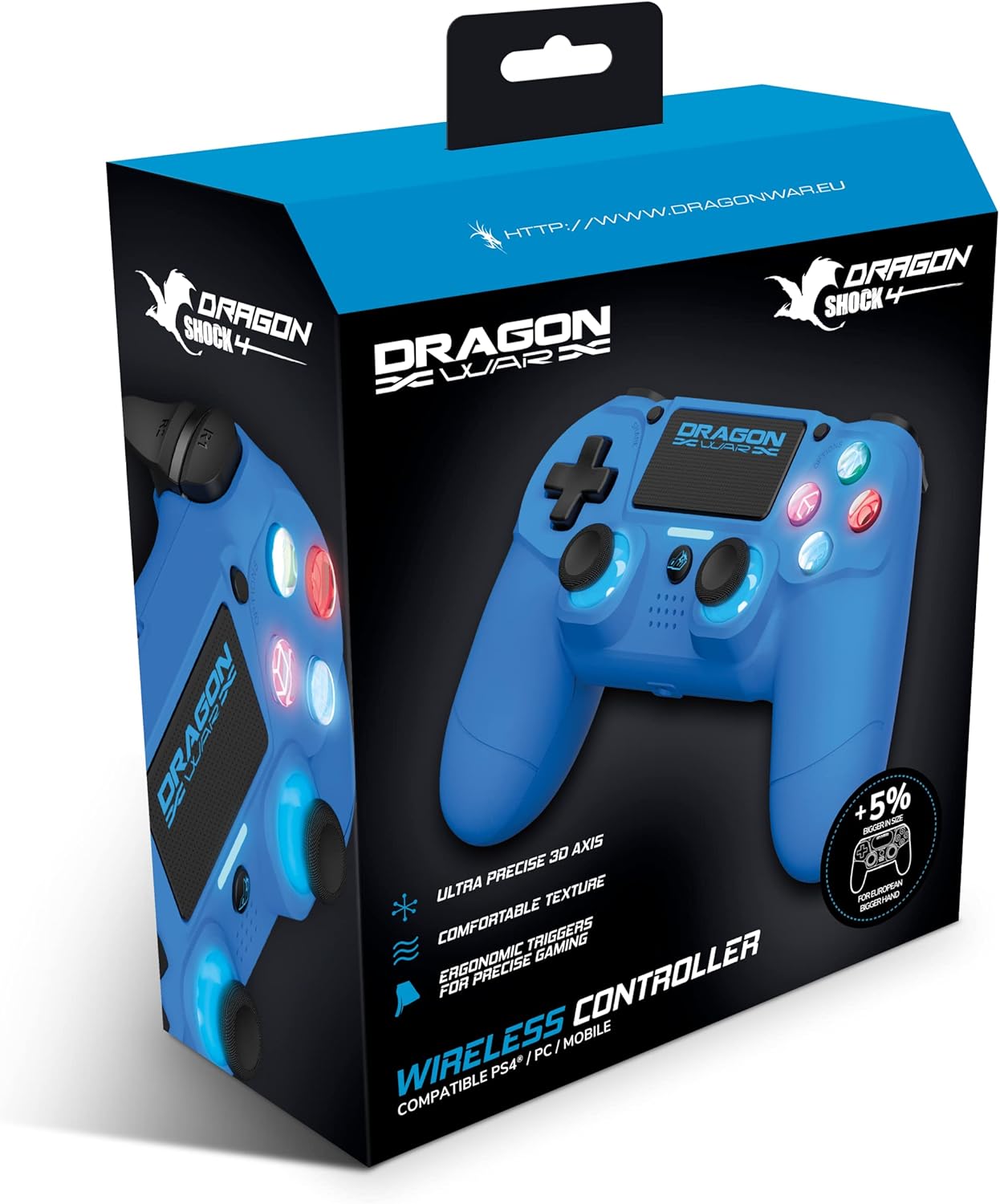
Image: The Dragonwar Dragon Shock 4 Wireless Controller packaging, showing the blue controller inside a blue and black box with product features listed.
3. Controller vorbeiview
Familiarize yourself with the various buttons and features of your Dragon Shock 4 controller:

Image: A detailed diagram of the Dragonwar Dragon Shock 4 Wireless Controller, highlighting and numbering its various buttons and components for easy identification.
- Left Joystick / L3 Button: Used for movement and as a clickable button.
- Home "Button: Schaltet den Controller ein/aus und greift auf Systemmenüs zu.
- 3.5mm Jack Play & Chat: For connecting a headset for audio and voice chat.
- Right Joystick / R3 Button: Used for camera control, aiming, and as a clickable button.
- Button (Cross): Aktionsknopf.
- Button (Circle): Aktionsknopf.
- Button (Triangle): Aktionsknopf.
- Button (Square): Aktionsknopf.
- Optionsschaltfläche: Accesses in-game or system options.
- Touchpad: Multi-touch input surface.
- Teilen Knopf: Zum Teilen von Gameplay-Inhalten.
- Up Button (D-Pad): Richtungseingang.
- Right Button (D-Pad): Richtungseingang.
- Left Button (D-Pad): Richtungseingang.
- Down Button (D-Pad): Richtungseingang.
- R1 Button: Rechter Schulterknopf.
- R2 Button: Rechter Triggerknopf.
- L1 Button: Linker Schulterknopf.
- L2 Button: Linker Triggerknopf.
- Ladeanschluss: USB-Anschluss zum Laden des Controllers.
4. Einrichtung
4.1 Erstaufladung
Before first use, fully charge the controller. Connect the supplied USB charging cable to the controller's charging port (20) and the other end to a powered USB port (e.g., PS4 console, PC, or USB wall adapter). The light bar will indicate charging status and turn off when fully charged.
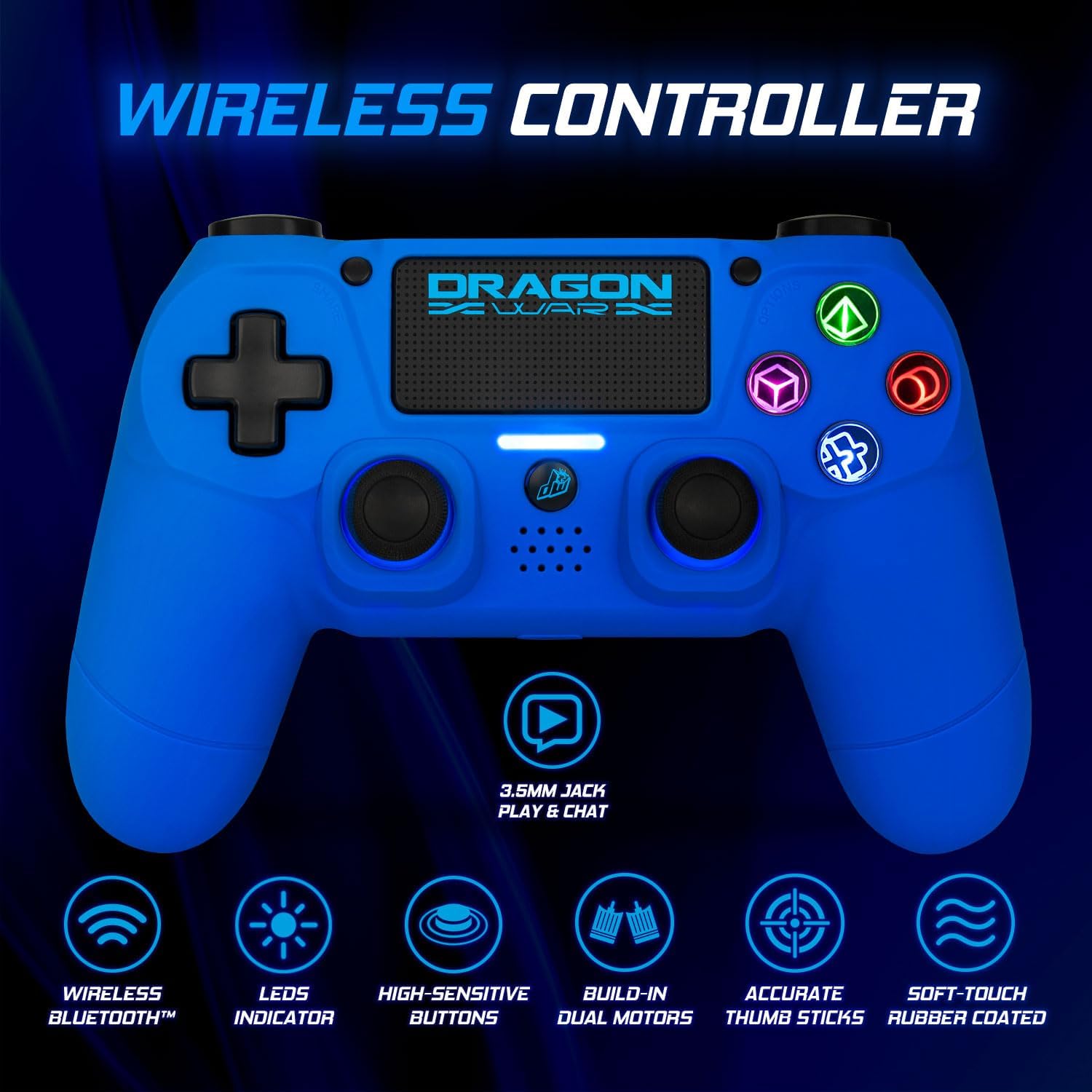
Image: The Dragonwar Dragon Shock 4 Wireless Controller displayed with text indicating "Long Battery Life" and a 500mAh battery, along with play time and charging time details.
4.2 Kopplung mit PlayStation 4
- Stellen Sie sicher, dass Ihre PS4-Konsole eingeschaltet ist.
- Verbinden Sie den Controller mithilfe des USB-Ladekabels mit der PS4-Konsole.
- Drücken Sie die Home-Taste (2) on the controller.
- The controller will pair with the PS4. Once paired, you can disconnect the USB cable for wireless play.
- To pair additional controllers, repeat the process.
4.3 Verbindung zum PC (Windows)
Der Controller kann über Bluetooth oder ein USB-Kabel mit einem PC verbunden werden.
4.3.1 Bluetooth-Verbindung
- Stellen Sie sicher, dass Bluetooth auf Ihrem PC aktiviert ist.
- Gehen Sie auf Ihrem PC zu Einstellungen > Geräte > Bluetooth & andere Geräte.
- Halten Sie die share Button (11) und die Home-Taste (2) on the controller simultaneously until the light bar starts flashing rapidly. This indicates pairing mode.
- On your PC, click "Add Bluetooth or other device" and select "Bluetooth".
- Select the controller from the list of available devices (it may appear as "Wireless Controller" or similar).
- Follow any on-screen prompts to complete the pairing.
4.3.2 Kabelverbindung
- Verbinden Sie den Controller mit Ihrem PC mithilfe des USB-Ladekabels.
- Der PC sollte die notwendigen Treiber automatisch erkennen und installieren.
4.4 Verbindung zu Mobilgeräten herstellen
- Stellen Sie sicher, dass Bluetooth auf Ihrem Mobilgerät aktiviert ist.
- Halten Sie die share Button (11) und die Home-Taste (2) on the controller simultaneously until the light bar starts flashing rapidly.
- On your mobile device, go to Bluetooth settings and scan for new devices.
- Wählen Sie den Controller aus der Liste der verfügbaren Geräte aus.
- Follow any on-screen prompts to complete the pairing.
5. Bedienungsanleitung
5.1 Ein-/Ausschalten
- So schalten Sie das Gerät ein: Drücken Sie die Home-Taste (2). The controller will attempt to connect to the last paired device.
- So schalten Sie das Gerät aus: Halten Sie die Home-Taste (2) for approximately 10 seconds until the light bar turns off. The controller will also power off automatically after a period of inactivity.
5.2 Verwendung des Touchpads
The touch pad (10) supports multi-touch input, allowing for various gestures depending on the game or application. Refer to specific game instructions for touch pad functionality.
5.3 Headset-Anschluss
Connect a standard 3.5mm headset to the 3.5mm Jack Play & Chat (3) for in-game audio and voice communication.

Bild: Eine Nahaufnahme view of the 3.5mm stereo audio jack located on the Dragonwar Dragon Shock 4 Wireless Controller, indicating its function for play and chat.
5.4 Vibrationsfunktion
The controller features dual vibration motors for enhanced haptic feedback during gameplay. This function is automatically enabled when supported by the game.
5.5 Precision Analog Sticks
The controller is equipped with high-precision analog sticks (1, 4) designed for accurate movement and aiming.

Image: A close-up of the Dragonwar Dragon Shock 4 Wireless Controller's analog sticks, emphasizing their precision for improved gaming accuracy and speed.
6. Wartung
6.1 Reinigung
Reinigen Sie den Controller mit einem weichen, trockenen Tuch. Bei hartnäckigem Schmutz leicht andrücken.ampBefeuchten Sie das Tuch mit Wasser. Verwenden Sie keine scharfen Chemikalien, Lösungsmittel oder Scheuermittel, da diese die Oberfläche und die internen Bauteile des Controllers beschädigen können.
6.2 Speicherung
Bewahren Sie den Controller an einem kühlen, trockenen Ort ohne direkte Sonneneinstrahlung und extreme Temperaturen auf. Vermeiden Sie es, schwere Gegenstände auf den Controller zu stellen, um Beschädigungen an Tasten oder Joysticks zu verhindern.
7. Fehlerbehebung
- Controller schaltet sich nicht ein: Stellen Sie sicher, dass der Controller vollständig aufgeladen ist. Verbinden Sie ihn mit dem USB-Kabel mit einer Stromquelle.
- Controller verbindet/koppelt nicht:
- For PS4: Try connecting with the USB cable first to re-establish the connection.
- For PC/Mobile: Ensure Bluetooth is enabled on your device and the controller is in pairing mode (flashing light bar). Remove previous pairings from your device's Bluetooth list and try again.
- Reset the controller: Locate the small reset button on the back of the controller (often a small hole near the L2 button). Use a thin object (like a paperclip) to press and hold the button for 3-5 seconds. Then, attempt to pair again.
- Tasten oder Joysticks reagieren nicht:
- Stellen Sie sicher, dass der Controller ordnungsgemäß angeschlossen ist.
- Restart the controller and the connected device (PS4, PC, mobile).
- Test the controller with another game or application to determine if the issue is specific to one program.
- Eingabeverzögerung oder Verbindungsabbruch:
- Ensure there are no obstructions or strong interference sources (e.g., Wi-Fi routers, other Bluetooth devices) between the controller and the connected device.
- Gehen Sie näher an das verbundene Gerät heran.
- Stellen Sie sicher, dass der Controller vollständig aufgeladen ist.
8. Spezifikationen
| Marke | Drachenkrieg |
| Modellnummer | GSPS4-BU |
| Farbe | Blau |
| Konnektivitätstechnologie | Bluetooth |
| Kompatible Geräte | PlayStation 4, Windows, Mobile |
| Controllertyp | Gamepad |
| Stromquelle | Batteriebetrieben (500 mAh) |
| Abmessungen (L x B x H) | 17.5 x 20 x 8 cm |
| Besondere Merkmale | Ergonomic Design, Wireless, Dual Vibration, 3.5mm Audio Jack, Touch Pad |
| Anzahl der Tasten | 16 |
9. Garantie und Support
9.1 Garantieinformationen
This Dragonwar product comes with a 2 Jahr Herstellergarantie ab Kaufdatum. Diese Garantie deckt Material- und Verarbeitungsfehler bei normalem Gebrauch ab. Schäden durch Missbrauch, Unfälle, unbefugte Modifikationen oder normale Abnutzung sind nicht abgedeckt. Bitte bewahren Sie Ihren Kaufbeleg für Garantieansprüche auf.
9.2 Kundendienst
For technical assistance, troubleshooting, or warranty inquiries, please visit the official Dragonwar website or contact their customer support service. Contact details can typically be found on the product packaging or the official brand webWebsite.
Ask a question about this manual
Ask about setup, troubleshooting, compatibility, parts, safety, or missing instructions. Manuals+ will review the question and use this page’s manual context to help answer it.