
DSD TECH SH-UR01A
DSD TECH SH-UR01A USB Relay Controller User Manual
Model: SH-UR01A
1. Einleitung
The DSD TECH SH-UR01A is a 1-channel USB Relay Controller designed for controlling switches via a personal computer or laptop. This device utilizes a Silicon Labs CP2102N serial chip, which creates a virtual serial port on your computer, allowing you to send commands for relay operation. It features an OMRON G5V-1 relay, suitable for various switching applications.
This manual provides essential information for setting up, operating, maintaining, and troubleshooting your SH-UR01A USB Relay Controller.
2. Produktüberschreitungview
The SH-UR01A USB Relay Controller is a compact device that connects to your computer via a standard USB Type-A male connector. It features a single relay channel with screw terminals for connecting external circuits.

Abbildung 2.1: Component Diagram of SH-UR01A. This image highlights the 5V DC Relay, Normal Open (NO), Common (COM), Normal Close (NC) terminals, and the USB Type A Male connector.
2.1 Hauptmerkmale
- USB Relay Control: Enables switching operations directly from your PC or laptop.
- Silicon Labs CP2102N Serial Chip: Provides a virtual serial port interface for command-based control.
- OMRON G5V-1 Relay: Rated load of 0.5A at 125 VAC; 1A at 24 VDC. Maximum switching voltage of 125 VAC, 60 VDC.
- Breite Kompatibilität: Supports Windows 7, 8, 10, and various Linux OS and Mac OS.

Abbildung 2.2: Various angles of the SH-UR01A USB Relay Controller, showcasing dank seines kompakten Designs.
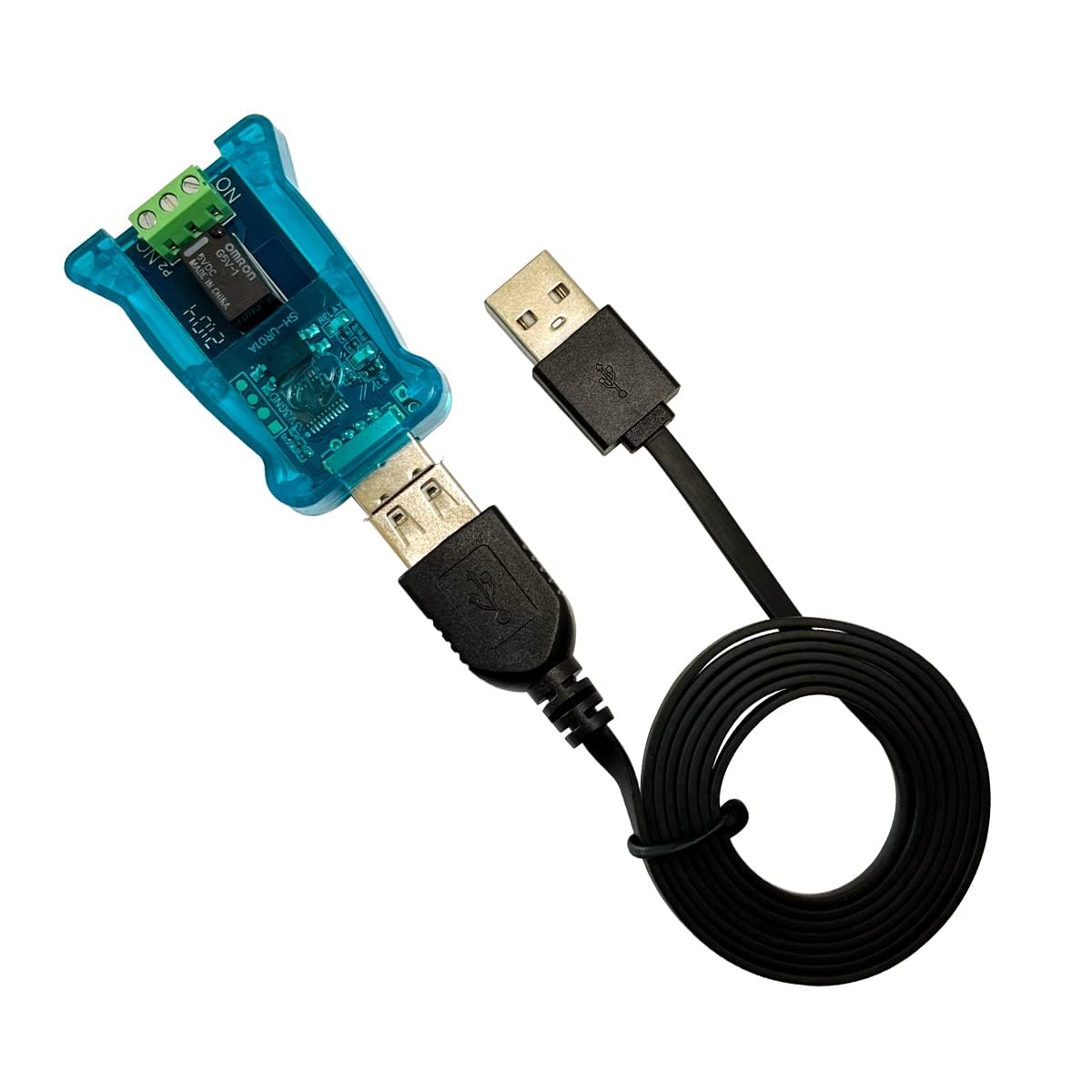
Abbildung 2.3: The SH-UR01A connected to a USB cable, illustrating its typical connection method.
3. Einrichtungsanweisungen
3.1 Treiberinstallation
Before using the SH-UR01A, you must install the appropriate driver for the Silicon Labs CP2102N serial chip. This is typically required only for the first use. Once installed, a virtual serial port will appear on your computer, enabling communication with the device.
- Treiber herunterladen: Obtain the latest Silicon Labs CP2102N driver from the official DSD TECH website or Silicon Labs webWebsite.
- Installiere Treiber: Follow the on-screen instructions to install the driver on your operating system.
- Gerät verbinden: Plug the SH-UR01A USB Relay Controller into an available USB port on your computer.
- Installation überprüfen: Check your computer's Device Manager (Windows) or equivalent system information (macOS/Linux) to confirm that the virtual serial port (e.g., COM port on Windows, /dev/ttyUSBx on Linux) is recognized.
3.2 Systemkompatibilität
The SH-UR01A USB Relay Controller is compatible with the following operating systems:
- Windows 7
- Windows 8
- Windows 10
- Various Linux OS (e.g., Ubuntu)
- Mac OS

Abbildung 3.1: The SH-UR01A connected to a laptop, demonstrating a typical setup.
4. Bedienungsanleitung
The SH-UR01A is controlled by sending specific AT commands to its virtual serial port. You can use any serial terminal program (e.g., PuTTY, Realterm, Tera Term) or custom software to send these commands.
4.1 Einstellungen der seriellen Schnittstelle
The default UART settings for communication are:
- Baudrate: 9600
- Stopp-Bits: 1
- Parität: Keiner
- Datenbits: 8
4.2 AT-Befehlsliste
Use the following commands to control the relay:

Abbildung 4.1: AT Command List for SH-UR01A.
| Befehl | Beschreibung |
|---|---|
AT | Test Command. The device will respond with "OK" if communication is successful. |
AT+CH1=1 | Closes the relay of channel 1 (activates the relay). |
AT+CH1=0 | Opens the relay of channel 1 (deactivates the relay). |
AT+BAUD=115200 | Modifies the baud rate to 115200. (Other baud rates may be supported; refer to advanced documentation if available). |
4.3 Example: Python Demo Code
The following Python code snippet demonstrates how to communicate with the SH-UR01A using the pyserial library. This example shows how to open the serial port, send commands to turn the relay off and on, and then close the port.

Abbildung 4.2: Python Demo Code for SH-UR01A.
#This demo code is issued by DSD Tech Team exclusively for the SH-UR01A USB Relay
import serial
import time
import serial.tools.list_ports

ports_list = list(serial.tools.list_ports.comports())

if len(ports_list)<=0:
    print("no serial port")
else:
    print("serial port as follow:")
    for comport in ports_list:
        print(list(comport)[0],list(comport)[1])

ser=serial.Serial('COM101',9600,timeout=0.5) # please modify your uart port name such as COM10

if ser.is_open:
    print("open sucess")
    print(ser.name)
else:
    print("open failed")

mylen = ser.write('AT+CH1=0') # Relay Off
time.sleep( 3 )

mylen = ser.write('AT+CH1=1') # Relay ON

ser.close()
print("serial close")
Notiz: Ersetzen 'COM101' with the actual serial port name assigned to your SH-UR01A device (e.g., COM3, /dev/ttyUSB0).
5. Wartung
The DSD TECH SH-UR01A USB Relay Controller is designed for durability and requires minimal maintenance. To ensure optimal performance and longevity:
- Trocken halten: Vermeiden Sie, das Gerät Feuchtigkeit oder Flüssigkeiten auszusetzen.
- Sanft reinigen: If cleaning is necessary, use a dry, soft cloth. Do not use harsh chemicals or abrasive materials.
- Vorsichtig handhaben: Lassen Sie das Gerät nicht fallen und setzen Sie es keinen starken Stößen aus.
- Richtige Lagerung: Bewahren Sie das Gerät bei Nichtgebrauch an einem kühlen, trockenen Ort ohne direkte Sonneneinstrahlung auf.
6. Fehlerbehebung
If you encounter issues with your SH-UR01A USB Relay Controller, refer to the following common problems and solutions:
- Gerät nicht erkannt:
- Stellen Sie sicher, dass das USB-Kabel fest angeschlossen ist.
- Verify that the Silicon Labs CP2102N driver is correctly installed. Check Device Manager (Windows) or system information (macOS/Linux) for any driver errors or unrecognized devices.
- Try connecting to a different USB port or another computer to rule out port or system-specific issues. - Relay Not Responding to Commands:
- Confirm that the correct virtual serial port (e.g., COM port number) is selected in your terminal program or software.
- Check that the serial port settings (Baud Rate: 9600, Stop Bits: 1, Parity: None, Data Bits: 8) match the device's default settings.
- Ensure the AT commands are sent correctly, including the exact syntax (e.g.,AT+CH1=1). Some terminal programs may require specific settings for sending commands (e.g., appending carriage return/line feed).
- Test communication with the simpleATcommand; if it responds with "OK", the communication link is established. - Intermittent Connection or Errors:
- USB cable quality can affect communication. Try a different USB cable.
- Ensure there are no other applications or processes using the same serial port simultaneously.
- Electrical noise or interference can affect serial communication. Keep the device away from strong electromagnetic fields. - Relay Clicking but Not Switching External Device:
- Verify the wiring of your external device to the relay terminals (NO, COM, NC).
- Ensure the external device's voltage and current requirements do not exceed the OMRON G5V-1 relay's rated load (0.5A at 125 VAC; 1A at 24 VDC). Overloading can damage the relay.
If these steps do not resolve the issue, please contact DSD TECH customer support for further assistance.
7. Spezifikationen
| Besonderheit | Detail |
|---|---|
| Modellnummer | SH-UR01A |
| Technische Daten | 2.56 x 1.46 x 0.63 Zoll |
| Artikelgewicht | 1.3 Unzen |
| Hersteller | DSD TECH |
| Hardware-Schnittstelle | USB 2.0 |
| Kompatible Geräte | Laptop, Personalcomputer |
| Relaistyp | OMRON G5V-1 |
| Relay Rated Load | 0.5A at 125 VAC; 1A at 24 VDC |
| max. Schaltlautstärketage | 125 V Wechselspannung, 60 V Gleichspannung |
| Serial Chip | Silicon Labs CP2102N |
| Unterstützte Plattformen | Windows 7, 8, 10; Linux; Mac OS |

Abbildung 7.1: Physical dimensions of the SH-UR01A and its cable.
8. Garantie und Kundendienst
DSD TECH is committed to providing high-quality products and excellent customer service.
8.1 Garantieinformationen
This USB Relay Controller comes with a 1 Jahr Produktaustauschservice ab Kaufdatum.
8.2 Technischer Support
DSD TECH offers permanent technical support for this product. If you have any questions, require assistance with setup, operation, or troubleshooting, please do not hesitate to contact our support team. All inquiries will be addressed within 1 working day.
For support, please visit the official DSD TECH webBesuchen Sie die Website oder konsultieren Sie die Kontaktinformationen, die Ihrer Produktverpackung beiliegen.

Abbildung 8.1: Example of DSD TECH packaging and warranty statement.