
Fnatic BOLT
Fnatic BOLT Wireless Gaming Mouse User Manual
Einführung
This manual provides detailed instructions for the setup, operation, maintenance, and troubleshooting of your Fnatic BOLT Wireless Gaming Mouse. Please read this manual thoroughly before using the product to ensure optimal performance and longevity.
Produkt überview
The Fnatic BOLT is a lightweight wireless gaming mouse designed for high performance. It features a durable construction and versatile connectivity options.
Komponenten
- Links- und Rechtsklick-Tasten
- Scrollrad
- DPI Cycle Button (typically located on the bottom or top)
- Seitliche Tasten (vorwärts/zurück)
- USB-C-Ladeanschluss
- Wireless Receiver (dongle)

Abbildung 1: Oben view of the Fnatic BOLT Wireless Gaming Mouse, showing the main click buttons and scroll wheel.

Abbildung 2: Schräg view of the Fnatic BOLT Wireless Gaming Mouse, highlighting the two programmable side buttons.

Abbildung 3: Vorderseite view of the Fnatic BOLT Wireless Gaming Mouse, displaying the USB-C charging port.
Aufstellen
1. Erstes Aufladen
Before first use, it is recommended to fully charge the Fnatic BOLT mouse.
- Verbinden Sie das mitgelieferte USB-C-Kabel mit dem Ladeanschluss an der Vorderseite der Maus.
- Verbinden Sie das andere Ende des USB-C-Kabels mit einem USB-Anschluss Ihres Computers, der mit Strom versorgt wird, oder mit einem USB-Netzteil.
- The mouse's indicator light will show charging status (refer to product documentation for specific light patterns). A full charge typically takes a few hours.
2. Anschließen an Ihren Computer
The Fnatic BOLT supports two wireless connection modes: 2.4 GHz wireless (via USB dongle) and Bluetooth.
2.1. 2.4-GHz-Funkverbindung
- Locate the USB wireless receiver (dongle) that came with your mouse.
- Stecken Sie den USB-Empfänger in einen freien USB-Port Ihres Computers.
- Schalten Sie die Maus mit dem Netzschalter an der Unterseite der Maus ein.
- The mouse should automatically connect to the receiver. The indicator light will confirm a successful connection.
2.2. Bluetooth-Verbindung
- Stellen Sie sicher, dass Bluetooth auf Ihrem Computer aktiviert ist.
- Turn on the mouse and switch it to Bluetooth mode (refer to the mouse's bottom switch or button for mode selection).
- Öffnen Sie auf Ihrem Computer die Bluetooth-Einstellungen und suchen Sie nach neuen Geräten.
- Select "Fnatic BOLT" from the list of available devices to pair.
- The mouse's indicator light will confirm successful pairing.
Bedienungsanleitung
DPI-Anpassung
The Fnatic BOLT mouse allows you to adjust its Dots Per Inch (DPI) sensitivity. This mouse features 4 preset DPI levels.
- Locate the DPI cycle button, typically on the bottom of the mouse.
- Press the DPI button to cycle through the available sensitivity settings.
- An indicator light (often on the scroll wheel or top of the mouse) may change color or flash to indicate the current DPI level.
Tastenfunktionen
- Links Klick: Primäre Aktion, Auswahl.
- Rechtsklick: Kontextmenü, sekundäre Aktion.
- Klick mit dem Scrollrad: Middle click, often used for opening links in new tabs or specific in-game functions.
- Hoch-/Runterscrollen: Navigating documents or web Seiten.
- Seitentasten: Default to Forward/Back in web browsers. These can often be customized via software (if available).
Energieverwaltung
- To conserve battery life, turn off the mouse using the power switch when not in use for extended periods.
- The mouse may enter a sleep mode after a period of inactivity. Move the mouse or click a button to wake it up.
- Monitor the battery indicator (if available) to know when to recharge.
Wartung
Reinigung
- Regularly clean the mouse surface with a soft, dry, lint-free cloth.
- Bei hartnäckigen Verschmutzungen leicht dampBefeuchten Sie das Tuch mit Wasser oder einer milden Reinigungslösung. Vermeiden Sie aggressive Chemikalien.
- Clean the optical sensor on the bottom of the mouse with a cotton swab to ensure accurate tracking.
- Es darf kein Wasser in die inneren Bauteile der Maus gelangen.
Batteriepflege
- Vermeiden Sie häufiges vollständiges Entladen des Akkus.
- Bewahren Sie die Maus an einem kühlen, trockenen Ort auf, wenn Sie sie längere Zeit nicht verwenden.
- Setzen Sie die Maus keinen extremen Temperaturen aus.
Fehlerbehebung
Maus reagiert nicht
- Batterie prüfen: Ensure the mouse is charged. Connect it to the USB-C cable and allow it to charge for a period.
- Stromschalter: Prüfen Sie, ob sich der Netzschalter der Maus in der Position „EIN“ befindet.
- Wireless Connection (2.4 GHz):
- Stellen Sie sicher, dass der USB-Empfänger fest an einen funktionierenden USB-Anschluss angeschlossen ist. Versuchen Sie es mit einem anderen USB-Anschluss.
- Ensure the mouse is within range of the receiver.
- Vermeiden Sie Störquellen (z. B. andere drahtlose Geräte, große Metallgegenstände).
- Bluetooth Verbindung:
- Stellen Sie sicher, dass Bluetooth auf Ihrem Computer aktiviert ist.
- Check if the mouse is in Bluetooth pairing mode or already paired. Re-pair if necessary.
- Remove and re-add the device in your computer's Bluetooth settings.
- Neustart: Starten Sie Ihren Computer neu.
Ungenaue Verfolgung
- Sensor reinigen: Reinigen Sie den optischen Sensor an der Unterseite der Maus.
- Oberfläche: Achten Sie darauf, die Maus auf einer geeigneten Oberfläche zu verwenden. Stark reflektierende oder unebene Oberflächen können die Abtastung beeinträchtigen. Ein Mauspad wird empfohlen.
- DPI-Einstellung: Adjust the DPI setting to a level that suits your preference and task.
Kurze Akkulaufzeit
- Laden: Stellen Sie sicher, dass die Maus vollständig aufgeladen ist.
- Ausschalten: Remember to turn off the mouse when not in use.
- Verwendung: High-intensity usage or certain settings might consume more power.
Technische Daten
| Besonderheit | Detail |
|---|---|
| Marke | Fnatic |
| Modellname | FnaticGear BOLT |
| Artikelmodellnummer | BOLZEN |
| Farbe | Weiß |
| Konnektivitätstechnologie | Bluetooth, Wi-Fi (2.4 GHz Wireless) |
| Bewegungserkennungstechnologie | Optisch |
| Anzahl der Tasten | 6 |
| Handausrichtung | Rechts |
| Besondere Merkmale | Leicht |
| Stromquellentyp | Kabellos (wiederaufladbarer Akku) |
| Batterien im Lieferumfang enthalten | Ja (1 Lithium-Metall-Batterie) |
| Energiegehalt der Lithiumbatterie | 470 Milliamp Stunden (mAh) |
| Technische Daten | 12.5 x 6.5 x 0.1 cm; 69 g |
| Kompatible Geräte | Laptop, Personalcomputer |
| Betriebssysteme | Linux, Windows 7, Windows XP (and newer) |
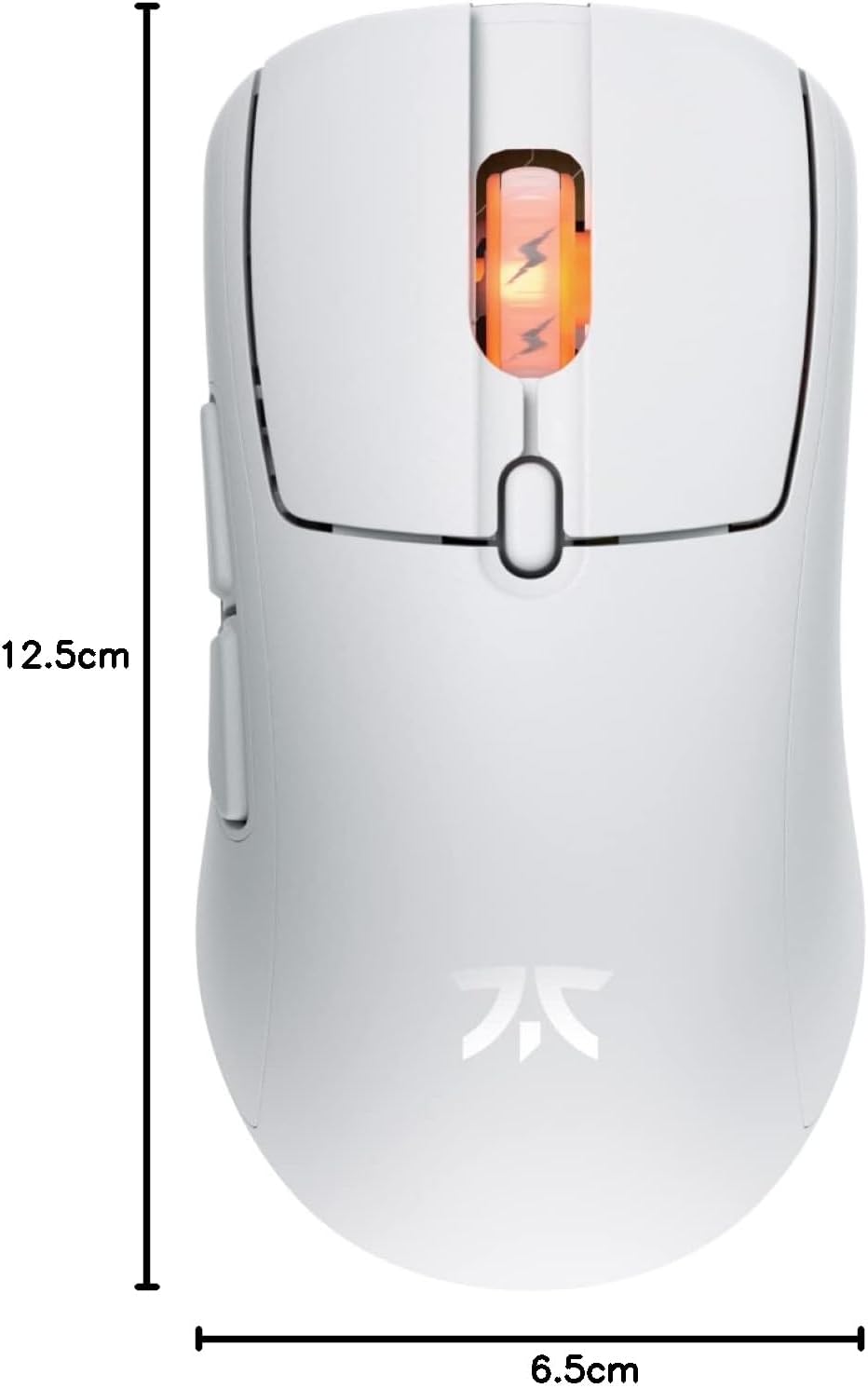
Figure 4: Diagram showing the dimensions of the Fnatic BOLT Wireless Gaming Mouse.
Garantie und Support
For information regarding warranty coverage and technical support, please refer to the official Fnatic weboder der Ihrem Produkt beiliegenden Garantiekarte.
You can typically find support resources, FAQs, and contact information on the manufacturer's official support pages.
Ask a question about this manual
Ask about setup, troubleshooting, compatibility, parts, safety, or missing instructions. Manuals+ will review the question and use this page’s manual context to help answer it.