
1. Einleitung
This manual provides detailed instructions for the installation, operation, maintenance, and troubleshooting of your Everycom EC-901 Thermal POS Receipt Printer. Please read this manual thoroughly before using the printer to ensure proper functionality and longevity.

Abbildung 1: Everycom EC-901 Thermal POS Receipt Printer. This image displays the compact design of the printer with a sample receipt emerging from the top.
Hauptmerkmale:
- Schnelle Druckgeschwindigkeit: Up to 160mm per second for efficient receipt generation.
- Einfaches Einlegen von Papier: Drop-in paper loading mechanism for quick and simple media changes.
- Kompaktes Design: Integrated power supply for a clean and space-saving workstation.
- Variable Paper Width: Supports both 58mm and 80mm thermal paper rolls.
- Built-In Buzzer: Provides audible notifications for various printer statuses.
- Automatischer Cutter: Automatically cuts receipts after printing for convenience.
- Konnektivität: USB and LAN interfaces for versatile integration.
2. Einrichtung und Installation
2.1 Auspacken und Inhaltsprüfung
Carefully unpack the printer and verify that all components are present. The package should contain:
- Everycom EC-901 Thermal POS Receipt Printer
- Roll paper × 1 (for initial testing)
- CD-ROM (containing drivers, utility software, and digital manuals)
- Papierhandbuch
- Paper Bearing
- USB-Kabel
- Netzteilkabel
2.2 Anschließen des Druckers
- Stromanschluss: Connect the power adapter cable to the printer's power port and then to a suitable power outlet.
- Datenverbindung:
- USB-Schnittstelle: Connect the provided USB cable from the printer's USB port to an available USB port on your computer or POS system.
- LAN-Schnittstelle: For network printing, connect an Ethernet cable from the printer's LAN port to your network router or switch.
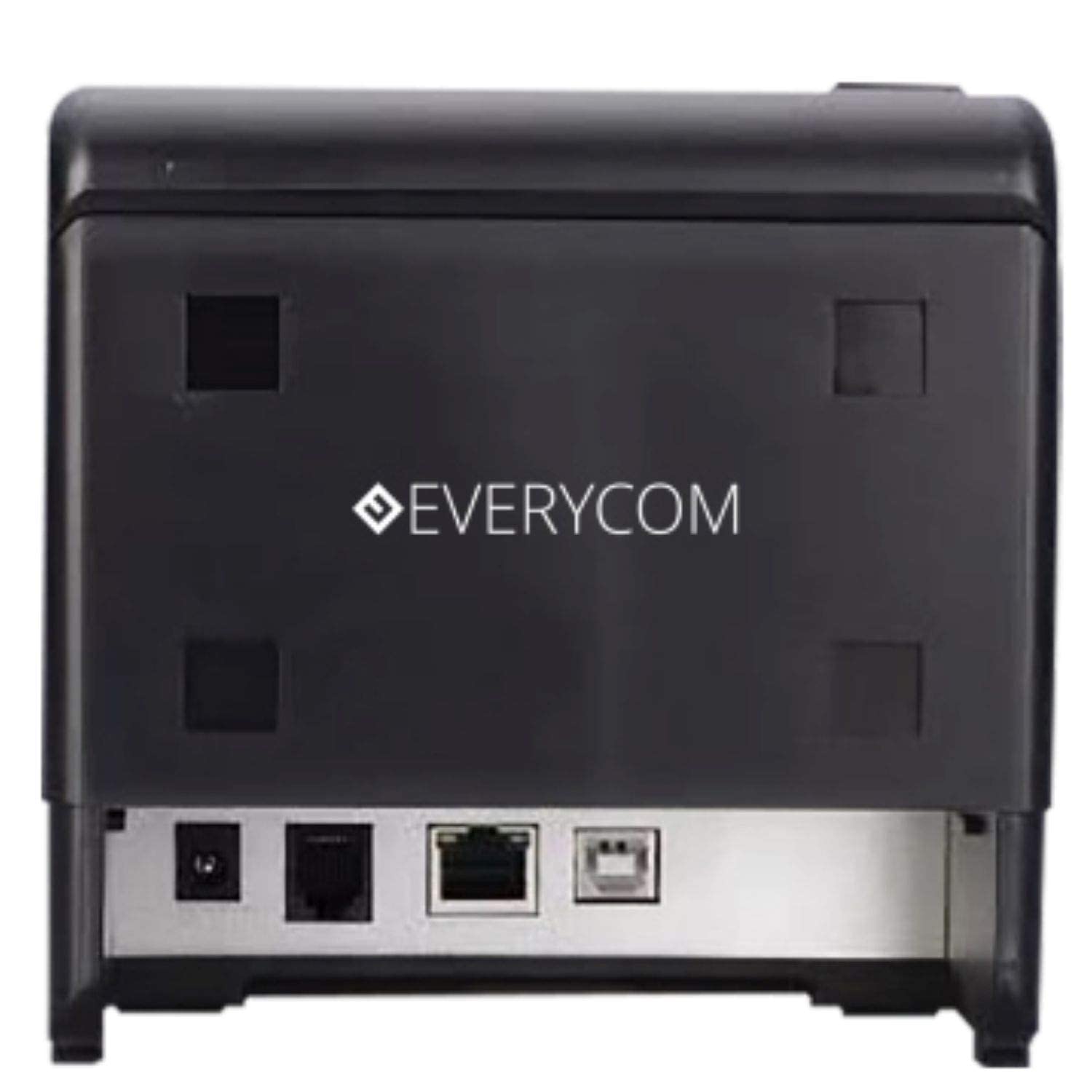
Abbildung 2: Hinteren view of the Everycom EC-901 printer. This image highlights the various connectivity ports including USB, LAN, and the power input.
2.3 Einlegen von Thermopapier
The EC-901 printer features a convenient drop-in paper loading system.
- Stellen Sie sicher, dass der Drucker ausgeschaltet oder im Standby-Modus ist.
- Press the cover open button (usually located on the side or front) to open the top cover of the printer.
- Insert the thermal paper roll into the paper compartment with the printing side facing the print head. Ensure the roll is seated correctly and feeds smoothly.
- Ziehen Sie ein kleines Stück Papier hinter dem Schneidewerkzeug heraus.
- Close the top cover firmly until it latches securely. The printer will automatically feed the paper to the correct position.

Abbildung 3: Everycom EC-901 printer with the top cover open. This image illustrates the internal compartment where the thermal paper roll is loaded.
2.4 Treiberinstallation
Insert the provided CD-ROM into your computer's optical drive and follow the on-screen instructions to install the printer drivers and utility software. Alternatively, drivers can be downloaded from the Everycom official webWebsite.
3. Bedienung des Druckers
3.1 Ein-/Ausschalten
To power on the printer, press the power switch located on the front or side of the unit. The power indicator light will illuminate. To power off, press the switch again.
3.2 Printing Receipts
Once the printer is connected and drivers are installed, you can print receipts from your POS software or application. The printer supports fast printing at up to 160mm per second.
3.3 Auto Cutter Function
The EC-901 is equipped with an auto cutter that automatically cuts the receipt paper after each print job, ensuring clean and professional-looking receipts.
3.4 Buzzer Notifications
The built-in buzzer provides audible alerts for various printer statuses, such as paper out, cover open, or error conditions. Refer to the utility software for configuring buzzer settings.
3.5 Geräuscharmer Betrieb
Thermal printers generally operate with reduced noise levels, making the EC-901 suitable for various work environments where quiet operation is desired. The printer uses heat for printing, eliminating the need for ink cartridges and contributing to lower operating noise.
4. Wartung
Regular maintenance ensures optimal performance and extends the lifespan of your Everycom EC-901 printer.
4.1 Reinigung des Druckkopfes
The thermal print head should be cleaned periodically to maintain print quality. Use a soft, lint-free cloth dampMit Isopropylalkohol abwischen. Die Oberfläche des Druckkopfs vorsichtig abwischen. Stellen Sie sicher, dass der Drucker ausgeschaltet und abgekühlt ist, bevor Sie ihn reinigen.
4.2 Reinigung der Walzenplatte
The platen roller can accumulate paper dust. Clean it with a soft cloth dampened with isopropyl alcohol. Rotate the roller manually to clean its entire surface.
4.3 Außenreinigung
Wischen Sie die Außenseite des Druckers mit einem weichen, trockenen Tuch ab. Vermeiden Sie die Verwendung von scharfen Chemikalien oder Scheuermitteln.
5. Fehlerbehebung
If you encounter issues with your printer, refer to the following common troubleshooting steps:
- Kein Strom: Stellen Sie sicher, dass das Netzkabel fest mit dem Drucker und der Steckdose verbunden ist. Prüfen Sie, ob der Netzschalter eingeschaltet ist.
- Keine Druckausgabe:
- Verify that the paper roll is loaded correctly and there is sufficient paper.
- Check the data cable connection (USB or LAN) to your computer/POS system.
- Ensure the printer drivers are correctly installed and the printer is selected as the default printer in your software.
- Check for any error indicator lights or buzzer sounds.
- Schlechte Druckqualität:
- Reinigen Sie den Druckkopf wie im Abschnitt Wartung beschrieben.
- Verwenden Sie unbedingt hochwertiges Thermopapier.
- Adjust print density settings through the printer driver if available.
- Papierstaus:
- Open the top cover and carefully remove any jammed paper.
- Ensure the paper roll is installed correctly and not too tight or loose.
- Clean the paper path and platen roller.
For persistent issues, please contact Everycom customer support.
6. Spezifikationen
The following table details the technical specifications of the Everycom EC-901 Thermal POS Receipt Printer:
| Besonderheit | Spezifikation |
|---|---|
| Modell | EC-901 |
| Drucktechnologie | Thermischer Liniendruck |
| Druckgeschwindigkeit | Bis zu 160 mm/Sekunde |
| Druckauflösung | 203 x 203 DPI |
| Papierbreite | 80mm (3 inches), supports 58mm |
| Schnittstelle | USB, LAN |
| Automatischer Cutter | Ja |
| Technische Daten | 19.8 cm (T) x 14.8 cm (B) x 14.8 cm (H) |
| Artikelgewicht | 1.8 Kilogramm |
| Im Lieferumfang enthaltene Komponenten | Printer, 1 Roll Paper, CD-ROM, Paper Guide, Paper Bearing, USB Cable, Power Adapter Cable |
7. Garantie und Support
7.1 Garantieinformationen
The Everycom EC-901 Thermal POS Receipt Printer comes with a 1 Jahr Garantie from the date of purchase. Please retain your purchase receipt as proof of warranty. The warranty covers manufacturing defects under normal use conditions. It does not cover damage caused by misuse, accidents, unauthorized repairs, or consumables.
7.2 Kundendienst
For technical assistance, warranty claims, or any product-related inquiries, please contact Everycom Customer Care:
- Gebührenfreie Nummer: 1800 121 4480
- Arbeitszeit: Monday - Saturday, 10:00 AM - 6:30 PM (Except on Public Holidays)

Abbildung 4: Everycom Customer Service details. This image provides the toll-free number and working hours for customer support.