
Amazon Paperwhite 11th Generation
Amazon Kindle Paperwhite 11. Generation – Benutzerhandbuch
Comprehensive instructions for your e-reader
1. Einleitung
This manual provides detailed information and instructions for operating your Amazon Kindle Paperwhite 11th Generation. It covers essential features, setup procedures, operational guidelines, and advanced tips to help you maximize your reading experience. Please read this guide thoroughly to ensure proper use and care of your device.
2. Ersteinrichtung
2.1. Auspacken und Aufladen
Upon unboxing your Kindle Paperwhite, it is recommended to fully charge the device before first use. Connect the provided USB Type-C cable to the charging port located at the bottom edge of the device and plug the other end into a compatible USB power adapter or computer port.
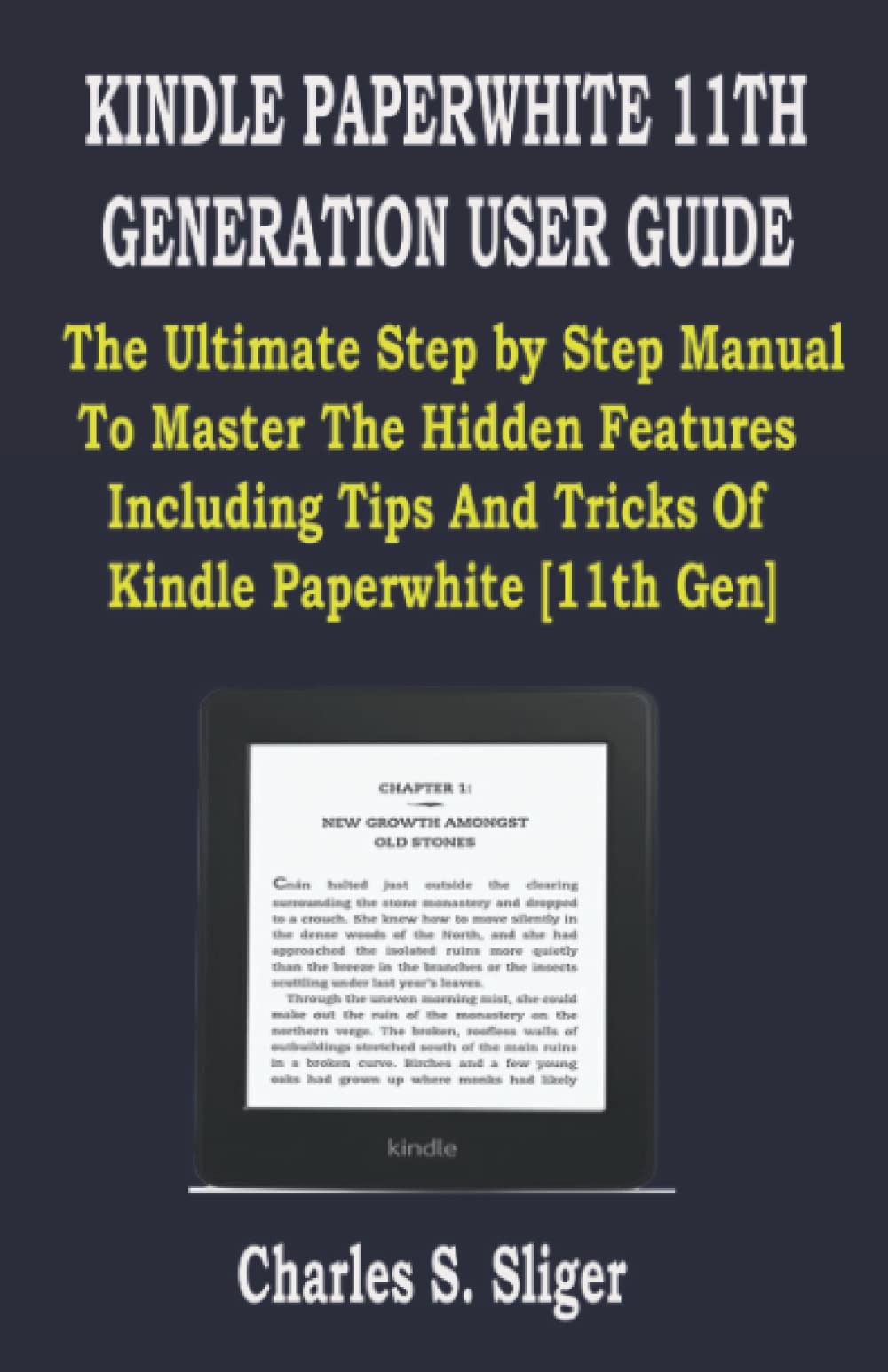
Abbildung 1: Vorderseite view of the Kindle Paperwhite 11th Generation, showing the display and slim bezels.
2.2. Einschalten und Erstkonfiguration
Press and hold the power button, located on the bottom edge, to turn on your Kindle. Follow the on-screen prompts to select your language, connect to a Wi-Fi network, and register your device with your Amazon account. Registration is necessary to access the Kindle Store and cloud services.
3. Hauptmerkmale
3.1. Konstruktion und Abmessungen
The Kindle Paperwhite 11th Generation features a sleek design with a screen curved around a soft plastic membrane. Its dimensions are approximately 6.9 x 4.9 x 0.32 inches (17.5 x 12.4 x 0.8 cm) and it weighs about 7.23 ounces (205 grams), making it highly portable. The flat back surface includes an engraved Amazon logo.

Abbildung 2: Zurück view of the Kindle Paperwhite 11th Generation, showing the Amazon logo and product information.
3.2. Wasserbeständigkeit
The device boasts an IPX8 rating for water resistance, meaning it can withstand accidental immersion in up to two meters of fresh water for up to 60 minutes. This feature allows for worry-free reading in various environments, including baths or by the pool.
3.3. Anzeige
Equipped with a 6.8-inch, 300 ppi (pixels per inch) glare-free display, the Kindle Paperwhite offers sharp text and clear images. The screen is 10% brighter at its maximum setting compared to the previous generation. Users can switch between dark mode and adjust the warm light setting for comfortable reading in any lighting condition.
3.4. Akkulaufzeit
The Kindle Paperwhite is designed for extended battery life, allowing weeks of reading on a single charge, depending on usage. Factors such as Wi-Fi usage, lighting settings, and reading time will affect battery performance.
4. Operating Your Kindle Paperwhite
4.1. Kaufasing and Managing Books
Access the Kindle Store directly from your device to browse, purchase, and download millions of books. Purchased books are automatically stored in your Kindle library and synced across your Amazon devices and apps.
4.2. Audiobooks and VoiceView
The Kindle Paperwhite supports Audible audiobooks. Connect Bluetooth headphones or speakers to listen to your audiobooks. The device also features VoiceView screen reader, which provides spoken feedback to help navigate the device for users with visual impairments.
4.3. Kindle OS Navigation
Navigate the Kindle operating system using touch gestures. Tap the right side of the screen to turn pages forward, and the left side to go back. Swipe down from the top to access quick settings and the home screen. Explore various settings to customize your reading experience, including font size, margins, and reading progress display.
5. Tipps und Tricks
- Making Screenshots: To capture a screenshot, simultaneously tap two opposite corners of the screen (e.g., top-left and bottom-right). The screenshot will be saved to your device.
- Receiving Library Books: You can borrow e-books from public libraries through services like OverDrive (availability varies by region). Once borrowed, send them to your Kindle via your Amazon account.
- Sharing an Account: Family Library allows you to share books with other Amazon accounts. Set this up through your Amazon account settings online.
- Weitergabe Files Among Kids: Utilize Amazon Kids (formerly FreeTime) to create profiles for children, granting them access to specific content from your library.
- Borrowing Books: Beyond library services, Amazon Prime Reading and Kindle Unlimited offer access to a rotating selection of books for subscribers.
- Versendung Files to Kindle: You can send documents (PDF, Word, etc.) and personal e-books to your Kindle via email using your Send-to-Kindle email address or through the Send to Kindle application.
- Konvertieren Files: When sending documents via email, Amazon can automatically convert many file types to a Kindle-compatible format.
- Reading Articles: Use the Send to Kindle browser extension or email service to send web articles to your Kindle for distraction-free reading.
6. Wartung und Pflege
6.1. Reinigen Ihres Geräts
To clean your Kindle Paperwhite, use a soft, lint-free cloth. For stubborn smudges, slightly dampen the cloth with water. Avoid using abrasive cleaners, solvents, or aerosol sprays, as these can damage the screen or finish.
6.2. Batteriepflege
For optimal battery longevity, avoid exposing your device to extreme temperatures. While the device is water-resistant, ensure the charging port is dry before connecting the charging cable to prevent damage.
7. Fehlerbehebung bei häufigen Problemen
- Gerät reagiert nicht: If your Kindle becomes unresponsive, press and hold the power button for 40 seconds until the device restarts.
- Keine Verbindung zum WLAN möglich: Ensure your Wi-Fi password is correct. Try restarting your router and your Kindle. If issues persist, try connecting to a different network.
- Bücher werden nicht heruntergeladen: Check your Wi-Fi connection. Ensure your device is registered to the correct Amazon account. Sync your Kindle from the quick settings menu.
- Bildschirmreflexion: Adjust the screen brightness and warm light settings. Ensure you are not reading under direct sunlight or strong overhead lights.
8. Technische Daten
| Besonderheit | Spezifikation |
|---|---|
| Modell | Kindle Paperwhite 11. Generation |
| Anzeige | 6.8-inch E-ink, 300 ppi, glare-free, adjustable warm light |
| Maße | 17.5 x 12.4 x 0.8 cm (6.9 x 4.9 x 0.32 Zoll) |
| Gewicht | 205 Gramm (7.23 Unzen) |
| Wasserbeständigkeit | IPX8 (up to 2 meters for 60 minutes in fresh water) |
| Ladeanschluss | USB Typ C |
| Konnektivität | WLAN, Bluetooth |
| ISBN-13 (for this manual) | 979-8438430384 |
9. Garantie und Support
9.1. Produktgarantie
Your Kindle Paperwhite 11th Generation is covered by a limited warranty. For specific details regarding warranty terms and conditions, please refer to the warranty information provided with your device packaging or visit the official Amazon support webWebsite.
9.2. Kundendienst
For further assistance, technical support, or to report issues, please visit the Amazon Help & Customer Service page. You can find FAQs, troubleshooting guides, and contact options for Amazon customer service there.
Ask a question about this manual
Ask about setup, troubleshooting, compatibility, parts, safety, or missing instructions. Manuals+ will review the question and use this page’s manual context to help answer it.