
Nasuque B09XQL2NJY
Nasuque Bluetooth Keyboard User Manual
Model: B09XQL2NJY
Marke: Nasuque
Einführung
Thank you for choosing the Nasuque Bluetooth Keyboard. This wireless, rechargeable, and ultra-slim keyboard is designed for seamless compatibility with Mac OS and iOS devices, including MacBook Pro/Air, iMac, iPhone, and iPad Pro/Air/Mini. Featuring a full-size layout with a numeric keypad and a stable scissor mechanism beneath each key, it offers a comfortable and precise typing experience. Its multi-device capability allows you to connect and switch between up to three devices effortlessly.

Image: The Nasuque Bluetooth Keyboard in silver, showcasing sein vollständiges Layout und schlankes Profile.
Packungsinhalt
Bitte vergewissern Sie sich, dass alle Artikel in Ihrem Paket vorhanden sind:
- Nasuque Bluetooth Keyboard
- USB-Ladekabel
- Dust Cover (Silicone protector)
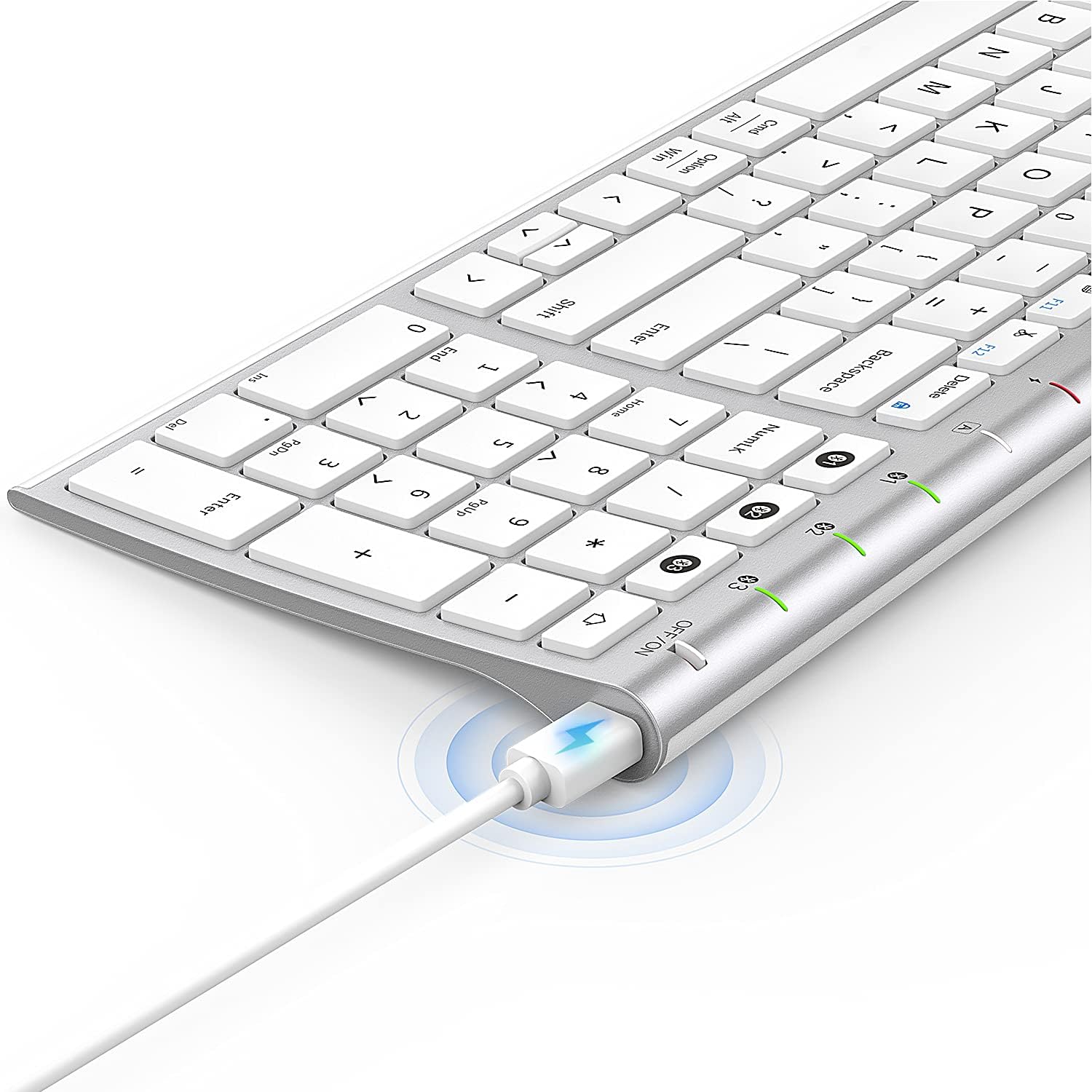
Image: The included USB charging cable, used to recharge the keyboard's built-in battery.
Einrichtung und Kopplung
Ein-/Ausschalten
Locate the ON/OFF switch on the top right side of the keyboard. Slide the switch to the "ON" position to power on the keyboard. Slide it to "OFF" when not in use to conserve battery.
Aufladen der Tastatur
The keyboard features a built-in rechargeable lithium battery. Connect the included USB charging cable to the charging port on the keyboard and the other end to a USB power source (e.g., computer USB port, USB wall adapter). The charging indicator light will illuminate during charging and turn off when fully charged.
Bluetooth-Kopplung mehrerer Geräte
This keyboard supports connection with up to three devices simultaneously. Follow these steps to pair your devices:
- Stellen Sie sicher, dass die Tastatur eingeschaltet ist.
- Drücken Sie die Fn Schlüssel und einer der Bluetooth-Kanalschlüssel (1, 2, oder 3) simultaneously to select a channel. For first-time pairing, choose an unused channel.
- Drücken Sie lange die Fn key and the selected Bluetooth channel key (1, 2, oder 3) for 3-5 seconds until the corresponding channel indicator light (01, 02, oder 03) starts blinking rapidly. This indicates the keyboard is in pairing mode.
- On your device (MacBook, iMac, iPhone, iPad, etc.), go to Bluetooth settings and enable Bluetooth.
- Suchen nach available devices. The keyboard will appear as "Nasuque Keyboard" or similar. Select it to connect.
- Once connected, the indicator light will stop blinking and remain solid for a few seconds before turning off.
- Repeat these steps for up to two additional devices using the other Bluetooth channels.
To switch between paired devices, simply short press the Fn key and the corresponding Bluetooth channel key (1, 2, oder 3).
Systemanforderungen: Compatible with Mac OS X 10.12 or higher and Bluetooth 4.0 or higher.

Image: The keyboard's top right corner showing the three Bluetooth channel indicators (01, 02, 03) for multi-device pairing.

Image: An illustration demonstrating the keyboard's ability to easily switch between a laptop, tablet, and smartphone.
Video: A demonstration of the Nasuque Bluetooth Keyboard's multi-device connectivity and ease of use with various Apple devices.
Bedienungsanleitung
Funktionstasten
The keyboard features a row of function keys (F1-F12) that perform various system functions when pressed in combination with the Fn key. These include media controls (play/pause, volume), brightness adjustment, and other shortcuts common to Mac OS.
Numerische Tastatur
The integrated numeric keypad provides convenient data entry for numbers and calculations. Ensure the Num Lock key is active if needed for specific applications.

Bild: Eine Nahaufnahme view of the keyboard's compact full-size layout, highlighting the numeric keypad.
Tipperfahrung
The keyboard utilizes a stable scissor mechanism beneath each key, providing a responsive and comfortable typing experience with a low profile.
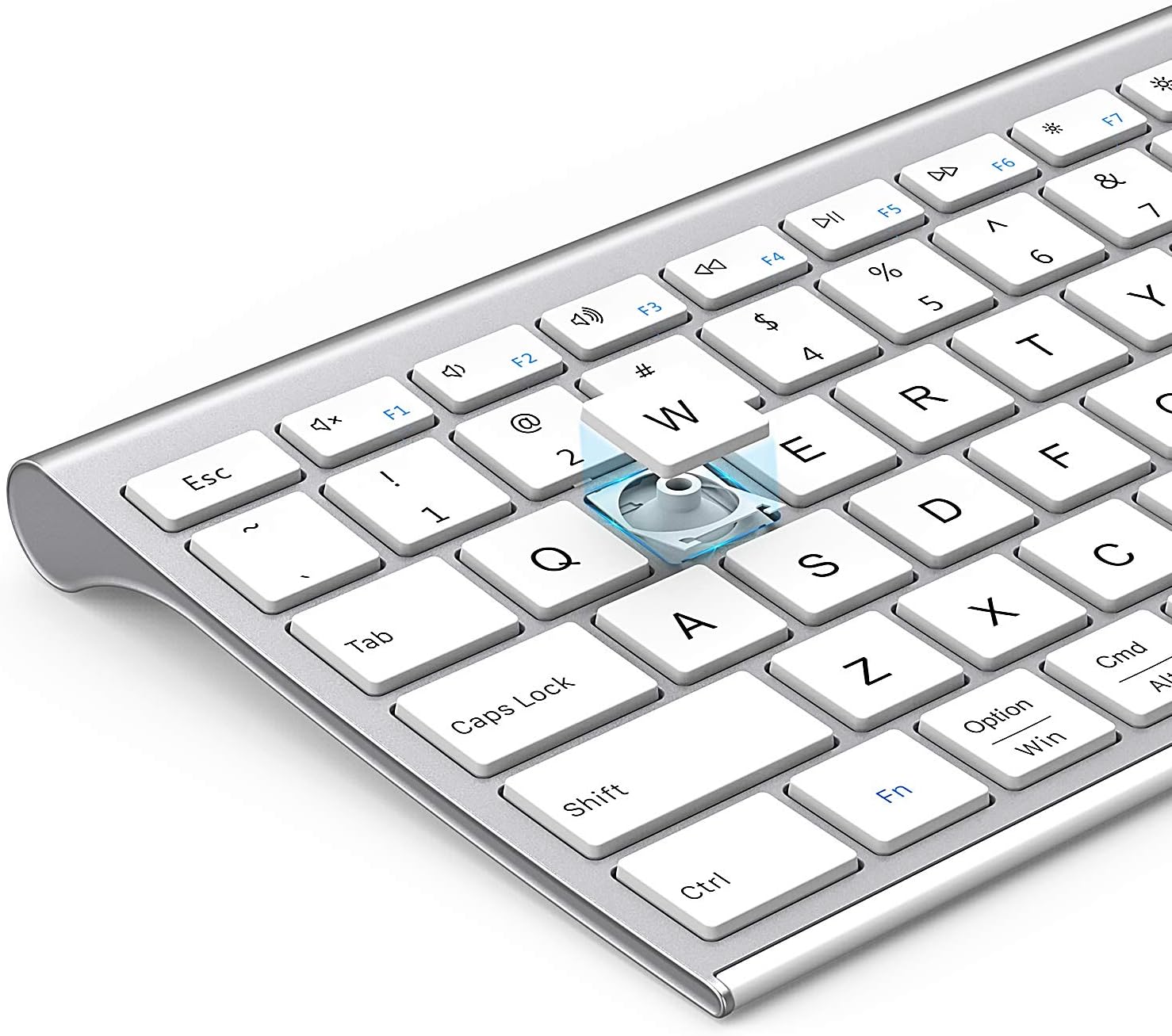
Bild: Eine explodierte view of a keycap, illustrating the underlying scissor mechanism for stable and precise typing.
Wartung
Um die Langlebigkeit und optimale Leistung Ihrer Tastatur zu gewährleisten, beachten Sie bitte folgende Wartungshinweise:
- Reinigung: Verwenden Sie ein weiches, trockenes und fusselfreies Tuch, um die Oberfläche der Tastatur abzuwischen. Bei hartnäckigem Schmutz leicht andrücken.ampBefeuchten Sie das Tuch mit Wasser oder einer milden Reinigungslösung. Vermeiden Sie übermäßige Feuchtigkeit.
- Staubschutzhülle: Utilize the included silicone dust cover when the keyboard is not in use to protect it from dust, spills, and debris.
- Lagerung: Bewahren Sie die Tastatur an einem kühlen, trockenen Ort fern von direkter Sonneneinstrahlung und extremen Temperaturen auf.
- Vermeiden Sie Flüssigkeiten: Die Tastatur darf nicht mit Flüssigkeiten in Berührung kommen. Sollte versehentlich Flüssigkeit verschüttet werden, schalten Sie die Tastatur sofort aus und lassen Sie sie vollständig trocknen, bevor Sie sie wieder verwenden.
Fehlerbehebung
If you encounter issues with your Nasuque Bluetooth Keyboard, please refer to the following common solutions:
| Problem | Mögliche Ursache | Lösung |
|---|---|---|
| Die Tastatur wird nicht verbunden oder nicht erkannt. | Keyboard is off, low battery, not in pairing mode, or device Bluetooth is off. |
|
| Die Tasten reagieren nicht oder geben falsche Werte ein. | Low battery, connection interference, or software issue. |
|
| Difficulty switching between devices. | Incorrect key press or device not properly paired to selected channel. |
|
Technische Daten
| Besonderheit | Detail |
|---|---|
| Modell | B09XQL2NJY |
| Konnektivität | Bluetooth (Multi-device support for up to 3 devices) |
| Kompatibilität | Mac OS X 10.12 or higher, Bluetooth 4.0 or higher (MacBook Pro/Air, iMac, iPhone, iPad Pro/Air/Mini) |
| Abmessungen (L x B x H) | 14.41 x 4.92 x 0.64 Zoll |
| Gewicht | 1.12 Pfund |
| Batterie | Wiederaufladbare Lithiumbatterie |
| Reichweite | Bis zu 8 Meter (26 Fuß) |
| Schlüsselmechanismus | Scherenschalter |

Image: Diagram illustrating the precise dimensions of the Nasuque Bluetooth Keyboard.
Garantie und Support
For warranty information, technical support, or any inquiries regarding your Nasuque Bluetooth Keyboard, please contact the manufacturer directly through the retailer's platform or the contact information provided with your purchase. Please retain your proof of purchase for warranty claims.
Ask a question about this manual
Ask about setup, troubleshooting, compatibility, parts, safety, or missing instructions. Manuals+ will review the question and use this page’s manual context to help answer it.