
Einführung
This manual provides detailed instructions for the setup, operation, maintenance, and troubleshooting of your Xtrfy MZ1 Wireless Gaming Mouse. Please read this manual thoroughly before using the product to ensure optimal performance and longevity.
Packungsinhalt
Überprüfen Sie, ob alle Artikel im Paket vorhanden sind:
- Xtrfy MZ1 Wireless Gaming Mouse
- 1.8 m Xtrfy EZcord Pro cable
- USB-A-auf-USB-C-Kabel
- USB-Adapter
- USB-Dongle
- 500 mA battery (pre-installed or included separately)
- Second back shell (for adjustable shape)
Produkt überview
The Xtrfy MZ1 Wireless Gaming Mouse is designed for high-performance gaming, featuring a lightweight design, adjustable shape, and customizable settings without the need for software.
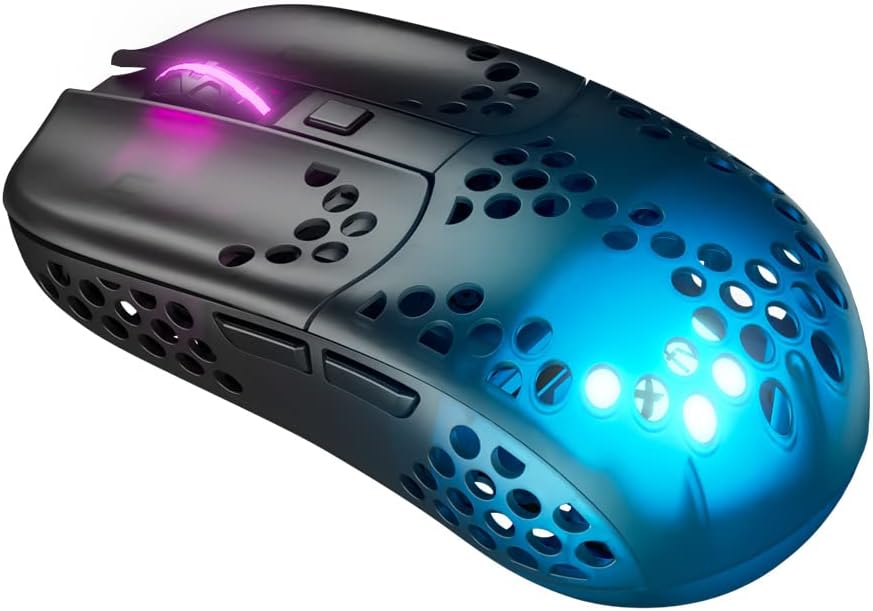
Figure 1: Xtrfy MZ1 Wireless Gaming Mouse, angled view mit RGB-Beleuchtung.
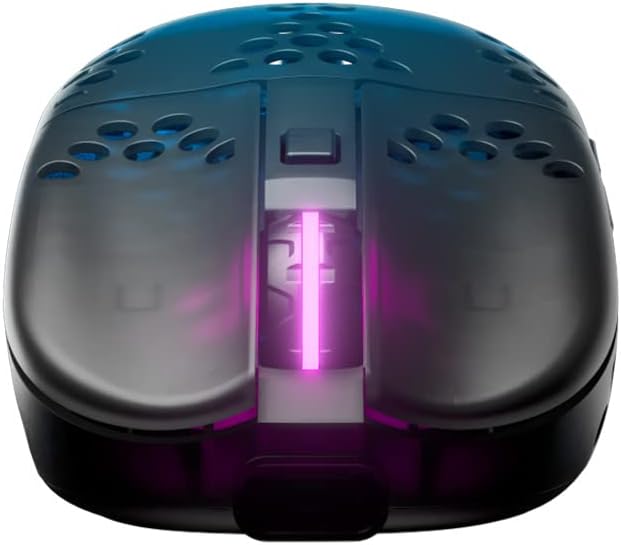
Abbildung 2: Oben view of the Xtrfy MZ1 Wireless Gaming Mouse, highlighting the scroll wheel and main buttons.

Figure 3: The Xtrfy MZ1 Wireless Gaming Mouse shown with its two interchangeable back shells, allowing for shape adjustment.
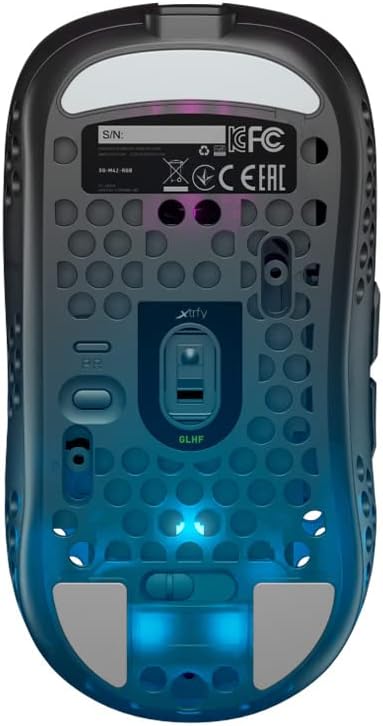
Abbildung 4: Unten view of the Xtrfy MZ1 Wireless Gaming Mouse, displaying the sensor, power switch, and configuration buttons.
Aufstellen
1. Anschließen der Maus
- Connect the USB dongle to your computer using the provided USB-A to USB-C cable and adapter.
- Schalten Sie die Maus mit dem Netzschalter an der Unterseite der Maus ein.
- The mouse should automatically connect to the dongle. If not, ensure the dongle is properly connected and the mouse is powered on.
2. Erstes Aufladen
For first use, it is recommended to fully charge the mouse. Connect the Xtrfy EZcord Pro cable to the front of the mouse and to a USB power source. The mouse can be used while charging.
3. Adjusting the Back Shell
The MZ1 Wireless comes with two interchangeable back shells to customize the mouse shape to your preference. To change the back shell:
- Gently remove the currently installed back shell by lifting it from the rear.
- Align the desired back shell with the mouse body and press down until it clicks into place.
4. Adjusting Weight Balance
The battery position can be adjusted to fine-tune the mouse's weight balance. To do this:
- Entfernen Sie die hintere Schale.
- Carefully slide the battery forward or backward within its compartment to achieve your preferred balance.
- Replace the back shell.
Bedienungsanleitung
The Xtrfy MZ1 Wireless Mouse allows for on-the-fly adjustments without software.
1. CPI (Counts Per Inch) Adjustment
The CPI setting controls the mouse sensitivity. Use the dedicated CPI button on the bottom of the mouse to cycle through preset CPI levels. The LED indicator will change color to show the current CPI setting.
2. Anpassung der Wahlbeteiligung
The polling rate determines how often the mouse reports its position to the computer. A higher polling rate results in smoother tracking. Adjust the polling rate using the switch on the bottom of the mouse, typically labeled 'PR' or similar.
3. Anpassung der Abhebedistanz (LOD)
LOD is the height at which the mouse sensor stops tracking when lifted from the surface. Adjust this setting using the switch on the bottom of the mouse, typically labeled 'LOD'.
4. Debounce Time Adjustment
Debounce time is the delay before a second click can be registered after the first, preventing accidental double-clicks. Adjust this setting using the switch on the bottom of the mouse, typically labeled 'DT'.
5. Akkulaufzeit und Laden
The mouse provides up to 75 hours of playtime on a single charge. When the battery is low, connect the EZcord Pro cable to the mouse and a USB power source to charge. The mouse can be used normally during charging.
6. Programmable Button ('PGDN')
The top button, after adjusting other settings, can be set to 'PGDN'. This allows you to bind it to any desired function within your games or applications.
Wartung
- Reinigung: Reinigen Sie die Maus mit einem weichen, trockenen Tuch. Vermeiden Sie die Verwendung von scharfen Chemikalien oder scheuernden Materialien.
- Sensorpflege: Um eine genaue Abtastung zu gewährleisten, muss der optische Sensor an der Unterseite der Maus sauber und frei von Staub und Schmutz sein.
- Lagerung: Bei längerer Nichtbenutzung sollte die Maus an einem trockenen, kühlen Ort aufbewahrt werden.
Fehlerbehebung
| Problem | Mögliche Lösung |
|---|---|
| Maus reagiert nicht |
|
| Intermittierende Verbindung |
|
| Tracking-Probleme |
|
| Buttons not responding correctly |
|
Technische Daten
| Besonderheit | Detail |
|---|---|
| Modellnummer | MZ1W |
| Technische Daten | 4.37 x 2.3 x 1.33 Zoll |
| Artikelgewicht | 2.15 Unzen (ca. 61 Gramm) |
| Konnektivitätstechnologie | Drahtlos (2.4 GHz) |
| Bewegungserkennung | Optical (Pixart 3370 sensor) |
| Schalter | Kailh GM 8.0 (80 million clicks) |
| Mikrocontroller | ARM 32-Bit |
| Batterie | 1 Lithium Ion battery (500 mA, up to 75 hours playtime) |
| Besondere Merkmale | Lightweight, Rechargeable, Adjustable Shape (interchangeable back shells), Adjustable Weight Balance, No Software Needed |
| Farbe | Schwarz |
Garantie und Support
For warranty information, technical support, or further assistance, please visit the official Xtrfy webBesuchen Sie die Website oder kontaktieren Sie direkt den Kundendienst. Bewahren Sie Ihren Kaufbeleg für Garantieansprüche auf.