
1. Einleitung
This manual provides essential information for the proper installation, operation, and maintenance of your SUNMI T2s Lite 15.6-inch Android Point of Sale (POS) system. Please read this manual thoroughly before using the device to ensure optimal performance and safety. Keep this manual for future reference.
2. Sicherheitshinweise
- Setzen Sie das Gerät keinen extremen Temperaturen, Feuchtigkeit oder direkter Sonneneinstrahlung aus.
- Lassen Sie das Gerät nicht fallen und setzen Sie es keinen starken Stößen aus.
- Verwenden Sie ausschließlich das mit dem Gerät gelieferte Netzteil. Die Verwendung eines falschen Netzteils kann zu Schäden oder einem Brand führen.
- Versuchen Sie nicht, das Gerät selbst zu zerlegen oder zu reparieren. Wenden Sie sich an qualifiziertes Servicepersonal.
- Halten Sie das Gerät von Wasser oder anderen Flüssigkeiten fern.
- Sorgen Sie während des Betriebs für ausreichende Belüftung rund um das Gerät.
3. Packungsinhalt
Überprüfen Sie, ob alle Artikel im Paket vorhanden sind:
- SUNMI T2s Lite POS Terminal
- Netzteil
- Stromkabel
- Kurzanleitung (falls zutreffend)
- Garantiekarte (falls zutreffend)
Falls Artikel fehlen oder beschädigt sind, kontaktieren Sie bitte umgehend Ihren Händler.
4. Produktüberschreitungview
The SUNMI T2s Lite is an integrated Android-based POS system designed for retail environments. It features a 15.6-inch capacitive touchscreen display and various connectivity options.
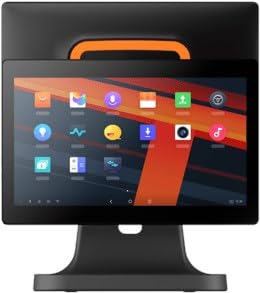
Abbildung 4.1: Front view of the SUNMI T2s Lite POS system. This image displays the main 15.6-inch touchscreen, which is the primary interface for operating the device. The design is compact and suitable for various retail settings.
4.1 Schlüsselkomponenten
- 15.6-Zoll-Touchscreen-Display: High-resolution (1920x1080) capacitive touch interface.
- Netzschalter: Located typically on the side or rear for turning the device on/off.
- USB-Anschlüsse: For connecting peripherals such as barcode scanners, external printers, or cash drawers.
- Ethernet Anschluss: Für kabelgebundene Netzwerkverbindungen.
- Leistungsaufnahme: Zum Anschluss des Netzteils.
- Frontkamera: For specific applications requiring image capture.
5. Einrichtung
5.1 Auspacken und Aufstellen
- Nehmen Sie das Gerät und sämtliches Zubehör vorsichtig aus der Verpackung.
- Place the POS terminal on a stable, flat surface in a well-ventilated area.
- Ensure there is sufficient space around the device for cable connections and heat dissipation.
5.2 Stromversorgung anschließen
- Verbinden Sie das Netzkabel mit dem Netzteil.
- Plug the power adapter into the power input port on the back of the SUNMI T2s Lite.
- Stecken Sie das andere Ende des Stromkabels in eine geerdete Steckdose.
5.3 Initial Boot and Network Connection
- Press and hold the power button until the screen lights up. The device will boot into the Android operating system.
- Folgen Sie den Anweisungen auf dem Bildschirm für die Ersteinrichtung, einschließlich der Sprachauswahl und der Zeitzone.
- Wi-Fi-Verbindung: Gehe zu Einstellungen > Netzwerk & Internet > WLANWählen Sie Ihr Netzwerk aus und geben Sie das Passwort ein.
- Ethernet-Verbindung: Connect an Ethernet cable from your router/switch to the Ethernet port on the device. The device should automatically connect to the wired network.
5.4 Anschließen von Peripheriegeräten
- USB-Geräte: Plug USB peripherals (e.g., barcode scanner, external printer, cash drawer) into the available USB ports. The system will typically recognize them automatically.
- Bluetooth-Geräte: Gehe zu Einstellungen > Verbundene Geräte > Bluetooth, enable Bluetooth, and pair with your desired device.
6. Bedienungsanleitung
6.1 Ein-/Ausschalten
- So schalten Sie das Gerät ein: Halten Sie die Ein-/Aus-Taste gedrückt, bis der Bildschirm aufleuchtet.
- So schalten Sie das Gerät aus: Press and hold the power button until a power menu appears. Select "Power off" and confirm. Alternatively, a short press of the power button will put the device to sleep.
6.2 Touchscreen-Nutzung
- Klopfen: Um ein Element auszuwählen oder eine Schaltfläche zu aktivieren.
- Tippen und Halten: To open context menus or drag items.
- Wischen: Zum Durchblättern von Listen oder zum Navigieren zwischen Bildschirmen.
- Pinch-to-Zoom: Um Bilder zu vergrößern oder zu verkleinern web Seiten.
6.3 Android OS Navigation
- Startbildschirm: The central hub for your applications and widgets.
- App-Schublade: Zugriff auf alle installierten Anwendungen.
- Benachrichtigungsfeld: Wischen Sie vom oberen Bildschirmrand nach unten zu view Benachrichtigungen und Schnelleinstellungen.
- Einstellungen: Configure Wi-Fi, Bluetooth, display, sound, and other system options.
6.4 Basic POS Functions
The specific POS functions will depend on the software application installed on your device. Refer to the documentation provided with your POS software for detailed instructions. Generally, you will:
- Launch your POS application from the home screen or app drawer.
- Melden Sie sich mit Ihren Benutzerdaten an.
- Process transactions using the touchscreen and connected peripherals (e.g., scanning items, accepting payments).
- Print receipts if an external or integrated printer is configured.
7. Wartung
7.1 Gerät reinigen
- Vor der Reinigung das Gerät immer ausschalten und vom Stromnetz trennen.
- Mit einem weichen, fusselfreien Tuch leichtampened with water or a mild, non-abrasive cleaner to wipe the screen and exterior surfaces.
- Sprühen Sie keine Flüssigkeiten direkt auf das Gerät.
- Vermeiden Sie die Verwendung von aggressiven Chemikalien, Lösungsmitteln oder Schleifmitteln.
7.2 Softwareaktualisierungen
Regularly check for and install system and application updates to ensure optimal performance, security, and access to new features. You can usually find system updates in Einstellungen > System > Systemupdate.
7.3 Speicherung
When not in use for extended periods, store the device in a cool, dry place, away from direct sunlight and extreme temperatures. If storing for a long time, ensure the battery is charged to about 50% to prolong its lifespan.
8. Fehlerbehebung
Dieser Abschnitt behandelt häufig auftretende Probleme. Bei komplexeren Problemen wenden Sie sich bitte an den Kundensupport.
- Das Gerät lässt sich nicht einschalten:
- Stellen Sie sicher, dass das Netzteil fest mit dem Gerät und einer funktionierenden Steckdose verbunden ist.
- Überprüfen Sie, ob die Steckdose funktioniert.
- Versuchen Sie, den Netzschalter 10-15 Sekunden lang gedrückt zu halten, um einen Neustart zu erzwingen.
- Touchscreen is unresponsive:
- Starten Sie das Gerät neu.
- Stellen Sie sicher, dass der Bildschirm sauber und frei von Schmutz oder Flüssigkeiten ist.
- Netzwerkverbindungsprobleme (WLAN/Ethernet):
- Check if the Wi-Fi is enabled and you are connected to the correct network with the right password.
- For Ethernet, ensure the cable is properly connected and your router/switch is working.
- Starten Sie Ihren Router/Ihr Modem neu.
- Peripherals (e.g., printer, scanner) not working:
- Stellen Sie sicher, dass das Peripheriegerät ordnungsgemäß an den richtigen Port angeschlossen ist.
- Check if the peripheral has its own power supply and is turned on.
- Verify that the necessary drivers or software for the peripheral are installed and configured within your POS application.
9. Spezifikationen
The following are key technical specifications for the SUNMI T2s Lite:
| Besonderheit | Spezifikation |
|---|---|
| Marke | SONNENMI |
| Hersteller | Sunmi |
| Native Bildschirmauflösung | 1920x1080 Pixel |
| Konnektivitätstechnologie | Bluetooth, Ethernet, USB, WLAN |
| Kamerabeschreibung | Frontal |
| ASIN | B0B53FLFT8 |
10. Garantie und Support
The SUNMI T2s Lite POS system comes with a standard manufacturer's warranty. Please refer to the warranty card included in your package for specific terms and conditions, including warranty period and coverage details.
For technical support, service, or warranty claims, please contact your authorized SUNMI dealer or the customer support channel specified in your purchase documentation. Ensure you have your product model number (T2s Lite) and ASIN (B0B53FLFT8) ready when contacting support.