
1. Einleitung
Thank you for choosing the ICON Morpheus GX 66 Wired Gaming Mouse. This manual provides essential information for setting up, operating, and maintaining your new gaming mouse. Please read this guide thoroughly to ensure optimal performance and longevity of your device.
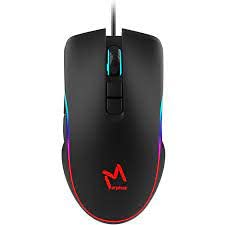
The ICON Morpheus GX 66 is a high-performance wired gaming mouse featuring customizable LED lighting and a precise 7200 DPI optical sensor, designed for an optimal gaming experience. It offers a modern style and ambidextrous design, compatible with Windows 7, Windows XP, and Linux operating systems.
2. Produktmerkmale
- Hochpräziser Sensor: Equipped with a 7200 DPI optical sensor for accurate tracking and responsiveness.
- Anpassbare LED-Beleuchtung: Dynamic LED illumination enhances your gaming setup.
- 7 programmierbare Tasten: Offers extensive customization for various gaming commands.
- Kabelgebundene Konnektivität: Ensures a stable and lag-free connection.
- Beidhändiges Design: Sowohl für Links- als auch für Rechtshänder geeignet.
- Langlebige Konstruktion: Designed for long-lasting use in intense gaming sessions.
- Breite Kompatibilität: Supports Windows 7, Windows XP, and Linux operating systems.

3. Einrichtung
- Maus auspacken: Carefully remove the ICON Morpheus GX 66 mouse from its packaging.
- Mit Computer verbinden: Locate an available USB port on your computer. Plug the USB connector of the mouse firmly into the USB port.
- Treiberinstallation: The mouse is plug-and-play. Your operating system (Windows 7, Windows XP, or Linux) should automatically detect and install the necessary drivers. This process may take a few moments.
- Testfunktionalität: Once installed, move the mouse and click the buttons to ensure it is working correctly.
4. Bedienungsanleitung
4.1 Grundfunktionen
- Links Klick: Primary action, selection, activation.
- Rechtsklick: Kontextmenü, sekundäre Aktionen.
- Scrollrad: Scroll up/down, middle click for specific functions.
4.2 DPI-Anpassung
The mouse features a dedicated DPI button (often located behind the scroll wheel) to cycle through different sensitivity levels. Press this button to adjust the DPI (Dots Per Inch) to your preferred setting for various tasks or games. The LED lighting may change color to indicate the current DPI level.
4.3 LED-Beleuchtung
The ICON Morpheus GX 66 features dynamic LED lighting. The lighting patterns and colors are typically pre-programmed and may change based on the selected DPI setting or cycle automatically. There are no user-configurable software controls for the LED lighting on this model.

5. Wartung
- Reinigung: Verwenden Sie ein weiches, trockenes Tuch, um die Oberfläche der Maus abzuwischen. Bei hartnäckigem Schmutz leicht andrücken.ampBefeuchten Sie das Tuch mit Wasser. Vermeiden Sie die Verwendung von scharfen Chemikalien oder scheuernden Materialien.
- Sensorreinigung: Occasionally, dust or debris may accumulate around the optical sensor. Use a cotton swab or compressed air to gently clean the sensor area on the underside of the mouse.
- Kabelpflege: Avoid sharp bends or excessive pulling on the mouse cable to prevent damage. Store the cable neatly when not in use.
- Lagerung: Bei längerer Nichtbenutzung sollte die Maus an einem sauberen, trockenen Ort, fern von direkter Sonneneinstrahlung und extremen Temperaturen, aufbewahrt werden.

6. Fehlerbehebung
- Maus reagiert nicht:
- Stellen Sie sicher, dass das USB-Kabel fest mit dem USB-Anschluss des Computers verbunden ist.
- Versuchen Sie, die Maus an einen anderen USB-Anschluss anzuschließen.
- Starten Sie Ihren Computer neu.
- Unregelmäßige Cursorbewegung:
- Reinigen Sie den optischen Sensor an der Unterseite der Maus.
- Verwenden Sie die Maus auf einer sauberen, nicht reflektierenden und gleichmäßigen Oberfläche. Vermeiden Sie Glas oder stark reflektierende Oberflächen.
- LED-Beleuchtung funktioniert nicht:
- Überprüfen Sie die USB-Verbindung.
- The LED lighting is typically powered directly via USB. If the mouse functions but LEDs do not, contact support.
- Tasten funktionieren nicht:
- Stellen Sie sicher, dass die Maus ordnungsgemäß angeschlossen ist.
- Testen Sie die Maus an einem anderen Computer, um Softwareprobleme auszuschließen.
7. Spezifikationen
| Hersteller | SYMBOL |
| Modell | Morpheus GX 66 |
| ASIN | B0B5PLWQXC |
| Besondere Merkmale | LED-Beleuchtung |
| Bewegungserkennungstechnologie | Optisch |
| DPI | 7200 |
| Handausrichtung | Beidhändig |
| Empfohlene Verwendung | Spiele |
| Betriebssystemkompatibilität | Linux, Windows 7, Windows XP |
| Stil | Modern |
| Ausführung | Matt |
| Stromquelle | Kabelgebundener Strom (USB) |
| Farbe | Mehrfarbig |
8. Garantie und Support
The ICON Morpheus GX 66 Wired Gaming Mouse comes with a standard manufacturer's warranty. For specific warranty terms and conditions, please refer to the warranty card included with your product or visit the official ICON webWebsite.
For technical support, troubleshooting assistance, or to inquire about replacement parts, please contact ICON customer service through their official support channels. Keep your purchase receipt and product model information (GX 66) handy when contacting support.