
LogiLink ID0209
LogiLink ID0209 Wireless Keyboard User Manual
1. Einleitung
This manual provides instructions for the LogiLink ID0209 Wireless Keyboard. This keyboard is designed for comfortable, precise, and quiet typing, featuring an adjustable RGB backlight and a long-lasting battery. It connects wirelessly via 2.4 GHz radio technology and is compatible with various operating systems.

Figure 1: LogiLink ID0209 Wireless Keyboard
2. Packungsinhalt
Bitte prüfen Sie das Paket auf folgende Artikel:
- LogiLink ID0209 Wireless Keyboard
- USB 2.4 GHz Receiver Dongle
- USB-A-zu-Micro-USB-Ladekabel
- Benutzerhandbuch (dieses Dokument)
3. Einrichtung
3.1 Aufladen der Tastatur
Before initial use, fully charge the keyboard. Connect the supplied USB-A to Micro USB cable to the keyboard's Micro USB port (located on the side) and the other end to a USB power source (e.g., computer USB port, USB wall adapter).
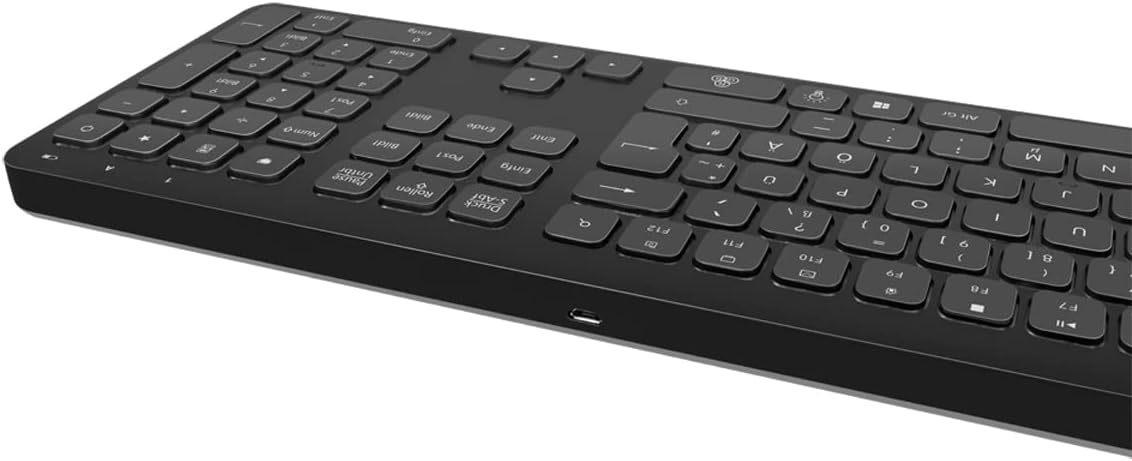
Figure 2: Keyboard side view with Micro USB charging port
3.2 Connecting the USB Receiver Dongle
Insert the 2.4 GHz USB receiver dongle into an available USB port on your computer or compatible device. The system will automatically detect and install the necessary drivers.

Figure 3: USB 2.4 GHz Receiver Dongle
3.3 Ein-/Ausschalten
Locate the ON/OFF switch on the back of the keyboard. Slide the switch to the 'ON' position to power on the keyboard. Slide it to 'OFF' when not in use to conserve battery life.
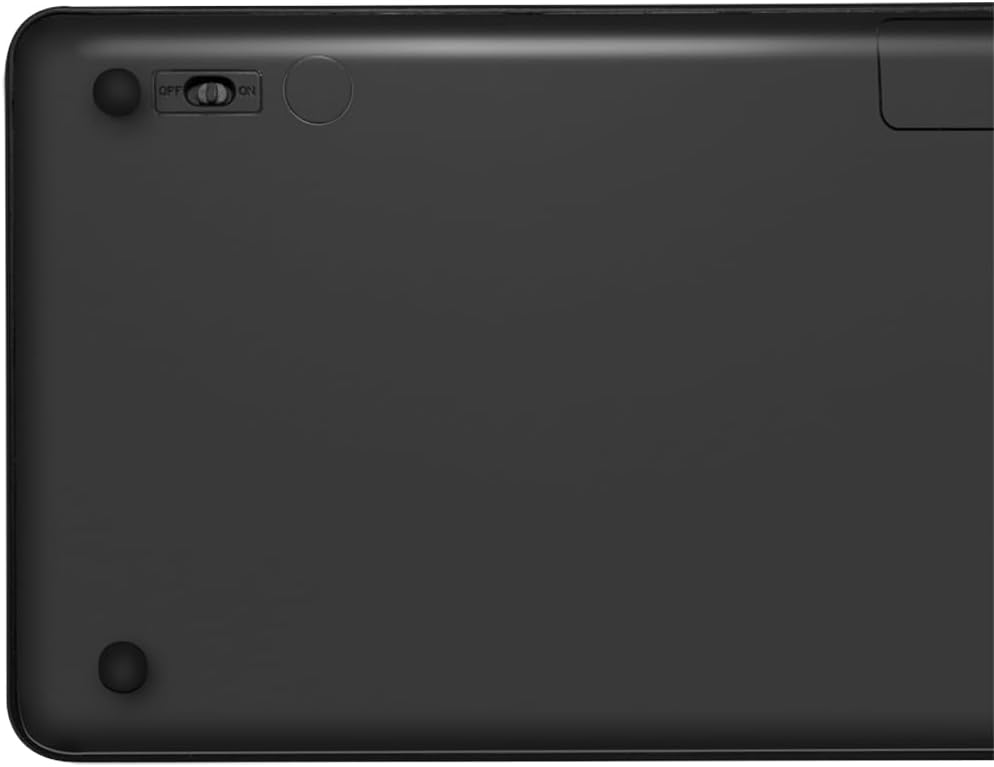
Figure 4: Keyboard back with ON/OFF switch
The keyboard should automatically connect to the USB receiver once both are powered on and within range (up to 10 meters).
4. Bedienungsanleitung
4.1 Hintergrundbeleuchtungssteuerung
The keyboard features an adjustable RGB backlight with 7 colors and 3 brightness levels, including a breathing mode.
- Farbwechsel: Drücken Sie die Fn + Glühbirnentaste to cycle through the 7 available colors (green, blue, yellow, purple, cyan, white, red).
- Anpassen der Helligkeit: Drücken Sie die Fn + Up Arrow key um die Helligkeit zu erhöhen und Fn + Down Arrow key Um die Helligkeit zu verringern. Es gibt 3 Helligkeitsstufen.
- Atemmodus: Drücken Sie die Fn + RGB Cycle key (often depicted as a swirling icon) to activate or deactivate the breathing backlight mode.

Figure 5: Keyboard with RGB backlight in use
4.2 Tastenkombinationen
The keyboard includes 17 shortcut keys for quick access to various functions. Some shortcut keys are specifically designed for Windows operating systems.
To use a shortcut key, press and hold the Fn key, then press the desired function key (e.g., F1-F12, multimedia keys).
- Multimedia-Steuerelemente: Play/Pause, Stop, Previous Track, Next Track, Volume Up, Volume Down, Mute.
- Produktivität: Open Mail, Web Browser, My Computer, Search.
- Andere: Lock Screen, Calculator.

Figure 6: Close-up of keyboard keys, including numpad and function row
4.3 Automatic Energy-Saving Mode
The keyboard is equipped with an automatic energy-saving mode. After a period of inactivity, the keyboard will enter a sleep state to conserve battery. Press any key to wake it up.
5. Wartung
Um die Langlebigkeit und optimale Leistung Ihrer Tastatur zu gewährleisten, beachten Sie bitte folgende Wartungshinweise:
- Reinigung: Verwenden Sie ein weiches, trockenes, fusselfreies Tuch, um die Tastaturoberfläche abzuwischen. Bei hartnäckigem Schmutz leicht andrücken.ampBefeuchten Sie das Tuch mit Wasser oder einer milden Reinigungslösung. Vermeiden Sie übermäßige Feuchtigkeit.
- Lagerung: Bewahren Sie die Tastatur an einem kühlen, trockenen Ort fern von direkter Sonneneinstrahlung und extremen Temperaturen auf.
- Vermeiden Sie Flüssigkeiten: Die Tastatur darf nicht mit Flüssigkeiten in Berührung kommen. Sollte versehentlich Flüssigkeit verschüttet werden, schalten Sie die Tastatur sofort aus und lassen Sie sie vollständig trocknen, bevor Sie sie wieder verwenden.
- Vorsichtig handhaben: Vermeiden Sie es, die Tastatur fallen zu lassen oder starken Stößen auszusetzen.
6. Fehlerbehebung
If you encounter issues with your LogiLink ID0209 keyboard, refer to the following common problems and solutions:
| Problem | Mögliche Ursache | Lösung |
|---|---|---|
| Tastatur reagiert nicht | Keyboard is off Schwache Batterie USB-Empfänger nicht angeschlossen Außerhalb der Reichweite | Ensure keyboard is ON Laden Sie die Tastatur auf Plug USB receiver firmly into a working USB port Move keyboard closer to the receiver (within 10m) |
| Hintergrundbeleuchtung funktioniert nicht | Hintergrundbeleuchtung ist aus Schwache Batterie | Press Fn + Light Bulb key to turn on/cycle Laden Sie die Tastatur auf |
| Die Tasten klemmen oder reagieren nicht. | Schmutz oder Ablagerungen unter den Tasten | Clean the keyboard as per maintenance instructions |
| Die Verbindung bricht häufig ab | Interferenz Außerhalb der Reichweite Schwache Batterie | Entfernen Sie sich von anderen drahtlosen Geräten Move keyboard closer to the receiver Laden Sie die Tastatur auf |
7. Spezifikationen
| Besonderheit | Detail |
|---|---|
| Marke | LogiLink |
| Modellnummer | ID0209 |
| Konnektivitätstechnologie | 2.4 GHz Wireless (High-frequency) |
| Drahtlose Reichweite | Bis zu 10 Meter |
| Anzahl der Schlüssel | 111 Tasten |
| Tastenkombinationen | 17 (some Windows-specific) |
| Hintergrundbeleuchtung | Adjustable RGB (7 colors, 3 brightness levels, breathing mode) |
| Schlüsseltyp | Flat keys |
| Kompatible Geräte | Windows, Mac OS, Android, iOS, Smart TV systems |
| Besondere Merkmale | Ergonomic, Backlit, Automatic Energy-Saving Mode |
| Ladeanschluss | Micro USB |
| Farbe | Schwarz |
| Material | Plastik |
| Hersteller | 2direct GmbH |
| Ursprungsland | China |
8. Garantie und Support
Informationen zur Garantie und zum technischen Support finden Sie in der mit Ihrem Kauf gelieferten Dokumentation oder auf der offiziellen LogiLink-Website. webBewahren Sie Ihren Kaufbeleg für Garantieansprüche auf.
Ask a question about this manual
Ask about setup, troubleshooting, compatibility, parts, safety, or missing instructions. Manuals+ will review the question and use this page’s manual context to help answer it.