
1. Einleitung
This manual provides instructions for the installation, operation, and maintenance of your 10.4 Inch Embedded Resistive Touch Industrial All-in-one Computer. This device features resistive touchscreen technology, offering single-touch, pressure-sensing control with a theoretical lifespan of over 50 million clicks. It is equipped with Mohs grade 7 explosion-proof glass and is designed to operate within a temperature range of -20°C to 60°C.
The computer's display offers a brightness of 250-350 cd/m² and a contrast ratio of 1000:1. It comes with a power adapter (Input: 100-250VAC, Output: DC 12V 5A) and supports various plug types (AU, EU, USA, UK). The default operating system is Windows 10 Pro, with Windows 7 or Linux available as optional installations.

Abbildung 1: Vorderseite view of the computer showcasing its slim design and embedded installation capability, with Windows 10 operating system.
2. Lieferumfang
Bitte überprüfen Sie nach dem Auspacken, ob alle Komponenten vorhanden und unbeschädigt sind. Das Paket sollte Folgendes enthalten:
- 1 x 10.4 Inch Embedded Resistive Touch Industrial All-in-one Computer
- 1 x Power Adapter (with appropriate regional plug)
- Mounting hardware (for embedded or wall mount installation)
3. Einrichtung
Follow these steps to set up your industrial all-in-one computer:
- Auspacken: Carefully remove the computer and all accessories from the packaging. Retain packaging for future transport or storage.
- Montage: Determine your preferred installation method. The unit supports embedded and wall-mount installations. Use the provided mounting hardware to secure the computer in place. Ensure the mounting surface is stable and can support the device's weight.

Figure 2: Reference for installation methods, demonstrating how the unit can be embedded or secured with screws.
- Anschließen von Peripheriegeräten: Connect necessary peripherals such as a keyboard, mouse, or external display to the available ports. The unit features multiple interfaces including HDMI, USB (USB1, USB2), VGA, LAN, and Audio ports.

Abbildung 3: Überview of the multiple interfaces available on the rear panel for various connectivity requirements.
- Stromanschluss: Connect the provided DC 12V 5A power adapter to the DC12V input port on the computer, then plug the adapter into a suitable power outlet.
4. Bedienungsanleitung
This section outlines the basic operation of your industrial all-in-one computer.
- Ein-/Ausschalten: Locate the power button, typically on the side or rear panel. Press it once to power on the device. To power off, use the operating system's shutdown function. For a forced shutdown, press and hold the power button for several seconds.
- Touchscreen-Bedienung: The resistive touchscreen supports single-point touch input. Apply gentle pressure with your finger or a stylus to interact with the display.

Figure 4: User interacting with the resistive touchscreen display.
- Betriebssystem: The computer comes pre-installed with Windows 10 Pro. Familiarize yourself with the operating system's interface and functions.
5. Wartung
Proper maintenance ensures the longevity and optimal performance of your industrial computer.
- Reinigung: Verwenden Sie ein weiches,amp cloth to clean the screen and exterior surfaces. Avoid abrasive cleaners or solvents that could damage the display or finish. Ensure the device is powered off and unplugged before cleaning.
- Belüftung: The unit is designed with ventilation to dissipate heat. Ensure that the ventilation openings on the back panel are not obstructed to prevent overheating.

Figure 5: Rear panel with ventilation design for efficient heat management.
- Umgebungsbedingungen: Operate the computer within the specified temperature range of -20°C to 60°C. Avoid exposing the device to extreme humidity or direct sunlight.
6. Fehlerbehebung
If you encounter issues with your industrial computer, refer to the following common troubleshooting steps:
- Kein Strom:
- Check if the power adapter is securely connected to both the computer and the power outlet.
- Überprüfen Sie die Funktionsfähigkeit der Steckdose, indem Sie ein anderes Gerät anschließen.
- Kein Bildschirm:
- Stellen Sie sicher, dass der Computer eingeschaltet ist.
- If an external monitor is connected, check its power and cable connections.
- Touchscreen reagiert nicht:
- Starten Sie den Computer neu.
- Stellen Sie sicher, dass der Bildschirm sauber und frei von Verunreinigungen ist.
- Systemverlangsamung:
- Schließen Sie nicht benötigte Anwendungen.
- Prüfen Sie, ob auf der SSD ausreichend freier Speicherplatz vorhanden ist.
7. Spezifikationen
Detailed technical specifications for the 10.4 Inch Embedded Resistive Touch Industrial All-in-one Computer (Model YTKK104DZ).
| Besonderheit | Spezifikation |
|---|---|
| Marke | Generisch |
| Modellnummer | YTKK104DZ |
| Betriebssystem | Windows 10 Pro (Win7/Linux optional) |
| CPU Modell | Core i7-7500U |
| CPU-Geschwindigkeit | 2.7 GHz |
| RAM-Speicher installiert | 4 GB DDR3 |
| Speicherkapazität | SSD mit 64 GB |
| Bildschirmgröße | 10.4 Zoll |
| Auflösung | 1024 x 768 |
| Anzeigetyp | LCD |
| Seitenverhältnis | 4:3 |
| Eingabe über die Benutzeroberfläche | Touchscreen (Resistive) |
| Helligkeit | 250-350cd/m² |
| Kontrastverhältnis | 1000:1 |
| Explosion-Proof Glass | Mohs grade 7 |
| Betriebstemperatur | -20°C bis 60°C |
| Hardware-Schnittstelle | Ethernet, USB (4 Total), HDMI (1 Total) |
| Wireless-Technologie | W-lan |
| Artikelabmessungen | 10.67 x 2.28 x 8.58 Zoll |
| Artikelgewicht | 4 Kilogramm |
| Netzsteckertyp | Typ A - 2-polig (Nordamerika) |
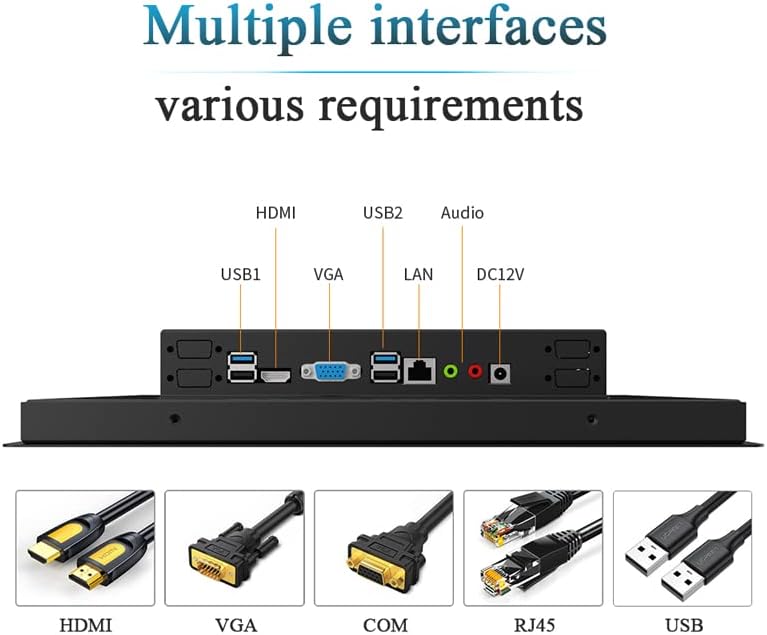
Figure 6: Detailed dimensional drawing of the 10.4-inch industrial computer.
8. Garantie und Support
Garantie: Dieses Produkt wird mit einem 1 Jahr Garantie ab Kaufdatum. Bitte bewahren Sie Ihren Kaufbeleg für Garantieansprüche auf.
Unterstützung: For technical assistance, troubleshooting, or inquiries regarding customization options (such as screen size, interface type, power supply, or installation methods), please contact the manufacturer. Customization inquiries can be sent via email to: Slubee-zzl@outlook.com.