
Einführung
Thank you for choosing the Glorious Gaming Model O Wireless Mouse. This manual provides essential information for setting up, operating, maintaining, and troubleshooting your new gaming mouse. Designed for competitive gaming, the Model O Wireless combines a superlight honeycomb design with lag-free 2.4GHz wireless technology and customizable RGB lighting to enhance your gaming experience.
Produkteigenschaften
- Superlight Design: Weighing only 69 grams, the honeycomb shell reduces weight while maintaining structural integrity and improving airflow.
- Lag-Free 2.4GHz Wireless: Experience ultra-low wireless latency for responsive and crisp clicks, ensuring no unexpected double-clicking.
- Verlängerte Akkulaufzeit: Up to 71 hours of playtime with RGB lighting off, allowing for prolonged gaming sessions without frequent recharging.
- Wired & Wireless Modes: Includes a flexible USB-C Ascended charging cable for continuous performance even while charging.
- Beidhändige Form: Ergonomically designed for comfortable use by both left and right-handed users.
- Anpassbare RGB-Beleuchtung: Personalize your mouse with various lighting effects and colors via the Glorious CORE software.
- Hochpräziser optischer Sensor: Equipped with a Glorious BAMF sensor, offering up to 19,000 DPI and 400 IPS tracking speed for pinpoint accuracy.
- Langlebige Schalter: Features switches rated for 80 million clicks, ensuring long-lasting performance.
- G-Skates Premium PTFE Mouse Feet: Provides smooth gliding across any surface with minimal friction.

Bild: Draufsicht view of the Glorious Model O Wireless Gaming Mouse, showcasing its honeycomb shell and vibrant RGB lighting.
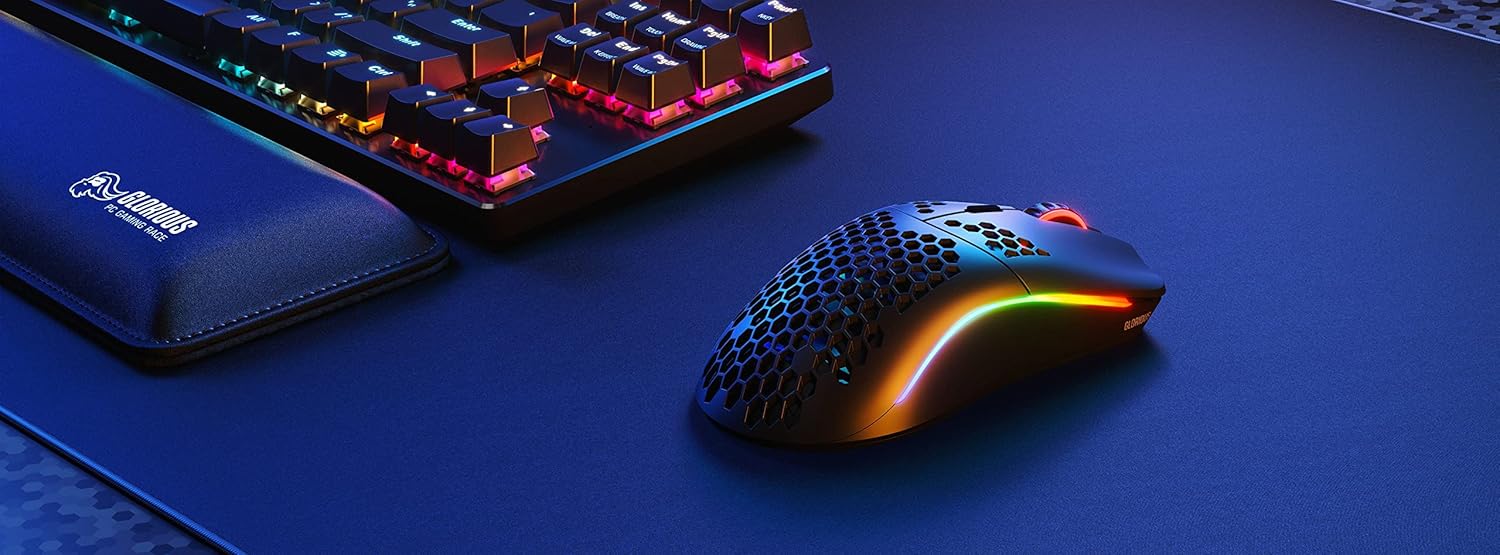
Image: Technical diagram illustrating the dimensions and key specifications of the Glorious Model O Wireless Gaming Mouse.
Aufstellen
- Auspacken: Carefully remove the mouse, USB-C Ascended charging cable, and wireless dongle from the packaging.
- Drahtlosen Dongle anschließen: Plug the 2.4GHz wireless USB dongle into an available USB port on your computer.
- Maus einschalten: Locate the power switch on the underside of the mouse and slide it to the 'ON' position. The mouse should automatically connect to the dongle.
- Erstaufladung (optional): For optimal performance, it is recommended to fully charge the mouse before first use. Connect the USB-C Ascended cable to the front of the mouse and the other end to a USB port on your computer or a USB charger.
- Install Glorious CORE Software: Download and install the Glorious CORE software from the official Glorious webSeite? ˅ (www.gloriousgaming.com/pages/glorious-core) to customize settings, RGB lighting, and button assignments.
Video: A seller demonstrates the unboxing and initial setup of the Glorious Model O Wireless mouse, highlighting its lightweight design and flexible cable.
Bedienungsanleitung
The Glorious Model O Wireless mouse features 6 programmable buttons for versatile control during gaming and general use.
- Linksklick (Schaltfläche 1): Primäre Aktionsschaltfläche.
- Rechtsklick (Schaltfläche 2): Sekundäre Aktionsschaltfläche.
- Scroll Wheel Click (Button 3): Often used for middle-click functions or opening new tabs.
- DPI-Taste (Taste 4): Cycles through preset DPI settings. Default settings can be customized via Glorious CORE.
- Seitliche Tasten (Tasten 5 und 6): Typically used for forward/backward navigation in browsers or assigned to in-game actions. These are fully programmable.
For advanced customization of button functions, macros, and DPI levels, refer to the Glorious CORE software.
Anpassung
The Glorious Model O Wireless offers extensive customization options through the Glorious CORE software:
- RGB-Beleuchtung: Choose from various effects (e.g., Seamless Breathing, Glorious Mode, Single Color) and adjust brightness and speed. You can set different lighting for wired and wireless modes.
- DPI-Einstellungen: Create and save multiple DPI profiles, allowing you to switch sensitivity on the fly using the dedicated DPI button.
- Tastenbelegung: Remap any of the 6 buttons to perform mouse functions, keyboard commands, custom macros, or multimedia controls.
- Abfragerate: Passen Sie die Abfragerate (bis zu 1000 Hz) für eine optimale Reaktionsfähigkeit an.
- Abhebedistanz (LOD): Stellen Sie den Abstand fein ein, bei dem der Sensor die Erfassung beendet, wenn die Maus angehoben wird.

Image: Screenshot of the Glorious CORE software, displaying options for customizing RGB lighting effects and colors for the mouse.
Wartung
- Reinigung: Use a soft, dry cloth to wipe down the mouse. For the honeycomb shell, a can of compressed air can help remove dust and debris. Avoid using harsh chemicals or abrasive materials.
- Kabelpflege: Handle the Ascended cable gently to prevent fraying or damage. Avoid sharp bends or excessive pulling.
- Lagerung: Bewahren Sie die Maus bei Nichtgebrauch an einem sauberen, trockenen Ort fern von extremen Temperaturen auf.
Fehlerbehebung
| Ausgabe | Mögliche Lösung |
|---|---|
| Maus reagiert nicht (drahtlos) | Ensure the mouse is powered on and the wireless dongle is securely plugged into a USB port. Try a different USB port. Re-pair the mouse if necessary (refer to Glorious CORE software for pairing instructions). |
| Maus reagiert nicht (kabelgebunden) | Stellen Sie sicher, dass das USB-C-Kabel fest mit der Maus und dem Computer verbunden ist. Versuchen Sie es mit einem anderen USB-Anschluss. |
| Verzögerung oder Stottern | Ensure the mouse is fully charged. Reduce wireless interference by moving the dongle closer to the mouse or away from other wireless devices. Update mouse firmware via Glorious CORE. |
| RGB-Beleuchtung funktioniert nicht | Check RGB settings in Glorious CORE. Ensure brightness is not set to 0. Update mouse firmware. |
| Tasten funktionieren nicht richtig | Verify button assignments in Glorious CORE. Reset to default settings if needed. Update mouse firmware. |
Technische Daten
| Besonderheit | Detail |
|---|---|
| Marke | GLORIOUS |
| Modell | Modell O Wireless |
| Farbe | Mattschwarz |
| Konnektivität | 2.4-GHz-Funkverbindung, USB-C-Kabelverbindung |
| Sensor | Glorious BAMF Optical Sensor |
| DPI | Bis zu 19,000 |
| Tracking Speed (IPS) | 400 |
| Abfragerate | 1000 Hz (Dual Wired/Wireless) |
| Klicklatenz | 2.08ms (Internal Testing) |
| Gewicht | 69 grams (+/- 1.5g) |
| Akkulaufzeit | Bis zu 71 Stunden (RGB aus) |
| Schaltflächen | 6 (Programmierbar) |
| Handausrichtung | Beidhändig |
| Mausfüße | G-Skates Premium PTFE |
| Kompatible Geräte | Windows, Mac, Linux |
Garantie und Support
The Glorious Gaming Model O Wireless Mouse comes with a 90 Tage eingeschränkte Garantie. For warranty claims or technical support, please visit the official Glorious Gaming webBesuchen Sie die Website oder kontaktieren Sie den Kundenservice. Bewahren Sie Ihren Kaufbeleg zur Überprüfung der Garantie auf.
Video: A seller provides a quick overview of the Glorious Model O Wireless mouse, highlighting its features and suitability for gaming.