
Einführung
The Keychron C2 is a full-size (104-key) wired mechanical keyboard designed for both Mac and Windows operating systems. It features durable Red mechanical switches and retro-colored ABS keycaps, providing a comfortable and responsive typing experience. This manual provides essential information for setting up, operating, maintaining, and troubleshooting your Keychron C2 keyboard.

Image: The Keychron C2 Full Size Wired Mechanical Keyboard connected to a computer setup.
Packungsinhalt
Stellen Sie sicher, dass alle Artikel im Paket vorhanden sind:
- Keychron C2 Full Size Wired Mechanical Keyboard
- USB-C-auf-USB-A-Kabel
- Tastenkappenabzieher
- Extra Keycaps for Mac and Windows operating systems
Aufstellen
- Schließen Sie die Tastatur an: Plug the USB-C end of the provided cable into the keyboard's USB-C port and the USB-A end into an available USB port on your computer. The keyboard is a wired-only device and does not require batteries.
- Betriebssystemmodus auswählen: Locate the operating system switch on the back or side of the keyboard. Slide the switch to the appropriate position for your computer (Mac or Windows). This ensures correct function key mapping.
- Tastaturwinkel anpassen: The keyboard features 2-level adjustable feet. Flip out the feet on the underside of the keyboard to achieve your preferred typing angle for ergonomic comfort.
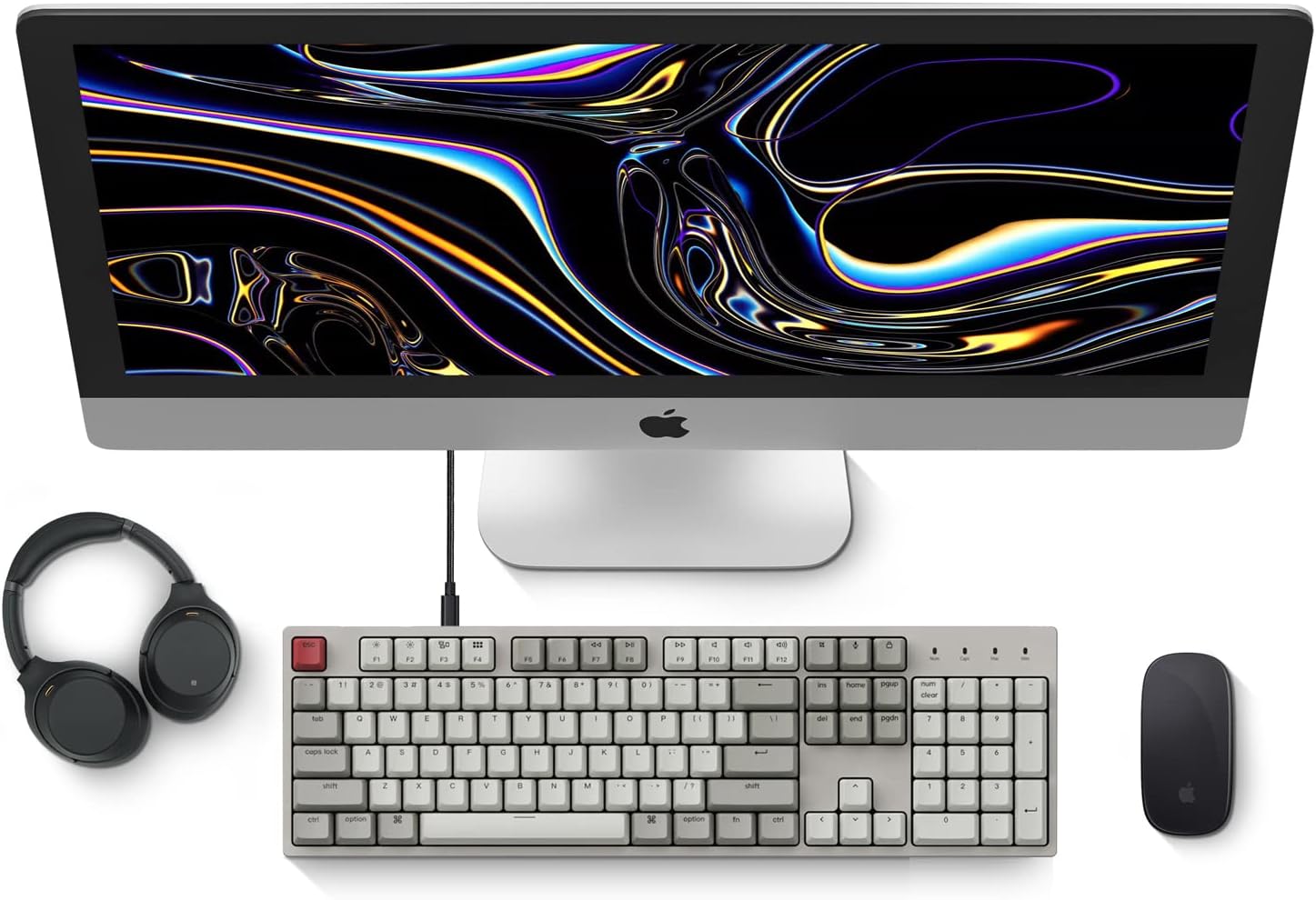
Image: Diagram showing compatibility with Mac and Windows operating systems.

Abbildung: Seite view of the Keychron C2 keyboard illustrating the adjustable feet for angle customization.
Bedienungsanleitung
Grundfunktionen
- Tippen: The keyboard features a standard 104-key full-size layout.
- Multimedia-Tasten: The top row of function keys (F1-F12) includes multimedia controls. These functions are optimized for Mac but are also compatible with Windows.
- Siri/Cortana Key: A dedicated key is provided for activating Siri (on Mac) or Cortana (on Windows).
Tastenkappen-Austausch
The Keychron C2 comes with extra keycaps for both Mac and Windows layouts. To replace keycaps:
- Use the provided keycap puller to gently remove the desired keycap by hooking it onto the keycap and pulling upwards.
- Richten Sie die neue Tastenkappe am Schalterschaft aus und drücken Sie sie fest nach unten, bis sie einrastet.

Bild: Nahaufnahme view of the Keychron Red mechanical switches beneath removed keycaps.
Wartung
- Reinigung: Reinigen Sie Ihre Tastatur regelmäßig, um Staub- und Schmutzablagerungen vorzubeugen. Verwenden Sie eine weiche Bürste oder Druckluft, um Partikel zwischen den Tastenkappen zu entfernen. Zur Oberflächenreinigung verwenden Sie ein leicht dämpfendes Tuch.ampVerwenden Sie ein fusselfreies Tuch. Vermeiden Sie aggressive Chemikalien.
- Pflege der Tastenkappen: While durable, avoid excessive force when removing or installing keycaps to prevent damage to the keycap stems or switches.
- Kabelmanagement: Ensure the USB-C cable is not bent sharply or placed under heavy objects to prolong its lifespan.

Image: Close-up of the ABS keycaps on the Keychron C2 keyboard.
Fehlerbehebung
- Tastatur reagiert nicht:
- Check the USB-C cable connection at both the keyboard and the computer. Ensure it is securely plugged in.
- Versuchen Sie, die Tastatur an einen anderen USB-Anschluss Ihres Computers anzuschließen.
- Verify that the operating system switch on the keyboard is set correctly (Mac/Windows).
- Starten Sie Ihren Computer neu.
- Bestimmte Tasten funktionieren nicht:
- Carefully remove the non-functional keycap using the keycap puller. Inspect the mechanical switch for any visible damage or debris.
- Clean around the switch with compressed air.
- Re-seat the keycap firmly.
- Falsche Tastenausgabe:
- Ensure the operating system switch is set to the correct mode for your computer.
- Check your computer's keyboard settings to ensure the correct layout is selected.
Technische Daten
| Besonderheit | Detail |
|---|---|
| Marke | Schlüsselchron |
| Modellname | Keychron C2 |
| Modellnummer | HS-C2K1Z |
| Konnektivitätstechnologie | USB-C (kabelgebunden) |
| Kompatible Geräte | Notebook, PC |
| Kompatible Betriebssystemfamilie | MacOS, Windows |
| Anzahl der Schlüssel | 104 |
| Schaltertyp | Linear (Red Switch) |
| Tastenkappenmaterial | ABS (Acrylnitril-Butadien-Styrol) |
| Tastaturlayout | QWERTY |
| Besonderheit | Hintergrundbeleuchtet (einfarbig) |
| Artikelgewicht | 5390 Gramm |
| Stromquelle | Kabelgebundene Elektrik |
Garantie und Support
For warranty information, technical support, or further assistance, please visit the official Keychron website or contact Keychron customer service. Details regarding product registration and specific warranty terms can be found through official Keychron channels.