
1. Einleitung
This manual provides essential information for the safe and efficient use of your ASUS E410MA 14-inch Laptop Computer. Please read this guide thoroughly before operating your device to ensure proper setup, operation, and maintenance. Keep this manual for future reference.
2. Packungsinhalt
Upon unpacking your ASUS E410MA laptop, please verify that all items listed below are present and in good condition. If any item is missing or damaged, contact your retailer immediately.
- ASUS E410MA 14-inch Laptop Computer
- Netzteil und Netzkabel
- User Documentation (Quick Start Guide, Warranty Card)
3. Laptop Overview
Familiarize yourself with the various components of your ASUS E410MA laptop.
3.1-Vorderseite View (Offen)
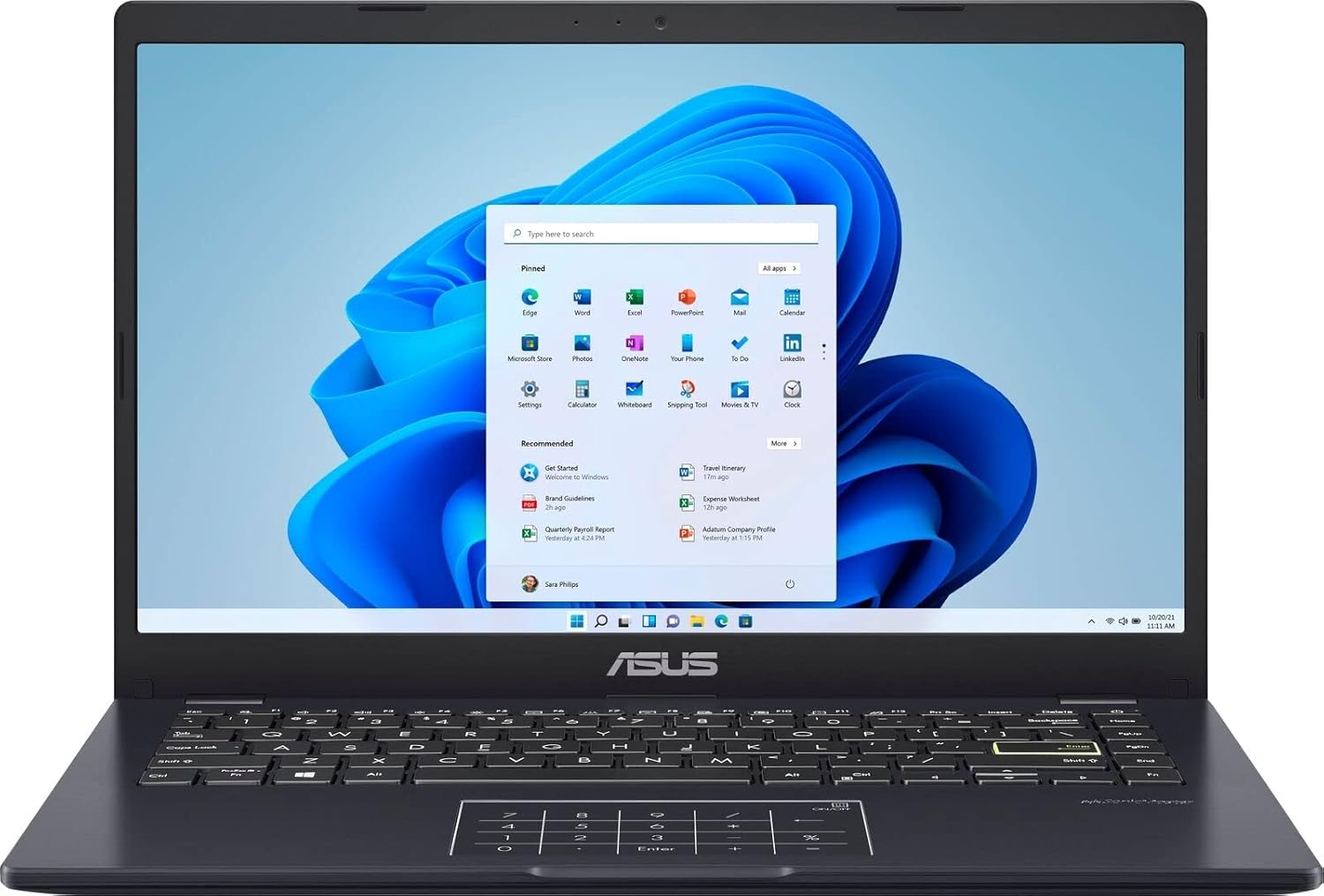
Bild 3.1: The ASUS E410MA laptop shown open, displaying the Windows 11 operating system interface on its 14-inch screen. The keyboard and touchpad are visible below the screen.
3.2 Tastatur und Touchpad

Bild 3.2: A top-down perspective of the ASUS E410MA laptop's keyboard and touchpad. The touchpad features an integrated NumberPad, indicated by illuminated numeric keys.
3.3 Seite View (Offen)
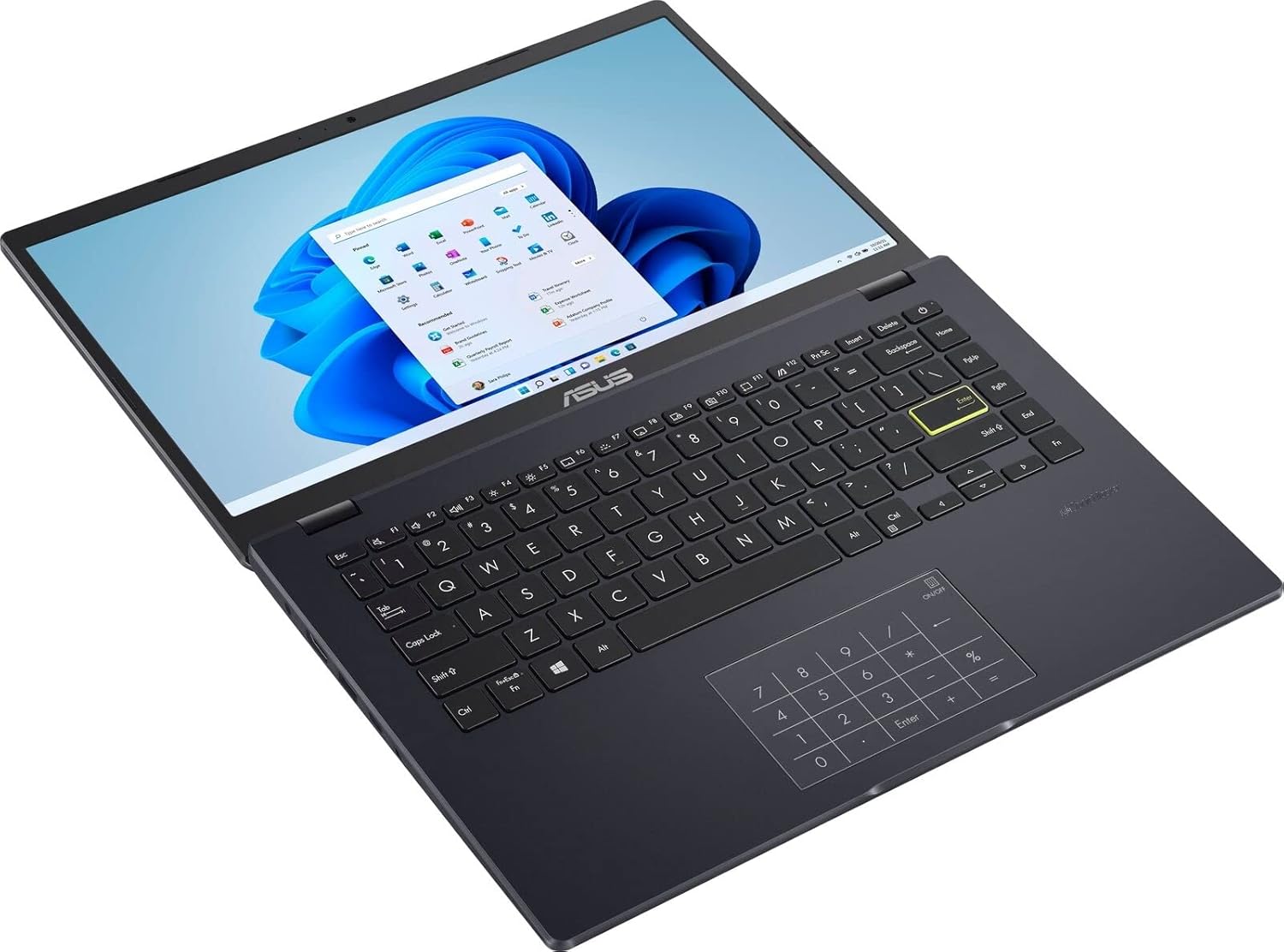
Bild 3.3: Ein abgewinkelter view of the ASUS E410MA laptop in an open position, highlighting the keyboard layout and the display screen.
3.4 Rückseite View (Geschlossen)

Bild 3.4: Das Heck view of the ASUS E410MA laptop in a closed state, featuring the ASUS logo prominently on the lid.
3.5 Angled Rear View (Geschlossen)

Bild 3.5: Ein abgewinkeltes Heck view of the ASUS E410MA laptop when closed, showcasing the ASUS logo on the lid and a glimpse of the side ports.
3.6 Insgesamt View (Open and Closed)
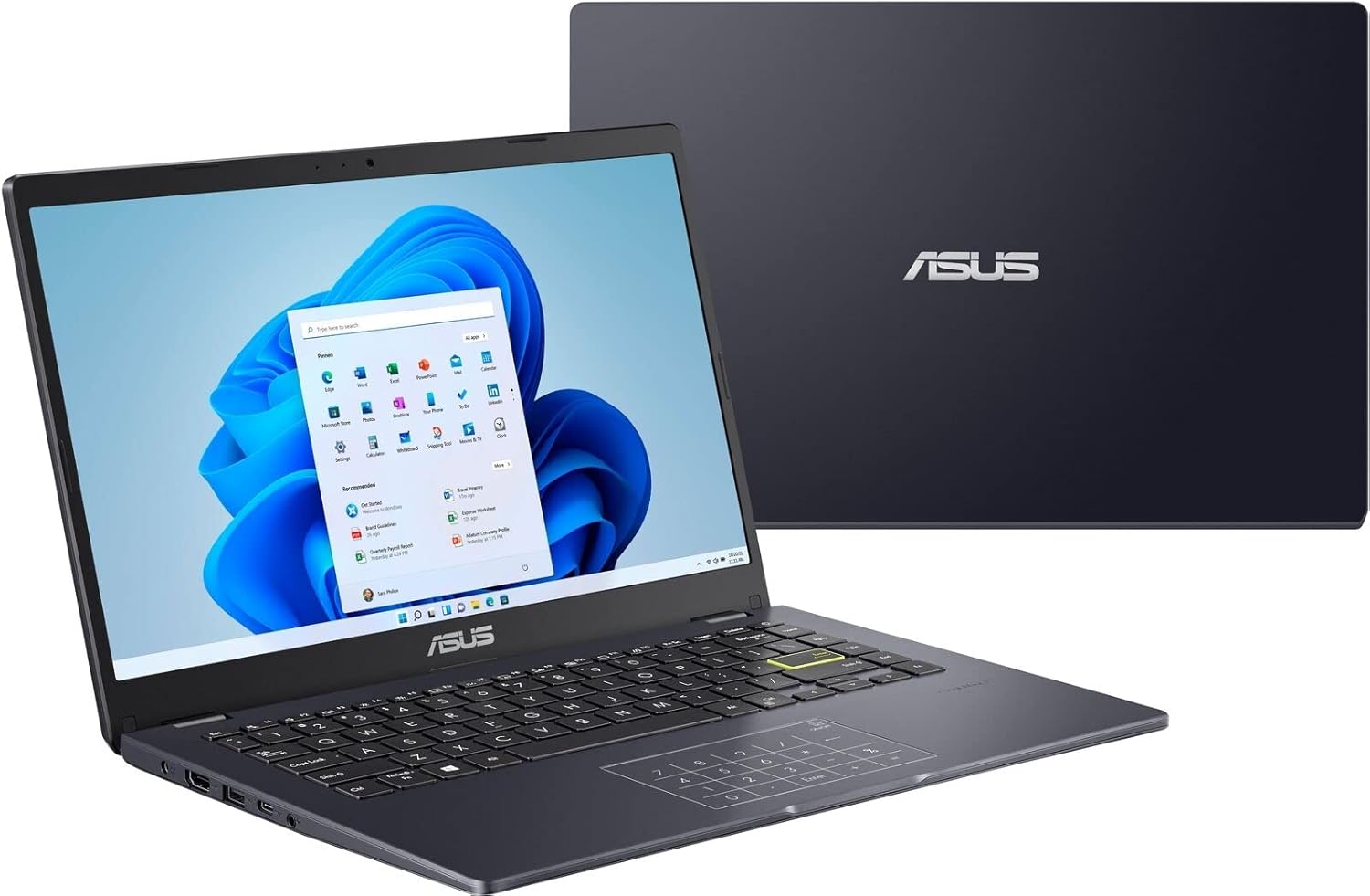
Bild 3.6: A composite view showing the ASUS E410MA laptop in an open, operational state in the foreground, with a closed unit visible in the background.
4. Einrichtung
Follow these steps to set up your ASUS E410MA laptop for the first time.
4.1 Laden des Akkus
- Connect the AC power adapter to the laptop's power input port.
- Stecken Sie das Netzkabel in eine Steckdose.
- Allow the battery to charge fully before initial use. The battery indicator light will change to show charging status.
4.2 Erstes Einschalten
- Öffnen Sie den Laptopdeckel.
- Press the power button, typically located on the top-right of the keyboard or on the side.
- The laptop will boot up and guide you through the Windows 11 initial setup process.
4.3 Windows 11-Einrichtung
Follow the on-screen instructions to complete the Windows 11 setup, which includes:
- Auswahl Ihrer Region und Ihres Tastaturlayouts.
- Verbindung mit einem Wi-Fi-Netzwerk herstellen.
- Anmelden oder Erstellen eines Microsoft-Kontos.
- Datenschutzeinstellungen einrichten.
5. Bedienung Ihres Laptops
This section covers basic operations and features of your ASUS E410MA laptop.
5.1 Verwendung der Tastatur und des Touchpads
- Tastatur: The laptop features a full-sized keyboard. Use the Function (Fn) key in combination with the F-keys (F1-F12) for special functions like adjusting brightness, volume, or enabling/disabling Wi-Fi.
- Touchpad: Das Touchpad unterstützt Multi-Touch-Gesten zur Navigation. Informationen zum Anpassen der Touchpad-Gesten finden Sie in den Windows-Einstellungen.
- Ziffernblock: Your laptop's touchpad integrates an ASUS NumberPad. To activate or deactivate it, press and hold the NumberPad icon on the top-right corner of the touchpad.
5.2 Anschließen von Peripheriegeräten
Ihr Laptop ist mit verschiedenen Anschlüssen zum Verbinden externer Geräte ausgestattet:
- USB-Anschlüsse: Schließen Sie USB-Geräte wie externe Festplatten, Mäuse oder Tastaturen an.
- HDMI-Anschluss: Connect to an external monitor or TV for video output.
- Audiobuchse: Schließen Sie Kopfhörer oder externe Lautsprecher an.
5.3 Energieverwaltung
To conserve battery life and manage performance:
- Bildschirmhelligkeit anpassen.
- Utilize Windows power modes (e.g., Balanced, Power Saver).
- Nicht verwendete Anwendungen schließen.
6. Wartung
Durch sachgemäße Wartung wird die Langlebigkeit und optimale Leistung Ihres Laptops sichergestellt.
6.1 Reinigung des Laptops
- Mit einem weichen, fusselfreien Tuch leichtampmit Wasser oder einem speziellen Bildschirmreiniger für das Display abspülen.
- Reinigen Sie Tastatur und Gehäuse mit einem weichen Tuch. Vermeiden Sie aggressive Chemikalien und Scheuermittel.
- Vor der Reinigung unbedingt sicherstellen, dass der Laptop ausgeschaltet und vom Stromnetz getrennt ist.
6.2 Batteriepflege
- Vermeiden Sie häufiges vollständiges Entladen des Akkus.
- Bewahren Sie den Laptop an einem kühlen, trockenen Ort auf, wenn er längere Zeit nicht benutzt wird.
- Setzen Sie den Akku keinen extremen Temperaturen aus.
6.3 Softwareaktualisierungen
Regularly update your operating system and drivers to ensure security and performance:
- Windows-Updates: Gehe zu Einstellungen > Windows Update um nach Updates zu suchen und diese zu installieren.
- Treiber-Updates: Besuchen Sie den offiziellen ASUS-Support webHier finden Sie die neuesten Treiber für Ihr Modell.
6.4 Speicherverwaltung
With 64GB eMMC storage, efficient management is crucial:
- Regelmäßig unnötige Dateien löschen files und Anwendungen.
- Utilize cloud storage services (e.g., OneDrive, Google Drive) for documents and media.
- Consider an external hard drive or USB flash drive for additional storage.
7. Fehlerbehebung
This section addresses common issues you might encounter with your ASUS E410MA laptop.
7.1 Laptop Will Not Turn On
- Stellen Sie sicher, dass das Netzteil sowohl mit dem Laptop als auch mit einer funktionierenden Steckdose fest verbunden ist.
- Überprüfen Sie die Funktionsfähigkeit der Steckdose, indem Sie ein anderes Gerät anschließen.
- Wenn der Akku vollständig entladen ist, kann es einige Minuten dauern, bis der Laptop eingeschaltet werden kann.
7.2 Langsame Leistung
- Schließen Sie unnötige Anwendungen, die im Hintergrund laufen.
- Prüfen Sie, ob Windows-Updates ausstehen, und installieren Sie diese gegebenenfalls.
- Ensure you have sufficient free storage space on your eMMC drive.
- Führen Sie einen Viren- und Malware-Scan durch.
7.3 Probleme mit der WLAN-Verbindung
- Ensure Wi-Fi is enabled on your laptop (check Function key shortcuts).
- Starten Sie Ihren Router und Ihr Modem neu.
- Forget the Wi-Fi network in Windows settings and reconnect.
- Update your wireless network adapter drivers from the ASUS support webWebsite.
7.4 Anzeigeprobleme
- Die Bildschirmhelligkeit kann über die Funktionstasten der Tastatur angepasst werden.
- If connected to an external monitor, ensure the display output settings are correct (e.g., duplicate, extend).
- Update your Intel UHD Graphics 600 drivers.
8. Spezifikationen
Detailed technical specifications for the ASUS E410MA-TB.CL464 laptop.
| Besonderheit | Spezifikation |
|---|---|
| Modellname | E410MA-TB.CL464 |
| Bildschirmgröße | 14 Zoll |
| Bildschirmauflösung | 1366 x 768 Pixel |
| Prozessor | Intel Celeron N4020 (1.1GHz, up to 2.8GHz burst) |
| RAM | 4 GB DDR4 (Onboard) |
| Speichergeschwindigkeit | 2400 MHz |
| Lagerung | 64 GB eMMC |
| Grafik-Coprozessor | Intel UHD Graphics 600 (integriert) |
| Betriebssystem | Windows 11 |
| Kabelloser Typ | Bluetooth, Wi-Fi (specific standard not detailed, typically 802.11ac or newer) |
| USB 2.0-Anschlüsse | 1 |
| USB 3.0-Anschlüsse | 1 |
| HDMI-Anschluss | 1 |
| Artikelgewicht | 4.64 Pfund (ca. 2.1 kg) |
| Technische Daten | 9 x 14 x 0.78 Zoll (ca. 22.86 x 35.56 x 1.98 cm) |
| Farbe | Schwarz |
| Besonderheit | Blendschutzbeschichtung |
9. Garantie und Support
Your ASUS E410MA laptop comes with a limited warranty. Please refer to the warranty card included in your package for specific terms and conditions, including coverage duration and limitations.
9.1 Technischer Support
Für technische Unterstützung, Treiber-Downloads oder weitere Informationen besuchen Sie bitte die offizielle ASUS-Supportseite. website. You can typically find support resources by searching for your specific model number (E410MA-TB.CL464).
Before contacting support, ensure you have:
- Your laptop's serial number.
- Eine klare Beschreibung des Problems.
- Any troubleshooting steps you have already performed.