
1. Einleitung
The AZDOME M300 is a compact, monitor-less dash cam designed for easy installation and discreet operation. It features 1296P high-resolution recording, WiFi connectivity for smartphone control, and a super capacitor for enhanced durability and safety across a wide temperature range. This manual provides detailed instructions for installation, operation, and maintenance to ensure optimal performance of your device.

Figure 1: AZDOME M300 Dash Cam Overview
2. Hauptmerkmale
- 1296P High-Resolution Recording: Fängt klare Lebensmittel eintage of license plates and road signs.
- WiFi-Konnektivität: Connects to your smartphone via the dedicated AZDOME app for viewing, playback, downloading, and managing recordings.
- Superkondensator: Replaces traditional batteries for improved safety, rapid charging, and reliable operation in extreme temperatures (-20°C to 70°C).
- G-Sensor: Automatically detects impacts and locks the current recording file to prevent overwriting, preserving critical accident evidence.
- Loop-Aufnahme: Speichert fortlaufend, indem der älteste Eintrag überschrieben wird. files, wenn die Speicherkarte voll ist, um eine unterbrechungsfreie Aufnahme zu gewährleisten.
- 24-Stunden-Parkraumüberwachung: Provides surveillance when your vehicle is parked (requires a separately purchased hardwire kit).
- Großer Dynamikbereich (WDR): Enhances video quality in varying light conditions, ensuring clear images in both bright and dark areas.
- Nachtsicht: Equipped with an F1.8 aperture 6-layer lens for clear recording in low-light conditions.
- Kompaktes und diskretes Design: Monitor-less design minimizes obstruction to the driver's view and is inconspicuous in the vehicle.
- Einfache Installation: Mounts securely with double-sided tape, suitable for front or rear installation.
3. Einrichtung
3.1 Packungsinhalt
Bitte überprüfen Sie vor der Installation, ob alle Komponenten vorhanden sind:
- AZDOME M300 Dashcam
- Car Mount (with adhesive tape)
- Car Charger (USB)
- Bedienungsanleitung
- Wiring Tool Kit
- Elektrostatischer Film

Figure 2: AZDOME M300 Package Contents and Easy Installation
3.2 Einlegen der MicroSD-Karte
Insert a MicroSD card (Class 10+ or U3, A2 speed, up to 128GB, not included) into the designated slot on the dash cam. Ensure the card is inserted correctly until it clicks into place.
3.3 Physische Installation
- Reinigen Sie den Bereich der Windschutzscheibe, an dem Sie die Dashcam anbringen möchten.
- Apply the electrostatic film to the cleaned area on the windshield. This helps protect your windshield and makes removal easier.
- Attach the dash cam mount with the double-sided tape to the electrostatic film. Ensure it is positioned to provide a clear view of the road without obstructing your driving vision. The camera's view can be adjusted by 90 degrees.
- Connect the car charger to the dash cam and route the cable neatly along the windshield and dashboard to the car's power outlet (cigarette lighter socket). Use the provided wiring tool to tuck the cable.
- The dash cam can be installed on either the front or rear windshield.

Figure 3: Flexible Installation for Front or Rear View
3.4 WLAN-Verbindung und App-Einrichtung
The AZDOME M300 uses WiFi for smartphone connectivity via the AZDOME app. This allows you to control the device and manage recordings without a built-in monitor.
- Laden Sie die AZDOME App aus dem App Store (iOS) oder Google Play Store (Android).
- Ensure the dash cam is powered on and the WiFi indicator light is blue. If not, press and hold the WiFi button for 3 seconds to activate/deactivate WiFi.
- Gehen Sie auf Ihrem Smartphone zu Einstellungen > WLAN (Wi-Fi) and connect to the WiFi network named "M300-****". The initial password is "12345678".
- Once connected, open the AZDOME app. The main screen should display "M300".
- Tippen Sie auf "Real-time Screen" Zu view lebe footage von der Dashcam.
Important Notes for WiFi Connection:
- Keep your smartphone within 3 meters of the dash cam for a stable connection.
- For iPhone users, ensure your system language is set to Japanese if experiencing connection issues.
- Grant "Location Information Permissions" to the AZDOME app during installation. If already installed, check app permissions in your phone settings.
- If connection issues persist, try turning off your smartphone's mobile data communication (Settings > AZDOME > Mobile Data Communication > OFF) or check your wireless data settings (Settings > Wireless Data > WLAN).

Figure 4: Connecting to the AZDOME App via WiFi
4. Bedienung
4.1 Automatische Aufnahme
The dash cam automatically starts recording when the vehicle's engine is turned on and stops when the engine is turned off. Recordings are saved in segments (e.g., a few minutes per file).
4.2 Loop-Aufnahme
When the MicroSD card is full, the loop recording function automatically overwrites the oldest unlocked video fileUm Platz für neue Aufnahmen zu schaffen, wird eine kontinuierliche Aufnahme ohne manuelle Eingriffe gewährleistet.
4.3 Notfallaufzeichnung (G-Sensor)
The built-in G-sensor detects sudden shakes or impacts. When an event is detected, the dash cam automatically locks the current video fileDadurch wird verhindert, dass es durch die Loop-Aufnahme überschrieben wird. Diese Sperren files are crucial evidence in case of an accident.
4.4 Sprachaufzeichnung
The dash cam supports voice recording. This feature can be enabled or disabled via the AZDOME app settings. Voice recordings can provide additional context for accident situations.
4.5 Parkplatzüberwachung
For 24-hour parking monitoring, a separate hardwire kit (e.g., JYX04 Buck Line, ASIN: B09KPSBZNY) is required. When connected, the dash cam can monitor your vehicle for impacts or motion even when parked, providing protection against hit-and-runs or vandalism.
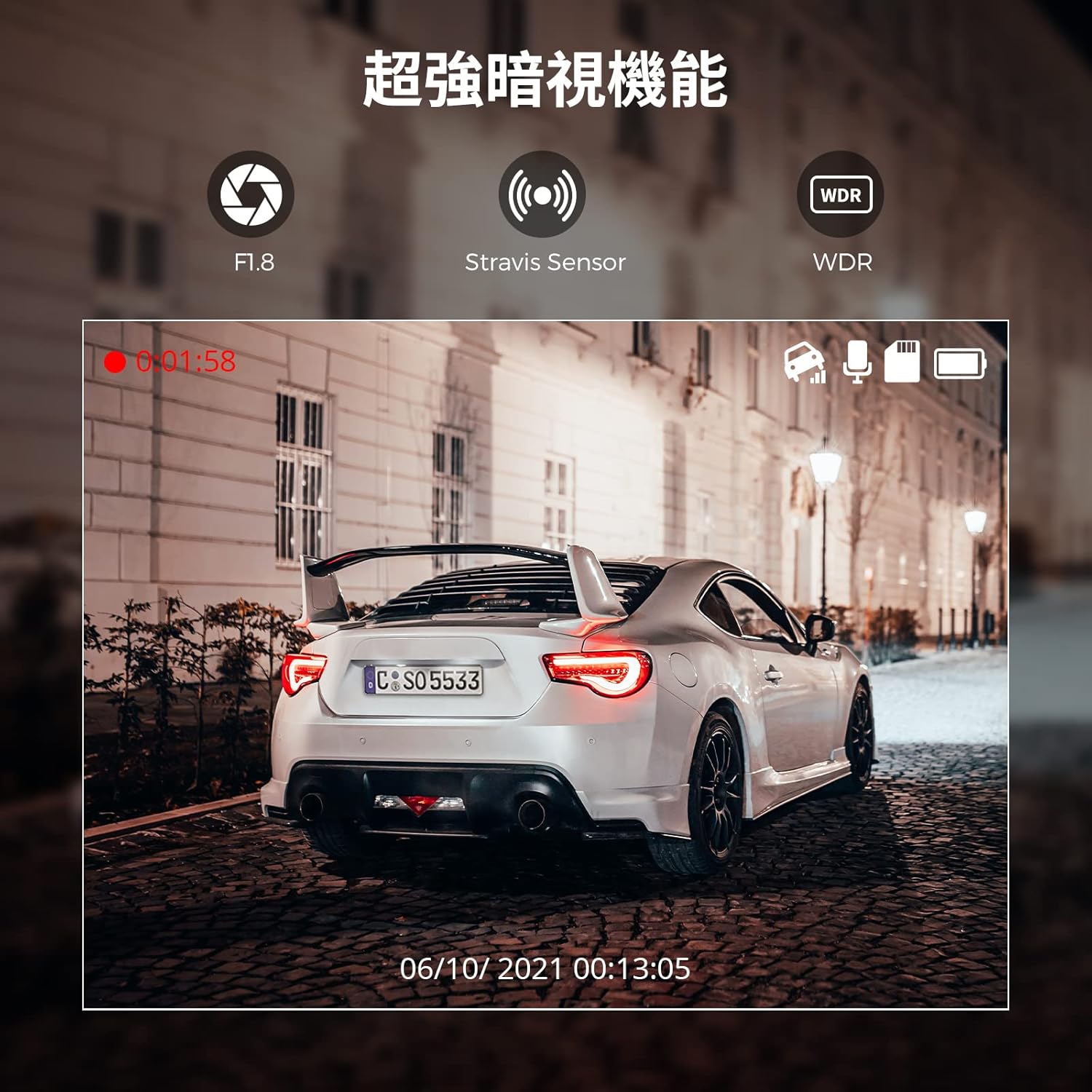
Abbildung 5: 24-Stunden-Parkraumüberwachung
4.6 App-Funktionen (View, Playback, Download, Share)
Using the AZDOME app connected via WiFi:
- Echtzeit View: See what the dash cam is recording live on your smartphone.
- Wiedergabe: Access and play recorded video files directly from the dash cam.
- Herunterladen: Save important video files from the dash cam to your smartphone.
- Aktie: Easily share downloaded videos with family and friends via social media.
Video 1: AZDOME M300 Dash Cam Features Overview. This video demonstrates the compact design, easy installation, WiFi connectivity, 1296P recording, loop recording, and G-sensor functionality.
5. Wartung
5.1 MicroSD-Kartenverwaltung
To ensure optimal performance and prevent recording errors, it is recommended to format the MicroSD card regularly (e.g., once a month) using the AZDOME app. This helps maintain the card's health and prevents data corruption.
5.2 Gerät reinigen
Wipe the dash cam lens and body with a soft, dry cloth to remove dust and smudges. Avoid using abrasive cleaners or solvents that could damage the device.
6. Fehlerbehebung
6.1 Probleme mit der WLAN-Verbindung
- Cannot connect to M300-**** WiFi: Ensure the dash cam's WiFi indicator is blue. If not, long-press the WiFi button for 3 seconds. Keep your phone within 3 meters of the dash cam.
- App not displaying real-time screen: For iPhones, ensure the system language is set to Japanese. Verify that the AZDOME app has "Location Information Permissions" enabled. Try reinstalling the app. In phone settings, try turning off "Mobile Data Communication" for the AZDOME app or check "Wireless Data" settings.
6.2 Recording Errors or Poor Quality
- Recording misses or corrupted files: Ensure you are using a genuine MicroSD card with a write speed of Class 10+ or U3, A2. Lower quality or slower cards can cause issues. Try formatting the SD card.
- Image quality not as expected: The dash cam records in 1296P. If you changed the resolution to 1080P, revert it to 1296P for higher quality.
6.3 Wiedergabeprobleme
- Slow playback or freezing: Try turning off Bluetooth on your smartphone during playback to avoid potential interference.
6.4 Power Cable Length
The included power cable is designed for front installation. If installing the dash cam in the rear, you may need to purchase a longer USB power cable or an extension.
7. Spezifikationen
| Spezifikation | Wert |
|---|---|
| Marke | AZDOME |
| Modellname | AZDOME M300 |
| Auflösung der Videoaufnahme | 1296p (also supports 1080p) |
| Konnektivitätstechnologie | W-lan |
| Besondere Merkmale | Multi-functional (G-Sensor, Loop Recording, WDR, Night Vision, Parking Monitoring) |
| Montagetyp | Klebebefestigung |
| Farbe | Schwarz |
| View Winkel | 170 Grad |
| Kontrollmethode | App |
| Bildschirmgröße | 1.5 Zoll (IPS-Display) |
| Artikelabmessungen (T x B x H) | 3 x 9.8 x 4.5 cm |
| Artikelgewicht | 0.34 kg |
| Maximale Unterstützung für microSD-Karten | 128 GB |
8. Garantie und Support
8.1 Produktgarantie
The AZDOME M300 comes with a 1 Jahr Garantie Diese Garantie gilt ab Kaufdatum und deckt Herstellungsfehler ab. Sie gewährleistet den zuverlässigen Betrieb Ihres Geräts.
8.2 Kundendienst
For any questions, concerns, or technical assistance regarding your AZDOME M300 dash cam, please do not hesitate to contact us. Our support team is available to provide prompt assistance.
Kontaktmethoden:
- Via Amazon messaging service.
- Via Email (refer to product packaging or official AZDOME website for email address).
Note: LINE support has been discontinued. Please use Amazon or email for all inquiries.