
SSK SC211
SSK SC211 11-in-1 USB-C Laptop Docking Station User Manual
Model: SC211 | Brand: SSK
1. Einleitung
The SSK SC211 11-in-1 USB-C Laptop Docking Station is a versatile multiport adapter designed to expand the connectivity of your USB-C enabled laptop, tablet, or smartphone. It integrates multiple essential ports into a single compact device, enhancing productivity and simplifying your workspace.
2. Produktmerkmale
This docking station provides 11 ports for comprehensive connectivity:
- 2 x HDMI-Anschlüsse: Supports 4K video output. HDMI1 supports up to 4K@60Hz, and HDMI2 supports up to 4K@30Hz.
- 1 x VGA Port: Supports video output up to 1920x1080@60Hz, especially when used in dual or triple display configurations.
- 1 x Ethernet/RJ-45 Port: Provides stable wired network connectivity with 1000Mbps Gigabit speed.
- 2 x USB 3.0-Anschlüsse: Offers high-speed data transfer rates of up to 5Gbps.
- 1 x USB 2.0-Anschluss: Ideal for connecting wireless mouse and keyboard receivers, minimizing interference.
- 1 x 3.5-mm-Audioanschluss: Supports both microphone input and audio output.
- 1 x USB-C PD3.0 Charging Port: Delivers up to 100W Power Delivery for fast charging of compatible Type-C devices.
- 1 x SD-Kartenleser: For standard SD cards, with data transfer speeds up to 80MB/s.
- 1 x TF Card Reader (Micro SD): For Micro SD cards, with data transfer speeds up to 80MB/s. Both SD and TF card slots can be used simultaneously.

Abbildung 1: Überview of the SSK SC211 11-in-1 USB-C Docking Station with all ports clearly labeled, including PD 3.0, USB 2.0, HDMI1 (4K@60Hz), HDMI2 (4K@30Hz), RJ45 Ethernet, SD/TF Card, 2x USB 3.0, 3.5mm Audio, and VGA (1080P@60Hz).
3. Installationsanleitung
- Verbindung zum Hostgerät herstellen: Plug the integrated USB-C cable from the docking station into the USB-C port of your laptop, tablet, or smartphone. Ensure your device's USB-C port supports "Display Port Alternate Mode" for video output functionality.
- Stromanschluss (optional, aber empfohlen): For stable performance and charging, connect your device's original power adapter or a compatible USB-C PD charger (up to 100W) to the docking station's USB-C PD port.
- Anschluss externer Bildschirme:
- For HDMI displays, connect HDMI cables from your monitors to the HDMI1 and/or HDMI2 ports on the docking station.
- Bei VGA-Displays verbinden Sie Ihren Monitor mit einem VGA-Kabel mit dem VGA-Anschluss der Dockingstation.
- Peripheriegeräte anschließen:
- Plug USB devices (e.g., external hard drives, flash drives) into the USB 3.0 ports.
- Connect wireless mouse/keyboard receivers to the USB 2.0 port.
- Insert SD or TF cards into the respective card reader slots.
- For wired internet, connect an Ethernet cable to the RJ-45 port.
- Connect headphones or speakers to the 3.5mm audio port.
- Driver Installation (Mac OS Specific): For Mac OS, due to its MST (Multi-Stream Transport) display limitations, installing DisplayLink drivers may be required to achieve extended display functionality across multiple distinct displays. Refer to the DisplayLink website for the latest drivers and installation instructions. For Windows, it is generally plug-and-play.
Video 1: A demonstration of connecting a docking station to a laptop and external monitors, showcasing its multi-display capabilities and various port connections.
4. Bedienungsanleitung
4.1 Anzeigemodi
Die Dockingstation unterstützt je nach Betriebssystem verschiedene Anzeigekonfigurationen:
- For Windows 10/11 OS:
- Spiegelmodus (A-AAA): All connected displays (laptop screen, HDMI1, HDMI2, VGA) show the same content.
- Erweiterungsmodus (A-BBB): The laptop screen and external monitors display different content, extending your desktop workspace. This supports up to three different screens (laptop + 2 external monitors via HDMI + VGA).
- Erweiterter Modus (A-BCD): Similar to A-BBB, allowing for distinct content across multiple displays.
- Für Mac OS:
Due to Mac OS limitations (lack of MST support), the docking station primarily supports extending one monitor, with other external monitors mirroring that extended display. All three screens will display the same picture when VGA is connected alongside HDMI displays.
- Extend Mode (A-AAA or A-BBB): The docking station supports extending one monitor. Any additional external monitors will mirror the content of the first extended monitor.
- Spiegelmodus: Alle angeschlossenen Displays zeigen denselben Inhalt an.
Note on VGA: When the VGA port is connected, the maximum resolution for each monitor will be limited to 1920x1080@60Hz.
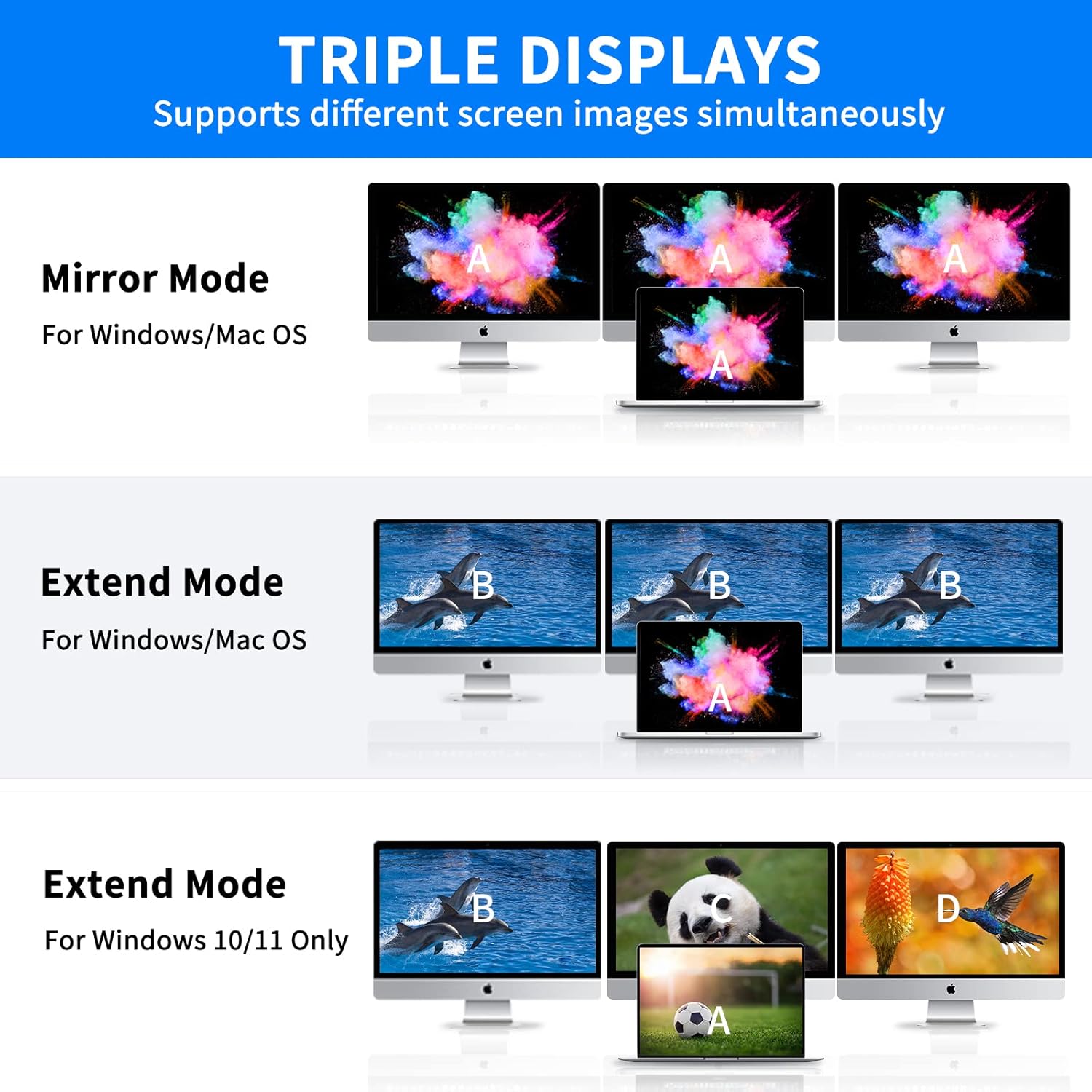
Figure 2: Visual representation of Mirror Mode and Extend Mode for both Windows and Mac OS, illustrating how screens are duplicated or extended.
4.2 Datenübertragung
Utilize the USB 3.0 ports for rapid data transfer with compatible devices. The SD and TF card readers also offer fast data access for memory cards.
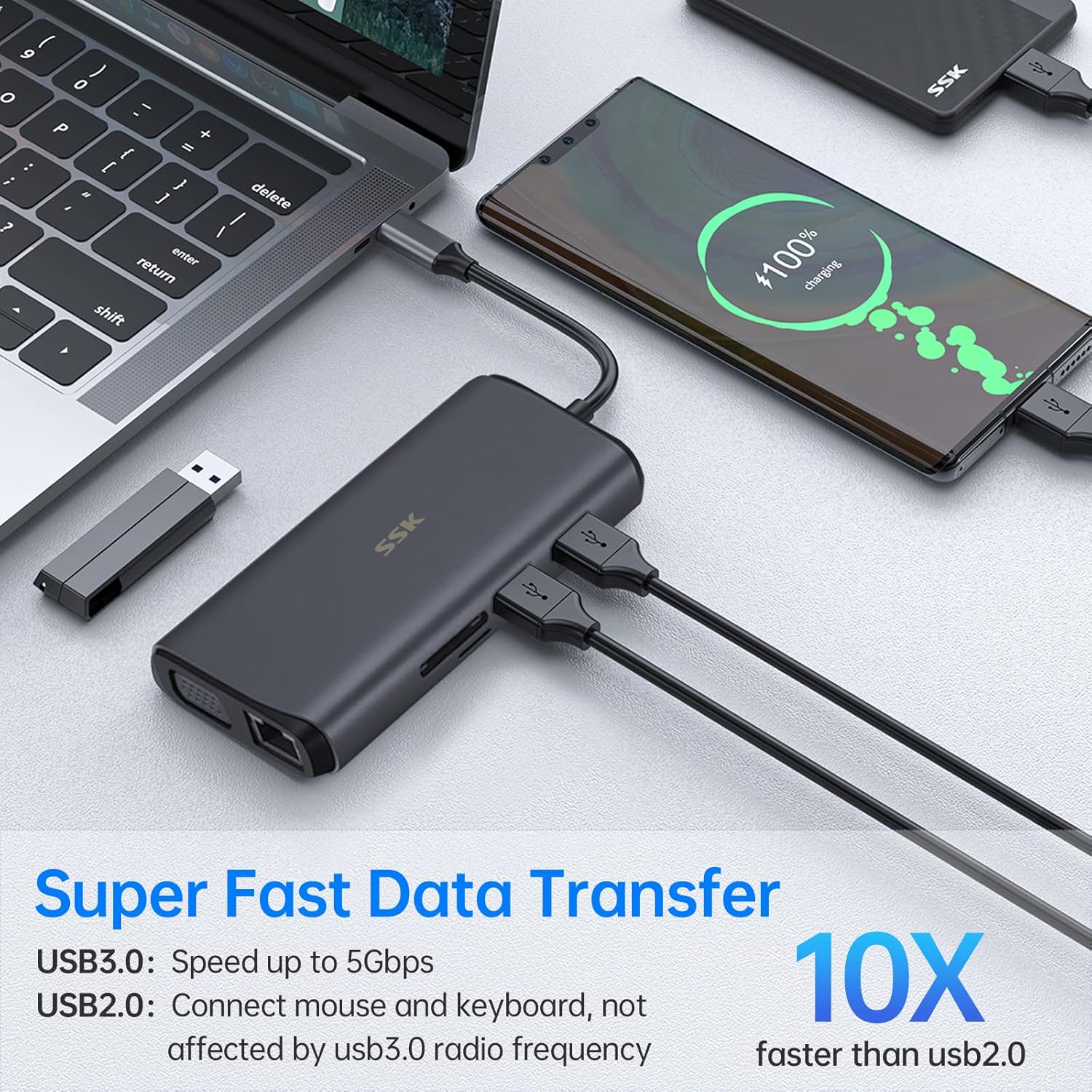
Figure 3: Illustration of the docking station facilitating super-fast data transfer via USB 3.0 ports and SD/TF card readers, connected to a laptop.
4.3 Stromversorgung
The 100W PD3.0 port allows you to charge your Type-C laptop or other compatible devices while using the docking station. This port is for power input only and does not support data transfer.

Figure 4: The docking station connected to a laptop and a power adapter, demonstrating its PD3.0 Power Delivery feature for fast charging.
5. Kompatibilität
The SSK SC211 docking station is compatible with a wide range of devices and operating systems that feature a USB-C port supporting "Display Port Alternate Mode" for video output. This includes, but is not limited to:
- Laptops: MacBook Pro (2017-2020), MacBook Air (2018-2020), Dell XPS 13/15, Lenovo Yoga 720/910/920/930, Microsoft Surface Book 2/Surface Go/Surface Laptop 3, Dell Latitude 13 7000/E7370, and other USB-C enabled laptops.
- Tablets & Smartphones: Devices with a full-featured USB-C port.
- Betriebssysteme: Windows 10/11, Mac OS, Chrome OS, Linux, Android.
Wichtig: To enable HDMI and VGA functions, your laptop or phone's USB-C port must support "Display Port Alternate Mode" video output.

Figure 5: The SSK SC211 docking station shown with logos of compatible operating systems, highlighting its broad compatibility.
6. Technische Daten
| Besonderheit | Spezifikation |
|---|---|
| Modellnummer | SC211 |
| Maße | 5 x 3 x 1 Zoll |
| Gewicht | 5.1 Unzen |
| HDMI 1-Ausgang | Bis zu 4K@60Hz |
| HDMI 2-Ausgang | Bis zu 4K@30Hz |
| VGA-Ausgang | Bis zu 1920x1080 bei 60 Hz |
| USB 3.0-Anschlüsse | 2 Ports, 5 Gbit/s Datenübertragung |
| USB 2.0-Anschluss | 1 port, for low-bandwidth peripherals |
| USB-C PD-Port | Bis zu 100 W Leistungsabgabe (nur Eingang) |
| Ethernet-Anschluss | 1000Mbps Gigabit RJ-45 |
| Kartenlesegeräte | SD and TF (Micro SD), up to 80MB/s, simultaneous use |
| Audio Port | 3.5mm (Mic and Audio) |
| Material | Aluminiumlegierung casing |
7. Fehlerbehebung
- Keine Anzeigeausgabe:
- Ensure your host device's USB-C port supports "Display Port Alternate Mode."
- Überprüfen Sie alle Kabelverbindungen (USB-C zum Host, HDMI/VGA zu den Monitoren).
- Überprüfen Sie, ob die Eingangsquellen des Monitors korrekt ausgewählt sind.
- For Mac OS, ensure DisplayLink drivers are installed if using extended mode for multiple distinct displays.
- Versuchen Sie, Ihr Hostgerät neu zu starten.
- Intermittierende Konnektivität:
- Ensure the docking station is receiving adequate power, especially when multiple power-hungry devices are connected. Connect a PD charger to the docking station.
- Überprüfen Sie, ob die Verbindungen lose sind.
- Vermeiden Sie es, die Dockingstation in der Nähe starker elektromagnetischer Störquellen aufzustellen.
- Langsame Datenübertragung:
- Ensure you are using USB 3.0 compatible devices and cables for the USB 3.0 ports.
- Verify that your host device's USB-C port supports USB 3.0 or higher speeds.
- Ladeprobleme:
- Confirm your USB-C PD charger and cable are compatible and capable of delivering sufficient wattage (z. B. 100 W).
- Ensure the charger is connected to the docking station's dedicated PD port.
- Ethernet funktioniert nicht:
- Überprüfen Sie die Ethernet-Kabelverbindung sowohl zum Router/Modem als auch zur Dockingstation.
- Überprüfen Sie die Netzwerkeinstellungen auf Ihrem Hostgerät.
- Stellen Sie sicher, dass die Netzwerktreiber auf dem neuesten Stand sind.
8. Pflege und Wartung
- Die Dockingstation darf nicht mit Wasser, Feuer oder ätzenden Flüssigkeiten in Berührung kommen.
- Lassen Sie das Gerät nicht fallen und setzen Sie es keinen starken Stößen aus.
- Versuchen Sie nicht, das Gerät selbst zu zerlegen oder zu reparieren. Wenden Sie sich bei Problemen an den Kundendienst.
- Reinigen Sie das Gerät mit einem weichen, trockenen Tuch. Verwenden Sie keine scharfen Chemikalien oder Scheuermittel.
- Bei Nichtgebrauch an einem kühlen, trockenen Ort aufbewahren.
9. Garantie und Support
SSK products come with a standard manufacturer's warranty. For detailed warranty information, technical support, or service inquiries, please refer to the official SSK webBesuchen Sie die Website oder kontaktieren Sie den Kundendienst. Bitte bewahren Sie Ihren Kaufbeleg für Garantieansprüche auf.