
Teslong Single Lens
Teslong Wireless Endoskop – Benutzerhandbuch
Model: Single Lens
1. Einleitung
Thank you for choosing the Teslong Wireless Endoscope. This 1080P HD WiFi Inspection Camera is designed to provide clear visual inspection in hard-to-reach areas. Featuring a 7mm borescope camera with a detachable semi-rigid cable and IP67 waterproof rating, it is ideal for various applications including automotive repair, industrial mechanical inspection, drain checking, and pipeline inspection. This manual provides detailed instructions for setup, operation, maintenance, and troubleshooting to ensure optimal performance and longevity of your device.

Figure 1.1: Teslong Wireless Endoscope with smartphone holder.
2. Sicherheitshinweise
Please read all safety warnings and instructions before using this product to prevent electric shock, fire, or serious injury.
- Das Gerät darf nicht in explosionsgefährdeten Bereichen, wie z. B. in Gegenwart von brennbaren Flüssigkeiten, Gasen oder Stäuben, verwendet werden.
- Keep the camera probe and cable away from heat sources and sharp objects.
- Um Unterbrechungen während der Inspektion zu vermeiden, stellen Sie sicher, dass das Gerät vor Gebrauch vollständig aufgeladen ist.
- The camera probe is IP67 waterproof, but the main unit (handle) is not. Do not submerge the main unit in water.
- Versuchen Sie nicht, das Gerät zu zerlegen oder zu verändern. Reparaturen dürfen nur von qualifiziertem Fachpersonal durchgeführt werden.
- Außerhalb der Reichweite von Kindern aufbewahren.
3. Packungsinhalt
Überprüfen Sie, ob alle Artikel in Ihrem Paket vorhanden sind:
- Teslong Wireless Endoscope Main Unit (WF200L5S7MM)
- Semi-rigid Inspection Cable with 7mm Camera Probe
- USB-Kabel Typ C.
- Benutzerhandbuch (dieses Dokument)
- Accessories (Hook, Magnet, Mirror)
4. Produktüberschreitungview
The Teslong Wireless Endoscope features an ergonomic design for comfortable single-handed operation. It includes a detachable semi-rigid cable for easy storage and interchangeability.

Figure 4.1: Ergonomic design of the Teslong WF200 Wireless Endoscope.
Schlüsselkomponenten:
- Haupteinheit: Handheld device with power button, brightness adjustment dial, and phone holder.
- Kamerasonde: 7mm diameter, 2.0 Megapixels HD CMOS sensor with 8 adjustable LED lights.
- Semi-rigid Cable: Flexible yet firm cable for navigating tight spaces.
- Eingebaute Taschenlampe: Provides additional illumination on the main unit.
- USB-C-Anschluss: Zum Laden des internen Akkus.

Figure 4.2: The built-in LED flashlight on the main unit provides additional illumination.
5. Installationsanleitung
5.1 Aufladen des Geräts
Before first use, fully charge the endoscope. The built-in 2000mAh rechargeable battery provides up to 4 hours of continuous working time.
- Connect the provided USB Type-C charging cable to the charging port on the main unit.
- Verbinden Sie das andere Ende des Kabels mit einem Standard-USB-Netzteil (nicht im Lieferumfang enthalten) oder einem USB-Anschluss Ihres Computers.
- The charging indicator light will show the charging status. Once fully charged, the light will change (refer to device indicators for specific behavior).
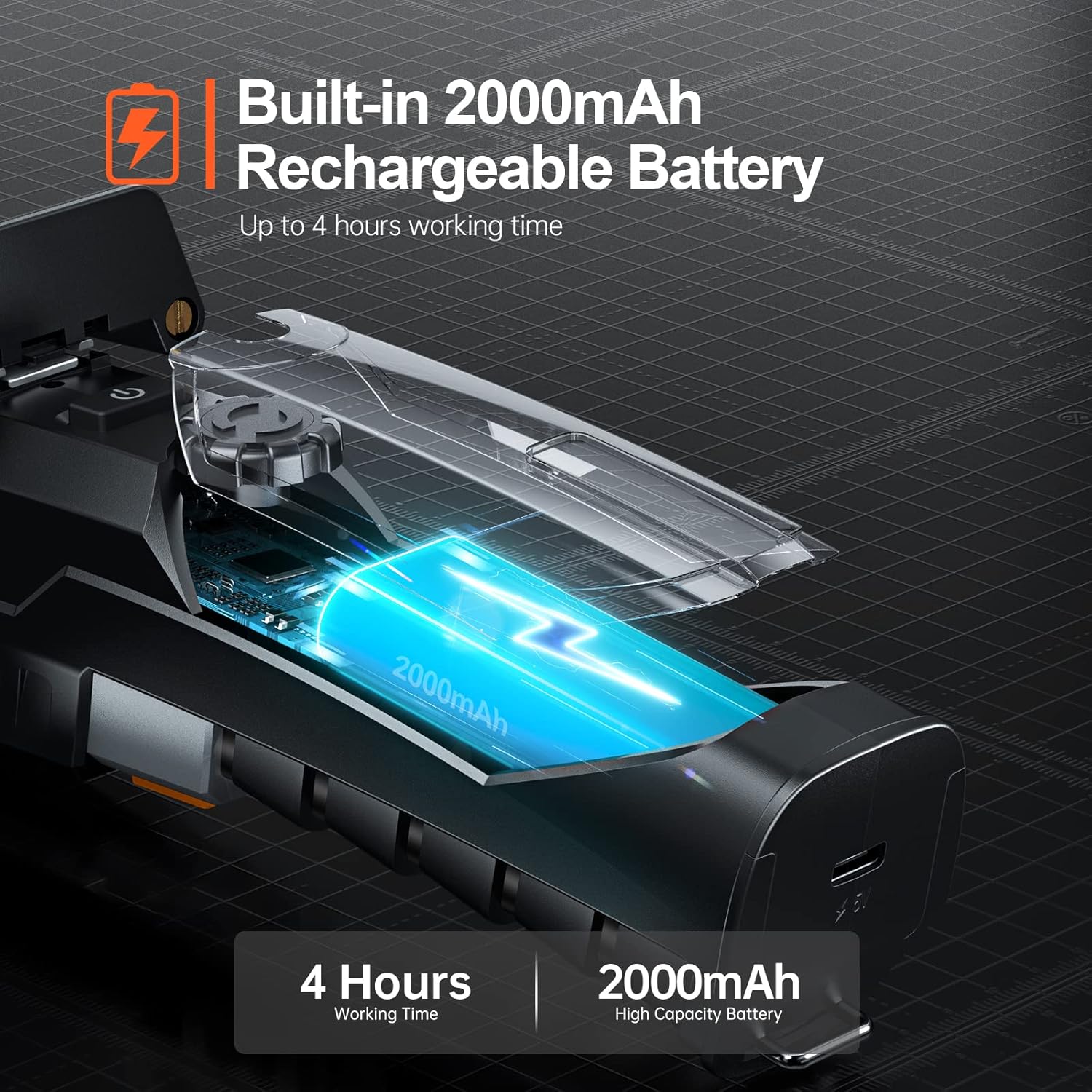
Figure 5.1: The endoscope features a 2000mAh high-capacity battery for extended use.
5.2 Installing the "Smart Endoscope" App
The Teslong Wireless Endoscope requires the "Smart Endoscope" app for operation. It is compatible with Android (7.0+) and iOS (10.0+) devices.
- Scan the QR code provided in the quick start guide or search for "Smart Endoscope" on the App Store (for iOS) or Google Play Store (for Android).
- Laden Sie die App herunter und installieren Sie sie auf Ihrem Smartphone oder Tablet.
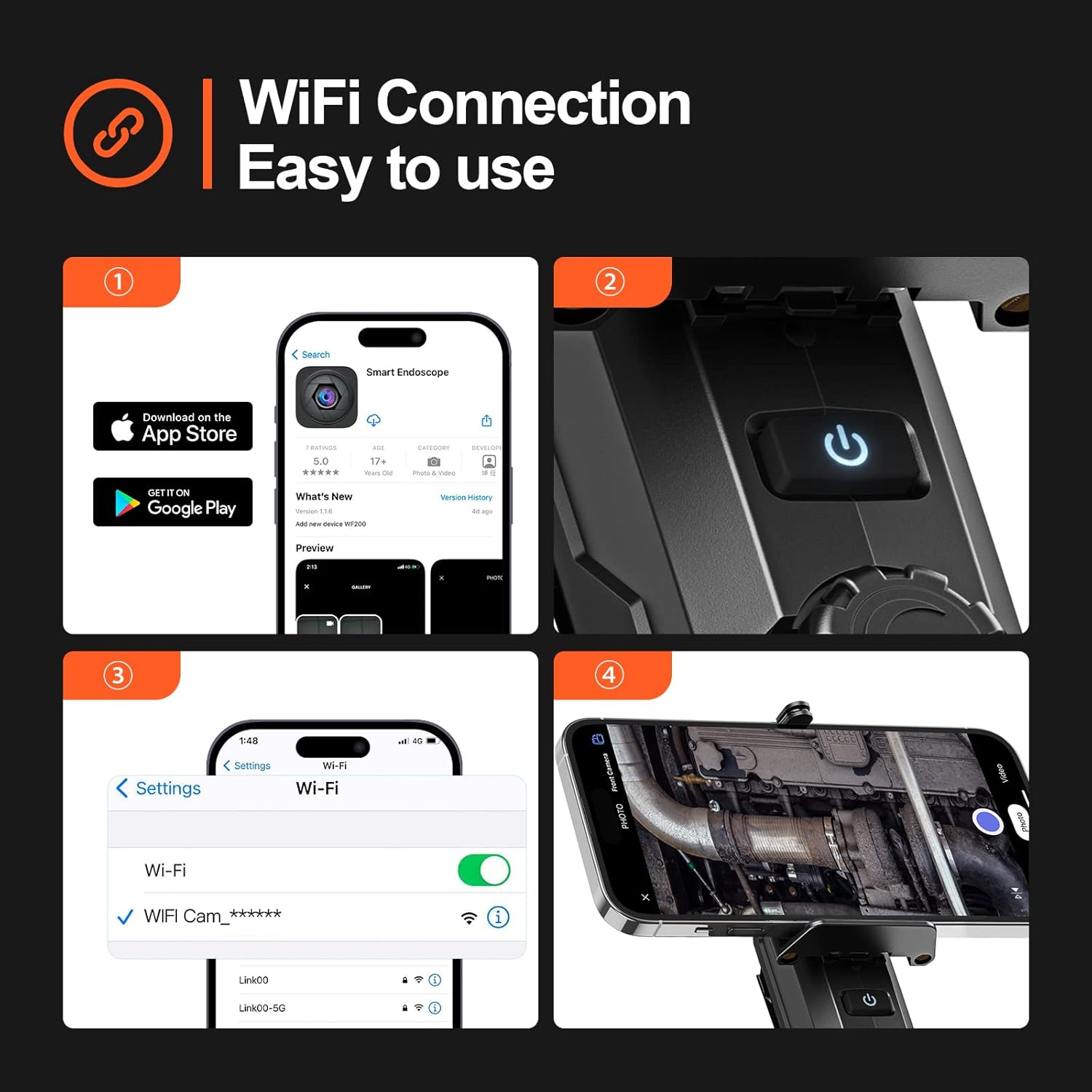
Figure 5.2: Step-by-step guide for app installation and WiFi connection.
5.3 Verbindung über WLAN herstellen
Once the app is installed, connect your device to the endoscope's Wi-Fi network.
- Power on the Teslong Wireless Endoscope by pressing and holding the power button on the main unit.
- Öffnen Sie auf Ihrem Smartphone oder Tablet die WLAN-Einstellungen.
- Locate and select the Wi-Fi network named "WF_Cam_******" (the asterisks will be replaced by a unique device ID).
- Once connected, open the "Smart Endoscope" app. The camera feed should now be visible.
5.4 Attaching the Inspection Cable
The semi-rigid inspection cable is detachable for convenience and versatility.
- Align the connector of the inspection cable with the port on the main unit.
- Gently push and twist the connector clockwise until it clicks securely into place.
- To detach, twist counter-clockwise and pull.
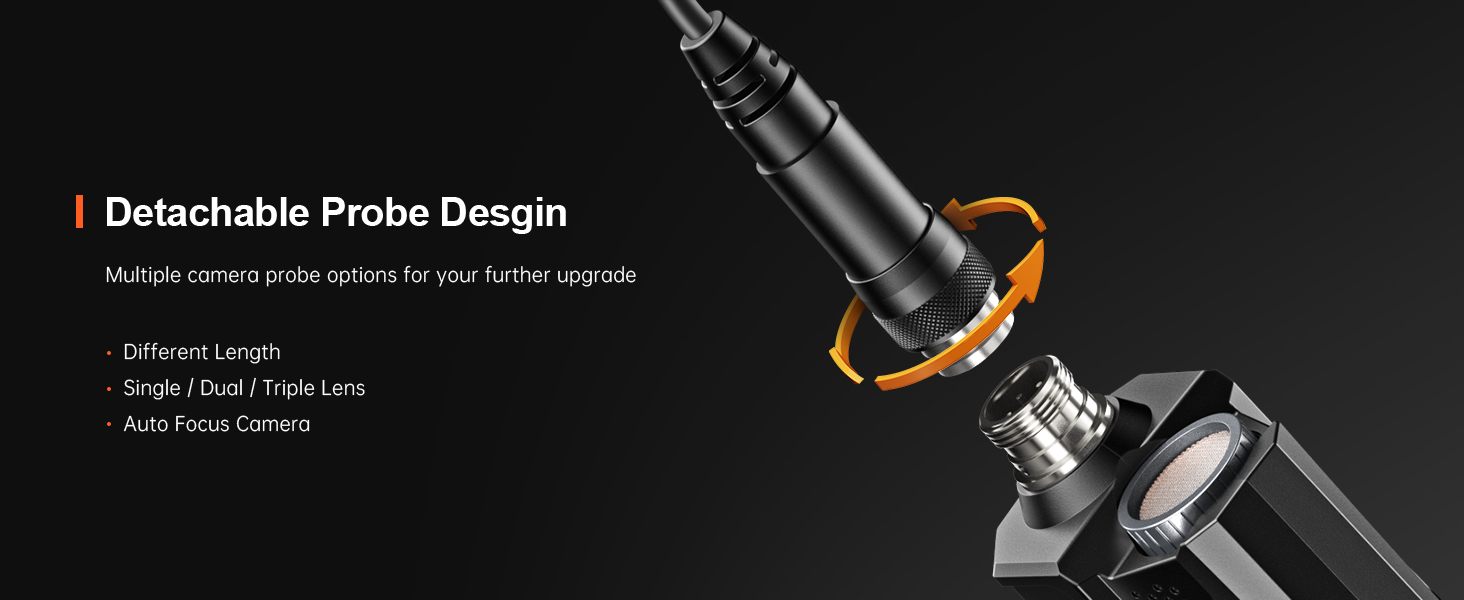
Figure 5.3: The detachable probe design allows for easy storage and future upgrades.
6. Bedienungsanleitung
6.1 Ein-/Ausschalten
- Einschalten: Press and hold the power button on the main unit until the indicator light illuminates.
- Ausschalten: Drücken und halten Sie den Netzschalter erneut, bis die Kontrollleuchte erlischt.
6.2 Einstellen der LED-Leuchten
The camera probe is equipped with 8 adjustable LED lights to illuminate dark inspection areas.
- Rotate the brightness adjustment dial on the main unit to increase or decrease the intensity of the LED lights. There are three adjustable brightness levels.
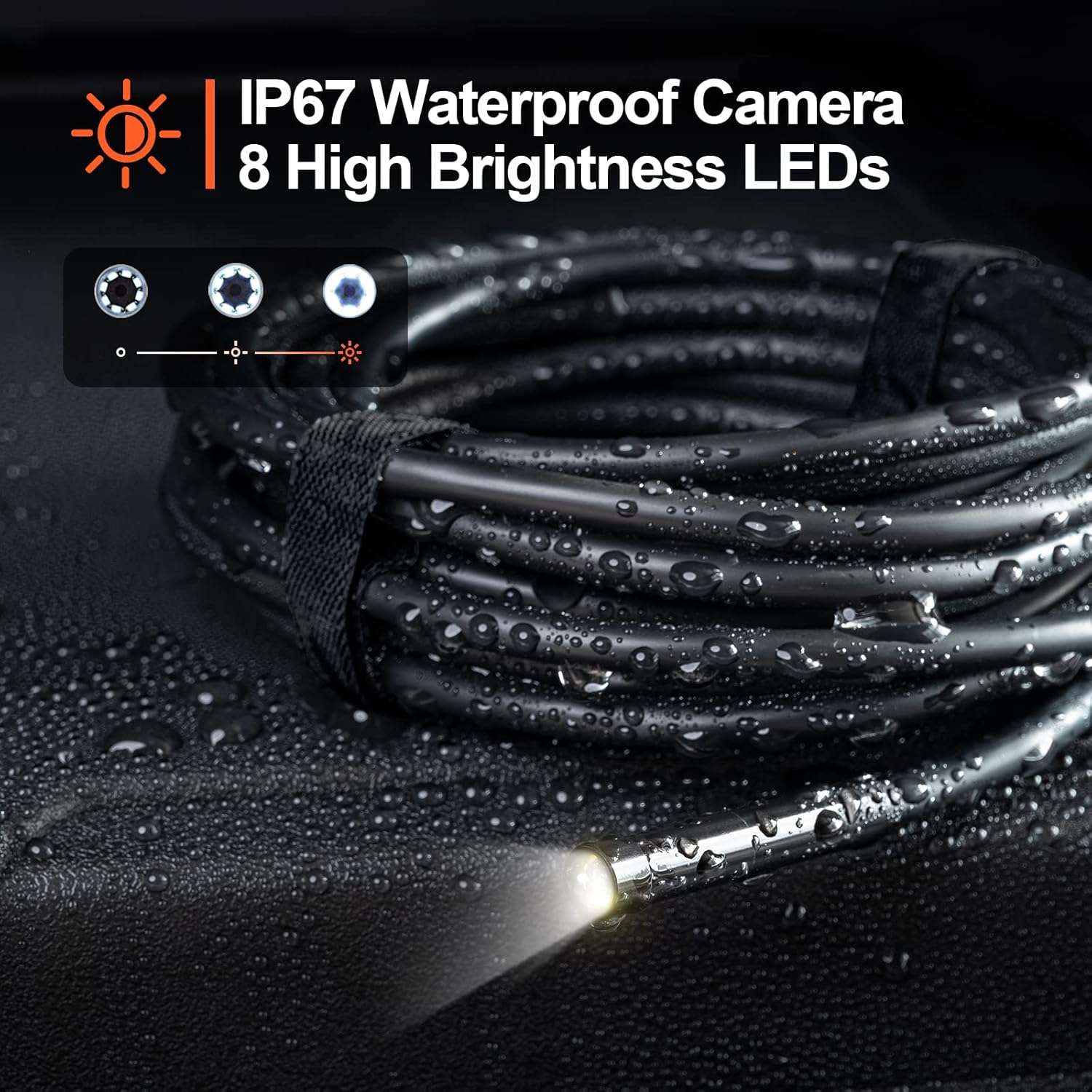
Figure 6.1: The camera probe features 8 high-brightness LEDs and is IP67 waterproof.
6.3 Aufnehmen von Bildern und Videos
Use the "Smart Endoscope" app to capture high-resolution images and videos.
- Fotografieren: In the app interface, tap the camera icon to capture a still image. Images are saved in JPEG format.
- Aufnahme von Videos: Tap the video camera icon to start recording. Tap it again to stop. Videos are saved in MP4 format.
- Captured media will be stored directly on your connected smartphone or tablet.

Abbildung 6.2: View the inspection feed on your iPhone, iPad, or Android smartphone/tablet.
6.4 Using Accessories (Hook, Magnet, Mirror)
The endoscope comes with useful accessories that can be attached to the camera probe for enhanced functionality.
- Haken: Nützlich zum Auffinden kleiner Gegenstände an schwer zugänglichen Stellen.
- Magnet: Ideal zum Aufheben von metallischen Gegenständen wie Schrauben oder Schlüsseln.
- Spiegel: Bietet eine Seite view for inspecting areas that are not directly in front of the camera.
To attach an accessory, carefully slide it onto the tip of the camera probe until it is secure.

Figure 6.3: Included accessories: Hook, Magnet, and Mirror for versatile inspections.
7. Wartung
7.1 Reinigung
- After each use, especially in dirty or wet environments, clean the camera probe and cable with a soft, damp Tuch.
- For stubborn dirt, a mild detergent can be used, but ensure no liquid enters the main unit.
- Keine Scheuer- oder Lösungsmittel verwenden.
- Ensure the camera lens is clean for clear images. Use a lens cleaning cloth if necessary.
7.2 Speicherung
- Bewahren Sie das Endoskop an einem kühlen, trockenen Ort, fern von direkter Sonneneinstrahlung und extremen Temperaturen auf.
- Detach the inspection cable from the main unit for compact storage.
- Bewahren Sie das Gerät und das Zubehör in der Originalverpackung oder einer Schutzhülle auf, um Beschädigungen zu vermeiden.
8. Fehlerbehebung
| Problem | Mögliche Ursache | Lösung |
|---|---|---|
| Gerät lässt sich nicht einschalten. | Schwache Batterie. | Laden Sie das Gerät mit dem mitgelieferten USB-C-Kabel vollständig auf. |
| No image on the app. | Wi-Fi not connected or incorrect network selected. | Ensure your phone is connected to the "WF_Cam_******" Wi-Fi network. Restart the app and the endoscope. |
| Das Bild ist unscharf oder dunkel. | Die Kameralinse ist verschmutzt; unzureichende Beleuchtung. | Clean the camera lens. Adjust the LED brightness using the dial on the main unit. |
| Wi-Fi connection is unstable. | Interference from other Wi-Fi networks; too far from the device. | Move closer to the endoscope. Try to minimize other Wi-Fi devices nearby. |
| Die App stürzt ab oder friert ein. | App version outdated; phone operating system issues. | Update the "Smart Endoscope" app to the latest version. Restart your smartphone/tablet. |
9. Spezifikationen
| Besonderheit | Detail |
|---|---|
| Modell | Single Lens (WF200D7L5) |
| Kameraauflösung | 2.0 Megapixels (1920x1080p) |
| Sondendurchmesser | 7 mm / 0.28 Zoll |
| Kabellänge | 16.5ft (approx. 5 meters) |
| Wasserdichtigkeit | IP67 (nur Kamerasonde) |
| LED-Leuchten | 8 einstellbare LEDs |
| Batteriekapazität | 2000 mAh Lithium-Polymer |
| Arbeitszeit | Bis zu 4 Stunden |
| Ladeanschluss | USB Typ C |
| Konnektivität | W-lan |
| Kompatibles Betriebssystem | Android 7.0+ / iOS 10.0+ |
| Bildformat | JPEG |
| Videoformat | MP4 |
| Verpackungsabmessungen | 22 x 21.1 x 4.9 cm |
| Paketgewicht | 0.58 Kilogramm |
10. Garantie und Support
Teslong provides a 12 Monate Garantie für dieses Produkt, deckt Herstellungsfehler ab dem Kaufdatum ab.
Garantieausschlüsse:
- Damage caused by improper use, accident, abuse, neglect, or unauthorized modification.
- Normale Abnutzung.
- Schäden, die durch Naturkatastrophen oder höhere Gewalt verursacht wurden.
Kundendienst:
If you encounter any issues or have questions regarding your Teslong Wireless Endoscope, please contact our customer support team. Refer to the contact information provided on the Teslong official webWebsite oder Ihre Kaufdokumentation.
For more information and product updates, visit the official Teslong store: Teslong Store auf Amazon
Ask a question about this manual
Ask about setup, troubleshooting, compatibility, parts, safety, or missing instructions. Manuals+ will review the question and use this page’s manual context to help answer it.