
1. Einleitung
This manual provides detailed instructions for the setup, operation, and maintenance of your Graflsoa PG-9078 Bluetooth Wireless Gamepad. Please read this manual thoroughly before using the product to ensure proper functionality and to maximize your gaming experience. This gamepad is compatible with iOS, Android, Tablet, Phone, PC, Smart TV, and Set Top Box devices.
2. Sicherheitshinweise
- Do not expose the gamepad to extreme temperatures, humidity, or direct sunlight.
- Vermeiden Sie es, das Gamepad fallen zu lassen oder starken Stößen auszusetzen.
- Do not attempt to disassemble or modify the gamepad. This will void the warranty.
- Keep the gamepad away from water and other liquids.
- Verwenden Sie ausschließlich das mitgelieferte Ladekabel oder ein zertifiziertes gleichwertiges Kabel.
- Store the gamepad in a clean, dry place when not in use.
3. Packungsinhalt
Bitte überprüfen Sie den Packungsinhalt nach dem Auspacken:
- Graflsoa PG-9078 Wireless Gamepad
- USB-Ladekabel
- Benutzerhandbuch (dieses Dokument)
4. Produktüberschreitungview
Familiarize yourself with the components and features of your PG-9078 gamepad.
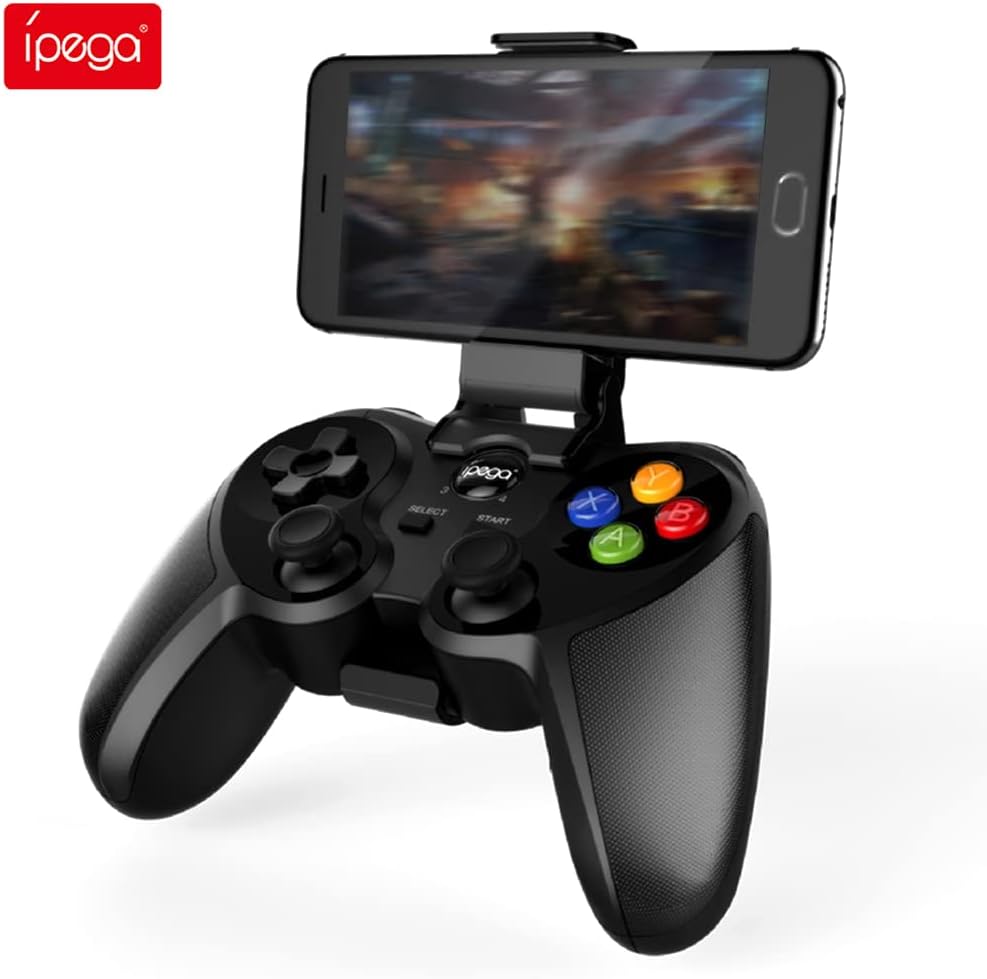
Figure 4.1: Graflsoa PG-9078 Wireless Gamepad with a smartphone mounted in the integrated holder.
The Graflsoa PG-9078 is a versatile Bluetooth gamepad designed for various gaming platforms. It features a comfortable ergonomic design, precise controls, and an integrated phone holder.
4.1 Hauptmerkmale
- Integrierter Telefonhalter: Supports smartphones from 4 to 5.5 inches, with an adjustable angle for optimal viewing.
- Hall Effect Sensor Switches: Provides durable and responsive trigger input.
- High Accuracy Joysticks: 360-degree precision joysticks with anti-slip texture to prevent operational errors.
- Responsive Schaltflächen: Fast response time for all face buttons and shoulder buttons.
- Analog L2/R2 Triggers: Offers precise control for racing and other games requiring nuanced input.
- Bluetooth-Konnektivität: Stable wireless connection with a transmission distance of up to 8 meters.

Figure 4.2: The adjustable phone holder, designed to securely hold smartphones between 4 and 5.5 inches. The angle can be freely adjusted for user comfort.

Figure 4.3: The high-accuracy joystick, featuring 360-degree movement and an anti-slip texture for enhanced control.

Figure 4.4: The highly sensitive and responsive face buttons and shoulder buttons, designed for quick input.
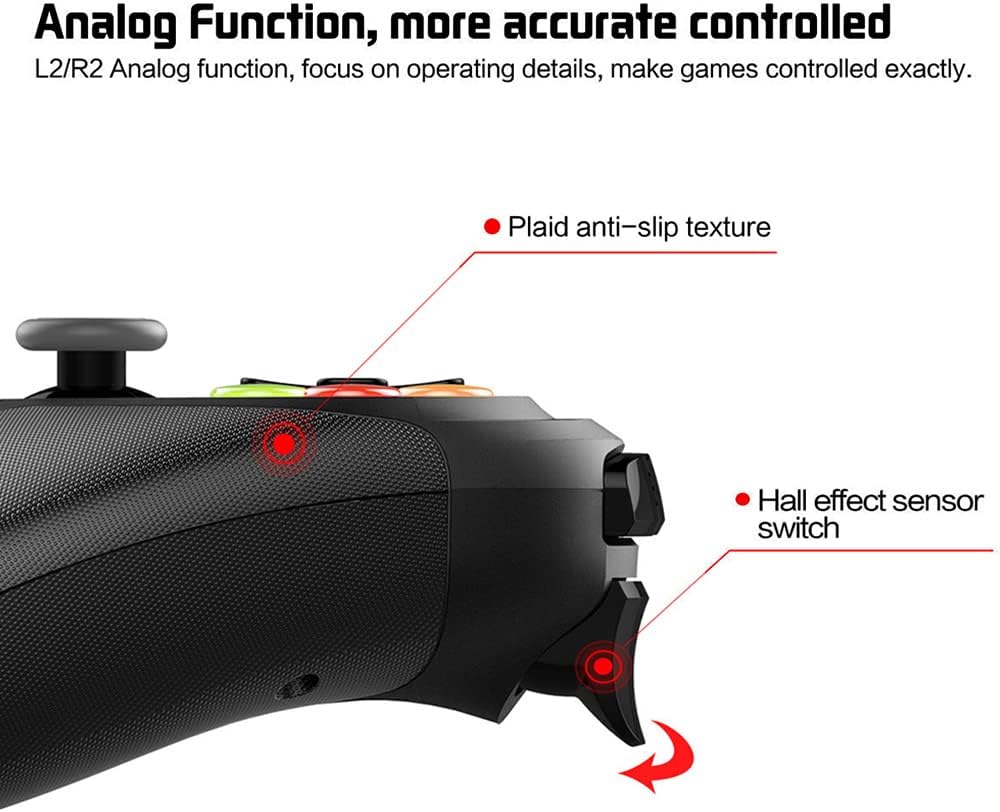
Figure 4.5: The L2/R2 analog triggers, providing accurate and detailed control for various in-game actions.

Figure 4.6: The gamepad utilizes Bluetooth technology for wireless connectivity, offering a stable connection up to 8 meters.
5. Einrichtungsanweisungen
5.1 Aufladen des Gamepads
- Verbinden Sie das schmale Ende des USB-Ladekabels mit dem Ladeanschluss des Gamepads.
- Verbinden Sie das größere Ende des USB-Ladekabels mit einer USB-Stromquelle (z. B. einem USB-Anschluss am Computer oder einem USB-Netzteil).
- The charging indicator light on the gamepad will illuminate during charging and turn off or change color when fully charged.
- Eine vollständige Aufladung dauert in der Regel etwa 2-3 Stunden.
5.2 Anbringen der Telefonhalterung
- Locate the phone holder attachment point on the top of the gamepad.
- Carefully slide the phone holder into the designated slot until it clicks securely into place.
- Adjust the angle of the holder to your preferred view, um die Position zu ändern.
- Gently place your smartphone (4-5.5 inches) into the holder, ensuring it is securely gripped.
5.3 Bluetooth-Kopplung
The PG-9078 supports multiple connection modes. Select the appropriate mode for your device.
5.3.1 Android Standard Mode
- Ensure the gamepad is powered off.
- Halten Sie die "X" button + HOME button simultaneously until the indicator light flashes rapidly.
- On your Android device, enable Bluetooth and search for available devices.
- Select "PG-9078" from the list to pair. The indicator light will become solid once connected.
5.3.2 iOS Standard Mode
- Ensure the gamepad is powered off.
- Halten Sie die "Y" button + HOME button simultaneously until the indicator light flashes rapidly.
- On your iOS device, enable Bluetooth and search for available devices.
- Select "PG-9078" from the list to pair. The indicator light will become solid once connected.
5.3.3 PC/Smart TV Mode (Direct Play)
- Ensure the gamepad is powered off.
- Halten Sie die "A" button + HOME button simultaneously until the indicator light flashes rapidly.
- On your PC or Smart TV, enable Bluetooth and search for available devices.
- Select "PG-9078" from the list to pair. The indicator light will become solid once connected.
Note: After successful pairing, the gamepad will automatically connect to the last paired device when powered on in the same mode.
6. Bedienungsanleitung
6.1 Ein-/Ausschalten
- Einschalten: Drücken Sie die HOME-Taste for 1 second. The indicator light will flash, then connect to the last paired device.
- Ausschalten: Halten Sie die HOME-Taste for 5 seconds until the indicator light turns off. The gamepad will also automatically power off after 5 minutes of inactivity.
6.2 Gamepad Modes
The PG-9078 supports different modes for optimal compatibility:
- Android Standard Mode (X + HOME): For most Android games and emulators.
- iOS Standard Mode (Y + HOME): For iOS games that support MFi controllers or specific gamepad protocols.
- PC/Smart TV Mode (A + HOME): For direct play on Windows PCs (requires Bluetooth adapter) and compatible Smart TVs.
Note: Game compatibility varies by platform and game title. Some games may require specific mapping or may not support external controllers.
6.3 Bedienung der Bedienelemente
The gamepad features standard controls:
- Richtungspad (D-Pad): Für präzise Richtungseingaben.
- Linker/Rechter Analogstick: Für 360-Grad-Bewegungen und Kamerasteuerung.
- Tasten auf der Vorderseite (A, B, X, Y): Für Aktionen im Spiel.
- Schulterknöpfe (L1, R1): For quick actions.
- Analog Triggers (L2, R2): For pressure-sensitive input, ideal for acceleration/braking in racing games.
- AUSWAHL-/START-Tasten: For menu navigation and game functions.
- Home "Button: For power on/off and mode switching.

Figure 6.1: Proper grip and button access on the Graflsoa PG-9078 gamepad, highlighting its ergonomic design and Hall effect sensor switches.
7. Wartung
- Reinigung: Use a soft, dry cloth to wipe the surface of the gamepad. Do not use harsh chemicals or abrasive cleaners.
- Lagerung: Bewahren Sie das Gamepad an einem kühlen, trockenen Ort fern von direkter Sonneneinstrahlung und extremen Temperaturen auf.
- Batteriepflege: To prolong battery life, avoid fully discharging the gamepad frequently. Charge it regularly, even if not in constant use. If storing for an extended period, charge it to about 50% every few months.
8. Fehlerbehebung
8.1 Gamepad Does Not Power On
- Ensure the gamepad is charged. Connect it to a power source using the USB cable and allow it to charge for at least 30 minutes before attempting to power on again.
- Halten Sie zum Einschalten die HOME-Taste 1 Sekunde lang gedrückt.
8.2 Kopplung über Bluetooth nicht möglich
- Ensure the gamepad is in the correct pairing mode for your device (Android: X+HOME, iOS: Y+HOME, PC/Smart TV: A+HOME).
- Stellen Sie sicher, dass Bluetooth auf Ihrem Gerät aktiviert und es auffindbar ist.
- Bringen Sie das Gamepad näher an Ihr Gerät heran (innerhalb von 8 Metern).
- Forget/remove "PG-9078" from your device's Bluetooth list and attempt to pair again.
- Restart both your device and the gamepad.
8.3 Tasten/Joysticks reagieren nicht
- Verify that the gamepad is successfully connected to your device.
- Check game settings to ensure controller support is enabled and controls are mapped correctly.
- Some games may not fully support external gamepads.
- Try restarting the gamepad and your device.
9. Spezifikationen
| Modell | PG-9078 |
| Konnektivität | Kabellose Bluetooth-Verbindung |
| Bluetooth-Reichweite | Bis zu 8 Meter |
| Kompatibilität | iOS, Android, Tablet, Phone, PC, Smart TV, Set Top Box |
| Phone Holder Support | Smartphones mit 4 bis 5.5 Zoll |
| Besondere Merkmale | Hall Effect Sensor Switches, 360-degree High Accuracy Joysticks, Analog L2/R2 Triggers |
| Stromquelle | Wiederaufladbarer Akku (intern) |
10. Garantie und Support
Informationen zur Garantie und zum technischen Support finden Sie in der mitgelieferten Dokumentation oder wenden Sie sich an Ihren Händler. Bewahren Sie Ihren Kaufbeleg für eventuelle Garantieansprüche auf.