

Einführung
This manual provides comprehensive instructions for the Xtrfy M8 Wireless Gaming Mouse. Designed for professional gamers, the M8 offers an ultra-lightweight design, symmetrical shape, and lag-free 2.4 GHz wireless connectivity.
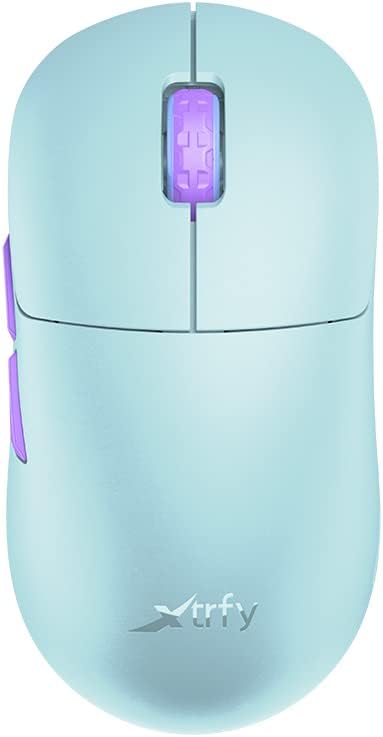
Image: The Xtrfy M8 Wireless Gaming Mouse in Frosty Mint, showcasing dank seines ergonomischen Designs.
A key design feature is its ultra-low front, measuring just 4mm, which allows for a unique grip style.

Bild: Eine Nahaufnahme view of the Xtrfy M8 mouse's front, highlighting its low profile von 4 mm.
Packungsinhalt
Überprüfen Sie, ob alle Artikel in Ihrem Paket vorhanden sind:
- Xtrfy M8 Wireless Gaming Mouse
- USB-C-Ladekabel
- USB-Funkempfänger (Dongle)
- USB-A to USB-C Adapter (for receiver extension)
- Bedienungsanleitung (dieses Dokument)

Image: The USB-C charging cable and the USB wireless receiver (dongle) for the Xtrfy M8 mouse.
Aufstellen
- Laden Sie die Maus auf: Before first use, connect the USB-C charging cable to the mouse and a powered USB port. The mouse has an internal Lithium Ion battery.
- Connect the USB Wireless Receiver:
- Insert the USB wireless receiver directly into an available USB-A port on your computer.
- For optimal signal strength or if your computer's USB port is not easily accessible, use the provided USB-A to USB-C adapter with the charging cable to extend the receiver closer to the mouse.
- Maus einschalten: Locate the power switch on the underside of the mouse. Slide the switch to the "ON" position.
- Automatische Verbindung: The mouse should automatically connect to the receiver. No additional pairing software is typically required for 2.4 GHz wireless operation.

Image: The underside of the Xtrfy M8 mouse, displaying the power switch, optical sensor, and hardware adjustment buttons.
Bedienungsanleitung
The Xtrfy M8 mouse features standard left and right click buttons, a scroll wheel, and two side buttons. All functions are plug-and-play compatible with most operating systems.
Hardware Adjustments
The Xtrfy M8 allows for on-the-fly adjustment of key performance settings directly from the mouse hardware, without the need for software. These settings are typically located on the underside of the mouse.
- DPI/CPI (Dots Per Inch / Counts Per Inch): Adjusts mouse sensitivity. Use the dedicated button on the mouse bottom to cycle through preset DPI levels. An indicator light may change color to show the current setting.
- Polling Rate (PR): Determines how often the mouse reports its position to the computer. Higher polling rates (e.g., 1000 Hz) provide smoother tracking but consume more battery.
- Lift-off Distance (LOD): Controls how high the mouse can be lifted before tracking stops. A lower LOD prevents unwanted cursor movement when repositioning the mouse.
Refer to the markings near the buttons on the mouse's underside for specific adjustment procedures.

Abbildung: Seite view of the Xtrfy M8 mouse, highlighting the main click buttons, scroll wheel, and two programmable side buttons.
Laden und Akku
The Xtrfy M8 Wireless Gaming Mouse is equipped with a rechargeable Lithium Ion battery. To charge the mouse, connect the supplied USB-C cable to the front port of the mouse and the other end to a powered USB port on your computer or a USB wall adapter.
- A small LED indicator on the mouse will typically show charging status (e.g., solid light for charging, off or different color for fully charged).
- The mouse can be used while charging, though the cable connection point may feel unusual during active use.
- Battery life varies based on usage and polling rate settings.
Wartung
Proper maintenance ensures the longevity and performance of your Xtrfy M8 mouse.
- Reinigung: Verwenden Sie ein weiches, trockenes Tuch, um die Oberfläche der Maus abzuwischen. Bei hartnäckigem Schmutz leicht andrücken.ampBefeuchten Sie das Tuch mit Wasser. Vermeiden Sie aggressive Chemikalien oder scheuernde Materialien.
- Sensor: Halten Sie den optischen Sensor an der Unterseite der Maus sauber und frei von Staub und Schmutz. Verwenden Sie gegebenenfalls ein Wattestäbchen oder Druckluft.
- Lagerung: Bei längerer Nichtbenutzung sollte die Maus an einem trockenen, kühlen Ort aufbewahrt werden.
- Kabelpflege: Avoid sharp bends or excessive pulling on the USB-C charging cable to prevent damage.
Fehlerbehebung
If you encounter issues with your Xtrfy M8 mouse, refer to the following common solutions:
- Maus reagiert nicht:
- Stellen Sie sicher, dass die Maus eingeschaltet ist.
- Prüfen Sie, ob der USB-Funkempfänger fest an einen funktionierenden USB-Anschluss angeschlossen ist.
- Verify the mouse battery is charged. Connect the charging cable and observe the indicator light.
- Versuchen Sie, den Empfänger an einen anderen USB-Anschluss anzuschließen.
- Verzögerungen oder Verbindungsabbrüche:
- Ensure the receiver is close to the mouse and not obstructed by metal objects.
- Avoid placing the receiver near other wireless devices that may cause interference (e.g., Wi-Fi routers, other wireless peripherals).
- Lower the polling rate setting on the mouse if experiencing frequent disconnections in a crowded wireless environment.
- Ungenaue Nachverfolgung:
- Reinigen Sie den optischen Sensor an der Unterseite der Maus.
- Stellen Sie sicher, dass Sie die Maus auf einer geeigneten Oberfläche verwenden (ein Mauspad wird empfohlen).
- Adjust the DPI/CPI settings to a comfortable level.
- Scroll Wheel Issues (e.g., jumping):
- Ensure the mouse firmware is up to date (check the Xtrfy official website for any available updates).
- If the issue persists, contact Xtrfy customer support.
Technische Daten
| Modellnummer | M8 |
| Marke | xtrfy |
| Konnektivitätstechnologie | Radio Frequency (2.4 GHz), USB (for charging/wired mode) |
| Bewegungserkennungstechnologie | Optisch |
| Besondere Merkmale | Leicht, kabellos |
| Artikelgewicht | 1.94 Unzen (ca. 55 Gramm) |
| Batterien | 1 Lithium-Ionen-Akku (im Lieferumfang enthalten) |
| Verpackungsabmessungen | 7.32 x 4.06 x 2.44 Zoll |
| ASIN | B0BMLF5FMT |
| Datum der ersten Verfügbarkeit | 16. November 2022 |
Garantie und Support
The Xtrfy M8 Wireless Gaming Mouse typically comes with a 1-year manufacturer's warranty. For specific warranty details, claims, or technical support, please contact Xtrfy directly through their official webWebsite.
Xtrfy Official WebWebsite: www.xtrfy.com
Always refer to the manufacturer's official resources for the most current support information and firmware updates.