
1. Produktüberschreitungview
The GIGABYTE G24F 2 is a 23.8-inch gaming monitor designed for an immersive visual experience. It features a Super Speed IPS panel, Full HD (1920 x 1080) resolution, and a high refresh rate for smooth gameplay.

Abbildung 1.1: Vorderseite view of the GIGABYTE G24F 2 gaming monitor.
Hauptmerkmale:
- Panelgröße: 23.8-inch SS IPS display
- Auflösung: 1920 x 1080 (FHD)
- Ansprechzeit: 1 ms MPRT
- Aktualisierungsrate: 165 Hz (übertaktbar auf 180 Hz)
- Farbsättigung: 95 % DCI-P3, 125 % sRGB
- Helligkeit: 300 cd/m2 (TYP)
- Kontrastverhältnis: 1100:1
- Konnektivität: 2 x HDMI 2.0, 1 x DisplayPort 1.2 (HDR capable), 2 x USB 3.2 Gen 1 Downstream, 1 x USB 3.2 Gen 1 Upstream, 1 x Earphone Jack
- Besondere Merkmale: OSD Sidekick, Aim Stabilizer, Black Equalizer, Dashboard, Crosshair, Timer, Counter, Auto-Update, Smart OD, HDR Ready, Flicker-free, Kensington lock
2. Sicherheitshinweise
Bitte lesen Sie vor der Verwendung des Monitors alle Anweisungen sorgfältig durch. Bewahren Sie diese Bedienungsanleitung zum späteren Nachschlagen auf.
- Um Brand- oder Stromschlaggefahren zu vermeiden, setzen Sie den Monitor weder Regen noch Feuchtigkeit aus.
- Öffnen Sie den Monitor nicht.asing. Im Inneren befinden sich keine vom Benutzer wartbaren Teile. Alle Wartungsarbeiten dürfen nur von qualifiziertem Fachpersonal durchgeführt werden.
- Stellen Sie den Monitor auf eine stabile, ebene Fläche, um zu verhindern, dass er herunterfällt.
- Sorgen Sie für ausreichende Belüftung um den Monitor herum. Blockieren Sie keine Lüftungsöffnungen.
- Verwenden Sie ausschließlich das vom Hersteller mitgelieferte Netzteil und die dazugehörigen Kabel.
- Trennen Sie den Monitor bei Gewittern oder wenn er längere Zeit nicht benutzt wird vom Stromnetz.
- Clean the screen with a soft, lint-free cloth. Avoid using liquid cleaners directly on the screen.
3. Packungsinhalt
Überprüfen Sie, ob alle Artikel in Ihrem Paket vorhanden sind:
- GIGABYTE G24F 2 Monitor
- Monitorständer (Fuß und Hals)
- Stromkabel
- HDMI-Kabel
- USB Cable (Upstream)
- Kurzanleitung (QSG)
- Garantiekarte

Abbildung 3.1: Rückseite view of the monitor, illustrating the stand attachment area.
4. Einrichtung
4.1 Montage des Ständers
- Nehmen Sie die Monitor- und Standfußkomponenten vorsichtig aus der Verpackung.
- Befestigen Sie den Standfuß am Monitor. Achten Sie darauf, dass er sicher einrastet oder, falls vorhanden, mit den mitgelieferten Schrauben fixiert wird.
- Befestigen Sie den Stativfuß am Stativhals. Ziehen Sie die Rändelschraube(n) an der Unterseite des Fußes fest.
- Stellen Sie den zusammengebauten Monitor auf eine stabile, ebene Fläche.
4.2 Anschließen des Monitors
Connect the monitor to your computer and other devices using the appropriate cables.

Abbildung 4.1: Monitor-Anschlussports.
- Stromanschluss: Verbinden Sie das Netzkabel mit dem Stromeingang des Monitors und anschließend mit einer Steckdose.
- Videoverbindung:
- For optimal performance, use the DisplayPort 1.2 cable to connect to your computer's graphics card.
- Alternatively, use one of the two HDMI 2.0 ports.
- USB-Upstream-Verbindung: Connect the provided USB 3.2 Gen 1 Upstream cable from your computer to the monitor's upstream USB port to enable the monitor's downstream USB ports.
- USB Downstream Connections: Connect USB devices (e.g., keyboard, mouse) to the monitor's two USB 3.2 Gen 1 Downstream ports.
- Audioausgang: Connect headphones or external speakers to the Earphone Jack.
5. Bedienung des Monitors
5.1 Ein-/Ausschalten
Press the power button, usually located on the bottom or rear of the monitor, to turn the monitor on or off. The power indicator light will show the monitor's status.
5.2 Bildschirmmenü (OSD)
The OSD menu allows you to adjust various monitor settings. Navigate the OSD using the joystick or buttons typically found on the rear of the monitor.

Figure 5.1: OSD Sidekick software for convenient monitor control.
For advanced control, install the OSD Sidekick software on your PC. This utility allows you to adjust monitor settings directly from your desktop.
5.3 Gaming-Funktionen
The GIGABYTE G24F 2 includes several features to enhance your gaming experience:
- Aim Stabilizer: Reduces motion blur and improves visual clarity in fast-paced games.
- Schwarzer Equalizer: Enhances visibility in dark areas of the game without overexposing bright areas.

Figure 5.2: Black Equalizer in action.
- Armaturenbrett: Displays real-time hardware information (e.g., CPU/GPU temperature, usage) directly on the screen.

Figure 5.3: Dashboard displaying system metrics.
- Fadenkreuz: Provides a customizable on-screen crosshair to assist with aiming.

Figure 5.4: On-screen Crosshair.
- Timer/Zähler: On-screen timers and counters for in-game tracking.
- Smart OD: Optimizes overdrive settings for the best response time.
- Automatisches Update: Ensures the monitor's firmware and OSD Sidekick software are up-to-date.
5.4 Anzeigeeinstellungen
- Aktualisierungsrate: The monitor supports up to 165Hz, with an overclock option to 180Hz, for fluid motion.
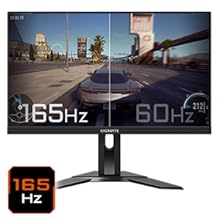
Figure 5.5: Visual comparison of 165Hz vs. 60Hz refresh rate.
- Ansprechzeit: Enjoy a 1ms MPRT (Moving Picture Response Time) for minimal ghosting.
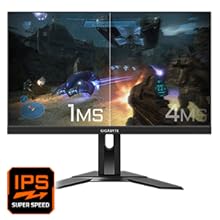
Figure 5.6: Visual comparison of 1ms vs. 4ms response time.
- Farbumfang: The monitor covers 95% DCI-P3 and 125% sRGB for vibrant and accurate colors.
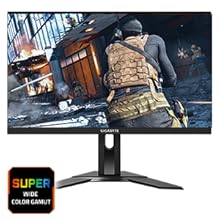
Figure 5.7: Wide color gamut for rich visuals.
- Schwaches blaues Licht: Reduces blue light emissions to protect your eyes during extended use.
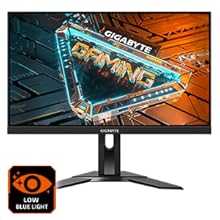
Figure 5.8: Low Blue Light feature for reduced eye strain.
- Flimmerfrei: Beseitigt Bildschirmflimmern für ein komfortableres Seherlebnis. viewErfahrung.

Figure 5.9: Flicker-Free technology for comfortable viewing.
5.5 Produktvideo
Video 5.1: Ein überview of the GIGABYTE G24F 2 monitor's features and specifications.
6. Wartung
Durch sachgemäße Wartung wird die Langlebigkeit Ihres Monitors gewährleistet.
- Reinigen des Bildschirms: Wischen Sie den Bildschirm vorsichtig mit einem weichen, trockenen und fusselfreien Tuch ab. Bei hartnäckigen Flecken leicht andrücken.ampBefeuchten Sie das Tuch mit Wasser oder einem speziellen Bildschirmreiniger (auf das Tuch auftragen, nicht direkt auf den Bildschirm).
- Reinigung des Casing: Verwenden Sie ein weiches, trockenes Tuch, um den Monitor abzuwischen.asing. Vermeiden Sie scheuernde Reinigungsmittel.
- Belüftung: Ensure the ventilation openings on the monitor are clear of dust and obstructions.
- Ausschalten: Turn off and unplug the monitor when not in use for extended periods.
7. Fehlerbehebung
Sollten Sie Probleme mit Ihrem Monitor haben, finden Sie in der folgenden Tabelle häufige Probleme und Lösungen.
| Problem | Mögliche Ursache | Lösung |
|---|---|---|
| Kein Bild auf dem Bildschirm | Power cable not connected; Video cable not connected; Incorrect input source selected | Überprüfen Sie die Strom- und Videokabelverbindungen; Wählen Sie die richtige Eingangsquelle über das OSD aus. |
| Das Bild ist unscharf oder verzerrt. | Falsche Auflösung; loses Videokabel | Stellen Sie die Bildschirmauflösung auf 1920x1080 ein; Stellen Sie sicher, dass das Videokabel fest angeschlossen ist. |
| Kein Ton aus Kopfhörern/Lautsprechern | Audio cable not connected; Volume too low; Incorrect audio output selected on PC | Check audio cable connection; Adjust volume; Select monitor as audio output on PC. |
| USB-Anschlüsse funktionieren nicht | USB-Upstream-Kabel nicht angeschlossen | Connect the USB 3.2 Gen 1 Upstream cable from the monitor to your PC. |
| Flackernder Bildschirm | Refresh rate issue; Faulty cable | Ensure refresh rate is set correctly; Try a different video cable. |
8. Spezifikationen
Detailed technical specifications for the GIGABYTE G24F 2 monitor.

Abbildung 8.1: Monitorabmessungen.
| Besonderheit | Detail |
|---|---|
| Marke | GIGABYTE |
| Modellname | G24F 2 |
| Modellnummer | 9DG24F2-00-1ABIN |
| Bildschirmgröße | 23.8 Zoll |
| Auflösung | 1920 x 1080 Pixel (FHD 1080p) |
| Seitenverhältnis | 16:9 |
| Anzeigetyp | LCD (SS IPS Panel) |
| Bildwiederholrate | 165 Hz (180Hz OC) |
| Ansprechzeit | 1 Milliseconds (MPRT) |
| Helligkeit | 300 candela_per_square_meter (TYP) |
| Kontrastverhältnis | 1100:1 |
| Farbsättigung | 95 % DCI-P3, 125 % sRGB |
| Viewing-Winkel | 178 Grad |
| Konnektivität | 2 x HDMI 2.0, 1 x DisplayPort 1.2, 2 x USB 3.2 Gen 1 Downstream, 1 x USB 3.2 Gen 1 Upstream, 1 x Earphone Jack |
| Adaptive Synchronisierung | FreeSync-Premium |
| Energieaufnahme | 17.5 Watt |
| Artikelgewicht | 3.2 Kilogramm |
| Artikelabmessungen (T x B x H) | 5.3 cm (T) x 54.1 cm (B) x 32.6 cm (H) |
| Montagetyp | Wandhalterung |
| Produkteigenschaften | Flicker-Free, Height Adjustment, High Dynamic Range, Tilt Adjustment |
9. Garantie und Support
The GIGABYTE G24F 2 monitor comes with a 3 Jahr Garantie vom Hersteller.
For technical support, warranty claims, or further inquiries, please contact GIGABYTE customer service:
- Hersteller: GIGABYTE Technology (India) Pvt Ltd
- Adresse: B-808, Naman Midtown, Elphinstone Road, Mumbai – 400013 – INDIA
- Telefon: +91-22-40633222
Bitte bewahren Sie Ihren Kaufbeleg für Garantieleistungen auf.