
Einführung
This user manual provides essential information for setting up, operating, maintaining, and troubleshooting your MI Xiaomi Notebook Ultra. Please read this manual thoroughly before using your device to ensure proper function and longevity. Keep this manual for future reference.
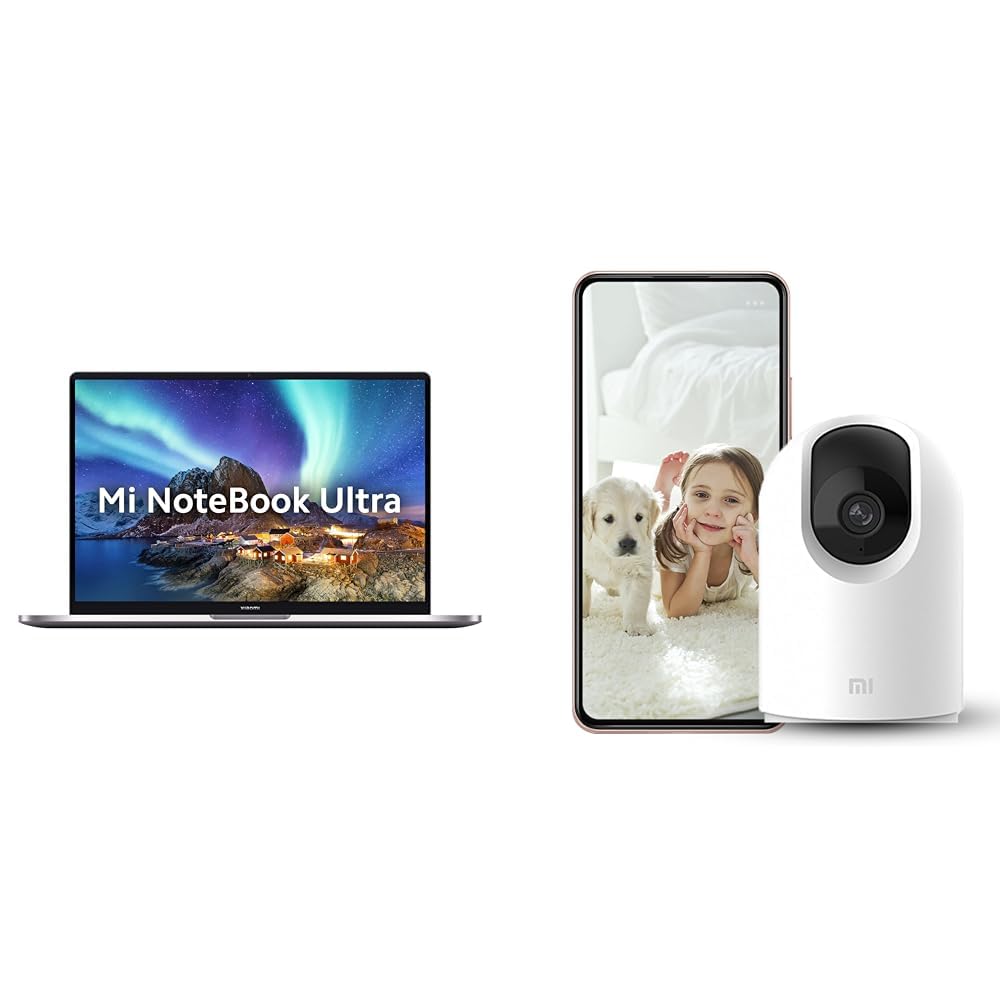
Image: The MI Xiaomi Notebook Ultra laptop, showcasing its display with a scenic wallpaper.
Produkt überview
The MI Xiaomi Notebook Ultra is a thin and light laptop designed for performance and portability. It features an 11th Gen Intel Core i5-11320H processor, a high-resolution 3.2K IPS display, and integrated Intel Iris Xe Graphics. This section details the main components and features of your new laptop.
Hauptmerkmale:
- Prozessor: 11th Gen Intel Tiger Lake Core i5-11300H processor with speeds up to 4.4 GHz, 4 cores, 8 threads, and 8 MB Cache.
- Anzeige: 39.62 cm (15.6-inch) IPS 3.2K resolution (3200x2000) with 16:10 aspect ratio, 100% sRGB, 90Hz refresh rate, 241 PPI, 1500:1 contrast ratio, anti-glare, and TUV Low blue light certification.
- Speicher: 8GB DDR4 3200 MHz RAM and 512GB PCIe NVMe M.2 SSD.
- Betriebssystem und Software: Pre-installed Windows 11 Home and Microsoft Office Home and Student 2021.
- Grafik: Integrated Intel Iris Xe graphics.
- Konnektivität: Dual Band Wi-Fi and Bluetooth.
- Sicherheit: Fingerprint Recognition.
- Häfen: Includes Thunderbolt 4 and USB Type-C ports.

Bild: Ein überview of the MI Xiaomi Notebook Ultra's key features, including its 3.2K display, all-metal design, 90Hz refresh rate, 12-hour battery, thin and light profile, Thunderbolt 4, USB Type-C, Intel Core i5/i7 H35 processor, 8/16GB RAM, 512GB SSD, Wi-Fi 6, and fingerprint reader.

Bild: Seitenansichtfile of the MI Xiaomi Notebook Ultra, highlighting the various ports including Thunderbolt 4 and USB Type-C.
Installationshandbuch
1. Auspacken und erste Inspektion:
Carefully remove the laptop and all accessories from the packaging. Check for any visible damage. Ensure all components listed in the packaging are present.
2. Strom anschließen:
- Connect the power adapter to the laptop's USB Type-C charging port.
- Stecken Sie das Netzkabel in eine Wandsteckdose.
- Lassen Sie den Laptop vor der ersten Benutzung mindestens 30 Minuten lang aufladen oder bis die Akkuanzeige einen ausreichenden Ladestand anzeigt.
3. Initial Boot and Windows Setup:
- Öffnen Sie den Laptopdeckel und drücken Sie den Netzschalter.
- Folgen Sie den Anweisungen auf dem Bildschirm, um die Einrichtung von Windows 11 Home abzuschließen. Dazu gehören die Auswahl Ihrer Region und Sprache, die Verbindung mit einem WLAN-Netzwerk und die Erstellung eines Benutzerkontos.
- Register your Microsoft account if prompted to activate Windows and Microsoft Office Home and Student 2021.
4. Anschließen von Peripheriegeräten:
You can connect external displays, wireless keyboards, mice, webcams, and other Bluetooth/Wi-Fi enabled devices. Refer to the device's specific instructions for pairing or connecting.
- USB-Geräte: Use the available USB Type-C or Thunderbolt 4 ports.
- Bluetooth-Geräte: Enable Bluetooth on your laptop via Windows settings and pair with your device.
- Externe Anzeige: Connect an external monitor using a compatible cable to the Thunderbolt 4 port (which supports display output).
Bedienungsanleitung
Energieverwaltung:
- Einschalten: Drücken Sie den Netzschalter auf der Tastatur.
- Schlafmodus: Schließen Sie den Deckel oder wählen Sie im Windows-Startmenü die Option „Ruhezustand“.
- Abschalten: Wählen Sie im Windows-Startmenü die Option „Herunterfahren“.
- Neustart: Wählen Sie im Windows-Startmenü „Neustart“.
Verwendung des Displays:
Your laptop features a 3.2K IPS display with a 90Hz refresh rate. You can adjust display settings (resolution, refresh rate, brightness) through Windows Display Settings. The anti-glare coating helps reduce reflections, and TUV Low blue light certification aims to reduce eye strain.
Fingerabdruckerkennung:
The integrated fingerprint sensor allows for secure and quick login. To set up, navigate to Windows Settings > Accounts > Sign-in options and follow the instructions to register your fingerprint.
Tastatur und Touchpad:
The laptop includes a full-sized keyboard and a precision touchpad. Customize touchpad gestures and keyboard backlight settings (if available) through Windows Settings.
Audio:
The laptop is equipped with integrated speakers. Adjust volume using the function keys or Windows sound settings.
WebNocken:
Die integrierte webcam can be used for video calls and conferences. Ensure the physical lens shield is open when using the webcam. Manage webcam privacy settings in Windows.
Wartung
Reinigung:
- Bildschirm: Benutzen Sie ein weiches, fusselfreies Tuch, dampMit Wasser oder einem Bildschirmreiniger abspülen. Flüssigkeit nicht direkt auf den Bildschirm sprühen.
- Tastatur und Gehäuse: Verwenden Sie ein weiches, trockenes Tuch. Bei hartnäckigem Schmutz ein leicht dämpfendes Tuch verwenden.amp Stoff kann verwendet werden. Vermeiden Sie aggressive Chemikalien.
- Häfen: Halten Sie die Anschlüsse frei von Staub und Schmutz. Verwenden Sie bei Bedarf Druckluft, aber gehen Sie dabei vorsichtig vor.
Batteriepflege:
- Vermeiden Sie häufiges vollständiges Entladen des Akkus.
- Bewahren Sie den Laptop an einem kühlen, trockenen Ort auf, wenn er längere Zeit nicht benutzt wird. Der Akku sollte dabei auf etwa 50 % geladen sein.
- Verwenden Sie ausschließlich das Original-Netzteil, das mit dem Laptop geliefert wurde.
Software-Updates:
Regularly update Windows, drivers, and other software to ensure optimal performance and security. You can check for updates via Windows Settings.
Fehlerbehebung
Dieser Abschnitt bietet Lösungen für häufig auftretende Probleme. Sollte das Problem weiterhin bestehen, wenden Sie sich bitte an den Kundensupport.
No Power / Laptop Not Turning On:
- Stellen Sie sicher, dass das Netzteil sowohl mit dem Laptop als auch mit einer funktionierenden Steckdose fest verbunden ist.
- Prüfen Sie die Funktionsfähigkeit der Steckdose, indem Sie ein anderes Gerät anschließen.
- Wenn der Akku vollständig entladen ist, lassen Sie ihn mindestens 30 Minuten lang aufladen, bevor Sie versuchen, das Gerät einzuschalten.
Anzeigeprobleme:
- Leerer Bildschirm: Try connecting an external monitor to check if the laptop is outputting video. If the external monitor works, there might be an issue with the laptop's internal display.
- Bildschirm verdunkeln: Adjust brightness using the function keys or Windows Display Settings.
- Falsche Auflösung: Adjust the display resolution in Windows Display Settings.
Wi-Fi / Bluetooth Connectivity Problems:
- Ensure Wi-Fi and Bluetooth are enabled in Windows Settings.
- Starten Sie Ihren Router/Ihr Modem neu, falls es WLAN-Probleme gibt.
- Bei Bluetooth-Verbindungen versuchen Sie, das Gerät zu entkoppeln und anschließend erneut zu koppeln.
- Aktualisieren Sie die Netzwerkadaptertreiber über den Geräte-Manager.
Langsame Leistung:
- Schließen Sie unnötige Anwendungen, die im Hintergrund laufen.
- Prüfen Sie, ob Windows-Updates ausstehen, und installieren Sie diese gegebenenfalls.
- Run a disk cleanup and defragmentation (for HDDs, though this laptop has SSD).
- Auf Schadsoftware oder Viren scannen.
Included Accessory: Mi 360° Home Security Camera 2K Pro
Your MI Xiaomi Notebook Ultra package includes a Mi 360° Home Security Camera 2K Pro. This camera offers enhanced home surveillance with 2K resolution and smart features. Please refer to the separate user manual provided with the camera for detailed setup and operation instructions.
Key Features of the Camera:
- Auflösung: 2K Video Resolution Quality.
- Konnektivität: Dualband-WLAN.
- Sicherheit: Physical lens shield.
- Audio: Dual-microphone noise reduction.
- Smart Features: AI Human Detection, Bluetooth gateway.
- Lagerung: Cloud Storage In India.

Image: The Mi 360° Home Security Camera 2K Pro, a white spherical camera with a black lens module.

Image: An illustration of the Mi 360° Home Security Camera 2K Pro's features, including physical shield, dual-microphone noise reduction, dual-band Wi-Fi, Bluetooth gateway, AI Human Detection, and Cloud Storage.

Image: A comparison demonstrating the 2K video resolution quality of the Mi 360° Home Security Camera 2K Pro, showing a clearer image at 1296p compared to 1080p.
Technische Daten
| Besonderheit | Detail |
|---|---|
| Marke | MI |
| Modellname | Xiaomi Notebook Ultra |
| CPU-Modellnummer | Intel Core i11-5H der 11320. Generation |
| Prozessorgeschwindigkeit | 3.1 GHz (Base) - 4.4 GHz (Max) |
| Prozessorkerne | 4 |
| Bildschirmgröße | 39.62 Centimetres (15.6-inch) |
| Bildschirmauflösung | 3200 x 2000 (3.2K) |
| Anzeigetyp | IPS LED, Anti Glare Coating |
| Bildwiederholrate | 90 Hz |
| Größe des installierten RAM-Speichers | 8 GB DDR4 3200 MHz |
| Festplattengröße | 512 GB PCIe NVMe M.2 SSD |
| Betriebssystem | Windows 11 Home |
| Grafik-Coprozessor | Intel Iris Xe Grafik (integriert) |
| Wireless-Technologie | Bluetooth, Wi-Fi (Dual Band) |
| Biometrische Sicherheit | Fingerabdruckerkennung |
| Artikelgewicht | 1.7 Kilogramm |
| Farbe | Metallisch |
| Mitgelieferte Software | Microsoft Office Home and Student 2021 |
| Batteriezellentyp | Lithium Polymer |
Garantie und Support
For warranty information and customer support, please refer to the warranty card included in your product packaging or visit the official MI support webBitte halten Sie Ihren Kaufbeleg und die Seriennummer Ihres Produkts bereit, wenn Sie den Kundendienst kontaktieren.
Online-Hilfe: MI India Support