
1. Einleitung
This manual provides essential information for setting up, operating, maintaining, and troubleshooting your ASUS ROG Rapture GT-AX11000 Pro Tri-Band WiFi 6 Gaming Router. Please read this guide thoroughly before using the device.

Image 1.1: The ASUS ROG Rapture GT-AX11000 Pro Tri-Band WiFi 6 Gaming Router.
2. Packungsinhalt
Prüfen Sie, ob alle Artikel in Ihrer Produktverpackung enthalten sind:
- ASUS ROG Rapture GT-AX11000 Pro WiFi Gaming Router
- RJ-45 Kabel
- Netzteil
- Kurzanleitung
- Garantiekarte
3. Installationsanleitung
3.1 Erster Hardwareanschluss
- Positionierung des Routers: Place the router in a central location to maximize WiFi coverage. Avoid placing it near large metal objects or appliances that may cause interference.
- Schließen Sie die Antennen an: Attach all external antennas to the designated ports on the router.
- Verbindung zum Modem herstellen: Connect one end of the provided RJ-45 cable to the WAN port (often labeled 2.5G or 10G and distinct in color) on your GT-AX11000 Pro router and the other end to your internet modem.
- Einschalten: Connect the power adapter to the router's DC-in port and then plug it into a power outlet. Wait for the power LED indicator to stabilize.
- Geräte verbinden: Connect your computer or other devices to the router either via an Ethernet cable (to any LAN port) or wirelessly using the default WiFi network name (SSID) and password found on the router's label.
3.2 Softwarekonfiguration
- Auf die Router-Schnittstelle zugreifen: Öffnen Sie ein web Öffnen Sie einen Browser auf einem verbundenen Gerät und navigieren Sie zur Standard-IP-Adresse des Routers (z. B.
router.asus.comor192.168.1.1). - Folgen Sie dem Einrichtungsassistenten: The ASUS setup wizard will guide you through creating a new administrator password, configuring your internet connection, and setting up your WiFi network names and passwords.
- Firmware aktualisieren: It is recommended to update the router's firmware to the latest version for optimal performance and security. This option is usually found in the administration or system settings section of the router interface.
3.3 AiMesh Setup (Optional)
The GT-AX11000 Pro supports ASUS AiMesh, allowing you to create a whole-home mesh WiFi system with other compatible ASUS routers. Refer to the ASUS AiMesh documentation for detailed setup instructions.
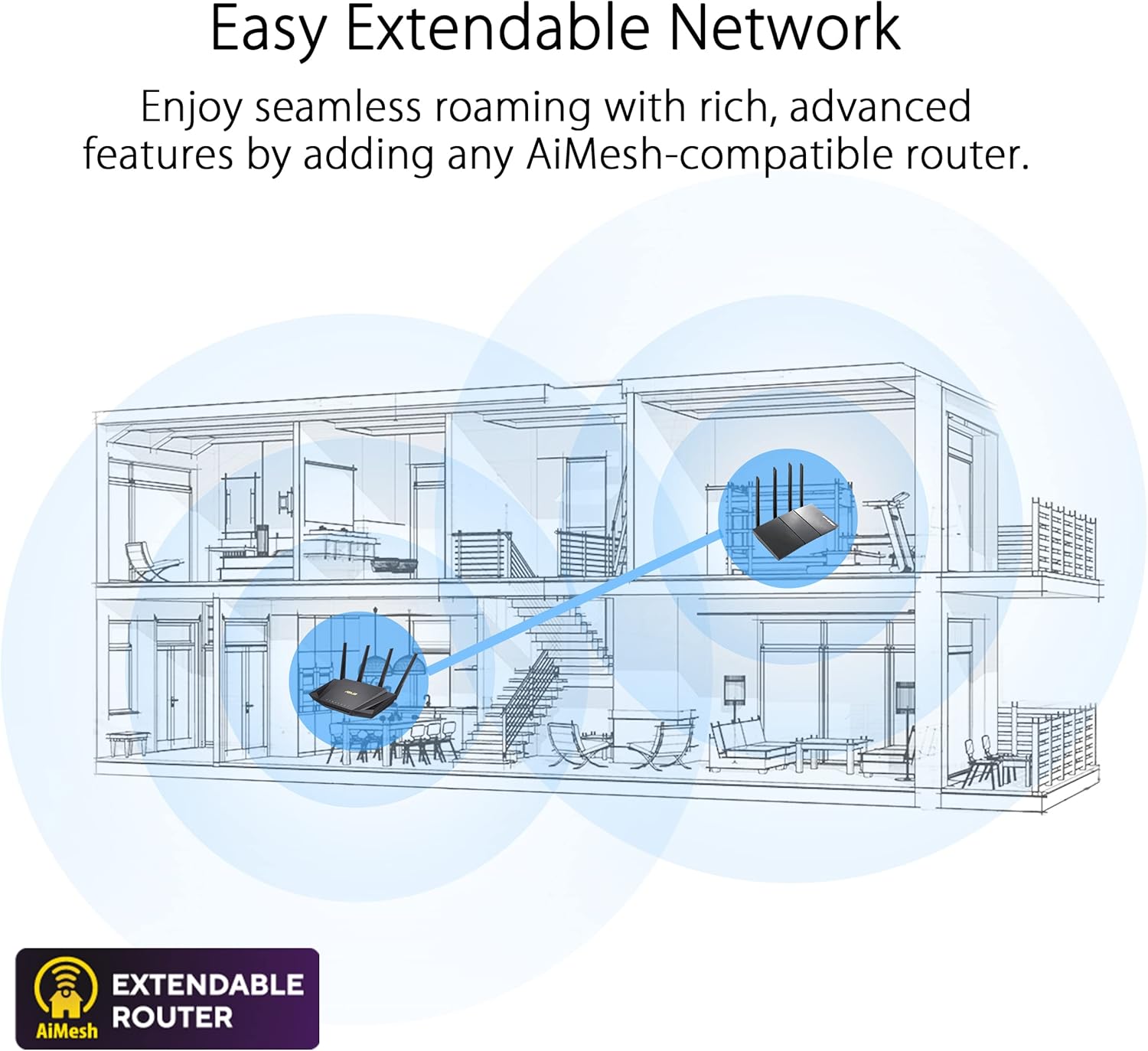
Image 3.1: Illustration of an extendable network using AiMesh technology.
4. Bedienungsanleitung
4.1 Hauptmerkmale und Funktionalität
- High-Efficiency WiFi 6: The router utilizes WiFi 6 (802.11ax) tri-band technology to deliver speeds up to 11,000 Mbps, supporting 160 MHz channels for improved efficiency and throughput.
- Expanded Coverage with RangeBoost Plus: ASUS RangeBoost Plus technology enhances signal range and overall wireless coverage throughout your home or office.
- Flexible Networking Ports: Features one 2.5 Gigabit port and one 10 Gigabit port, which can be configured for either WAN (Internet) or LAN (local network) operation, providing versatile connectivity options for high-speed devices.
- Extreme Quad-Core CPU Power: Equipped with high-performance WiFi chipsets and a 64-bit 2.0 GHz quad-core CPU, the router processes wireless signals efficiently, ensuring stable and fast network performance.
4.2 Triple-Level Game Acceleration
The GT-AX11000 Pro is designed to optimize online gaming experiences through a three-tiered acceleration system:
- Game Device Optimization (Gaming Port): Prioritizes traffic from connected gaming devices.
- Game Packet Prioritization (Game Boost): Optimizes game data packets for reduced latency.
- Shortest Path to Game Server (Gamer VPN): Utilizes a VPN to find the most efficient route to game servers, minimizing ping time and variation.

Bild 4.1: Überview of the router's triple-level game acceleration features.

Image 4.2: Mobile Game Mode interface for optimizing gaming on mobile devices.
4.3 Netzwerksicherheit und Kindersicherung
The router includes several security features without requiring additional subscriptions:
- AiProtection Pro: Commercial-grade network security to protect all connected devices from internet threats.
- WPA3 Security Protocol: Supports the latest WiFi security standard for enhanced protection.
- Erweiterte Kindersicherungsfunktionen: Tools to manage and monitor internet usage for family members, including content filtering and time scheduling.
- Built-in VPN + Fusion and Instant Guard: Provides secure remote access and encrypted connections.

Bild 4.3: Überview of the router's integrated security and control features.
5. Wartung
5.1 Firmware-Updates
Regularly check for and install the latest firmware updates for your router. Firmware updates often include performance improvements, new features, and critical security patches. You can typically find this option within the router's web interface under 'Administration' or 'System Settings'.
5.2 Körperliche Pflege
Keep the router in a clean, dust-free environment. Ensure proper ventilation around the device to prevent overheating. Periodically clean the exterior with a soft, dry cloth. Do not use liquid cleaners or aerosols.
6. Fehlerbehebung
If you encounter issues with your router, consider the following common troubleshooting steps:
- Keine Internetverbindung: Verify that your modem is working correctly and that all cables are securely connected. Restart both your modem and router.
- Langsame WLAN-Geschwindigkeit: Ensure your devices are within optimal range. Check for interference from other electronic devices. Consider adjusting WiFi channels in the router settings.
- WLAN-Verbindungsabbrüche: Update your device drivers and router firmware. Ensure the router is not overheating.
- Cannot Access Router Interface: Confirm your device is connected to the router's network. Try clearing your browser's cache or using a different browser.
- Werkseinstellungen zurückgesetzt: As a last resort, you can perform a factory reset by pressing the reset button on the router (usually a small pinhole button) for 5-10 seconds. This will revert all settings to their default values.
Notiz: Actual data throughput and WiFi coverage can vary significantly due to network conditions, environmental factors (e.g., building materials), network traffic volume, and network overhead. These factors may result in lower actual data throughput and reduced wireless coverage compared to theoretical maximums.
7. Spezifikationen
| Besonderheit | Spezifikation |
|---|---|
| Modellname | GT-AX11000 PRO |
| Marke | ASUS |
| Technische Daten | 13.94 x 13.94 x 7.6 Zoll |
| Artikelgewicht | 4.81 Pfund |
| Frequenzbandklasse | Tri-Band |
| Drahtloser Kommunikationsstandard | 802.11a, 802.11ac, 802.11ax (WiFi 6), 802.11g, 802.11n |
| Konnektivitätstechnologie | Ethernet, USB, WLAN |
| Besondere Merkmale | Guest Mode, Internet Security, Parental Control, QoS, WPS |
| Kompatible Geräte | Spielkonsole, PC, Smart-TV, Smartphone, Tablet |
| Empfohlene Verwendung | Business, Gaming, Zuhause |
| Farbe | SCHWARZ |
| Stromversorgung | AC Input: 110V~240V (50~60Hz), DC Output: 19 V with max. 3.42 A; 19.5 V with max. 3.33 A |
8. Garantie und Support
8.1 Garantieinformationen
Your ASUS ROG Rapture GT-AX11000 Pro router comes with a manufacturer's warranty. Please refer to the included Warranty Card in your package for specific terms, conditions, and duration of the warranty in your region. Retain your proof of purchase for warranty claims.
8.2 Technischer Support
Für weitere Hilfe, technischen Support oder zum Herunterladen der neuesten Treiber und Dienstprogramme besuchen Sie bitte die offizielle ASUS-Supportseite. website. You can typically find support resources by searching for your product model (GT-AX11000 PRO) on the ASUS webWebsite.