
REKDOM BU820
REKDOM BU820 Bluetooth Wireless Thermal Label Printer User Manual
Modell: BU820
1. Einleitung
This manual provides detailed instructions for the setup, operation, maintenance, and troubleshooting of your REKDOM BU820 Bluetooth Wireless Thermal Label Printer. Please read this manual thoroughly before using the printer to ensure proper function and longevity of the device.

Image: The REKDOM BU820 Bluetooth Wireless Thermal Label Printer, a compact device designed for efficient label printing.
2. Einrichtung
2.1 Auspacken und erste Inspektion
Carefully remove all components from the packaging. Verify that all items listed in the package contents are present and undamaged. The package typically includes the BU820 printer and a Type C to USB port transfer adapter.
2.2 Ladeetiketten
The printer supports label sizes from 1.5 inches to 4.1 inches (38mm-104mm) width. To load labels:
- Öffnen Sie die Druckerabdeckung.
- Place the roll of thermal labels into the label compartment, ensuring the labels feed smoothly into the printer mechanism.
- Adjust the paper guides to fit the width of your labels.
- Close the printer cover. The printer will automatically detect the label size and position the first label correctly.
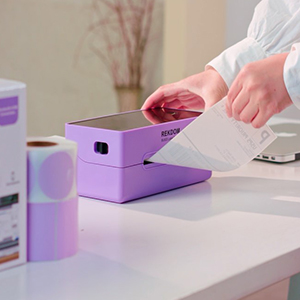
Bild: Eine Nahaufnahme view of labels being loaded into the REKDOM BU820 thermal label printer.
2.3 Konnektivitätsoptionen
The REKDOM BU820 offers both wireless Bluetooth and wired USB connectivity.

Image: The REKDOM BU820 printer showcasing compatibility with Windows, iOS, Android via Bluetooth, and Windows, Mac OS, Linux, Chrome OS via wired USB.
2.3.1 Kabelgebundene USB-Verbindung
For Windows, Mac, Linux, and Chrome OS, connect the printer using the provided USB cable. Install the necessary drivers from the included USB disk or the official REKDOM webWebsite.
Video: Instructions on how to install the driver and set up Bluetooth on Windows for the REKDOM BU820 printer.
Video: Instructions on how to install the driver on Mac for the REKDOM BU820 printer.
2.3.2 Drahtlose Bluetooth-Verbindung
Bluetooth connectivity is supported for Windows, Android, and iOS smartphones and tablets. For Windows, a Bluetooth setup process is required after driver installation. For smartphones and tablets, simply pair via Bluetooth.
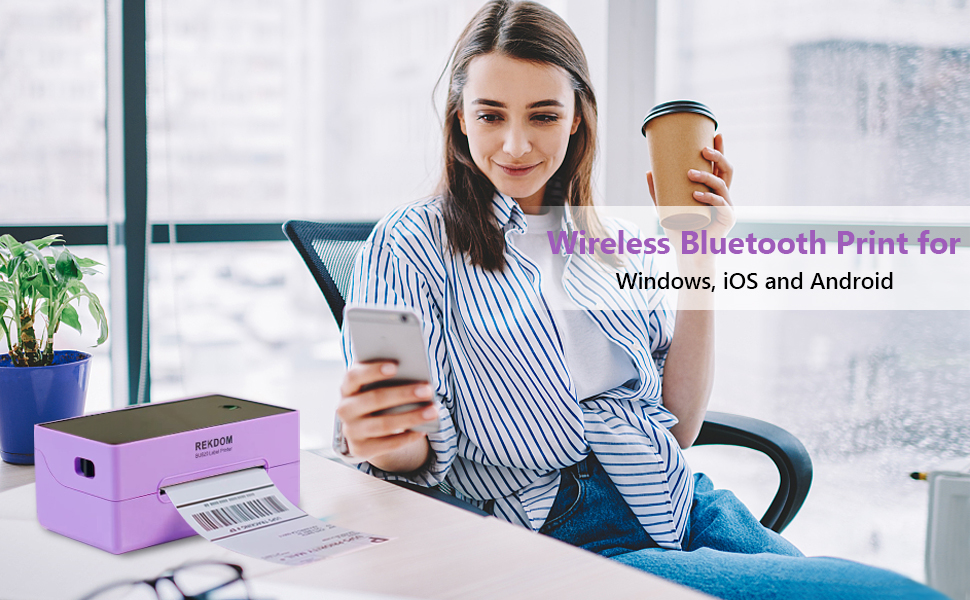
Image: A person using a smartphone to print wirelessly via Bluetooth to the REKDOM BU820 printer, compatible with Windows, iOS, and Android devices.
3. Bedienungsanleitung
3.1 Using the "Rekdom Printer" App (Android/iOS)
The free "Rekdom Printer" app allows Bluetooth printing from your smartphone or tablet. It includes functions like "Crop Image" and "Scan Barcode".
- Download the "Rekdom Printer" app from your device's app store. Für iOS herunterladen
- Pair your printer with your device via Bluetooth within the app.
- Open PDF label files within the app. You can crop PDF files to match your label sizes.
- Utilize the "Scan Barcode" function to directly scan and print 1D/2D barcode labels.
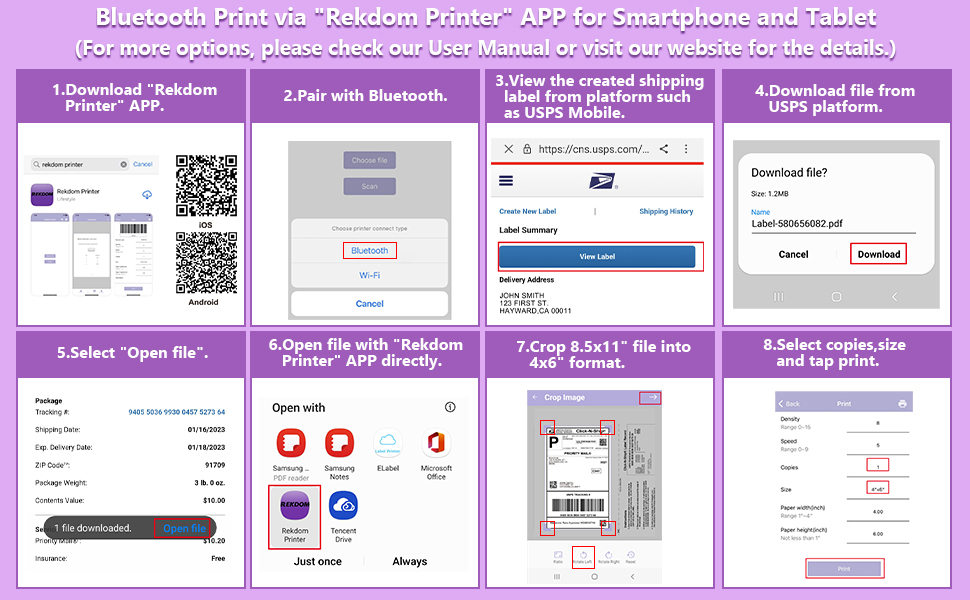
Image: A step-by-step guide illustrating how to use the "Rekdom Printer" app for Bluetooth printing from a smartphone or tablet, including pairing, opening files, cropping, and printing.
Video: A demonstration of how to use the "Rekdom Printer" app on iOS for printing labels.
3.2 Printing from Computer (Windows, Mac, Linux, Chrome OS)
After installing the drivers and connecting the printer via USB or Bluetooth (for Windows), you can print labels directly from your computer. The printer is compatible with most platforms including Amazon, eBay, Etsy, Shopify, Shippo, Poshmark, PayPal, Shipstation, USPS, UPS, and Pirateship.

Image: The REKDOM BU820 printer highlighting its compatibility with various e-commerce and shipping platforms such as Pirateship, Etsy, Poshmark, USPS, ShipStation, Shopify, eBay, UPS, PayPal, and more.
3.3 Label Types and Uses
The printer is suitable for various label types, including shipping labels, address labels, barcode labels, price labels, warehouse labels, and logo labels.

Image: The REKDOM BU820 printer illustrating its versatility for various labeling needs, including shipping labels, thank you labels, fragile tags, barcode labels, product labels, and category labels.
4. Wartung
4.1 Thermal Printing Technology
The REKDOM BU820 utilizes advanced direct thermal technology, which means it does not require ink or ribbons. This significantly reduces maintenance costs and the need for consumables.
4.2 Drucker reinigen
To ensure optimal print quality and extend the life of your printer, periodically clean the print head and platen roller. Use a soft, lint-free cloth lightly dampened with isopropyl alcohol. Ensure the printer is powered off and disconnected from the power source before cleaning. Allow all components to dry completely before resuming operation.
5. Fehlerbehebung
If you encounter issues with your REKDOM BU820 printer, please refer to the following common solutions. For more complex problems, contact customer support.
- Drucker reagiert nicht: Ensure the printer is powered on and properly connected via USB or Bluetooth. Check power cables and USB connections.
- Schlechte Druckqualität: Verify that you are using high-quality thermal labels. Clean the print head as described in the maintenance section. Adjust print density settings in your printer preferences or app.
- Etiketten werden nicht korrekt zugestellt: Ensure labels are loaded properly and the paper guides are adjusted to the correct width. Check for any obstructions in the label path.
- Bluetooth Connection Issues (Windows): Ensure the printer driver is installed. In Windows Bluetooth settings, ensure "advanced" discovery options are enabled if the printer is not found.
- Probleme mit der App-Verbindung: Ensure Bluetooth is enabled on your mobile device and the printer is within range. Restart the app and the printer.

Image: An icon representing Frequently Asked Questions (FAQ).
6. Spezifikationen
| Marke | REKDOM |
| Modellname | BU820 |
| Konnektivitätstechnologie | Bluetooth, USB |
| Drucktechnologie | Thermal |
| Druckerausgabe | Einfarbig |
| Maximale Druckgeschwindigkeit Monochrom | 150 Seiten/Minute |
| Auflösung | 203 dpi |
| Artikelgewicht | 2.6 Pfund |
| Produktabmessungen (T x B x H) | 4.1" x 8.7" x 3.6" |
| Kompatible Geräte | Smartphones (Android, iOS), Computers (Windows, Mac, Linux, Chrome OS) |
| Printmedien | Labels |
| Maximale Mediengröße | 4.1 Zoll |
| Maximale Blattkapazität | 100 |
| Besondere Merkmale | Auto label identification, Bluetooth connection, easy setup via "Rekdom Printer" app, High speed printing, Inkless |
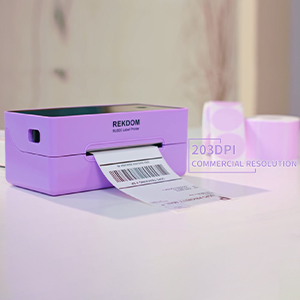
Image: The REKDOM BU820 printer with text indicating "203DPI Commercial Resolution", emphasizing its print quality.
7. Garantie und Support
7.1 Produktgarantie
The REKDOM BU820 Bluetooth Wireless Thermal Label Printer comes with a 1 Jahr eingeschränkte Garantie Diese Garantie gilt ab Kaufdatum und deckt Herstellungsfehler sowie Funktionsstörungen bei normalem Gebrauch ab. Bitte bewahren Sie Ihren Kaufbeleg für Garantieansprüche auf.
7.2 Technischer Support
REKDOM is committed to providing professional technical solutions. If you require assistance or have any questions regarding your printer, please contact our support team:
- E-Mail: Refer to your product packaging or the official REKDOM webWebsite für die Support-E-Mail-Adresse.
- Telefon: Refer to your product packaging or the official REKDOM website for the support phone number.
Most issues can be resolved quickly with technical support.
Ask a question about this manual
Ask about setup, troubleshooting, compatibility, parts, safety, or missing instructions. Manuals+ will review the question and use this page’s manual context to help answer it.