
Einführung
The Yealink WH63 is a convertible DECT wireless headset designed for office environments. It offers seamless integration with major Unified Communications (UC) platforms and native compatibility with Yealink IP Phones. Featuring Yealink Super Wideband HD Audio Technology and Acoustic Shield Technology, the WH63 ensures clear communication during calls and video conferences. Its lightweight design and intuitive controls provide a comfortable and efficient user experience.
Packungsinhalt
Überprüfen Sie, ob alle Artikel in Ihrem Paket vorhanden sind:
- Yealink WH63 Headset
- DECT-Basisstation
- USB-A-Kabel
- Netzteil
- Earhook (for alternative wearing style)
- Neckband (for alternative wearing style)
- Kurzanleitung
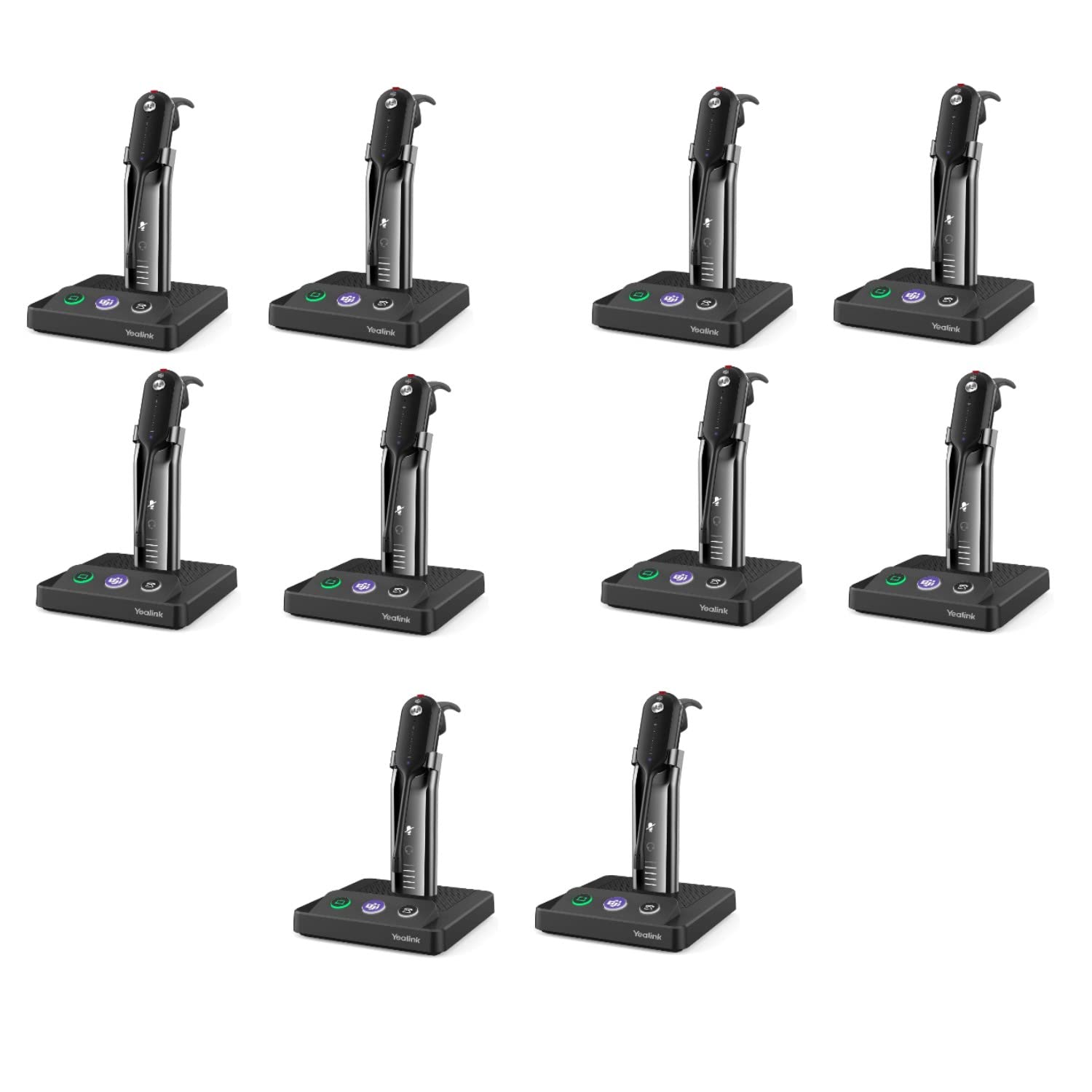
Image: The Yealink WH63 wireless DECT headset, showing the earpiece, microphone boom, and the compact base station.
Aufstellen
1. Connect the Base Station
Connect the DECT base station to a power source using the provided power adapter. Connect the base station to your desk phone or computer as follows:
- To a Desk Phone (via USB-A): Use the USB-A cable to connect the base station to the USB port on your compatible desk phone. Compatible Yealink Desk Phones include T4XS/T4XU/T53/T5XW/T58A/VP59 (USB Phone series), T48S/T56A/T55A/T58A (Skype for Business Phone series), and MP54/MP56/MP58 (Teams Phone series).
- To a Desk Phone (via EHS35 Adapter): For T30P, T31P/G, T33P/G, Poly VVX 411, VVX 401/501, VVX 250/350/450, and SNOM D765 D385 D735 desk phones, an optional EHS35 adapter is required for electronic hookswitch functionality.
- To a Computer/Softphone: Use the USB-A cable to connect the base station to an available USB port on your computer.

Image: The Yealink WH63 headset resting on its charging stand, illustrating the connection point for power and device.
2. Laden Sie das Headset auf
Place the headset onto the base station's charging cradle. The headset will begin charging automatically. Ensure the headset is properly seated. A full charge provides up to 8 hours of talk time.
3. Select Wearing Style
The WH63 headset supports three wearing styles:
- Hörmuschel: The default style, lightweight and discreet.
- Ohrhaken: Provides a secure fit over the ear.
- Halsband: Offers stability for extended wear.
Choose the style that best suits your comfort and preference. Instructions for changing wearing styles are typically found in the Quick Start Guide.
Bedienungsanleitung
Ein-/Ausschalten
To power on the headset, press and hold the Multi-function button until the LED indicator lights up. To power off, press and hold the Multi-function button again until the LED indicator turns off.
Anrufsteuerung
- Anruf annehmen/beendenDrücken Sie einmal die Multifunktionstaste.
- Lautstärke anpassen: Use the Volume Up (+) and Volume Down (-) buttons on the headset.
- Mikrofon stummschalten/stummschalten: Press the Mute button on the microphone boom or headset.
Microsoft Teams Integration
For Microsoft Teams certified versions, a dedicated Teams button is present on the headset. Press this button to:
- Activate Microsoft Teams.
- Answer an incoming Teams call.
- Open the Teams client on your computer.
The headset is also compatible with Zoom, RingCentral, Skype, and other leading collaboration platforms.
Drahtlose Reichweite
The DECT 6.0 technology provides a wireless roaming range of up to 394 feet (120 meters) from the base station, allowing for greater mobility during calls.
Wartung
- Reinigung: Use a soft, dry cloth to clean the headset and base station. Avoid using harsh chemicals or abrasive materials.
- Lagerung: When not in use, store the headset on its charging cradle or in a cool, dry place away from direct sunlight.
- Batteriepflege: To prolong battery life, avoid fully discharging the headset frequently. Charge it regularly, especially if it will not be used for an extended period.
Fehlerbehebung
No Audio / Cannot Hear
- Stellen Sie sicher, dass das Headset eingeschaltet und aufgeladen ist.
- Verify the base station is properly connected to your phone or computer.
- Check the volume settings on both the headset and your connected device.
- Confirm the headset is selected as the audio output device in your computer's sound settings or UC application.
Mikrofon funktioniert nicht
- Stellen Sie sicher, dass das Mikrofon nicht stummgeschaltet ist.
- Check that the headset is selected as the audio input device in your computer's sound settings or UC application.
- Bringen Sie den Mikrofonarm näher an Ihren Mund.
Cannot Connect / Poor Connection
- Ensure the headset is within the 394ft (120m) range of the base station.
- Move away from potential sources of interference (e.g., Wi-Fi routers, microwaves, other DECT devices).
- Versuchen Sie, sowohl das Headset als auch die Basisstation neu zu starten.
- If issues persist, consult the full user manual available on the Yealink support website for advanced pairing or reset procedures.
Technische Daten
| Marke | Yealink |
| Modell | WH63 |
| Farbe | Schwarz |
| Platzierung des Ohrs | Über dem Ohr |
| Formfaktor | Am Ohr |
| Lärmschutz | Aktive Geräuschunterdrückung (Akustische Schirmtechnologie) |
| Tragevarianten | Earpiece, Earhook, Neckband |
| Konnektivitätstechnologie | Drahtlos (DECT 6.0) |
| Drahtlose Reichweite | Bis zu 394 Fuß (120 Meter) |
| Gesprächszeit | Bis zu 8 Stunden |
| Mikrofon | Dual Noise Canceling Microphone with Acoustic Shield Technology |
| Kontrollmethode | Touch (Multi-function button, Volume buttons, Mute button) |
| Gewicht | 18 g (nur Steuersatz) |
| Kompatible Geräte | Desk Phones, Microsoft Teams, Zoom, RingCentral, Skype, Other Collaboration Platforms |
Garantieinformationen
The Yealink WH63 Wireless DECT Headset comes with a 2 Jahr Garantie from the date of purchase. This warranty covers manufacturing defects and ensures the quality of the device. Please retain your proof of purchase for warranty claims. For detailed terms and conditions, refer to the official Yealink warranty policy available on their support webWebsite.
Unterstützung
For further assistance, technical support, or to download the full user manual and firmware updates, please visit the official Yealink support webWebsite:
Für konkrete Anfragen können Sie sich auch direkt an den Yealink-Kundendienst wenden.