
1. Einleitung
This manual provides detailed instructions for the installation, configuration, and operation of your Keenetic Runner 4G N300 Mesh Router. This device combines 4G/LTE mobile internet access with N300 Wi-Fi and Mesh capabilities, featuring a 4-port smart switch for versatile network connectivity. Please read this manual thoroughly before using the device to ensure proper setup and optimal performance.
2. Sicherheitshinweise
- Stellen Sie sicher, dass der Router an einem gut belüfteten Ort, fern von direkter Sonneneinstrahlung, Wärmequellen und Feuchtigkeit aufgestellt wird.
- Use only the power adapter supplied with the device. Using an unauthorized adapter may damage the router and void the warranty.
- Öffnen Sie den Router nicht.asing. Wartungsarbeiten dürfen nur von qualifiziertem Personal durchgeführt werden.
- Bewahren Sie das Gerät außerhalb der Reichweite von Kindern und Haustieren auf.
- Vermeiden Sie es, den Router in der Nähe starker elektromagnetischer Felder aufzustellen.
3. Packungsinhalt
Überprüfen Sie, ob Ihr Paket die folgenden Artikel enthält:
- Keenetic Runner 4G N300 Mesh Router (Model: KN-2211-01-EU)
- Typ-C-Netzteil
- Multilingual Installation Manual
4. Produktüberschreitungview
The Keenetic Runner 4G N300 is designed for reliable internet access via 4G/LTE and Wi-Fi. It features multiple ports and indicators for easy monitoring and connectivity.
4.1-Vorderseite View

Bild: Vorderseite view of the Keenetic Runner 4G N300 Mesh Router, showing the Keenetic logo and indicator lights.
4.2 Seite View und Abmessungen

Abbildung: Seite view of the Keenetic Runner 4G N300 Mesh Router, illustrating its dimensions: 185 mm width, 32 mm height, and 184 mm antenna height.
4.3 Häfen und Anzeigen
- SIM-Steckplatz: For inserting a Nano SIM card for 4G/LTE connectivity.
- Ethernet-Ports: Four LAN ports for wired connections to devices.
- Stromanschluss: Connects to the Type-C power adapter.
- Anschlüsse für externe Antennen: Two connectors for optional external 4G/LTE antennas to enhance signal reception.
- LED-Anzeigen: Provide status information for power, internet, Wi-Fi, and 4G/LTE signal.
5. Einrichtung
5.1 Hardware-Anschluss
- Sim Karte einlegen: Locate the Nano SIM slot on the router. Gently insert your Nano SIM card until it clicks into place. Ensure the card is oriented correctly as indicated on the device.

Bild: Nahaufnahme view of the Nano SIM slot on the Keenetic Runner 4G N300 Mesh Router, showing a SIM card being inserted.
- Anschluss externer Antennen (optional): If you wish to use external 4G/LTE antennas for improved signal, connect them to the two external antenna connectors on the router.
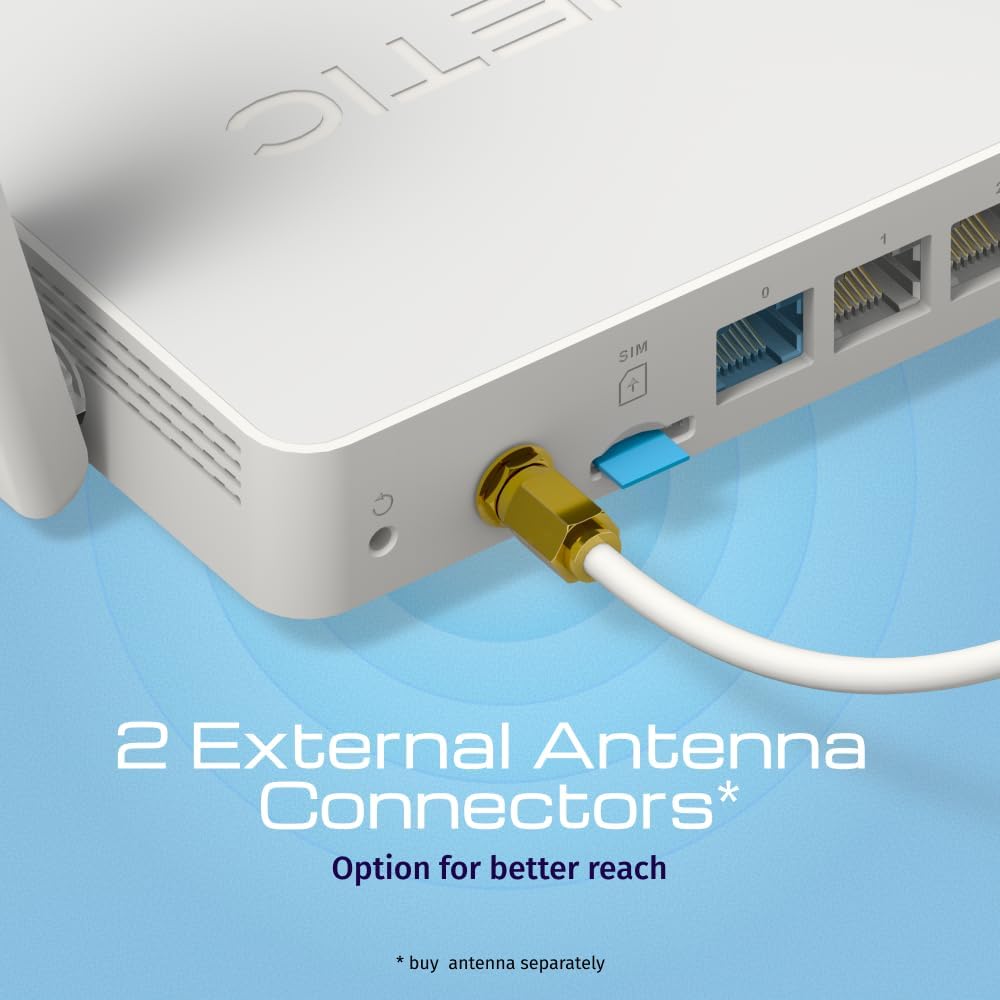
Bild: View of the two external antenna connectors on the Keenetic Runner 4G N300 Mesh Router, with an antenna cable connected to one.
- Strom anschließen: Plug the Type-C power adapter into the router's power port and then into a power outlet. The router will power on automatically.
- Erstverbindung: Connect your computer to one of the router's Ethernet LAN ports using an Ethernet cable, or connect wirelessly to the default Wi-Fi network (SSID and password usually found on a label on the router).
5.2 Erstkonfiguration
- Zugang Web Schnittstelle: Öffnen Sie ein web browser on your connected computer and enter the default IP address (e.g.,
192.168.1.1ormy.keenetic.net). - Login: Geben Sie den Standardbenutzernamen und das Standardpasswort ein (normalerweise
adminfür beide, oder wie auf dem Router-Etikett angegeben). - Folgen Sie dem Einrichtungsassistenten: The KeeneticOS web interface will guide you through the initial setup process, including setting up your internet connection (4G/LTE or Ethernet WAN), Wi-Fi network name (SSID), and password.
- Firmware aktualisieren: Für optimale Leistung und Sicherheit wird empfohlen, regelmäßig nach den neuesten Firmware-Updates zu suchen und diese zu installieren.
6. Betrieb
6.1 4G/LTE Connectivity
The Keenetic Runner 4G N300 provides mobile internet access with download speeds up to 150 Mbps and upload speeds up to 50 Mbps, depending on your mobile network provider and signal strength.

Image: Graphic illustrating the mobile internet capabilities of the Keenetic Runner 4G N300, showing download speeds up to 150 Mbps and upload speeds up to 50 Mbps.
6.2 Wi-Fi-Netzwerkkonfiguration
You can configure your Wi-Fi network settings, including SSID, security type (WPA2/WPA3 recommended), and password, through the KeeneticOS web interface or the Keenetic mobile app.
6.3 Mesh Wi-Fi Network Setup
The Keenetic Runner supports Mesh Wi-Fi technology, allowing you to expand your network coverage by adding other Keenetic Mesh-compatible devices. Refer to the KeeneticOS documentation for detailed instructions on setting up a Mesh system.
6.4 Advanced Features (KeeneticOS)
KeeneticOS, the router's operating system, offers a range of advanced features for network management and security.
6.4.1 VPN and DNS Filters
The router supports various VPN protocols and DNS filtering services for enhanced privacy and security.

Abbildung: Grafik zeigtasing KeeneticOS support for over 50 VPN features (WireGuard, OpenVPN, IPSec) and DNS filters (AdGuard, Cloudflare, OpenDNS).
6.4.2 Network Management via Keenetic App
Manage your network from anywhere using the Keenetic mobile application, providing real-time control and monitoring.

Image: Screenshot of the Keenetic App interface, demonstrating features like network overview, device list, and Quality of Service (QoS) management.
6.4.3 Smart Home & IoT Readiness
The router supports network segmentation and cybersecurity features to secure and manage your smart home and IoT devices.

Image: Diagram illustrating how the Keenetic Runner supports Smart Home and IoT devices through network segmentation and cybersecurity, showing devices connected within a home environment.
6.4.4 Advanced Parental Controls
Implement parental controls to ensure safer browsing for children, including scheduling internet access, application filtering, and DNS-based content filtering.

Image: Screenshot of the KeeneticOS parental control interface, displaying options for schedules by age group, application filters, and DNS-based filters.
6.4.5 KeeneticOS Overview
KeeneticOS is a modular operating system that powers every Keenetic router, offering continuous updates, robust security, a unified platform across devices, and extensive customization options.

Image: Graphic highlighting the core aspects of KeeneticOS: always updated and safe, a unified platform across devices, customizable and modular, and providing long-term value.
7. Wartung
7.1 Firmware-Updates
Regularly check for and install firmware updates through the KeeneticOS web interface or the Keenetic App. Firmware updates provide new features, performance improvements, and security patches.
7.2 Zurücksetzen des Geräts
If you encounter persistent issues, you may perform a factory reset. Locate the reset button (often a small pinhole) on the router. With the router powered on, press and hold the reset button for approximately 10 seconds until the indicators change. This will restore the router to its factory default settings.
8. Fehlerbehebung
- Keine Internetverbindung:
- Prüfen Sie, ob die SIM-Karte ordnungsgemäß eingesetzt und aktiviert ist.
- Verify 4G/LTE signal strength via the router's indicators or web Schnittstelle.
- Ensure your internet service provider (ISP) account is active.
- Starten Sie den Router und Ihre angeschlossenen Geräte neu.
- Langsame Geschwindigkeiten:
- Check 4G/LTE signal strength; consider using external antennas if signal is weak.
- Stellen Sie sicher, dass keine anderen Geräte übermäßig viel Bandbreite verbrauchen.
- Führen Sie einen Geschwindigkeitstest durch, um das Problem zu bestätigen.
- Probleme mit der Wi-Fi-Verbindung:
- Überprüfen Sie das WLAN-Passwort.
- Move closer to the router to improve signal.
- Überprüfen Sie, ob Störungen durch andere elektronische Geräte auftreten.
- Router reagiert nicht:
- Ziehen Sie den Netzadapter aus der Steckdose, warten Sie 10 Sekunden und stecken Sie ihn dann wieder ein.
- If the issue persists, perform a factory reset (refer to Section 7.2).
9. Spezifikationen
| Besonderheit | Detail |
|---|---|
| Marke | Keenetic |
| Modellname | Keenetic Runner 4G 2nd Gen (KN-2211-01-EU) |
| Betriebssystem | KeeneticOS |
| Konnektivitätstechnologie | Ethernet, LTE, Wi-Fi |
| Drahtloser Kommunikationsstandard | 802.11b, 802.11g, 802.11n |
| Frequenzbandklasse | Single-Band |
| Besondere Merkmale | Mesh networking, advanced security, parental control |
| Kompatible Geräte | Game console, Personal Computer, Laptop, Smartphone, Tablet |
| Artikelgewicht | 500 Gramm |
| Im Lieferumfang enthaltene Komponenten | Router, Type-C power adapter, multilingual installation manual |
10. Garantie und Support
For warranty information and technical support, please refer to the official Keenetic website or contact your local Keenetic distributor. Keep your purchase receipt for warranty claims.