
1. Einleitung
The PikDik Mini Portable Photo Printer PD-Q2 is a compact thermal printer designed for on-the-go printing. It connects via Bluetooth to compatible Android and iOS devices, allowing users to print photos, labels, lists, and more without the need for ink cartridges. This manual provides essential information for setting up, operating, maintaining, and troubleshooting your PD-Q2 printer.
2. Sicherheitshinweise
- Setzen Sie den Drucker weder Wasser noch übermäßiger Feuchtigkeit aus.
- Avoid extreme temperatures. Operate and store the printer within recommended environmental conditions.
- Verwenden Sie ausschließlich das mitgelieferte Ladekabel und die empfohlenen Stromquellen.
- Außerhalb der Reichweite von Kindern aufbewahren.
- Versuchen Sie nicht, den Drucker selbst zu zerlegen oder zu reparieren. Wenden Sie sich an den Kundendienst.
3. Packungsinhalt
Bitte prüfen Sie das Paket auf folgende Artikel:
- PikDik Mini Portable Photo Printer PD-Q2
- USB-Kabel Typ C.
- Roll of Thermal Photo Paper
- Bedienungsanleitung
4. Produktüberschreitungview
The PD-Q2 printer features a compact design with a single power/function button and a paper output slot. It utilizes thermal printing technology, eliminating the need for ink. The device is powered by a built-in rechargeable lithium battery.
5. Installationsanleitung
5.1 Aufladen des Druckers
Before first use, fully charge the printer. Connect the provided USB Type-C cable to the printer's charging port and a compatible USB power adapter. The LED indicator will show charging status.
5.2 Einlegen von Thermopapier
- Öffnen Sie die Abdeckung des Papierfachs am Drucker.
- Insert a new roll of thermal paper, ensuring the printing side faces the print head.
- Pull a small length of paper out of the slot and close the cover securely.
5.3 App-Installation und Bluetooth-Verbindung
The PikDik PD-Q2 printer requires the "Meta Print" application for operation. Follow these steps to connect your device:
- Schalten Sie den Drucker ein: Halten Sie den Ein-/Ausschalter gedrückt, bis die Kontrollleuchte aufleuchtet.
- Download and Install the "Meta Print" APP: Suchen nach "Meta Print" on your smartphone's app store (Google Play for Android or App Store for iOS) and install it.
- Bluetooth aktivieren: On your phone or tablet, go to your device's settings and ensure Bluetooth is turned on.
- Verbinde dich in der App: Open the "Meta Print" app. The app will guide you to link the printer via Bluetooth. Select the PD-Q2 from the list of available devices.
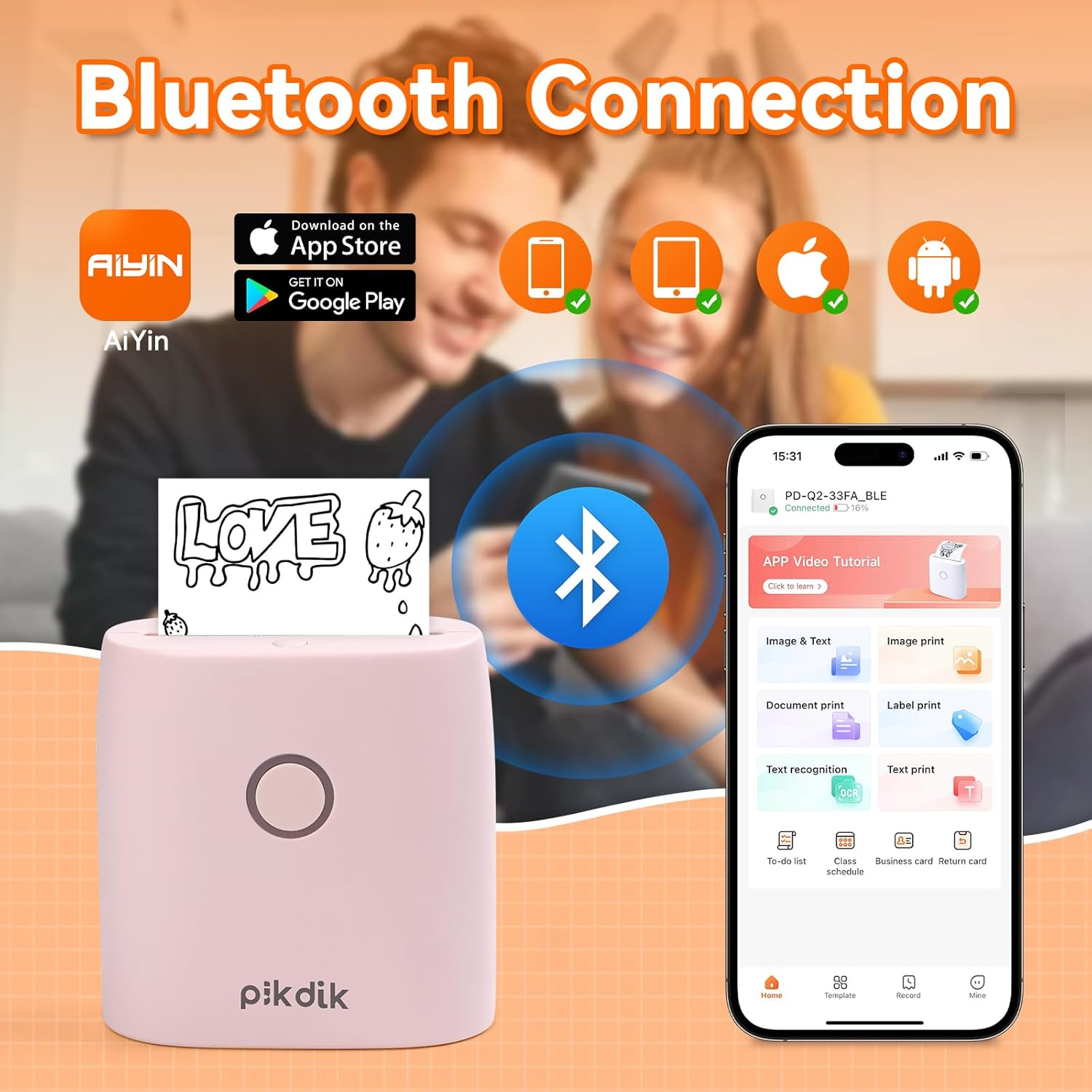
Image: The printer connects to your smartphone via Bluetooth using the Meta Print app, available on both Android and iOS.
6. Bedienungsanleitung
6.1 Printing Content
Once connected to the "Meta Print" app, you can select various content types for printing:
- Image & Text: Print photos, graphics, or combine them with text.
- Dokumentendruck: Print documents or notes.
- Label Print: Create and print custom labels.
- Texterkennung: Convert images of text into editable text for printing.
- Vorlagen: Utilize pre-designed templates for to-do lists, business cards, emojis, and more.
After selecting and editing your content within the app, tap the print button to initiate printing. The printer will output the thermal paper with your printed content.

Image: The printer is suitable for various applications such as journaling, scrapbooking, printing shopping lists, and notes.
6.2 Print Quality and Limitations
The PD-Q2 printer offers a 300 DPI resolution for clear and detailed black and white prints. As a thermal printer, it does not support color printing.
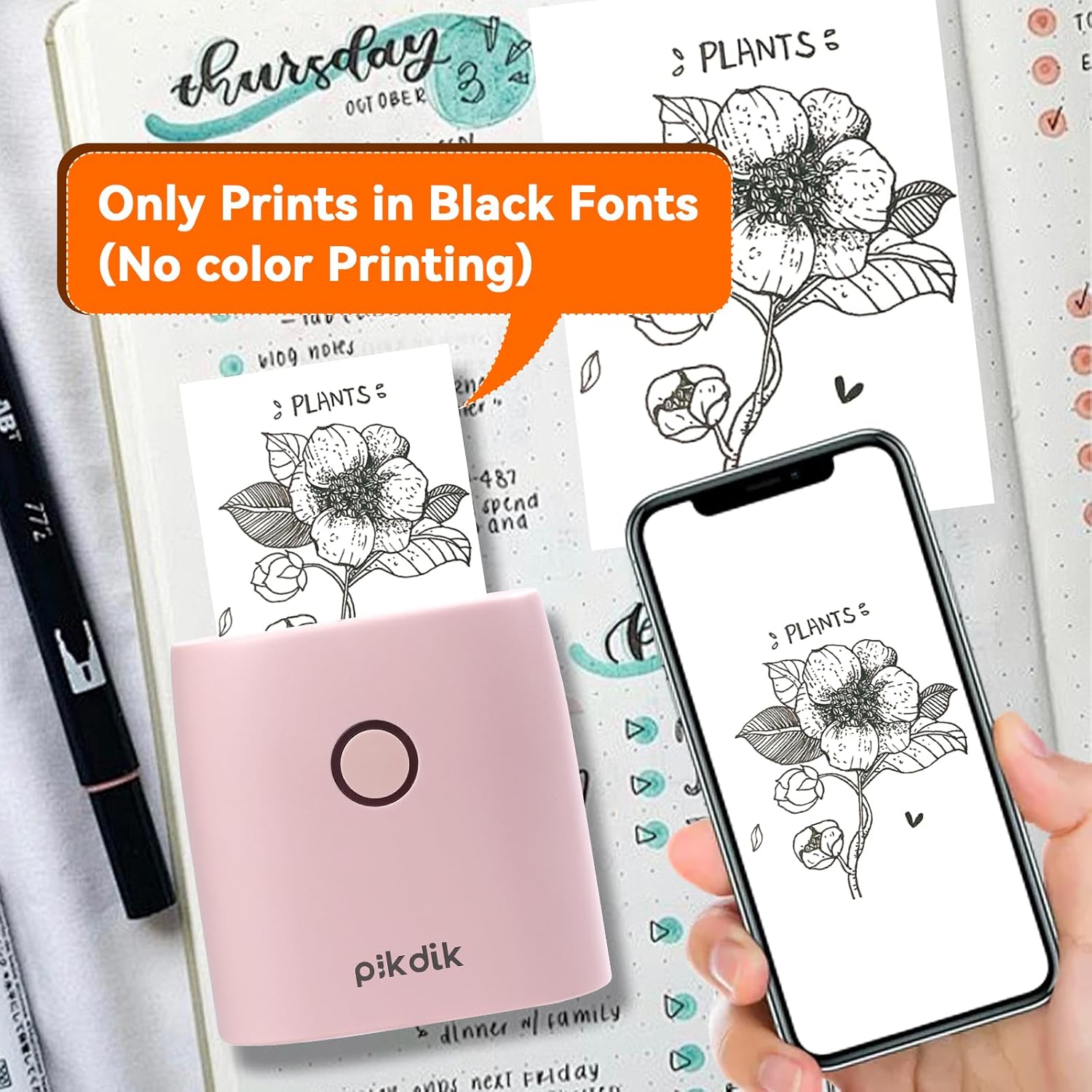
Image: The printer produces prints exclusively in black and white, as shown with a plant illustration.

Image: The 300 DPI resolution of the Q2 printer provides enhanced clarity and detail in prints compared to lower resolution alternatives.
7. Wartung
7.1 Drucker reinigen
Um eine optimale Druckqualität zu gewährleisten, reinigen Sie den Druckkopf regelmäßig. Verwenden Sie dazu ein weiches, fusselfreies Tuch und wischen Sie ihn vorsichtig ab.ampMit Isopropylalkohol reinigen. Die Oberfläche des Druckkopfs vorsichtig abwischen. Vor der Verwendung sicherstellen, dass der Drucker ausgeschaltet und vollständig trocken ist.
7.2 Ersetzen von Thermopapier
When the paper roll is depleted, replace it by following the steps in Section 5.2. Use only thermal paper compatible with the PD-Q2 printer to ensure proper function and print quality.
8. Fehlerbehebung
| Problem | Mögliche Ursache | Lösung |
|---|---|---|
| Der Drucker lässt sich nicht einschalten | Niedriger Batteriestand; Ein-/Ausschalter nicht richtig gedrückt | Laden Sie den Drucker auf; Halten Sie den Netzschalter einige Sekunden lang gedrückt. |
| Verbindung über Bluetooth nicht möglich | Bluetooth off on phone; Printer not in pairing mode; App issue | Ensure phone Bluetooth is on; Restart printer and app; Re-pair device in app. |
| Poor print quality (faint, pixelated) | Low battery; Print head dirty; Incorrect paper type; Image resolution too low | Charge printer; Clean print head (Section 7.1); Use correct thermal paper; Use higher resolution images. |
| Papierstau | Paper not loaded correctly; Foreign object in paper path | Open cover, remove jammed paper, reload correctly; Check for obstructions. |
| Drucker reagiert nicht | Systemfehler | Perform a soft reset by turning the printer off and on again. If issue persists, contact support. |
9. Spezifikationen
| Besonderheit | Detail |
|---|---|
| Modell | Q2 |
| Abmessungen (T x B x H) | 4.1 x 8.4 x 8.4 cm (1.6 x 3.3 x 3.3 Zoll) |
| Gewicht | 0.57 Pfund (ca. 258.55 g) |
| Drucktechnologie | Thermal |
| Druckauflösung | 300 DPI (Monochrom) |
| Konnektivität | Bluetooth |
| Kompatible Geräte | Smartphones, Tablets (Android, iOS) |
| Maximale Mediengröße | 2 Zoll |
| Stromquelle | Built-in Lithium Polymer Battery (Rechargeable via USB Type-C) |
| App-Name | Meta Print |
10. Garantie und Support
For warranty information and technical support, please refer to the warranty card included with your product or contact PikDik customer service directly. Keep your purchase receipt as proof of purchase.