
Einführung
This manual provides comprehensive instructions for setting up, operating, and maintaining your VEIKK A30 Drawing Tablet. Please read this guide thoroughly to ensure optimal performance and longevity of your device.
Lieferumfang
Überprüfen Sie, ob alle Artikel im Paket vorhanden sind:
- VEIKK A30 Drawing Tablet
- Battery-Free Stylus Pen
- USB-C-Kabel
- Pen Nibs (8 replacement nibs)
- Nib-Entferner
- Stifthalter
- Künstlerhandschuh
- Kurzanleitung

Image: The VEIKK A30 Drawing Tablet and its included accessories, such as the pen, USB cable, replacement nibs, and artist glove.
Aufstellen
1. Treiberinstallation
Before connecting the tablet, it is recommended to install the latest driver from the official VEIKK website. If you have other tablet drivers installed, uninstall them first to avoid conflicts.
- Visit the official VEIKK webWebsite.
- Navigate to the 'Support' or 'Downloads' section.
- Locate and download the driver for the VEIKK A30 model compatible with your operating system (Windows, Mac, Android, or Linux).
- Befolgen Sie die Anweisungen auf dem Bildschirm, um die Installation abzuschließen.
2. Anschließen des Tablets
The VEIKK A30 uses a Type-C interface port for connection.
- Connect one end of the provided USB-C cable to the Type-C port on the VEIKK A30 tablet.
- Connect the other end of the USB-C cable to an available USB port on your computer or Android device.
- Ensure the connection is secure. The tablet should be recognized by your system after driver installation.

Bild: Eine detaillierte view of the Type-C interface port on the VEIKK A30 tablet, highlighting its durable design.
3. Stift-Setup
The stylus pen is battery-free and does not require charging.
- Ensure a nib is securely inserted into the pen.
- The pen features two programmable shortcut buttons. These can be customized via the tablet driver settings.
Bedienung des Tablets
1. Basic Drawing and Active Area
The VEIKK A30 offers a 10 x 6 inch active drawing area. The working area can be adjusted through the driver settings if needed.

Image: A user actively drawing on the VEIKK A30 tablet, which is connected to a laptop, demonstrating its use in digital art creation.
2. Customizable Touch Keys and Touch Pad
The tablet features 4 customizable touch keys (K1-K4) and a touch pad for enhanced workflow.
- Customizing Keys: Access the VEIKK driver software to assign functions (e.g., zoom in/out, undo, redo) to the 4 touch keys according to your preferences.
- Touchpad: The touch pad allows for intuitive control of canvas and brushes, similar to a mobile phone interface.
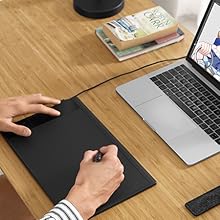
Image: A close-up of the VEIKK A30 tablet's control area, highlighting the four customizable touch keys (K1-K4) and the central touch pad.
3. Stylus Pen Functions
The battery-free pen offers 8192 levels of pressure sensitivity and 60° tilt support for a natural drawing experience.
- Druckempfindlichkeit: Allows for varying line thickness and opacity based on the pressure applied.
- Neigungsfunktion: Simulates traditional brush strokes, enabling shading and varied line effects.
- Programmierbare Tasten: The two buttons on the pen can be customized for functions like eraser/pen toggle or right-click.

Image: An illustration detailing the features of the VEIKK A30's battery-free pen, showcasing its 8192 pressure levels, 60-degree tilt recognition, and programmable buttons.
4. Software and OS Compatibility
The VEIKK A30 is compatible with a wide range of operating systems and creative software.
- Betriebssysteme: Linux, Android, Mac OS (10.12 or later), Windows (7 or later), Chrome OS (88 or later).
- Software: Supports major drawing and design applications such as Corel Painter, Adobe Illustrator, Comic Studio, Manga Studio, Clip Studio, Adobe Photoshop, Gimp, Autodesk Sketchbook, Krita, Maya, Zbrush, and more.

Image: The VEIKK A30 tablet surrounded by logos of compatible software, including Photoshop, Illustrator, SAI, Krita, and Zbrush, demonstrating its broad application support.

Image: The VEIKK A30 tablet connected to an Android smartphone, illustrating its compatibility with Android devices for on-the-go creativity.
Wartung
1. Reinigung des Tablets und des Stifts
- Use a soft, dry cloth to wipe the tablet surface and pen.
- Avoid using harsh chemicals, abrasives, or excessive moisture, as these can damage the device.
2. Replacing Pen Nibs
The pen nibs will wear down over time and should be replaced to maintain optimal performance.
- Use the nib remover tool to gently pull out the old nib from the pen.
- Insert a new replacement nib firmly into the pen until it is secure.
- Ensure the nib is fully seated to prevent issues with pressure sensitivity.
Fehlerbehebung
If you encounter issues with your VEIKK A30 tablet, refer to the following common solutions:
- Tablet reagiert nicht: Ensure the USB-C cable is securely connected to both the tablet and your computer/device. Try a different USB port or cable.
- Stift funktioniert nicht: Check if the pen nib is properly inserted. If the nib is worn, replace it with a new one. Ensure the tablet driver is correctly installed and running.
- Treiberprobleme: If the tablet is not functioning as expected, try reinstalling the latest driver from the VEIKK website. Ensure any other tablet drivers are uninstalled.
- Druckempfindlichkeit funktioniert nicht: Verify that the driver is installed and calibrated correctly. Check your software settings to ensure pressure sensitivity is enabled.
- Ungenauer Cursor: Recalibrate the working area in the VEIKK driver settings.
For further assistance, visit the official VEIKK support webWebsite oder wenden Sie sich an den Kundendienst.
Technische Daten
| Besonderheit | Spezifikation |
|---|---|
| Technische Daten | 13 x 8.4 x 0.1 Zoll (358 x 200 x 9 mm) |
| Artikelgewicht | 1.27 Pfund |
| Aktiver Bereich | 10 x 6 Zoll |
| Druckempfindlichkeit | 8192 Ebenen |
| Neigungsunterstützung | 60° |
| Konnektivitätstechnologie | USB-C |
| Betriebssystemkompatibilität | Windows 7 or later, Mac OS 10.12 or later, Android 6.0 or later, Linux, Chrome OS 88 or later |
| Besondere Merkmale | Battery-Free Pen, 4 Customizable Touch Keys, 1 Touch Pad |
Garantie und Support
VEIKK products typically come with a manufacturer's warranty. Please refer to the warranty card included with your product or visit the official VEIKK webAusführliche Informationen und Bedingungen zur Garantie finden Sie auf der Website.
For technical support, driver updates, or frequently asked questions, please visit the VEIKK support page: