
1. Einleitung
The ETOE Smart Projector D2 Pro is a compact and versatile home entertainment device designed to deliver a high-quality viewing experience. Featuring Android TV 10.0, built-in Chromecast, and a native 1080P resolution with 4K support, it provides access to a wide range of streaming content and connectivity options. This manual provides essential information for setting up, operating, and maintaining your projector.

Image: The ETOE Smart Projector D2 Pro, showcasing its compact design, included remote control, and a projection of the Android TV interface with Netflix and other apps.
2. Lieferumfang
Bitte überprüfen Sie nach dem Auspacken den Packungsinhalt, um sicherzustellen, dass alle Artikel vorhanden sind:
- ETOE D2 Pro Projector (x1)
- Remote Control (x1, batteries not included)
- DC 19V Adapter (x1)
- Netzkabel (x1)
- User Manual + Quick Guide (x1)
3. Körperliche Übergriffeview
Familiarize yourself with the projector's ports and controls for optimal use.

Bild: Rückseite view of the ETOE D2 Pro Projector, highlighting the DC power input, USB port, HDMI port, and Aux audio output.
Ports und Verbindungen:
- DC for Power: Schließen Sie hier das mitgelieferte Netzteil an.
- USB: For connecting USB drives to play media or connect compatible accessories.
- HDMI: For connecting external devices such as laptops, gaming consoles (PS5/PS4, X-Box ONE), TV boxes, or Fire TV sticks.
- Zusatz: For connecting external audio devices like headphones or speakers via a 3.5mm audio cable.
4. Einrichtung
4.1 Aufstellung und Bildschirmgröße
Position the projector on a stable, flat surface. The optimal projection distance will vary based on your desired screen size. The projector supports screen sizes from 40 inches to 120 inches, with 100 inches being the recommended size for a balanced viewErfahrung.
4.2 Einschalten
- Connect the DC 19V adapter to the projector's DC input port.
- Stecken Sie das Netzkabel in eine Steckdose.
- Drücken Sie den Netzschalter am Projektor oder auf der Fernbedienung, um das Gerät einzuschalten.
4.3 Fokus- und Trapezkorrektur
To ensure a clear and rectangular image, adjust the focus and keystone correction.

Image: Diagram illustrating the manual focus, digital 4D & 4P keystone correction, and digital zoom features of the ETOE D2 Pro Projector.
- Manueller Fokus: Drehen Sie den Fokusring am Projektorobjektiv, bis das Bild scharf und klar erscheint.
- Digital Keystone Correction (4D & 4P): If the projected image is trapezoidal or tilted, use the digital keystone correction feature to adjust it into a perfect rectangle. This can be done through the projector's settings menu.
- Digital Zoom (50% - 100%): Adjust the projection size without physically moving the projector using the digital zoom function in the settings.
5. Bedienung des Projektors
5.1 Android TV 10.0-Oberfläche
The projector runs on Android TV 10.0, providing access to over 8000 apps from Google Play, including Netflix, YouTube, Disney+, HBO Max, and Spotify. Navigate the interface using the remote control.

Image: A comparison showing the rich Android TV 10.0 interface of the ETOE D2 Pro System on the left, with numerous app icons, versus a simpler, less feature-rich interface of other projectors on the right.
- Use the directional buttons on the remote to navigate through menus and select apps.
- Drücken Sie die Taste „OK“, um die Auswahl zu bestätigen.
- Utilize the voice control feature (Google Assistant) on the remote for hands-free content search and control.
5.2 Casting with Chromecast Built-in
The built-in Chromecast allows for seamless content casting from your Android, iOS devices, or laptops.
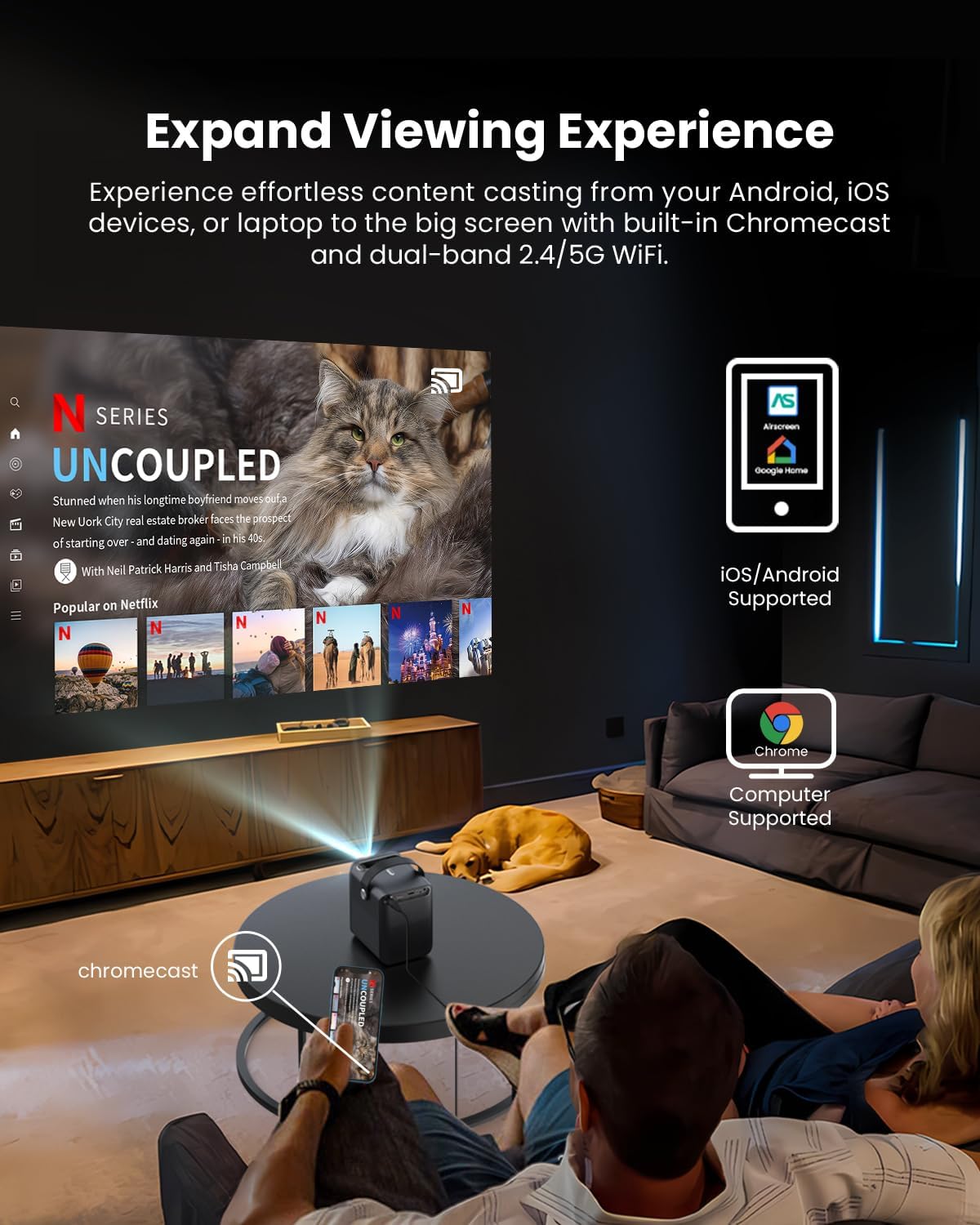
Image: A person relaxing on a couch, casting content from their smartphone to the ETOE D2 Pro Projector, demonstrating the Chromecast feature for an expanded viewErfahrung.
- Ensure your mobile device or computer is connected to the same Wi-Fi network as the projector.
- Öffnen Sie eine Chromecast-fähige App (z. B. YouTube, Netflix) auf Ihrem Gerät.
- Tippe auf das Cast-Symbol (üblicherweise ein Rechteck mit einem WLAN-Symbol) and select your ETOE D2 Pro Projector from the list of available devices.
5.3 Externe Geräte anschließen
Der Projektor bietet vielfältige Anschlussmöglichkeiten für verschiedene Geräte.

Image: The ETOE D2 Pro Projector displayed with various compatible accessories, including a TV stick, USB stick, external speaker, and headphones, illustrating its versatile connectivity options.
- HDMI: Connect TV sticks, gaming consoles, laptops, or other HDMI-enabled devices to the HDMI port. Select the HDMI input source from the projector's menu.
- USB: Insert a USB drive into the USB port to play local media files (Videos, Fotos, Musik).
- Bluetooth: Pair Bluetooth speakers or headphones for wireless audio output. Go to the projector's Bluetooth settings to search for and connect to devices.
- Zusatz: Use a 3.5mm audio cable to connect wired headphones or external speakers to the Aux port.
5.4 Bild- und Audioeinstellungen
Passen Sie die Bild- und Toneinstellungen an, um Ihr Erlebnis zu optimieren. viewErfahrung.

Image: The ETOE D2 Pro Projector projecting a vibrant city scene, highlighting its native 1080P Full HD resolution, 4K support, 400 ANSI lumens brightness, and HDR 10 compatibility for stunning image quality.
- Bildmodus: Select from preset picture modes (e.g., Standard, Vivid, Movie) or customize settings like brightness, contrast, and color temperature.
- Klangmodus: Choose from various sound modes (e.g., Standard, Music, Movie) or adjust equalizer settings for the built-in dual 3W speakers or connected audio devices.
- Projektionsmodus: Adjust the projection mode (e.g., Front, Rear, Ceiling Front, Ceiling Rear) based on your projector's placement.
6. Wartung
6.1 Dust-Free Design
The ETOE D2 Pro features a fully-sealed optical engine designed to prevent dust from entering the lens area, ensuring long-term performance and reducing the need for frequent internal cleaning.

Image: An illustration of the ETOE D2 Pro Projector's sealed optical engine, showing how it prevents dust from entering the internal components, ensuring long-lasting performance.
6.2 Allgemeine Reinigung
- Exterieur: Wipe the exterior of the projector with a soft, dry, lint-free cloth. Do not use abrasive cleaners or solvents.
- Linse: Gently clean the projector lens with a lens cleaning cloth or a soft brush designed for optical surfaces. Avoid touching the lens directly with your fingers.
- Vor der Reinigung unbedingt den Projektor vom Stromnetz trennen.
7. Fehlerbehebung
Sollten Sie Probleme mit Ihrem Projektor haben, beachten Sie bitte die folgenden häufig auftretenden Probleme und Lösungen:
| Problem | Mögliche Ursache | Lösung |
|---|---|---|
| Kein Bild | Power cable loose; Incorrect input source; Device not connected | Check power connection; Select correct HDMI/USB input; Ensure external device is properly connected and powered on. |
| Unscharfes Bild | Focus not adjusted; Keystone not corrected | Adjust the manual focus ring; Use digital keystone correction in settings. |
| Kein Ton | Volume too low; Muted; Incorrect audio output; External device audio issue | Increase volume; Unmute; Check audio output settings (internal speakers, Bluetooth, Aux); Verify audio settings on connected device. |
| Fernbedienung funktioniert nicht | Batterien schwach/leer; Hindernis zwischen Fernbedienung und Projektor | Batterien austauschen; Sicherstellen, dass eine freie Sichtlinie zum Infrarotempfänger des Projektors besteht. |
| Keine Verbindung zum WLAN möglich | Incorrect password; Router issue; Projector too far from router | Double-check Wi-Fi password; Restart router; Move projector closer to router. |
If the problem persists after trying these solutions, please contact ETOE customer support.
8. Spezifikationen
| Besonderheit | Detail |
|---|---|
| Modell | D2Pro |
| Betriebssystem | Android TV 10.0 |
| Bildschirmauflösung | Native 1920 x 1080 (1080P Full HD), 4K video supported |
| Helligkeit | 400 ANSI-Lumen |
| Kontrastverhältnis | HDR 10 support |
| Projektionsgröße | 40" - 120" (100" recommended) |
| Keystone-Korrektur | Digital 4D & 4P Keystone |
| Zoomfunktion | Digitaler Zoom (50 % - 100 %) |
| Konnektivität | HDMI, USB, Chromecast, 5G WiFi, Bluetooth, Aux |
| Audio | Zwei 3-W-Lautsprecher |
| Optische Engine | Fully-sealed (Dust-proof) |
| Artikelgewicht | 3.58 Pfund |
| Technische Daten | 5.31 x 4.45 x 5.83 Zoll |
9. Garantie und Support
ETOE provides comprehensive support for your D2 Pro projector:
- Garantie: A 12-month after-sales service is provided from the date of purchase.
- Technische Unterstützung: Lifetime technical support is available for all ETOE D2 Pro users.
For any questions, technical assistance, or warranty claims, please contact ETOE customer support directly. There is no need to return the projector without prior contact.