
1. Produktüberschreitungview
The TP-Link ER707-M2 is an Omada Multi-Gigabit VPN Router designed for high-performance networking environments. It features dual 2.5 Gigabit WAN ports, a Gigabit SFP WAN/LAN port, and multiple Gigabit RJ45 WAN/LAN ports, providing flexible connectivity and high-bandwidth aggregation. This router integrates seamlessly with the Omada SDN Controller for centralized management and offers robust security features including an SPI Firewall and various VPN protocols.
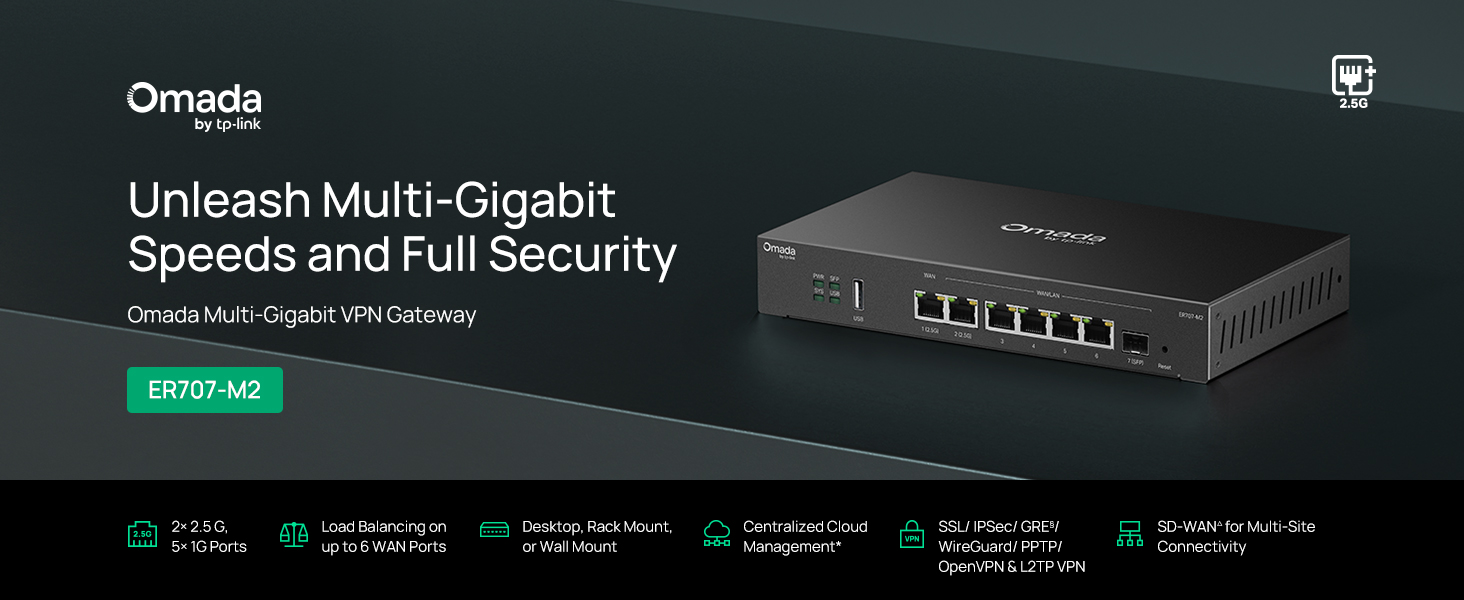
Abbildung 1: Vorderseite view of the ER707-M2 router, highlighting its ports and indicators.
Hauptmerkmale:
- Flexible Portkonfiguration: Includes 1x 2.5Gigabit WAN Port, 1x 2.5Gigabit WAN/LAN Port, 4x Gigabit WAN/LAN Ports, 1x Gigabit SFP WAN/LAN Port, and 1x USB 2.0 Port.
- High-Performance Network Capacity: Supports up to 500,000 concurrent sessions and over 1000 clients.
- Cloud-Zugriff: Centralized cloud management via Omada app and web Schnittstelle.
- Hochsicheres VPN: Unterstützt bis zu 100 LAN-zu-LAN IPsec-, 66 OpenVPN-, 60 L2TP- und 60 PPTP-VPN-Verbindungen.
- Erweiterte Sicherheit: Features SPI Firewall, Policy-based Firewall, Static Routing, Policy Routing, Multi-net DHCP, Guest Portal, and VLAN support.
- Load Balance & Link Backup: Optimizes multi-line broadband efficiency and reliability.
- USB 2.0-Anschluss: Supports USB storage and LTE backup with a compatible LTE dongle.
2. Packungsinhalt
Überprüfen Sie, ob Ihr Paket die folgenden Artikel enthält:
- TP-Link ER707-M2 Omada Multi-Gigabit VPN Router
- Netzteil
- Kurzanleitung zur Installation
If any item is missing or damaged, please contact your reseller or TP-Link support.
3. Einrichtung
3.1 Hardware-Installation
- Stromanschluss: Connect the provided power adapter to the router's power input and then to a power outlet.
- WAN-Verbindung: Connect your modem or internet service provider's device to one of the WAN ports (e.g., WAN1 2.5G or WAN/LAN2 2.5G) using an Ethernet cable. For fiber connections, use the SFP port with a compatible SFP module.
- LAN-Verbindung: Connect your local network devices (e.g., computers, switches, Omada Access Points) to the LAN ports (WAN/LAN2-6) using Ethernet cables.
- USB-Gerät (optional): If using a USB storage device or an LTE dongle for backup, insert it into the USB 2.0 port.
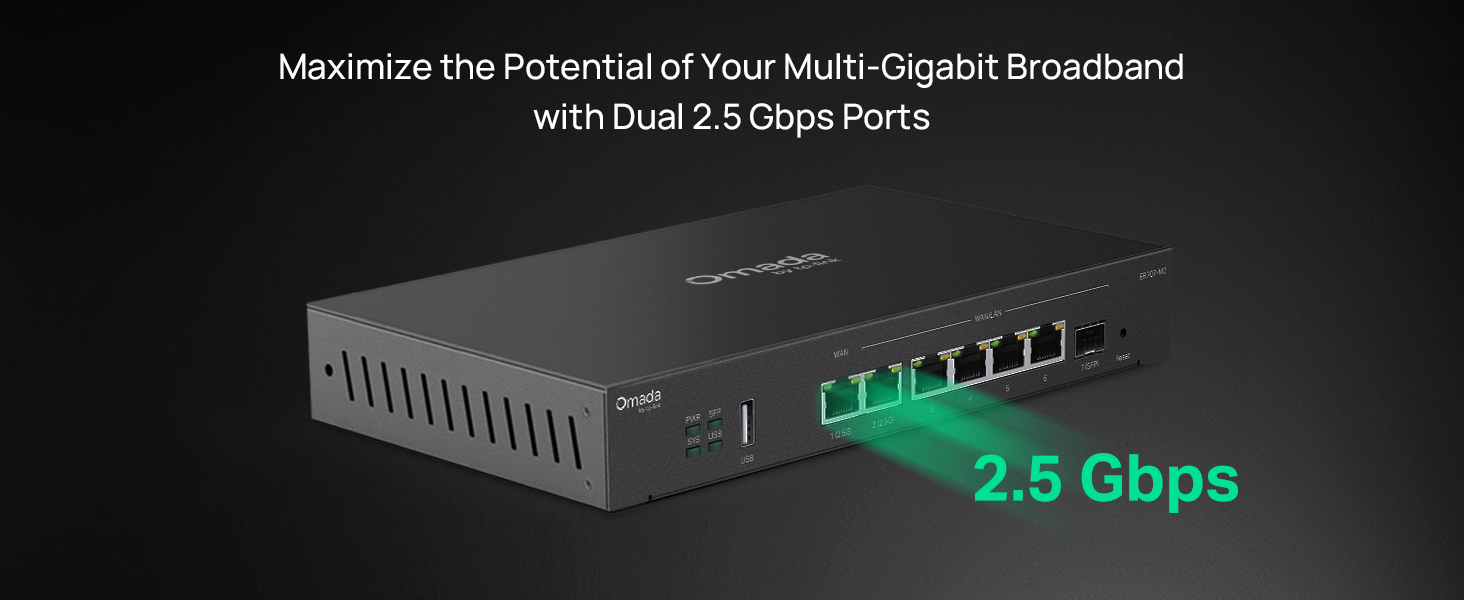
Figure 2: Illustration of the router's 2.5 Gbps ports for high-speed connectivity.
3.2 Erstkonfiguration
The ER707-M2 can be managed via the Omada SDN Controller or through its local web Schnittstelle.
- Mit dem Router verbinden: Stellen Sie sicher, dass Ihr Computer an einen der LAN-Anschlüsse des Routers angeschlossen ist.
- Zugang Web Schnittstelle: Öffnen Sie ein web im Browser die Standard-IP-Adresse eingeben (normalerweise
192.168.0.1or192.168.1.1) in the address bar. Refer to the Quick Installation Guide for the exact default IP and login credentials. - Folgen Sie dem Einrichtungsassistenten: The first time you log in, a setup wizard will guide you through basic internet connection settings, changing the default password, and configuring Wi-Fi (if applicable).
- Omada SDN-Integration (optional): For centralized management, adopt the router into your Omada SDN Controller. This allows for remote management and unified control of your network devices.
4. Bedienungsanleitung
4.1 Netzwerkkonfiguration
The router offers extensive configuration options for your network:
- WAN-Einstellungen: Configure WAN ports for different connection types (Dynamic IP, Static IP, PPPoE).
- LAN-Einstellungen: Manage IP addresses, DHCP server, and VLANs for your local network segments.
- Multi-WAN Load Balancing: Distribute internet traffic across multiple WAN connections to optimize bandwidth and provide redundancy.
- Link Backup: Configure a secondary WAN connection (e.g., via LTE dongle) to automatically take over if the primary connection fails.
4.2 VPN-Funktionalität
The ER707-M2 supports various VPN protocols for secure remote access and site-to-site connectivity.
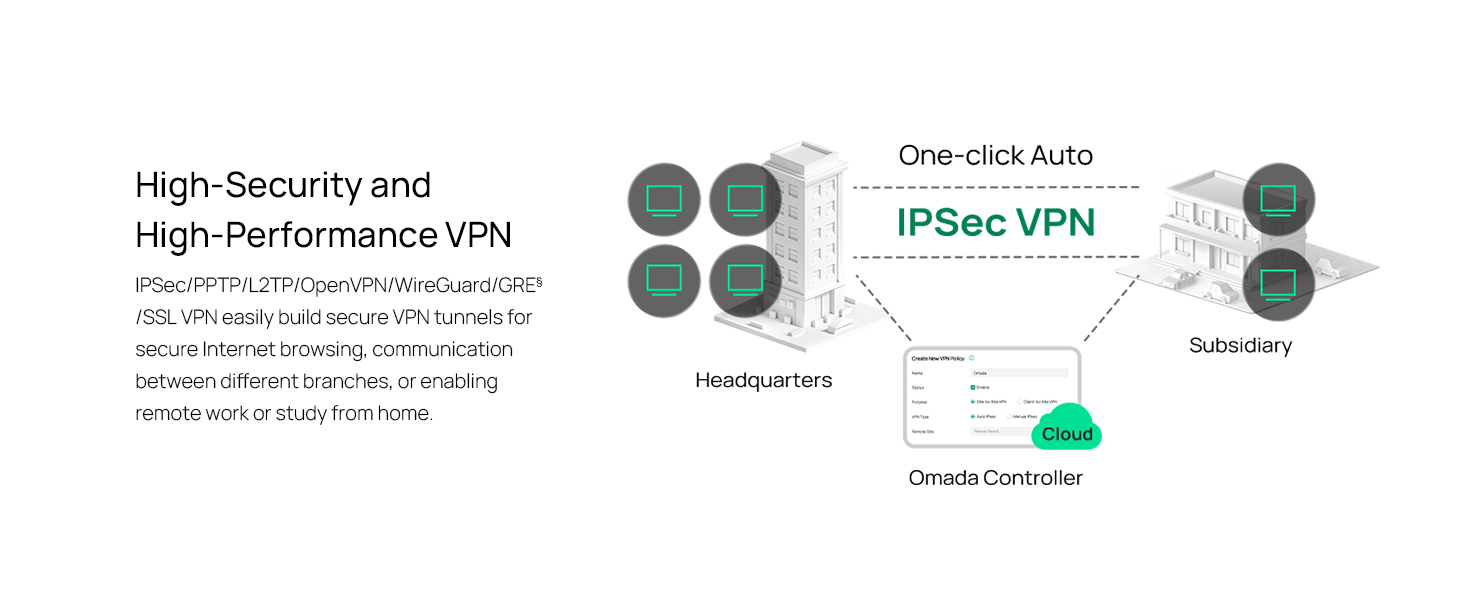
Figure 3: Visual representation of a secure VPN tunnel setup.
- IPsec-VPN: Establish secure tunnels between networks (e.g., office to branch office).
- OpenVPN/SSL VPN: Provide secure remote access for individual users.
- PPTP/L2TP VPN: Legacy VPN protocols for various client connections.
4.3 Sicherheitsfunktionen
The router includes advanced security measures to protect your network:
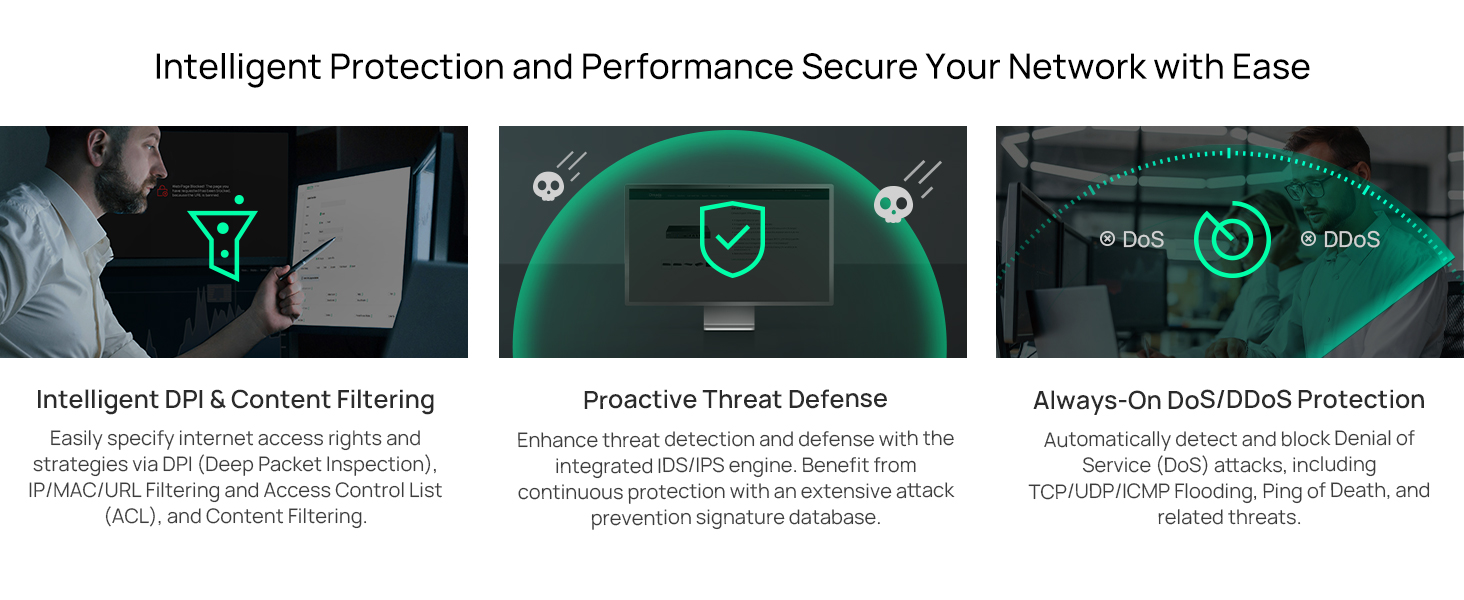
Abbildung 4: Überview of intelligent protection and performance features.
- SPI-Firewall: Stateful Packet Inspection firewall for network protection.
- Policy-based Firewall: Define rules to control network traffic based on specific criteria.
- DoS/DDoS-Schutz: Defend against Denial of Service and Distributed Denial of Service attacks.
- Zugriffskontrollliste (ACL): Manage network access for specific devices or users.
4.4 Omada SDN-Integration
The ER707-M2 is part of the Omada Software-Defined Networking (SDN) solution, allowing for centralized management of your entire network.

Figure 5: How the ER707-M2 integrates into an Omada SDN network.
- Zentralisiertes Management: Manage the router, access points, and switches from a single interface via the Omada Controller (hardware or software).
- Fernzugriff: Access and manage your network from anywhere using the Omada app or cloud portal.
- Seamless Scalability: Easily expand your network by adding more Omada devices.
5. Wartung
To ensure optimal performance and security of your ER707-M2 router, regular maintenance is recommended:
- Firmware-Updates: Überprüfen Sie regelmäßig die offizielle TP-Link-Website. website for the latest firmware versions. Updating firmware can improve performance, add new features, and fix security vulnerabilities.
- Konfigurationssicherung: Regularly back up your router's configuration settings. This allows for quick restoration in case of accidental changes or system issues.
- Physische Inspektion: Ensure the router is placed in a well-ventilated area, free from dust and obstructions. Check cable connections for secure fit.
- Sicherheit Review: In regelmäßigen Abständenview your firewall rules, VPN settings, and access control lists to ensure they meet your current security requirements.
6. Fehlerbehebung
If you encounter issues with your ER707-M2 router, consider the following troubleshooting steps:
- Kein Internetzugang:
- Check all cable connections (WAN, LAN, Power).
- Verify your modem or ISP device is working correctly.
- Confirm WAN settings in the router's web Schnittstelle sind richtig.
- Restart the modem, then the router, and then your connected devices.
- Kein Zugriff möglich Web Verwaltungsseite:
- Stellen Sie sicher, dass Ihr Computer mit einem LAN-Anschluss des Routers verbunden ist.
- Verify your computer's IP address is in the same subnet as the router (e.g., if router is 192.168.0.1, computer should be 192.168.0.x).
- Versuchen Sie, den Cache Ihres Browsers zu leeren oder einen anderen Browser zu verwenden.
- Sollte das Problem weiterhin bestehen, führen Sie einen Werksreset durch (siehe unten).
- Langsame Netzwerkgeschwindigkeit:
- Überprüfen Sie die Geschwindigkeit Ihres Internetanbieters.
- Ensure all cables are Cat5e or higher for Gigabit/2.5Gig connections.
- Überwachen Sie die Netzwerknutzung, um bandbreitenintensive Anwendungen oder Geräte zu identifizieren.
- Verify duplex settings on connected devices and router ports.
- Werkseinstellungen zurückgesetzt: If all else fails, you can restore the router to its factory default settings. Locate the Reset button on the router (often a small pinhole button), press and hold it for about 5-10 seconds until the system LED blinks, then release. This will erase all custom configurations.
7. Spezifikationen
| Besonderheit | Detail |
|---|---|
| Marke | TP-Link |
| Modellname | ER707-M2 |
| Konnektivitätstechnologie | Ethernet |
| Anzahl der Ports | 6 (1x 2.5G WAN, 1x 2.5G WAN/LAN, 4x Gigabit WAN/LAN, 1x Gigabit SFP WAN/LAN, 1x USB 2.0) |
| LAN-Port-Bandbreite | 10/100/1000/2500 Mbit/s |
| Datenübertragungsrate | 2500 Megabit pro Sekunde |
| Maximale Upstream-Datenübertragungsrate | 5000 Megabit pro Sekunde |
| Security Protocol | SSL, IPSec, GRE, SSH, IKEv1/v2, PPTP, L2TP, OpenVPN |
| Kontrollmethode | App, Web Schnittstelle |
| Betriebssystem | ZyNOS (TP-Link Omada) |
| Artikelgewicht | 1.1 Kilogramm |
| Artikelabmessungen (L x B x H) | 12.9 Zoll L x 9.5 Zoll B x 3.1 Zoll H |
8. Garantieinformationen
The TP-Link ER707-M2 Omada Multi-Gigabit VPN Router is backed by an industry-leading 5 Jahr HerstellergarantieDiese Garantie deckt Material- und Verarbeitungsfehler bei normalem Gebrauch ab. Bitte bewahren Sie Ihren Kaufbeleg für Garantieansprüche auf.
9. Unterstützung
For technical assistance, product information, or warranty inquiries, please contact TP-Link support:
- Telefonischer Support: (866) 225-8139 (Available Monday to Friday, 6am to 6pm PST)
- Produkt WebWebsite: myproducts.tp-link.com/us
- E-Mail-Support: support.USA@tp-link.com