
Dcorn 20230412002
Dcorn 10-inch LCD HDMI Digital Microscope User Manual
Modell: 20230412002
Einführung
This manual provides detailed instructions for the setup, operation, and maintenance of your Dcorn 10-inch LCD HDMI Digital Microscope. Please read this manual thoroughly before using the device to ensure proper functionality and to maximize your viewErfahrung.

Abbildung 1: Dcorn 10-inch LCD HDMI Digital Microscope. This image displays the complete microscope unit, including the 10-inch LCD screen, the adjustable stand, the microscope lens, two flexible LED side lights, a remote control, and a 32GB SD card.
Packungsinhalt
Bitte überprüfen Sie, ob alle unten aufgeführten Artikel in Ihrem Paket enthalten sind:
- 1 x Dcorn 10-inch Digital Microscope Unit
- 1 x Aluminum Stand
- 1 x Verlängerungsrohr
- 1 x Fernbedienung
- 1 x 32GB Micro SD Karte
- 1 x USB-Kabel
- 1 x HDMI-Kabel
- 1 x Netzteil
- 1 x Benutzerhandbuch
- 1 x CD (for PC software/drivers)
Installationsanweisungen
- Komponenten auspacken: Entnehmen Sie vorsichtig alle Komponenten aus der Verpackung.
- Montieren Sie den Ständer: Attach the microscope unit to the aluminum stand. Ensure it is securely fastened. The stand allows for adjustable height and angle.
- Install Extension Tube (Optional): Für viewing larger objects like entire coins, insert the provided extension tube between the lens and the microscope body.

Abbildung 2: Comparison of microscope setup with and without the extension tube. The image demonstrates how the 4.7-inch extension tube allows for a wider field of view, enabling the observation of an entire coin, compared to a standard setup.
- SD-Karte einlegen: Locate the Micro SD card slot on the microscope unit and insert the included 32GB card. This card is used for storing captured images and videos.
- Strom anschließen: Connect the power adapter to the microscope and plug it into a power outlet.
- Beleuchtung anpassen: Position the two flexible LED side lights to illuminate your specimen evenly. The main unit also has built-in LEDs.
Bedienungsanleitung
1. Ein-/Ausschalten
Drücken Sie die LEISTUNG button on the microscope unit to turn it on or off. The LCD screen will display the live view.

Abbildung 3: The 10-inch LCD screen displaying a magnified image of a butterfly, demonstrating the clear visual output of the microscope.
2. Einstellen von Vergrößerung und Fokus
- Vergrößerung: The microscope offers a magnification range of 10X to 1500X. Adjust the height of the microscope unit on the stand to change the initial magnification.
- Fokus: Use the focus wheel on the microscope lens to achieve a clear image. Fine-tune the focus for optimal detail.

Abbildung 4: Visuelle Übungamples of different magnification levels (50X, 500X, 1500X) on various specimens, including a plant, an ant, and a coin, illustrating the microscope's zoom capabilities.
3. Adjusting Illumination
The microscope features 6 main LEDs and 2 adjustable side lights. Use the touch controls on the unit or the remote control to adjust the brightness of the LEDs.

Abbildung 5: Demonstration of the dimmable LED touch control. The image shows how to adjust the lighting from 0% to 100% using the controls, with examples of a gold coin under different illumination levels (OFF, 20%, 50%, 100%).
4. Aufnehmen von Bildern und Videos
- Fotoaufnahme: Drücken Sie die OK button on the unit or the corresponding button on the remote control to take a still image. Images are saved to the Micro SD card.
- Videoaufnahme: Drücken Sie die SPEISEKARTE button and navigate to the video recording option, then press OK to start/stop recording. Videos are saved to the Micro SD card.

Abbildung 6: Icons representing photo and video capture functions, indicating the microscope's capability to record both still images and moving footage.
- Fernbedienung: The included remote control allows for hands-free operation, reducing vibrations and ensuring clearer captures.

Abbildung 7: The remote control for the Dcorn digital microscope, designed to prevent screen flicker and provide a seamless viewing experience by allowing adjustments without touching the main unit.
5. Connecting to External Displays (HDMI/USB)
- HDMI-Ausgang: Connect an HDMI cable from the microscope's HDMI port to an external monitor or TV for a larger viewErfahrung.
- USB-Ausgang: Connect the microscope to a PC (Windows/MacOS) via a USB cable. Install the provided software from the CD for live viewing and advanced controls on your computer.
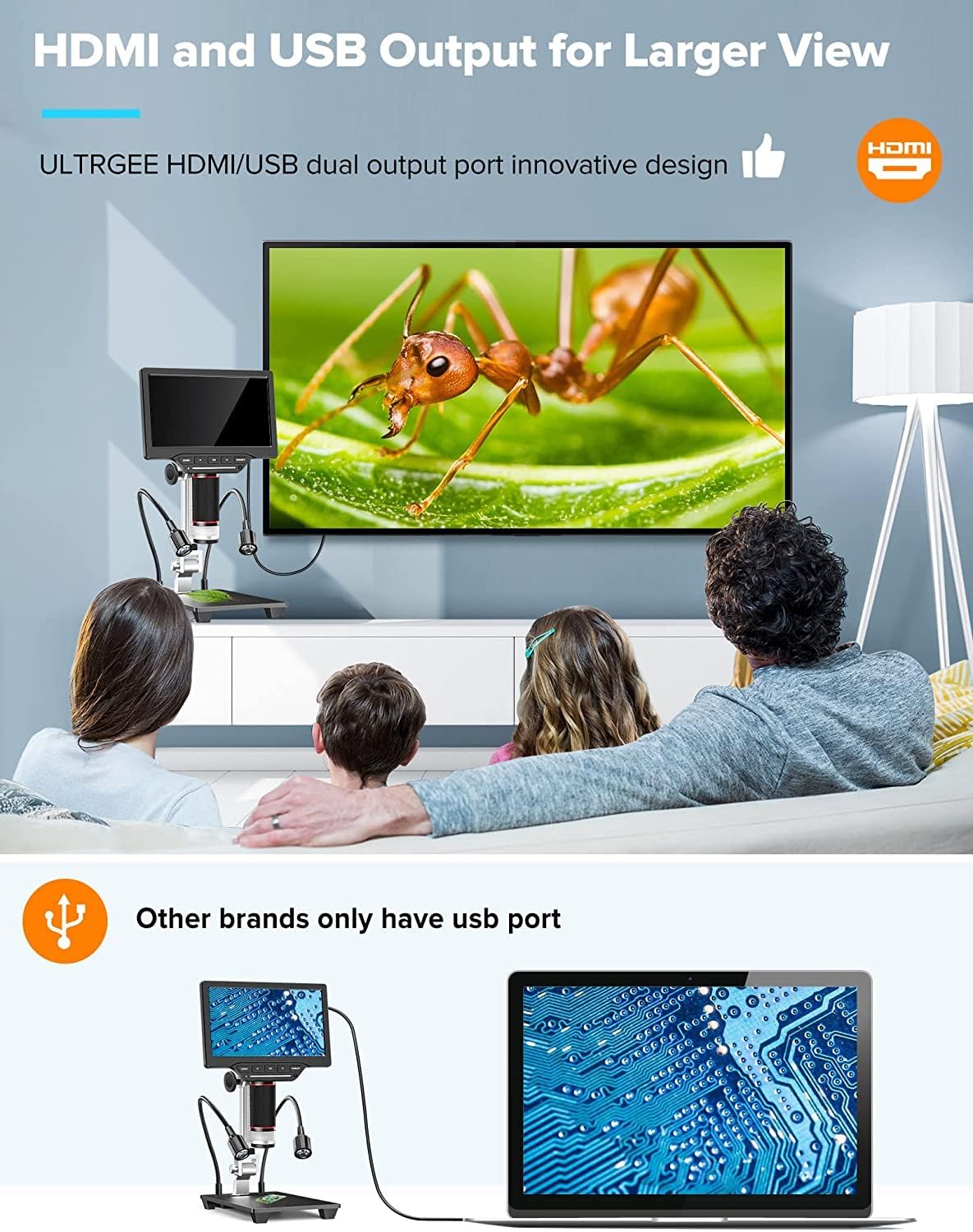
Abbildung 8: The Dcorn microscope connected to an external monitor via HDMI and to a laptop via USB, illustrating its dual output capabilities for a wider viewErfahrungen sammeln und teilen.
Wartung
- Reinigung der Linse: Use a soft, lint-free cloth specifically designed for optical lenses to gently wipe the microscope lens. Avoid using abrasive materials or harsh chemicals.
- Reinigen des Bildschirms: Use a microfiber cloth to clean the LCD screen. If necessary, slightly dampDas Tuch mit Wasser oder einer Bildschirmreinigungslösung befeuchten.
- Allgemeine Reinigung: Wischen Sie das Gehäuse des Mikroskops und den Ständer mit einem trockenen oder leicht feuchten Tuch ab.amp Tuch.
- Lagerung: When not in use, store the microscope in a clean, dry place, away from direct sunlight and extreme temperatures.
Fehlerbehebung
| Problem | Mögliche Ursache | Lösung |
|---|---|---|
| Kein Bild auf dem Bildschirm | Power not connected; Microscope not turned on; Lens cap still on. | Ensure power adapter is connected and unit is powered on. Remove lens cap. |
| Bild ist verschwommen | Incorrect focus; Incorrect working distance; Dirty lens. | Adjust the focus wheel. Adjust the height of the microscope. Clean the lens. |
| Fotos/Videos können nicht aufgenommen werden | SD-Karte nicht eingelegt; SD-Karte voll; SD-Karte beschädigt. | Insert SD card. Delete unnecessary files or replace SD card. Format SD card (backup data first). |
| No output to external monitor/PC | Cable not connected properly; Incorrect input selected on external display; Driver not installed (for PC). | Check HDMI/USB cable connections. Select correct input source on monitor/TV. Install software/drivers from the provided CD for PC connection. |
| LED-Leuchten funktionieren nicht | Lights turned off; Brightness set to 0%. | Turn on lights and increase brightness using touch controls or remote. |
Technische Daten
| Marke | Dekor |
| Modellnummer | 20230412002 |
| Bildschirmgröße | 10-Zoll-LCD |
| Kameraauflösung | 16 Megapixel |
| Vergrößerungsbereich | 10x - 1500x |
| Videoauflösung | 1920x1080 30fps, 1280x1020 60fps |
| Fotoauflösung | Up to 5376x3024 (16MP) |
| Lagerung | 32 GB Micro-SD-Karte (im Lieferumfang enthalten) |
| Ausgangsanschlüsse | HDMI, USB |
| Kompatible Geräte | Devices with HDMI port, MacOS, Windows PCs |
| Beleuchtung | 6 Main LEDs, 2 Side LEDs (Dimmable Touch Control) |
| Material | Metall, ABS |
| Produktabmessungen (L x B x H) | 11.5 x 20 x 36.5 cm |
| Wasserdichtigkeit | Nicht wasserdicht |
Garantie und Support
The Dcorn 10-inch LCD HDMI Digital Microscope comes with a 5 Jahr Garantie. For technical support, warranty claims, or further assistance, please refer to the contact information provided with your purchase or visit the official Dcorn webWebsite.
Verfügbarkeit von Ersatzteilen: Informationen nicht verfügbar.
Software Updates Guaranteed Until: Information unavailable.
Ask a question about this manual
Ask about setup, troubleshooting, compatibility, parts, safety, or missing instructions. Manuals+ will review the question and use this page’s manual context to help answer it.