
Einführung
This manual provides essential instructions for the installation, operation, maintenance, and troubleshooting of your HIKSEMI Hikvision Wave SATA 3.0 512GB Solid State Drive. Please read this manual thoroughly before using the product to ensure proper functionality and longevity.
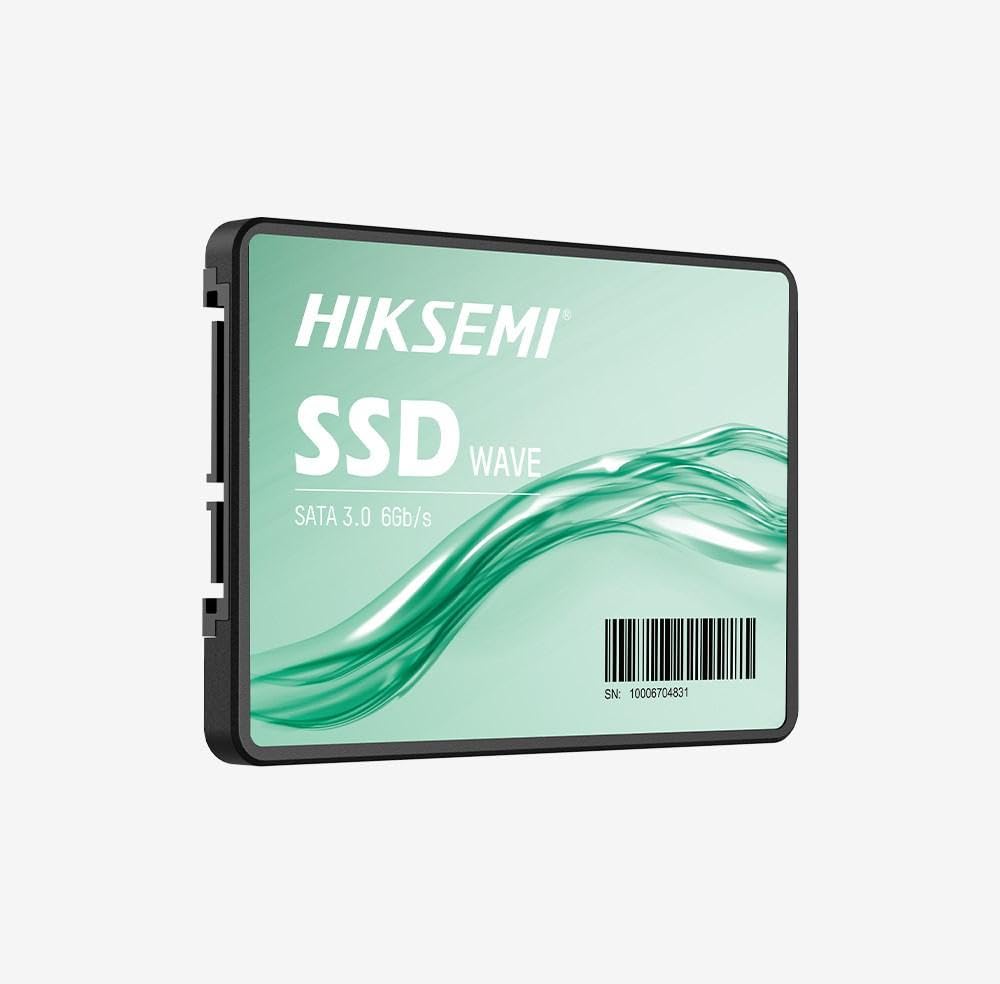
Image: HIKSEMI Hikvision Wave SATA 3.0 512GB Solid State Drive. This image displays the compact 2.5-inch form factor of the SSD, highlighting its sleek design and standard SATA interface connectors.
Sicherheitshinweise
Beachten Sie die folgenden Sicherheitsvorkehrungen, um Schäden am Laufwerk oder Verletzungen zu vermeiden:
- Always handle the SSD by its edges to avoid touching the circuit board or connectors.
- Stellen Sie sicher, dass Ihr Computer vor der Installation ausgeschaltet und vom Stromnetz getrennt ist.
- Discharge static electricity by touching a grounded metal object before handling the SSD.
- Do not expose the SSD to moisture, extreme temperatures, or strong magnetic fields.
- Versuchen Sie nicht, die SSD zu zerlegen oder zu verändern. Dadurch erlischt die Garantie.
Packungsinhalt
Überprüfen Sie, ob alle Artikel im Paket vorhanden sind:
- HIKSEMI Hikvision Wave SATA 3.0 512GB Solid State Drive (HS-SSD-WAVE-S-512G)
- Kurzanleitung (falls enthalten)
Note: SATA data and power cables are typically not included and must be purchased separately if not already present in your system.
Setup und Installation
1. Physische Installation (Desktop-PC)
- Bereiten Sie Ihr System vor: Schalten Sie Ihren Computer aus und ziehen Sie das Netzkabel ab. Öffnen Sie das Computergehäuse.
- Suchen Sie einen Laufwerksschacht: Find an available 2.5-inch drive bay. If only 3.5-inch bays are available, you may need a 2.5-inch to 3.5-inch adapter bracket (not included).
- SSD einbauen: Befestigen Sie die SSD mit Schrauben im Laufwerksschacht.
- Kabel anschließen:
- Verbinden Sie ein Ende eines SATA-Datenkabels mit der SSD und das andere Ende mit einem freien SATA-Anschluss auf Ihrem Motherboard.
- Schließen Sie ein SATA-Stromkabel von Ihrem Netzteil (PSU) an die SSD an.
- Den Fall schließen: Reassemble your computer case and reconnect the power cord.
2. Physische Installation (Laptop)
- Prepare your laptop: Power off your laptop, unplug the power adapter, and remove the battery (if removable). Consult your laptop's manual for specific instructions on accessing the drive bay.
- Remove old drive (if applicable): Carefully remove the existing hard drive or SSD.
- Installieren Sie die SSD: Insert the HIKSEMI Wave SSD into the drive bay. Secure it with any screws or brackets that held the previous drive.
- Zusammenbauen: Close the drive bay cover, reinsert the battery, and reconnect the power adapter.
3. Initializing and Formatting the SSD (Windows)
- Starten Sie Ihren Computer: Schalten Sie Ihren Computer ein.
- Datenträgerverwaltung öffnen: Right-click on the Start button (Windows 10/11) or search for "Disk Management" (Windows 7/8). Select "Disk Management".
- Initialize the disk: A "Initialize Disk" window should appear automatically for new drives. Select GPT (GUID-Partitionstabelle) for drives larger than 2TB or for UEFI-based systems, or MBR (Master Boot Record) for older systems or drives 2TB or smaller. Click "OK".
- Create a new simple volume: Locate your new SSD (it will likely show as "Unallocated Space"). Right-click on the unallocated space and select "New Simple Volume...".
- Follow the wizard: Follow the on-screen prompts to assign a drive letter, choose a file System (NTFS wird für Windows empfohlen) und führen Sie eine Schnellformatierung durch.
- Your SSD is now ready for use.
Betrieb der SSD
Once installed and formatted, your HIKSEMI Wave SSD functions like any other storage drive. You can use it for:
- Installation des Betriebssystems: Install your operating system (Windows, macOS, Linux) for faster boot times and overall system responsiveness.
- Anwendungsspeicher: Install frequently used applications and games to benefit from quicker loading times.
- Datenspeicherung: Speichern Sie Dokumente, Fotos, Videos und andere files.
The SSD utilizes the SATA 3.0 interface, providing theoretical transfer speeds up to 6 Gbps. Actual performance may vary based on your system hardware, software, and workload.
Wartung
SSDs require less maintenance than traditional hard drives, but a few practices can help ensure optimal performance and longevity:
- TRIM aktivieren: Ensure your operating system has TRIM enabled. TRIM helps the SSD manage deleted data blocks efficiently, maintaining performance over time. Modern operating systems (Windows 7+, macOS 10.6.8+, most Linux distributions) typically enable TRIM by default.
- Vermeiden Sie die Defragmentierung: Do not defragment an SSD. Defragmentation is unnecessary for SSDs and can reduce their lifespan by increasing write cycles.
- Firmware-Updates: Periodically check the HIKSEMI official website for firmware updates for your specific SSD model. Firmware updates can improve performance, stability, and compatibility. Follow the manufacturer's instructions carefully when performing updates.
- Freiraum erhalten: While not strictly necessary, keeping some free space (e.g., 10-15%) on your SSD can help maintain performance, especially for drives with smaller capacities.
- Datensicherung: Sichern Sie wichtige Daten regelmäßig auf einem anderen Speichermedium. SSDs sind zwar zuverlässig, aber kein Speichermedium ist vor Ausfällen gefeit.
Fehlerbehebung
If you encounter issues with your HIKSEMI Wave SSD, refer to the following common troubleshooting steps:
- SSD nicht erkannt:
- Check all SATA data and power cable connections. Ensure they are securely seated.
- Try a different SATA port on your motherboard and a different SATA power connector from your PSU.
- Verify that the SATA controller mode in your system's BIOS/UEFI is set to AHCI (Advanced Host Controller Interface).
- Check Disk Management (Windows) or Disk Utility (macOS) to see if the drive is detected but uninitialized/unformatted.
- Langsame Leistung:
- Stellen Sie sicher, dass TRIM aktiviert ist (wie im Abschnitt Wartung beschrieben).
- Verify that the SSD is connected to a SATA 3.0 (6 Gbps) port on your motherboard, not an older SATA 2.0 (3 Gbps) port.
- Suchen Sie nach Hintergrundprozessen, die Systemressourcen verbrauchen.
- Ensure your system drivers (especially chipset drivers) are up to date.
- Betriebssystemfehler/Abstürze:
- Führen Sie ein Festplattenprüfungsprogramm aus (z. B.
chkdskin Windows) to scan for file Systemfehler. - Consider reinstalling the operating system if issues persist after checking hardware connections and drivers.
- Führen Sie ein Festplattenprüfungsprogramm aus (z. B.
Technische Daten
| Besonderheit | Spezifikation |
|---|---|
| Modellnummer | HS-SSD-WAVE-S-512G |
| Digitale Speicherkapazität | 512 GB |
| Festplattenschnittstelle | Serial ATA (SATA 3.0) |
| Formfaktor | 2.5 Zoll |
| Lesegeschwindigkeit (Max.) | 560 Megabyte pro Sekunde |
| Schreibgeschwindigkeit (Max.) | 490 Megabyte pro Sekunde |
| Kompatible Geräte | Desktop, Laptop |
| Besonderheit | Leicht |
| Artikelgewicht | 0.02 Kilogramm |
| Hersteller | Hangzhou Hikvision Digital Technology Co., Ltd. |
Garantieinformationen
The HIKSEMI Hikvision Wave SATA 3.0 512GB Solid State Drive comes with a 3 Jahr eingeschränkte Garantie from the date of purchase. This warranty covers defects in materials and workmanship under normal use. It does not cover damage caused by misuse, accident, modification, unauthorized repair, or improper installation.
Bitte bewahren Sie Ihren Kaufbeleg für Garantieansprüche auf.
Kundenservice
For technical assistance, warranty claims, or further inquiries, please visit the official HIKSEMI support webBesuchen Sie die Website oder wenden Sie sich an den Kundendienst. Beachten Sie die Produktverpackung oder die offizielle Bedienungsanleitung. webDie aktuellsten Kontaktinformationen finden Sie auf dieser Webseite.
Online resources may include FAQs, driver downloads, and firmware updates.
Informationen zur Entsorgung
This product contains electronic components and should not be disposed of with household waste. Please follow local regulations for the proper disposal of electronic waste. Recycling helps protect the environment and human health.