
1. Einleitung
The COMFAST CF-726B is a versatile 2-in-1 USB adapter designed to provide both Bluetooth 4.2 and dual-band Wi-Fi connectivity to your computer. This device allows you to connect to wireless networks at speeds up to 650Mbps and pair with various Bluetooth peripherals, enhancing your system's wireless capabilities.
This manual provides essential information for the proper setup, operation, and maintenance of your CF-726B adapter.
2. Produktmerkmale
- 2-in-1-Funktionalität: Combines Wi-Fi and Bluetooth capabilities in a single USB device.
- Dualband-WLAN: Supports 2.4GHz and 5.8GHz frequencies for flexible network connections.
- Hochgeschwindigkeits-Datenübertragung: Achieves Wi-Fi speeds up to 650Mbps.
- Bluetooth 4.2: Enables stable and efficient connection with Bluetooth devices.
- Kompaktes Design: Small form factor for portability and discreet use.
- Breite Kompatibilität: Unterstützt die Betriebssysteme Windows, macOS und Linux.
3. Einrichtung und Installation
Before using your COMFAST CF-726B adapter, driver installation is required. The product is supplied with documentation and an installation CD. It is recommended to use the provided CD for driver installation or download the latest drivers from the official COMFAST webWebsite.
3.1 Systemanforderungen
- Betriebssysteme: Windows 7/8/8.1/10 (32 or 64-bit), MacOS 10.6~10.11, Linux Kernel 2.6.18~3.10.
- Notiz: The Bluetooth driver is nicht compatible with Windows XP/Vista.
- Schnittstelle: Verfügbarer USB 2.0-Anschluss.
3.2 Driver Installation Steps
- Insert the COMFAST CF-726B adapter into an available USB port on your computer.
- Insert the provided installation CD into your computer's CD/DVD drive.
- Follow the on-screen instructions to install the Wi-Fi and Bluetooth drivers. If an auto-run feature does not start, navigate to the CD drive in 'My Computer' or 'This PC' and run the setup executable (e.g., 'setup.exe' or 'install.exe').
- Alternatively, download the latest drivers from the official COMFAST support website. Ensure you select the correct model (CF-726B) and operating system.
- Starten Sie Ihren Computer nach der Installation neu, falls Sie dazu aufgefordert werden.

Figure 1: COMFAST CF-726B USB adapter. This image shows the compact blue casing of the adapter with its USB connector, ready for insertion into a computer's USB port.
4. Bedienungsanleitung
4.1 Mit einem Wi-Fi-Netzwerk verbinden
- Ensure the CF-726B adapter is securely plugged into a USB port.
- On Windows, click the Wi-Fi icon in the system tray (usually bottom-right corner). On macOS, click the Wi-Fi icon in the menu bar (top-right corner). For Linux, consult your distribution's network manager.
- Wählen Sie das gewünschte WLAN-Netzwerk aus der Liste der verfügbaren Netzwerke aus.
- Geben Sie bei Aufforderung den Netzwerksicherheitsschlüssel (das Passwort) ein.
- Click 'Connect'. The adapter will establish a connection to the Wi-Fi network.
4.2 Verbinden von Bluetooth-Geräten
- Ensure the CF-726B adapter is securely plugged into a USB port.
- On Windows, go to 'Settings' > 'Devices' > 'Bluetooth & other devices'. On macOS, go to 'System Preferences' > 'Bluetooth'. For Linux, use your desktop environment's Bluetooth settings.
- Schalten Sie Bluetooth auf Ihrem Computer ein.
- Versetzen Sie Ihr Bluetooth-Gerät (z. B. Kopfhörer, Maus, Tastatur) in den Kopplungsmodus. Spezifische Anweisungen finden Sie in der Bedienungsanleitung Ihres Geräts.
- On your computer, click 'Add Bluetooth or other device' (Windows) or wait for the device to appear in the Bluetooth settings (macOS/Linux).
- Wählen Sie Ihr Gerät aus der Liste aus und folgen Sie den Anweisungen auf dem Bildschirm, um den Kopplungsvorgang abzuschließen.
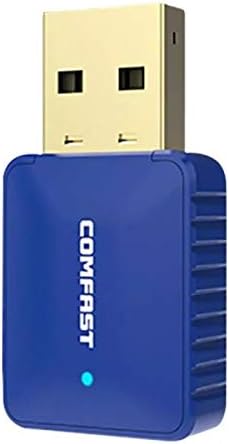
Abbildung 2: Seite view of the COMFAST CF-726B adapter. This image highlights the compact profile of the device, making it suitable for various USB ports.
5. Wartung
The COMFAST CF-726B adapter is designed for durability. To ensure its longevity and optimal performance, consider the following maintenance tips:
- Sauber halten: Periodically clean the USB connector with a dry, lint-free cloth to remove dust or debris.
- Vermeiden Sie physischen Schaden: Do not bend, drop, or expose the adapter to excessive force. Avoid pulling the adapter out by its casing; always grasp the USB connector firmly.
- Vor Flüssigkeiten schützen: Keep the adapter away from water and other liquids.
- Lagerung: Bewahren Sie den Adapter bei Nichtgebrauch an einem kühlen, trockenen Ort, fern von direkter Sonneneinstrahlung und extremen Temperaturen auf.

Abbildung 3: Vorder- und Seitenansicht view of the COMFAST CF-726B adapter. This perspective shows the overall dimensions and the blue LED indicator light.
6. Fehlerbehebung
If you encounter issues with your COMFAST CF-726B adapter, refer to the following common troubleshooting steps:
- Adapter nicht erkannt:
- Versuchen Sie, den Adapter an einen anderen USB-Anschluss anzuschließen.
- Starten Sie Ihren Computer neu.
- Ensure drivers are correctly installed. Reinstall drivers if necessary.
- Keine Wi-Fi-Verbindung:
- Vergewissern Sie sich, dass Ihr WLAN-Netzwerk aktiv ist und sendet.
- Überprüfen Sie, ob Sie das richtige WLAN-Passwort eingegeben haben.
- Ensure the Wi-Fi function is enabled on your computer.
- Versuchen Sie, Ihren Router/Ihr Modem neu zu starten.
- Bluetooth funktioniert nicht:
- Stellen Sie sicher, dass Bluetooth in den Einstellungen Ihres Computers aktiviert ist.
- Confirm your Bluetooth device is in pairing mode.
- Remember that the Bluetooth driver is nicht compatible with Windows XP/Vista.
- Entfernen Sie das Bluetooth-Gerät und koppeln Sie es erneut.
- Langsame WLAN-Geschwindigkeit:
- Ensure you are connected to the optimal frequency band (5.8GHz generally offers faster speeds if your router supports it).
- Reduce interference by moving closer to your Wi-Fi router or away from other electronic devices.
- Prüfen Sie, ob aktualisierte Treiber verfügbar sind.

Abbildung 4: Explosionsdarstellung view of the COMFAST CF-726B adapter. This image illustrates the internal chip (RTL8821CU) responsible for its dual Wi-Fi and Bluetooth functionalities.
7. Spezifikationen
| Marke | KOMFORT |
| Modell | CF-726B |
| Hauptkomponente | RTL8821CU |
| Drahtlose Standards | IEEE802.11a/b/g/n/ac |
| Bluetooth-Version | 4.2 |
| Schnittstelle | USB 2.0 |
| Frequenzbänder | 2.4GHz / 5.8GHz (Dual Frequency) |
| Max. Datenrate | 650 Mbit/s |
| Datensicherheit | WPA-PSK/WPA2-PSK, WPA/WPA2, WEP |
| Maße | 36 mm x 19 mm x 9 mm |
| Farbe | Blau |
| Unterstützte Betriebssysteme | Windows 7/8/8.1/10 (32/64-bit), MacOS 10.6~10.11, Linux Kernel 2.6.18~3.10 |
| Kompatible Geräte | Desktop-Computer |
8. Garantie und Support
8.1 Garantieinformationen
The COMFAST CF-726B adapter comes with a 12 Monate Garantie Diese Garantie gilt ab Kaufdatum und deckt Herstellungsfehler ab. Sie gewährleistet, dass das Produkt bei normalem Gebrauch wie beschrieben funktioniert. Bitte bewahren Sie Ihren Kaufbeleg für Garantieansprüche auf.
8.2 Kundendienst
For technical assistance, driver updates, or further inquiries, please refer to the official COMFAST website or contact their customer support channels. The product is supplied with additional documentation that may contain specific support contact details.